
There may be situations where you need to copy a preliminary section from another project or a master into your specification, rather than completing the blank section that was added from the content set. Typically this will be where the section in the other project or master is partly or fully completed with details identical or similar to the requirements for the current project. Usually, the blank section from the content set is deleted then replaced by the version being copied from the other project or master.
However it should be noted that many of the sections in a CAWS preliminaries specification, and sections PM_55, PM_60, PM_70 & PM_80 in a Uniclass preliminaries specification are tailored to the specific contract form selected when the preliminaries specification is created. Copying a section from another project or a master to your current project should therefore only be undertaken if both were created using the exact same form of contract. You can check each specification by navigating to specifications list in the project or master, clicking on the menu button for the specification and selecting the Edit details option. The form of contract used will be shown in the Contract field. You should also be mindful that anyone who has (or has had) editor access to the other project or master (i.e. an Administrator role or a contributor role on the specification) could potentially have deleted any of the originally added default sections for the form of contract and substituted them with a corresponding section for a different form of contract.
There are two methods by which a section, or multiple sections, can be copied from one project or master to another project or master:
TABLE OF CONTENTS
Copying a section using the action button
Firstly, navigate into the project containing the preliminaries specification contents to be copied and into the preliminaries specification itself. You will now be viewing the main contents list:
Next, place a tick in the checkbox or checkboxes at the left of the section or sections to be copied, a badge on the Actions button will show how many sections have been selected:
Click on the Actions button, then select Copy to. You will then be presented with a Copy selection to pop up window:
Select Projects. You will then be presented with a further Copy selection to pop up window:
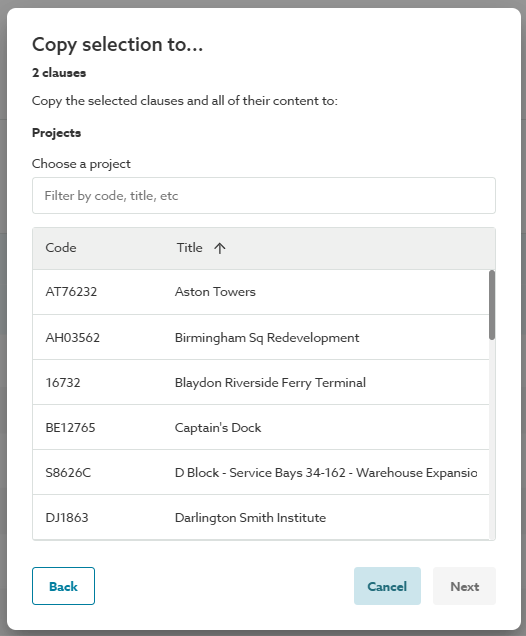
Find the required destination Project in the list. You can either, scroll up/ down to find the project, sort the list by clicking on either the Code or Title column heading (clicking a second time reverses the sort direction) and/ or filter the list by typing into the Filter by... field.
Select the destination Project from the list by clicking on it, then click the Next button.
You will then be presented with a further Copy selection to pop up window:
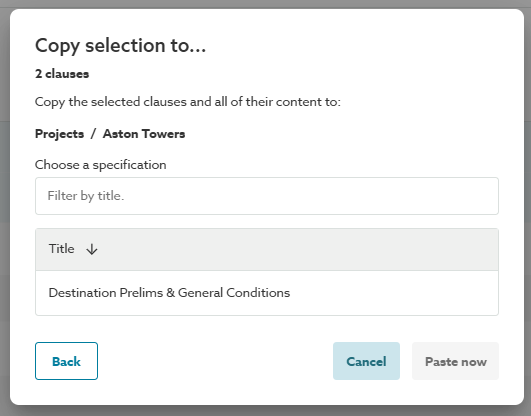
Find the required destination Specification in the list. You can either, scroll up/ down to find the specification or filter the list by typing into the Filter by title field.
Select the destination Specification from the list by clicking on it, then click the Paste now button. The selected content will be copied into the destination project and specification. A confirmation message will be displayed at the bottom of the screen.
Note: The Select specification list only displays the specifications in the destination project that are from the same content set as the source and that you have at least a contributor role on. If the destination specification cannot be located in the list it may be from a different content set or you may not have a sufficient role for the specification.
Tip: To quickly check your role on the specification and the content set:

Navigate to the Specification list in the destination project, your role for each specification is displayed in the Specification role column. To check the content set simply into the specification.
Note: Copying a preliminaries specification section does not copy across any spec notes from the source section.

Spec Notes is available with 'Pro' (and above) feature.
Copying a section using keyboard shortcuts
Firstly, navigate into the project containing the preliminaries specification contents to be copied and into the preliminaries specification itself. You will now be viewing the main contents list:
Next, place a tick in the checkbox or checkboxes at the left of the section or sections to be copied, a badge on the Actions button will show how many sections have been selected:
Press Ctrl + C (Windows) / CMD + C (Mac) on the keyboard to copy the selected sections to the system clipboard. A confirmation message will be displayed at the bottom of the screen.
Next, navigate into the destination project and into the destination preliminaries specification itself. You will now be viewing the main contents list:
Press Ctrl + V (Windows) / CMD + V (Mac) on the keyboard to paste the selected sections to the destination preliminaries specification. A confirmation message will be displayed at the bottom of the screen.
Note: Copying a preliminaries specification section does not copy across any spec notes from the source section.

Spec Notes is available with 'Pro' (and above) feature.
Other Articles in this series
2- Creating a new preliminaries specification
3- Copying a whole preliminaries specification from another project or a master
4- Deleting a preliminaries section
5- Searching for and adding preliminaries content
6- Copying a preliminaries specification section from another project or a master