
As a general rule, having created a new preliminaries specification it will contain all of the required preliminaries sections for the chosen form of contract.
There may however be situations where it is necessary to add preliminary sections, for example:
- An exception to the above-noted rule is if the Uniclass ‘General information’ form of contract was selected. For the ‘General information’ form of contract for UK Uniclass preliminaries, sections PM_55, PM_60, PM_70 & PM_80 will not be included. For the ‘General information’ form of contract for Australian Uniclass preliminaries, section PM_55 will not be included and will need to be created from scratch in a template section.
- If the preliminaries specification was created by copying a whole preliminaries specification from another project or a master, it will only contain the sections that were included in the source preliminaries specification at the time it was copied.
- If one or more sections have been deleted from the preliminaries specification.
The missing sections can either be added from the content set as outlined below, or copied from another project or a master.
TOPICS
- Adding authored template sections
- Troubleshooting
- If you don't see the required sections after the branch has been expanded in the browse tree.
- If you see a different style of add button for all or some sections.
- If you don't see any 'X in spec' count's for a CAWS preliminaries specification.
- If you don't see the 'X in spec' count's for the Uniclass contract specific sections (PM_55, PM_60, PM_70 or PM_80).
- Adding a template section for bespoke content
Adding authored template sections
Quick steps
1) Navigate into the project and into the preliminaries specification.
2) Click on the Add content button.
3) Adjust the search & browse filter options if necessary.
4) Expand the relevant main branch of the browse tree.
5) Add the required sections.
Detailed instructions
1) To add a section into your preliminaries specification, firstly navigate into the project and into the preliminaries specification itself. You will now be viewing the main contents list.
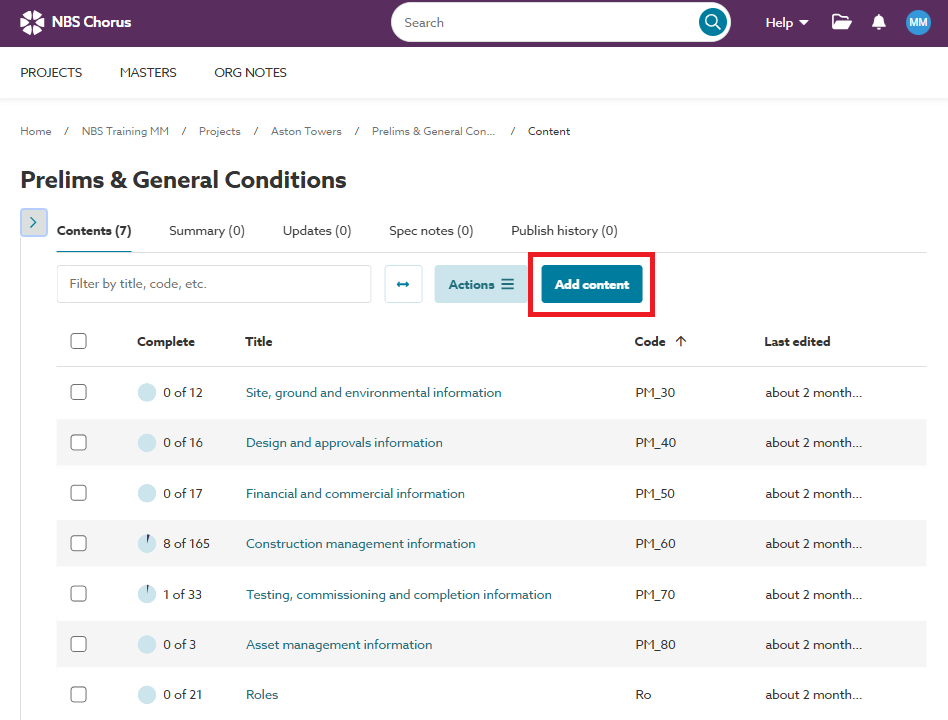
2) Click on the Add content button to be taken to the search and browse facility:
3) At the top of the search and browse facility there are a number of filter options which may need to be adjusted:
Contract filter options
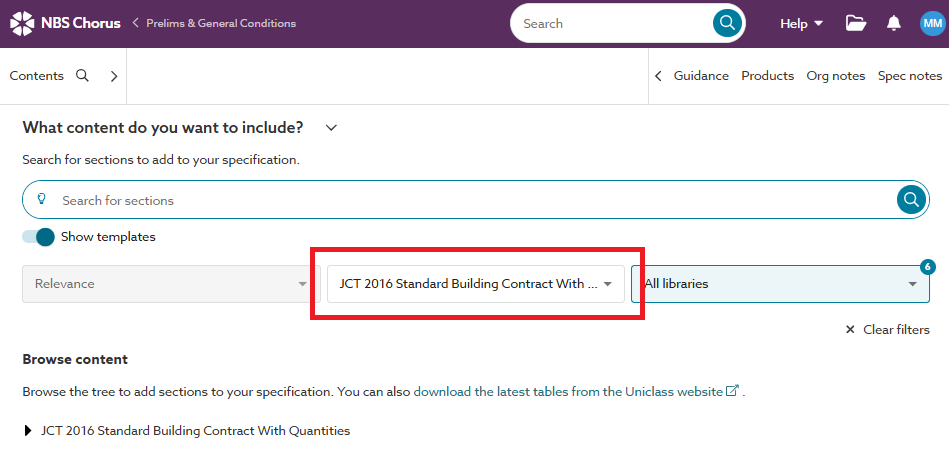
The Contract filter option is a drop-down selection field which will default to the specific form of contract selected when the preliminaries specification was first set up, this occurs each time you navigate into the search facility.
The options on the drop-down menu allow the selection of any other specific form of contract and an ‘All Contracts’ option. When a specific form of contract is selected, the browse tree will include only one main branch, applicable to that specific form of contract (as shown in the image above). When the ‘All Contracts’ option is selected, the browse tree will include multiple main branches, one for a template section at the top, and further main branches one for each form of contract:
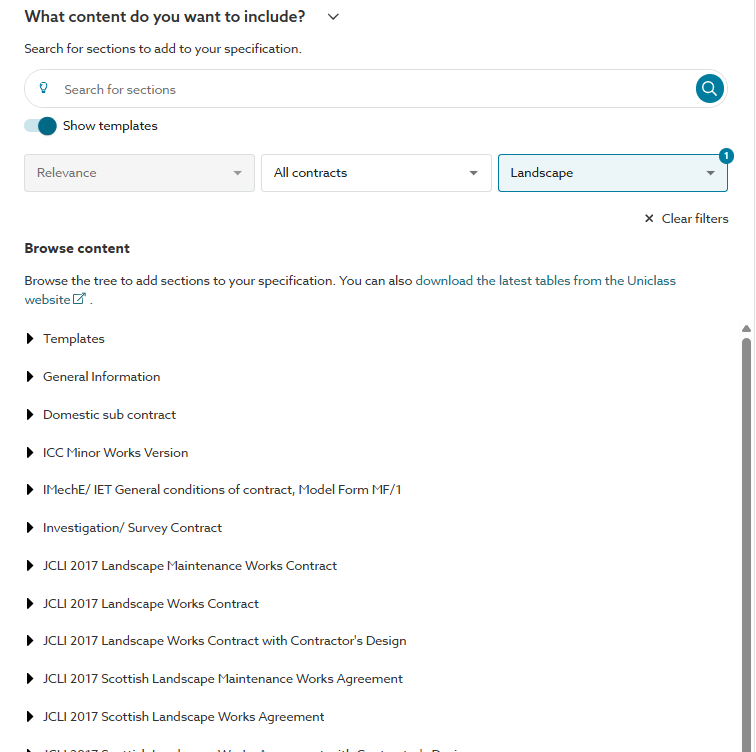
Under normal circumstances you shouldn’t need to change the contract filter option. Doing so would mean that you may be adding a section tailored to a different form of contract. The main exception to this would be if you have added a UK Uniclass preliminaries specification and had selected ‘General information’ for the form of contract when the preliminaries specification was created. And you are now wishing to add the contract-specific sections for the appropriate form of contract.
Libraries filter options

The Libraries filter option is a drop-down selection field which will default to how you had this selected last time you used the search or browse facility.
The options on the drop-down menu allow the selection of one or more libraries, or the ‘All Libraries’ option.
It is perhaps worth explaining the interconnection between the forms of contract and the libraries. Each form of contract is included in just one, several or all of the available libraries.
- For example, with CAWS, the 'Infrastructure Conditions of Contract (ICC) Minor Works Version' is available in all of the CAWS libraries (Building, Landscape and Small Works). Whereas the 'JCLI 2017 Landscape Works Contract' is only available in the Landscape library, and the 'JCT 2016 Constructing Excellence Contract' is only available in the Building library.
- For example, with Uniclass, the 'ICC Minor Works Version' is available in all of the Uniclass libraries (Architecture, Landscape, Structural, Services (Full) and Services Small Works). Whereas the 'JCLI 2017 Landscape Works Contract' is only available in the Landscape library, and the 'JCT 2016 Constructing Excellence Contract' is available in the Architecture and Services (Full) libraries only.
To check which forms of contract are included in each of the libraries, please visit our Scope and Contents page.
As such it is possible to select mutually exclusive options between the Contract and Libraries filter options. For example, it would be possible to select the 'JCLI 2017 Landscape Works Contract' as the form of contract in the contract filter, but exclude the 'Landscape' library in the libraries filter. In such circumstances, when that form of contract is expanded in the browse tree, it would appear to be empty with the CAWS content set, and would only display the 6 general information sections (PM_10, PM_30, PM_35, PM_40, PM_50 & Ro) with the Uniclass content set (i.e. the sections specific to that form of contract will not be displayed).
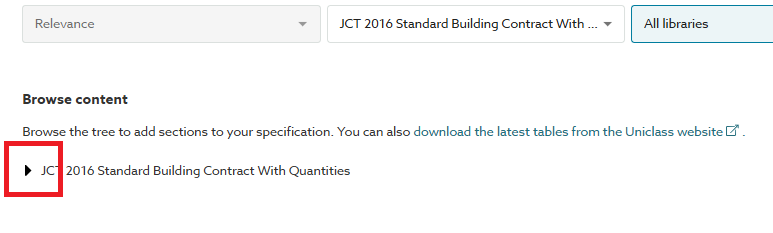
4) Under the heading Browse content, the main branch of the browse tree will display the name of the form of contract matching the one selected in the contract filter mentioned above. Or, if the 'All contracts' option has been selected, there will be main branches displayed for all forms of contract, scroll to find the branch for the applicable form of contract.
Expand this branch by clicking on the small triangle shown to the left of the contract form name:
5) You should now see all of sections applicable to this form of contact listed out and with a white plus symbol in a solid blue circle shown at the left of each:
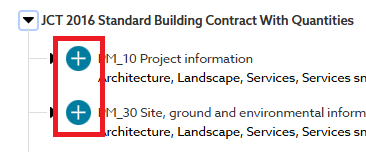
If you do not see these, or see a different style of add button please refer to the troubleshooting section below.
6) Providing the form of contract selected in the Contracts filter option is the same as the form of contract selected when the preliminaries specification was first set up. You will see a count of how many of each section are already in the specification. This is displayed after the section title as 'X in spec'. This can be used therefore to indicate which sections are currently missing from the specification and need to be added:
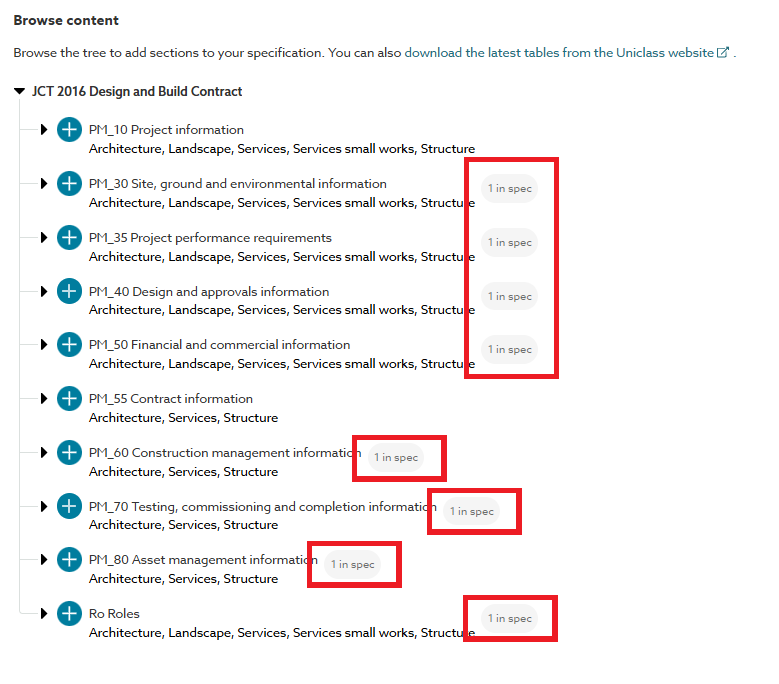
If you do not see any of these with a CAWS preliminaries specification, or any of these against the contract specific sections (PM_55, PM_60, PM_70 or PM_80) for a Uniclass preliminaries specification, please refer to the troubleshooting section below.
Troubleshooting
If you don't see the required sections after the branch has been expanded in the browse tree.
- With the CAWS content set, if there is nothing listed out beneath the branch of the browse tree.
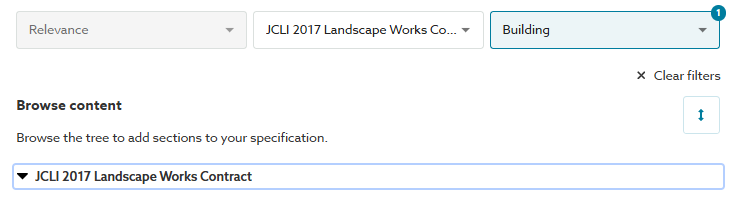
This indicates that you have selected a contract form which is not available in the library(s) you have selected. Change the libraries drop-down field selections to 'All libraries'.
- With the Uniclass content set, if you only see the 6 general information sections (PM_10, PM_30, PM_35, PM_40, PM_50 & Ro):
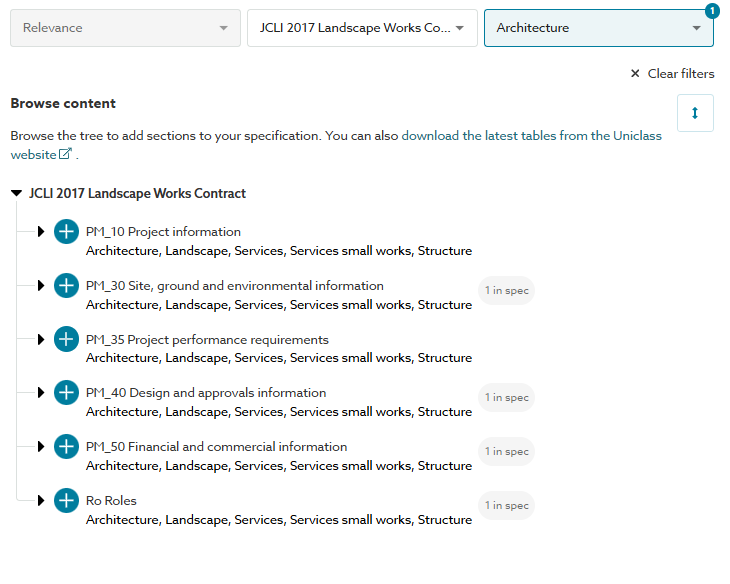
This indicates that you have selected a contract form which is not available in the library(s) you have selected. Change the libraries drop-down field selections to 'All libraries'.
If you see a different style of add button for all or some sections.
- With the CAWS content set, if you see a blue plus symbol in a blue circle, together with a 'Lock' icon, shown at the left of all the section titles:
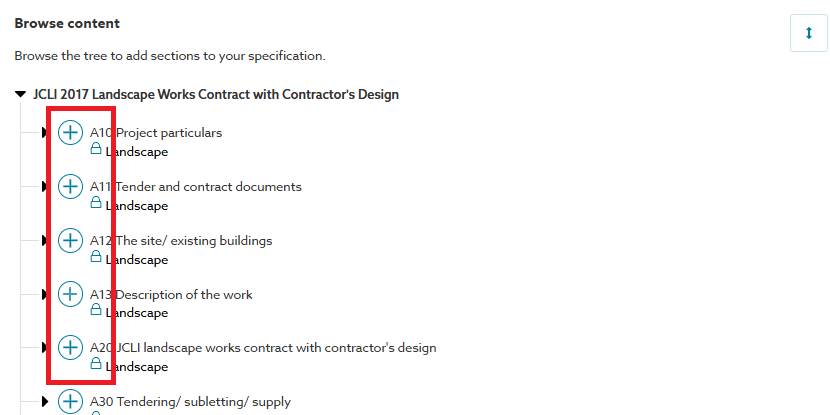
This indicates that the selected for of contract is not available with your current subscription.
- With the Uniclass content set, if you see a blue plus symbol in a blue circle, together with a 'Lock' icon, shown at the left of any of the contract specific sections (PM_55, PM_60, PM_70 or PM_80):
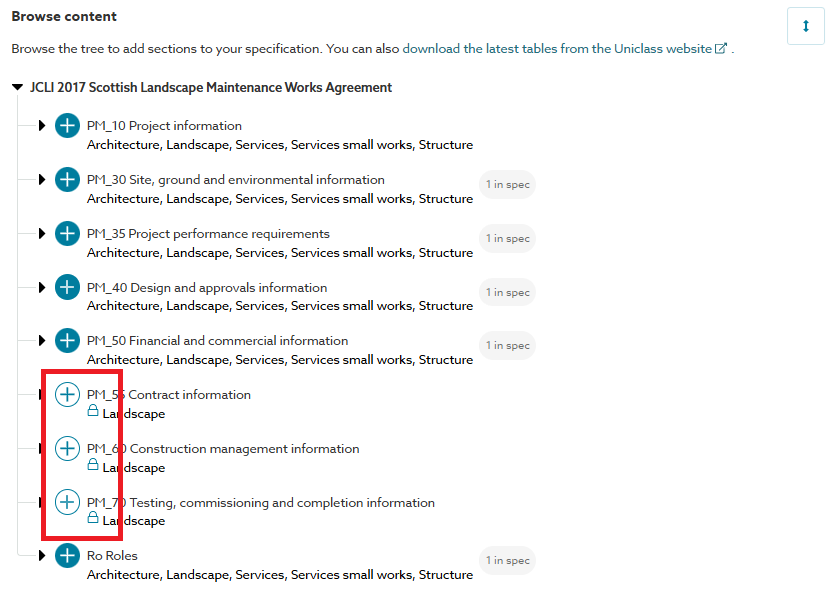
This indicates that the selected form of contract is not available with your current subscription.
If you don't see any 'X in spec' count's for a CAWS preliminaries specification.
This indicates that either, the preliminaries specification does not currently contain any sections, or the form of contract selected in the Contracts filter option is different to the form of contract selected when the preliminaries specification was first set up.
If you don't see the 'X in spec' count's for the Uniclass contract specific sections (PM_55, PM_60, PM_70 or PM_80).
This indicates that either, the preliminaries specification does not currently contain these sections, or the form of contract selected in the Contracts filter option is different to the form of contract selected when the preliminaries specification was first set up.
Adding a template section for bespoke content
Ensure the Show templates slider switch is turned 'on' (displayed in a blue colour) and the Contract filter option has the 'All contracts' option selected:
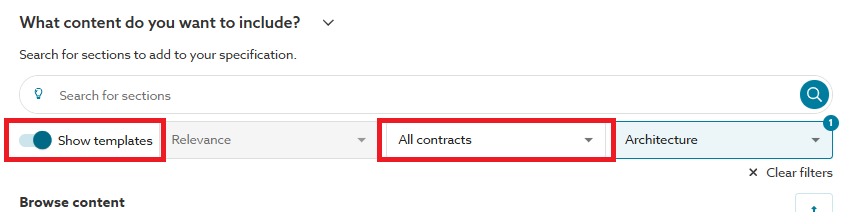
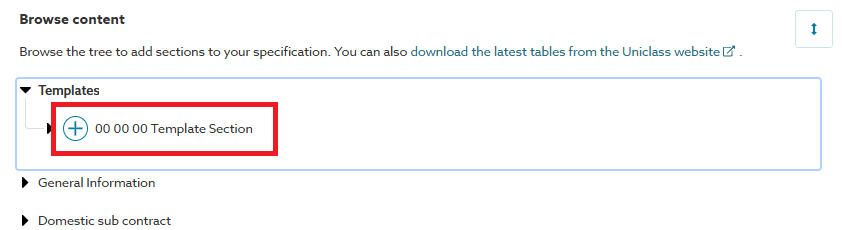
Scroll to the top of the browse tree and expand the Templates branch by clicking on the small triangle shown to the left of the item:
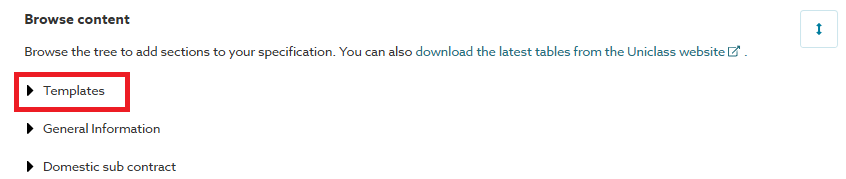
You will then see the 00 00 00 Template section option which can be added by clicking on the '+' (add) button:
Other Articles in this series
2- Creating a new preliminaries specification
3- Copying a whole preliminaries specification from another project or a master
4- Deleting a preliminaries section
5- Searching for and adding preliminaries content
6- Copying a preliminaries specification section from another project or a master