
This support article details publishing an entire specification. If you wish to publish a defined selection of content from your specification, please refer to the additional steps in the How to publish and export a selection of content from your specification topic. That support article details how to select the content you wish to publish. Once selected the remaining steps in the publication process are as detailed below.
TABLE OF CONTENTS
- Lattira Spec and NBS Chorus (1) subscription
- For Chorus Pro (or above) subscriptions
- Video overview of publishing your specification
Lattira Spec and NBS Chorus (1) subscription
If your organization has a Lattira Spec and NBS Chorus (1) subscription, the steps in this section detail how to publish your specification.
First, go to the project that contains the specification you want to publish. You will see a list of specifications within the project, each with a three-dot menu button on the right side.
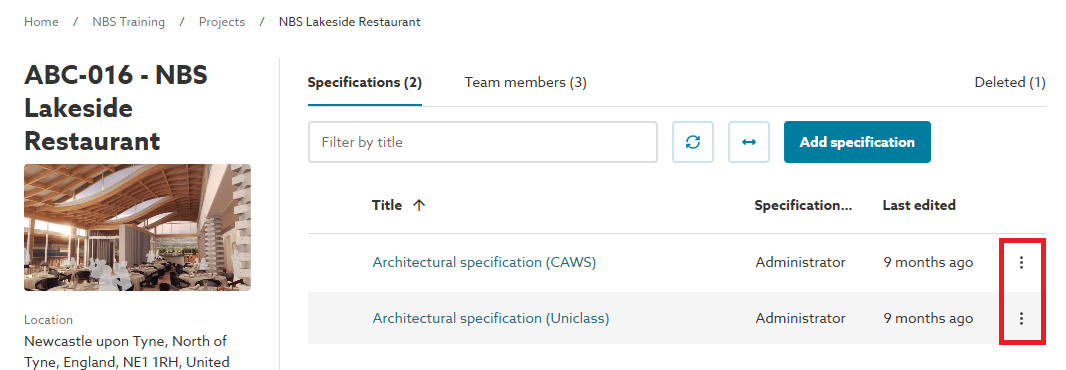
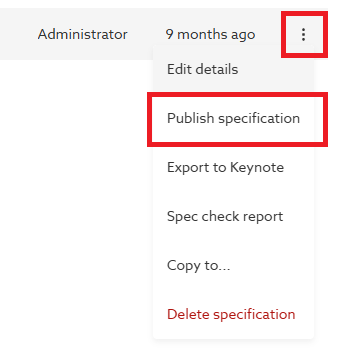
Click on the three dot menu button next to the specification you wish to publish, then select the Publish specification option.
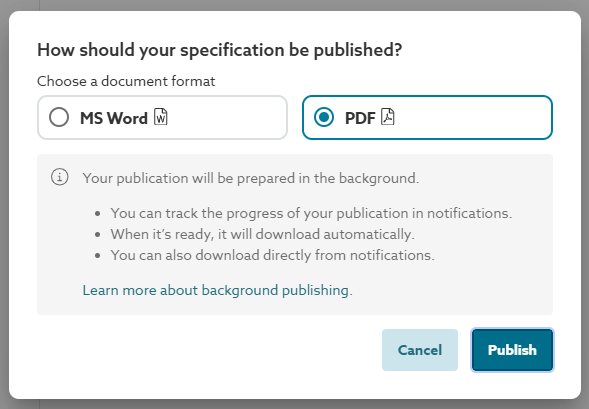
For the majority of content sets, you will see a dialog (as shown below), allowing either an MS Word or PDF document format to be selected for the published specification. Choose the required option, then click the Publish button. The specification document will be processed in the background. Once the publication process is complete, the document will be download to your computer/ device. Please refer to the Background publishing topic for further details.
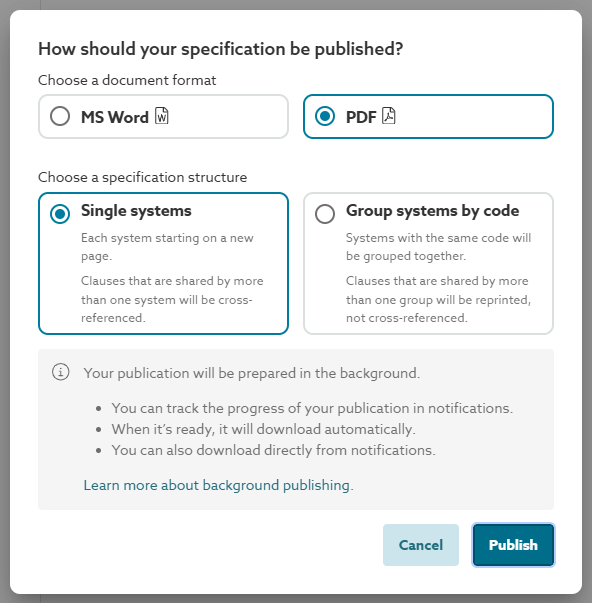
For AU/UK Uniclass Work Sections content sets, you will see a dialog (as shown below), allowing either an MS Word or PDF document format to be selected for the published specification. Additionally, you will see an option to choose the structure for the published specification. Please refer to the Publish by 'single systems' or 'grouped systems by code' for further details.
Choose the required options, then click the Publish button. The specification document will be processed in the background. Once the publication process is complete, the document will be downloaded to your computer/ device. Please refer to the Background publishing topic for further details.
For Chorus Pro (or above) subscriptions
If your organization has a 'Pro' (or above) subscription, the steps in this section detail how to publish your specification.
Firstly, navigate into project containing the specification you wish to publish. You will then see the list of specifications in the project, each of which will display a three-dot menu button at the right-hand side.
Click on the three-dot menu button next to the specification you wish to publish, then select the Publish specification option.
You will then see a full page publishing dialog with the titles of the 4 publication steps at the top of the page (as shown below). You can jump between these publication steps at any time by clicking on the appropriate step title. Clicking on the 'X' button in the top-right corner will cancel the publication process.
The Structure step
For all content sets, you will see the options as shown below.
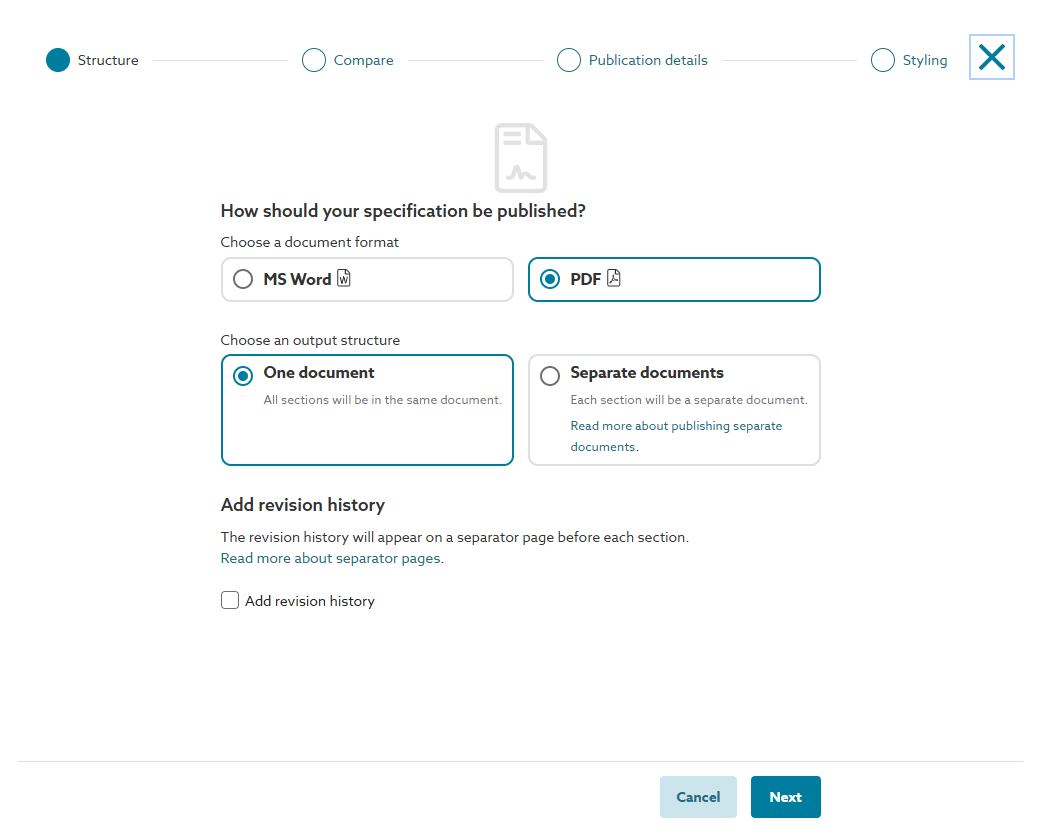
The Choose a document format option allows either an MS Word or PDF document format to be selected for the published specification.
The Choose an output structure option allows either the specification output to be a single document containing all of the specification content, or separate documents for each section/ system (if publishing an AU/UK Uniclass Work Sections specification, any Activity, Element/ Function and/ or orphaned Product clauses would also be published as separate documents). Please refer to the Publishing 'Separate documents' topic for further details.
The Add revision history checkbox is part of the Revisions suite of functionality. This can be selected (ticked) if you wish to include a table, on a separate page in front of each section or system, in the published output. This table will show the publishing history for each section/ system. Please refer to the Section/ System 'Revision history' topic for further details.
For AU/UK Uniclass Work Sections content sets, you will additionally see the Choose a specification structure option. This option allows you to choose the structure for the published specification. Please refer to the Publish by 'single systems' or 'grouped systems by code' for further details.
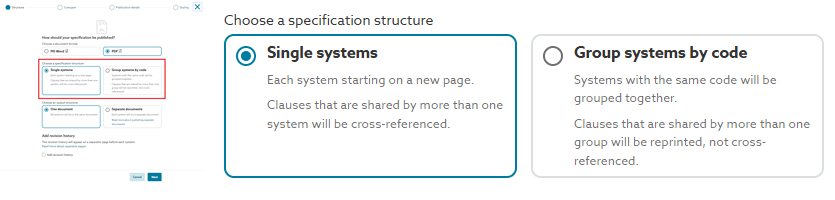
Choose the required options, then click the Next button.
The Compare step
The options in the compare step are all part of the Revisions suite of functionality.
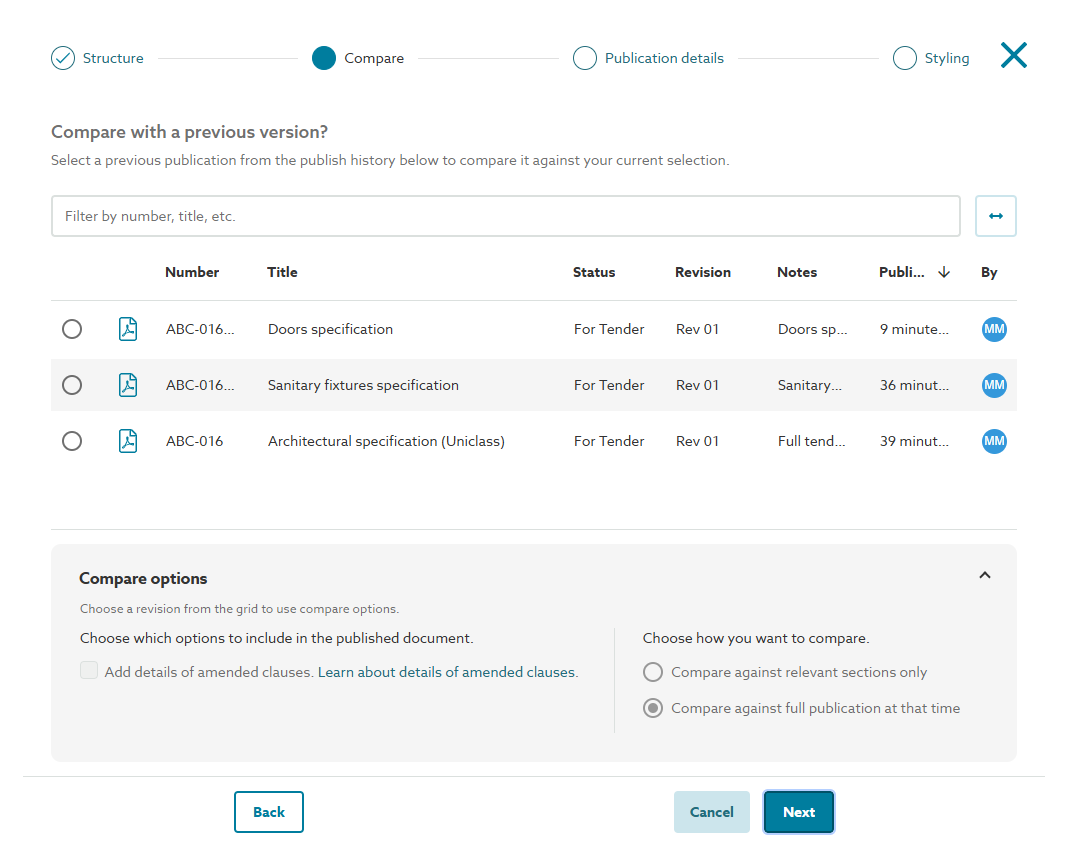
If you wish to compare the specification you are publishing now, with a previous version saved in your Chorus publish history, select (click) the radio (circle) button displayed at the left of the required previous version.
The Add details of amended clauses checkbox can only be selected (ticked) if you selected a previous version to compare to. Select this option if you wish to include a table, on a separate page* in front of each section or system, in the published output. This table shows which articles or clauses have changed for each section/ system. Please refer to the Details of amended articles and clauses topic for further details.
* If the 'Add revision history' checkbox was also selected at the structure step, the 'Revision history' and 'Details of amended clauses' tables will occupy the same 'separate page', if space allows.
The Choose how you want to compare options will only be available if you have selected (ticked) a previous version to compare to, and that version was published as a selection of content from the specification. Please refer to the 'Compare options' for publishing topic for further details.
For Chorus Premium subscriptions, you will also see an Add detailed revisions checkbox. Select this option if you wish to include details how the specification text has changed. Please refer to the Detailed revisions topics for further details.
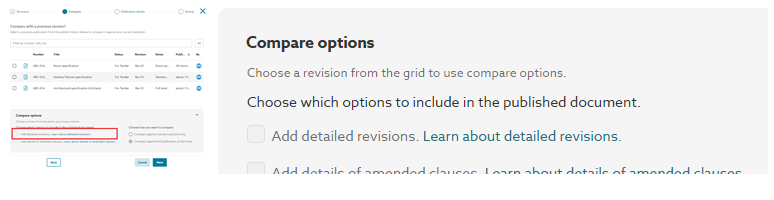
Choose the required options, then click the Next button.
The Publication details step
The fields in the publication details step allow you to:
- Choose whether or not to save the version that you are publishing now to the 'Publication history'.
- Include additional information about your publication.
- Change the filename of the published document(s).
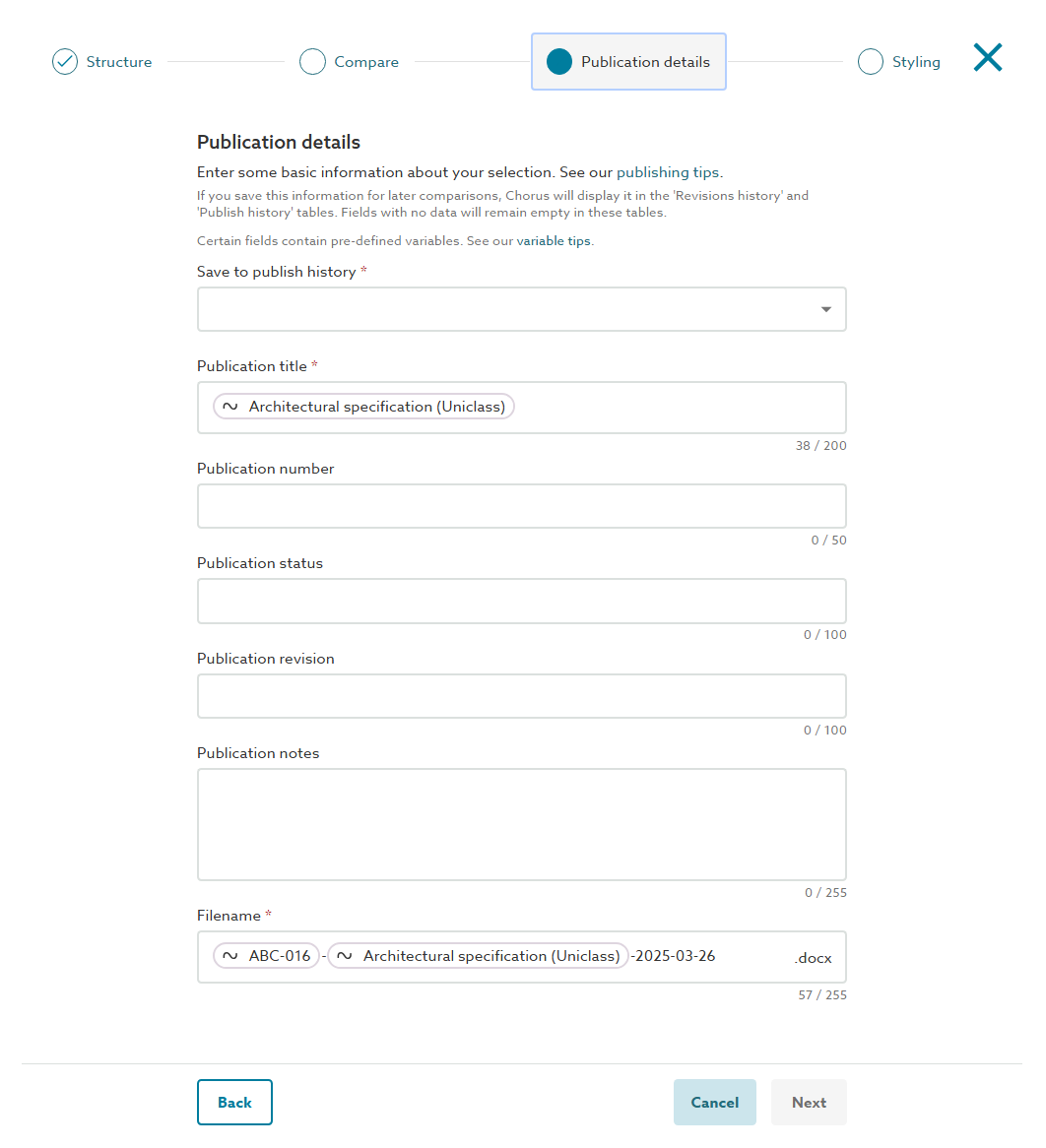
The Save to publish history field is a drop-down selection field that must be completed each time you publish a specification.
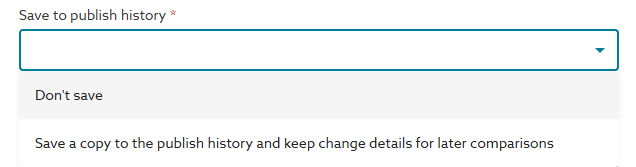
- Choosing the Save a copy... option will save a copy of what you are publishing now to the 'Publish history'. This will allow you to compare back to this version of the specification when subsequently publishing the specification. Additionally, it will allow you to re-download or re-publish this version of the specification at any point of time in the future.
- Choosing the Don't save option, wouldn't save a copy of what you are publishing now.
The Publication title field will default to the title of the specification you are publishing, but may be amended if desired.
The Publication number, Publication status and Publication revision fields are all optional fields into which you can enter your desired document control information. Any of these fields if used will appear on the cover page of the published document(s) when using the standard publishing format ('Default stylesheet template' option is selected at the next 'Styling' step).
The Publication notes field is also an optional field into which you can record additional information about the publication. For example, what it represents or why this version is being published. The publication notes field is not included in the published document(s) when using the standard publishing format (Default stylesheet template option is selected at the next 'Styling' step), but may be included if you use one of your organizations custom stylesheets.
The Filename field is the name the published specification document will have when it is downloaded. If you chose the 'Separate documents' option at the 'Structure' step, the file name you see here will be the filename of the zipped folder. The filenames of the individual files for each section will be as you see here, with the section/ system code added. For AU/UK Work Sections specifications, the suffix of the system will also be included.
Please refer to the Entering publication details and saving to the publish history and Entering publication details when working to the ISO 19650 series of standards topics for further details.
Choose the required options, then click the Next button.
The Styling step
The styling step allows the output style and format of published document(s) to be selected.
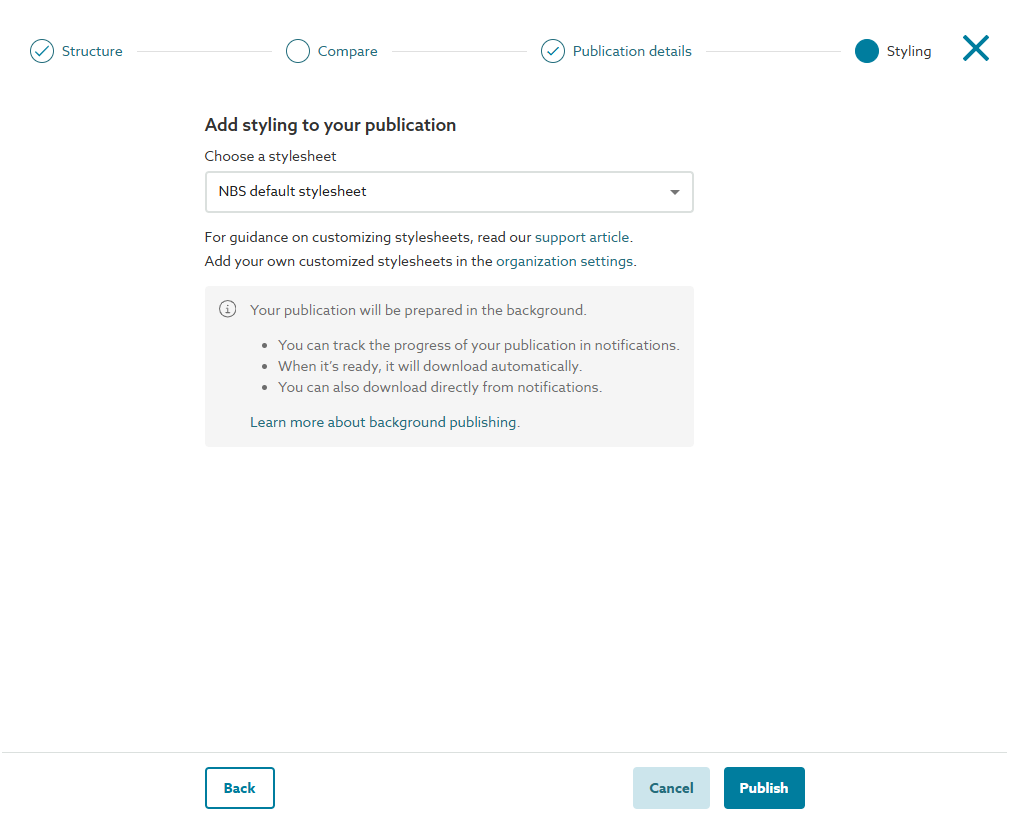
If your organization has set up one or more custom stylesheets, one of those may be pre-selected in the Choose a stylesheet drop-down field; you will see the 'Default stylesheet template' pre-selected. If you wish to choose a different stylesheet, click into this field and select the appropriate one that you wish to use.
If you see a custom stylesheet in the list displayed in italics and appended with (Inactive), this indicates a stylesheet that has been uploaded, but not yet 'Activated' for general use within your organization. These will be visible to you, as you are a Chorus Organization Administrator for your organization, for testing and evaluation purposes.
For Chorus Premium subscriptions, you will additionally see a Choose tags drop-down field. If you wish to choose one or more tags to include below the article, clause or section code and title, click into this field and select (tick) the appropriate option(s). Please refer to the Tagging - an overview for further details.
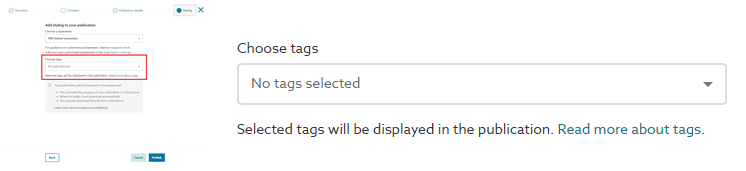
Please note: if you wish to publish a selection of content based on the tags that have been added, please refer to the additional steps in the Publish specification for tagged items topic.
Choose the required options, then click the Publish button. The specification document(s) will be processed in the background. Once the publication process is complete, the document(s) will be downloaded to your computer/ device. Please refer to the Background publishing topic for further details.
Video overview of publishing your specification
The short video (no audio) below demonstrates how to publish your specification.