
When you click 'Publish', your document is processed in the background.
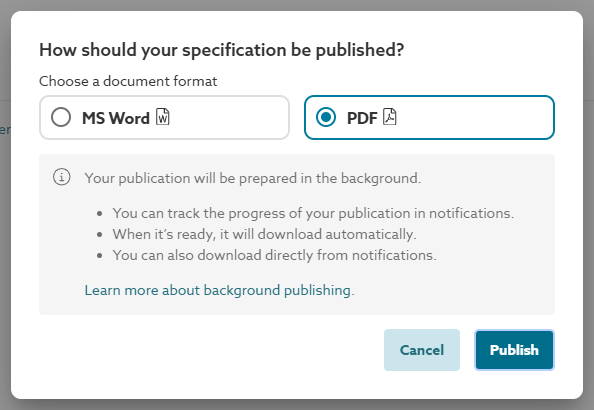
Screenshot of the message shown above the 'Publish now' button, indicating specifications will be prepared in the background.
What happens when I 'Publish' my specification?
These are the steps to publish your specification.
- You click 'Publish'.
- The 'Notifications' menu will open.
- The 'Recent publications' will show your 'Publication title' and a spinner to indicate that the platform is processing the document.
- When the publishing task is complete:
- The notifications menu bell icon will show an animation - it will shake.
- The 'Recent publication' notification will say the publication title is 'Complete'.
- Your specification will automatically download.
- A confirmation message will display the 'Publication title' of the downloaded file.
A screenshot shows the confirmation message when your specification file downloads.
The notifications menu will show your recent publications for 7 days. You can re-download recent publications from the notification menu.
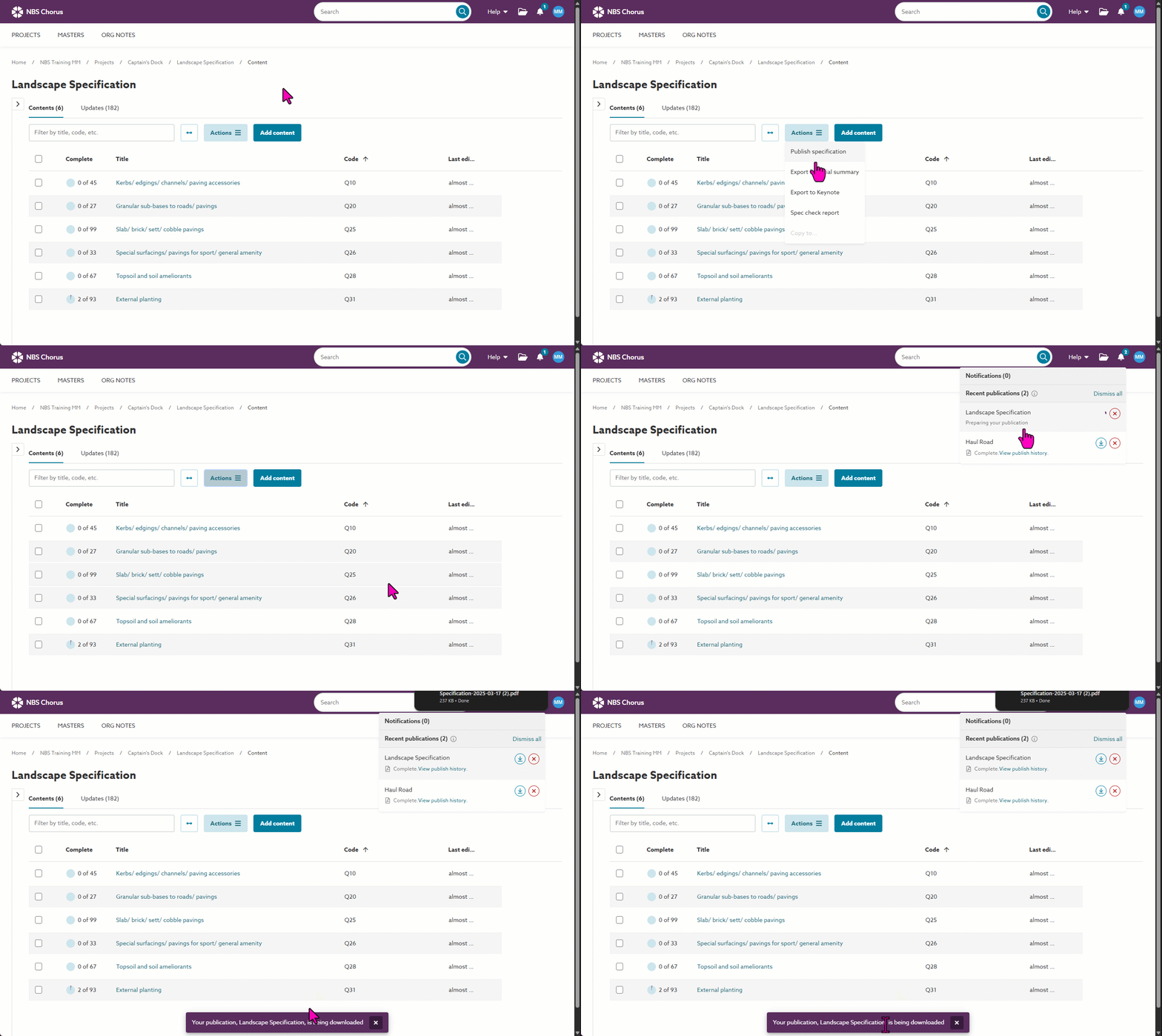
Screen capture showing the background publishing.
About the 'Recent publications' notifications menu
The 'Notifications' menu in the top-right corner contains a 'Recent publications' section.
The 'Recent publications' will show:
- Your publishing jobs are in progress. You will see the 'Publication title' and a purple spinner.
- All specifications you published in the last 7 days for the organization you are signed into.
- The 'Recent publications' notifications are organization-specific. So if you specify for other organizations, you will see the recent publications for the organization you are signed into.
- The notification menu displays publications from the past 7 days. After this period, the notification is automatically removed.
- A 'Download publication' icon.
- When your publish job is complete, your file is automatically downloaded.
- If you, for example, sign out of the specification platform before your publication is completed, you can download it from the notifications menu the next time you sign in.
- The 'Notifications' menu will show recent publications for 7 days unless you delete the project, master folder or spec or dismiss the notification.
- 'Dismiss all' and 'Dismiss publication' icons.
- You can remove recent publications from the notifications menu. The platform automatically removes them after 7 days, but you can remove them before then.
- 'Dismiss all' will remove all of the recent publications.
- 'Dismiss publication' (icons) will remove the individual recent publication.
- 'View publish history' is shown when the specification was saved to the Publication history. This is a 'Pro' (or above) feature.
- Clicking 'View publish history' will open the publish history for the specification.
- The notification is cleared from the 'Notifications' menu after 7 days.
- 'Expires in X days/ X hours/ X minutes' is shown when the specification is not saved to the publish history (saving to publish history is a Pro (and above) feature). The platform holds your recent 'unsaved' publications for 7 days.
- The platform hosts unsaved publications for 7 days, after which it automatically downloads the file.
- After 7 days, the document is deleted, and the recent publication notification is cleared from the 'Notifications' menu.
Screenshot showing the 'Recent publications' part of the 'Notifications' menu.