
The Schedule shows all the items (articles or clauses) that have been selected for inclusion in the ‘summary schedule’.
Related articles:
How to tag items for the schedule
How to enter text into the schedule 'Description' column
How to export your Schedule to MS Excel
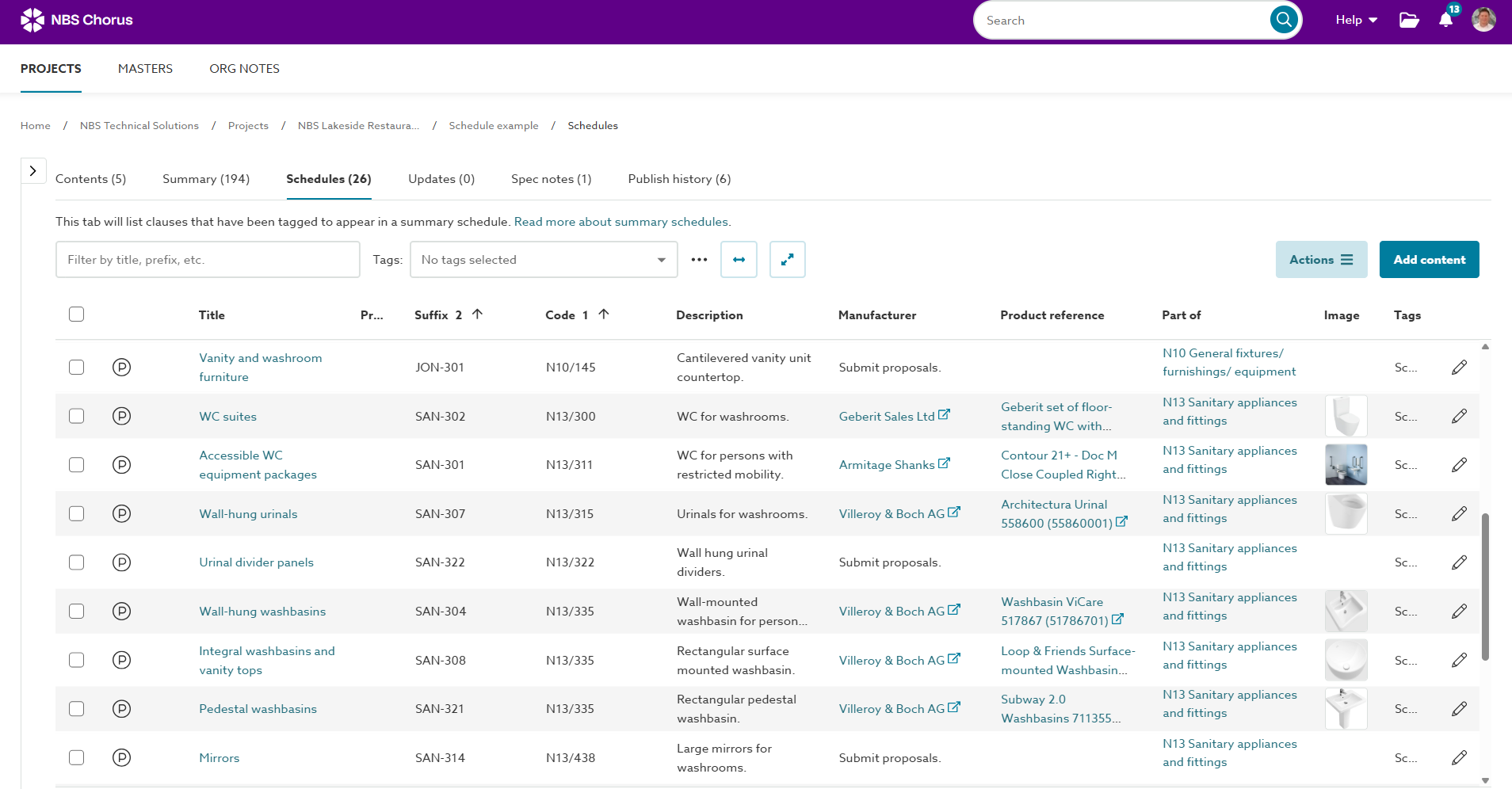
The Schedule has columns that contain the following information from the specification:
| Column | This column shows |
| Selection checkbox | The checkboxes next to each row in the schedule grid enable you to select items for publishing and perform 'Actions'. Choose your desired options and click the 'Actions' button. When no rows are selected, the platform will perform the action or publish the whole schedule. |
| Park button | For sectional content only. The park button next to each row in the Schedule grid lets you park or unpark the item. Parked content is shown 'greyed out' and scored through in the grid.  To enable 'parked' content to be shown in the grid, ensure the 'Show parked clauses'/ 'Show parked articles' checkbox is ticked. This setting is accessed from the 3-dot menu button located above the grid. 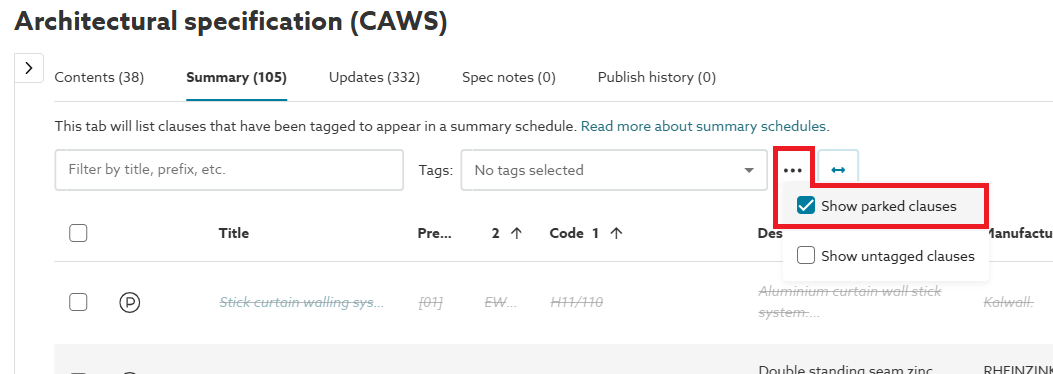 Related article: Parking unwanted information from your specification |
| Title | The title of the articles or clauses. These will be the same as the titles in the spec editor. Clicking on the title opens the item in the spec editor. |
| Prefix | The article/ clause prefix. Suggestion: Some specifiers use this field to add additional static information, such as design responsibility and work package number. |
| Suffix | The article/ clause suffix. Suggestion: Use this field for unique references such as drawing references or T-sheet codes. When articles/ clauses are duplicated, the next reference in the sequence is inserted automatically. For example, duplicating an article/ clause with a suffix containing ‘Type A’ will result in the new one having the suffix ‘Type B’.
Related article: Adding additional clauses and systems when a user has edited the suffix |
| Code | The code column combines the section and article/ clause codes for sectional content, or the clause code for Uniclass Work Sections content. |
| Description | The text in the ‘Description’ row in the article/ clause. The intention is to include a short text-based summary. Please note: although this field will accept tables and images, they are not exported to the MS Excel Summary schedule. Related articles: How to enter text into the Summary schedule 'Description' column |
| Manufacturer | The text in the 'System manufacturer', ‘Manufacturer’, ‘Supplier’ or ‘Supplied by’ row in the article/ clause. |
| Product reference | The text in the 'Product reference' row in the article/ clause. |
| Part of | The parent section/ clause that the scheduled article/ clause is included in. |
| Image | The image of the manufacturer's product that has been added to the article/ clause via the ‘Products’ panel, or by pasting from Source. The ‘Products’ panel and Source contain product data templates and sample images from manufacturers. Related section: Specifying construction products |
| Pencil icon | Edit details of each Summary schedule item using the ‘Pencil’ icon. Clicking the pencil icon will open the dialog to quickly edit the summary schedule fields without having to go to the article/ clause in the editor. The pencil icon is displayed to users with contributor permissions (and above) to the specification. The pencil icon is hidden for users with a ‘reader’ or 'designer' permission on the spec. Related article: Inviting someone to collaborate on a project |