
Please note: This article refers to projects and specifications throughout, however the same statements also apply to master folders and masters.
Please Note: Inviting users from outside your organization to collaborate on a project is only available for Pro and Premium subscribers.
Think of projects on the platform like folders on your computer. Each project holds the job’s details and the team members working on it. This article shows you how to invite team members and manage users in your project.
Before you can invite someone to join a project, make sure the project is already set up and that you have Administrator access. If you created the project, you automatically have this access.
You can invite people one at a time or as a group. This article covers how to invite individuals. For group invitations, see the Group permissions topic.
Projects are private by default. They are only included on the 'My projects' dashboard for the team members who have been permitted to access them. We recommend inviting everyone who is working on it. This includes members of the administration or management team who are not necessarily directly involved but need visibility of it.
TABLE OF CONTENTS
- What happens when you invite someone to a project
- Navigating to the 'Invite users' page
- The 'Invite users' page
- Video overview of inviting users to projects & master folders
- Project invitation validity period
- Revoking a project invitation
- Removing a user from your project
- Changing permissions/ roles for a user in your project
Related articles:
Collaboration roles and permissions - Projects
Inherited permissions for specifications
Roles and permissions - for the platform
‘All projects’ for the organization
What happens when you invite someone to a project
- They are sent a project invitation email from 'no-reply@theNBS.com' or 'no-reply@lattira.com'.
- If they already use the platform, they will also see a project invitation notification in the notifications menu (via the Bell icon in the top right corner of the project dashboard).
- When they accept the invitation, you will receive an email confirming this.
- Project invitation will expire after 30 days. This is unlike invitations to the organization which do not expire.
Related article Adding Users to your organization- If someone does not accept their project invitation before it expires, the invitation will be shown as expired.
- To reissue the invitation, remove them from the team members tab and re-invite them.
Navigating to the 'Invite users' page
To invite a person/ people to your project, navigate to the Invite users page.
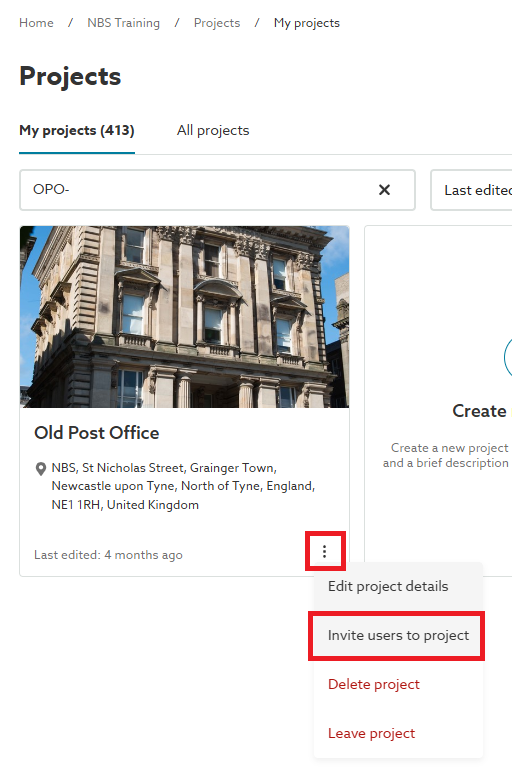
Either click on the three-dot menu button for the project on your project dashboard, then select the Invite users to project option.
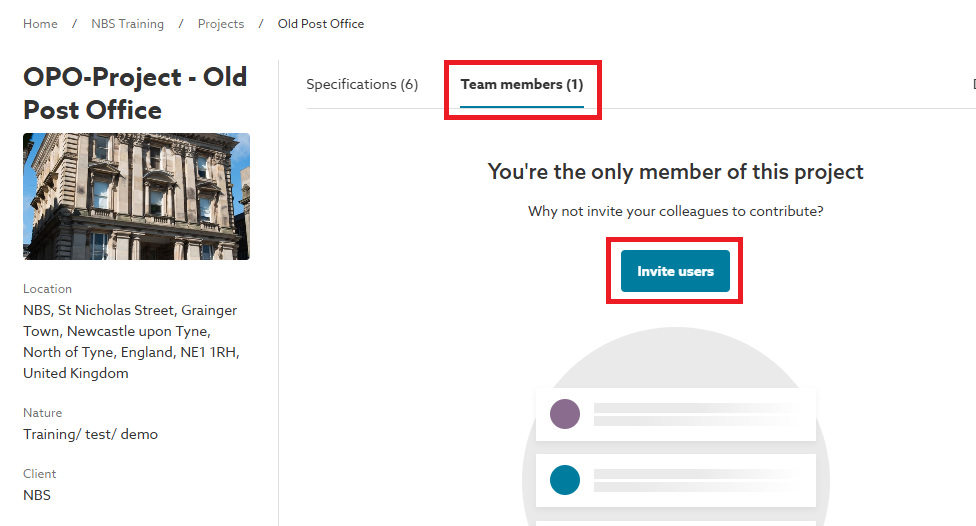
To invite team members, click into the project, then navigate to the Team members tab at the top of the specifications list, and click the Invite users button. If you're the only user, the button will be shown as below; if others are already invited, it will be located at the top right of the Team members list. list, if other users have already been invited into the project.
The Invite users page will then be displayed.
The 'Invite users' page
The next section explains how to invite people to your project. If you have a Premium subscription and want to invite an entire group, or both individuals and groups, see the Group permissions topic for more details.
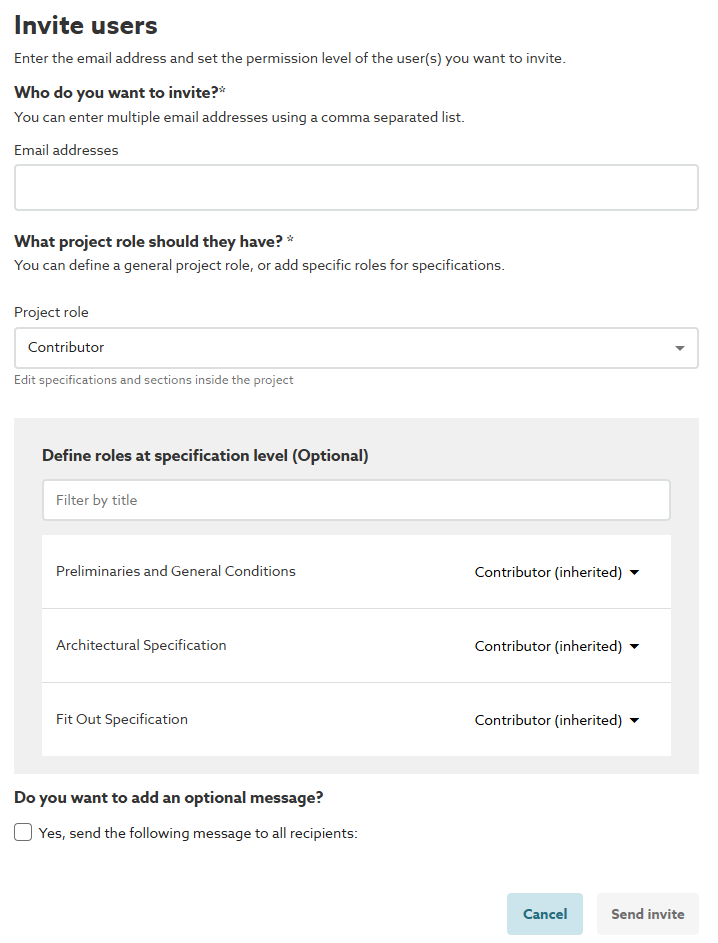
Once you have navigated to the Invite users page, you will see a page similar to that shown below.
The Email addresses field
In the Email addresses field, start entering the email address of the person you wish to invite to your project. As you begin to type, any email address(es) matching a registered 'Organization users' will be displayed in a drop-down list. Continue typing the email address to further filter the list.
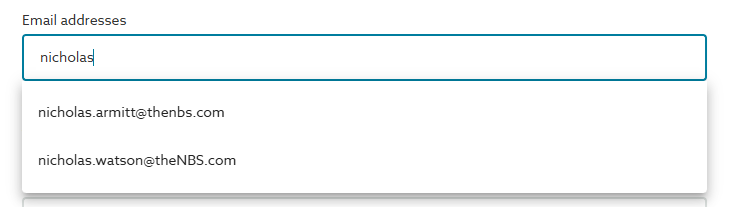
When you find the email address of the user you want to invite, click on it to select and input their complete email address. It will then appear inside a rounded rectangle.
Alternatively, to view a complete list of all registered 'Organization users', enter any character from your organization's email domain. For example, in the email address above, the domain part (@thenbs.com) indicates that typing the letter 'n' alone into the email address field will list all 'Organization users' associated with that domain in the drop-down menu.
If the email address of the person you wish to invite is not displayed in the drop-down list, they are not registered as an 'Organization user'. Continue to enter the full email address of the person you are inviting and press the Return/ Enter key on the keyboard. These users are referred to as 'Guests' within your organization.
- For Pro (or above) subscriptions, you can invite both internal users (i.e. colleagues who have the same email address domain as you, e.g. for Hubexo colleagues that would be '@Hubexo.com'), or external users (i.e. a person outside of your organization, such as other members of the project team, with any email address domain).
- For standard subscriptions, you can only invite internal users (i.e. colleagues who have the same email address domain as you, e.g. for Hubexo colleagues that would be '@hubexo.com').
Please note: Guests are subject to additional restrictions when they access the project you have invited them to. For example:
- Guests cannot access the 'All projects' dashboard.
- Guests cannot access the 'Active users' area.
- Guests will be displayed as 'Guests' in the 'Active users' area to Org Users, the guest's full name will be shown in the 'Active users' area to Org Admins.
- Guests cannot see 'Organization notes'.
- Guests will not see the 'Team members' tab in the project if the guest has the 'Limited' project role is selected for them.
Repeat the above for each additional use you wish to invite.
Alternatively, if you have a list of users (in a comma-separated format) paste that list into the Email addresses field and press the Return/ Enter key on the keyboard. All of the email addresses will then be displayed in rounded rectangles.
The Project role field
This will be the project level permissions for the person or people you are inviting. Please note that the level you set here will be inherited by any existing or subsequent specifications within this project (unless you change this at individual specification level).
Click into the Project roles field and select the required project role.
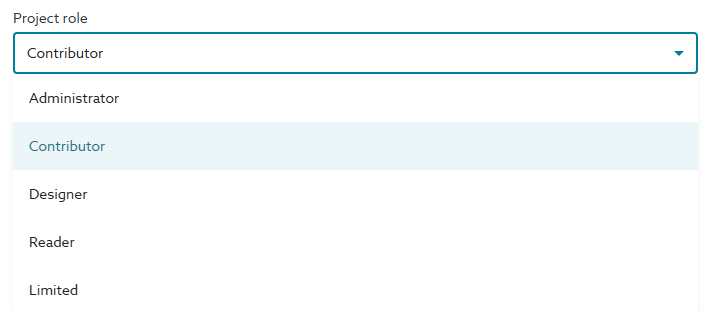
Please note: the Limited role/ permission is known as Excluded at the specification level (next step) as no access to that specification is granted at this lowest level.
Please refer to the Collaboration roles and permissions - Projects & master folders topic for full details of what the different permission options would allow, or not allow. In summary however:
- If you wish to provide full control over all aspects of the project and all current or subsequently added specifications in the project, select the Administrator role.
- If you do not wish to provide control at the project level, select one of the alternative four options. Although the specification level permissions can be set/ amended on a spec-by-spec basis in the next step, it is import to note that the choice of Contributor, Designer, Reader or Limited here, will become the default specification level permissions for all of the specifications currently in the project AND any specification subsequently added to the project at a later time.
You may therefore wish to select a different role here, than you wish to provide for the current specifications (which you can choose at the next step). For example, you may wish to select a Reader role here, even if you wish to provide a Contributor role on all of the current specifications at the next step. This way, any future specification added into the project would inherit a reader role by default for the user(s) you are inviting.
The Define roles at specification level field
This section of the invite users page will not be displayed if the Administrator role has been selected above. As, in this case, all current and subsequently added specifications will be available to the invited user(s) with full access (e.g. equivalent to a Contributor specification role).
Each of the current specifications in the project will be listed here, with each defaulting to (inheriting) the role selected in the project role field above. Please refer to the Collaboration roles and permissions - Projects & master folders topic for full details of what the different permission options would allow, or not allow.
- The inherited role may be left selected for any (or all) of the listed specifications. The invited user(s) will then have that role on the specification unless/ until, either, the specific role is subsequently changed for that user and for that individual specification. Or, the project role is subsequently changed for that user, in which case, all specifications in the project which were left/ set with the inherited role will then have the new role for that user, matching the then selected project role. In other words, leaving the inherited role here for each specification (and selecting the desired current role in the project role field above) would allow you to change the specification permissions en masse slightly more easily for that user subsequently.
- Alternatively, select the desired specific role for each specification from the drop-down button/ list at the right of each specification. The invited user(s) will then have those spec-by-spec roles unless/ until a specification role is subsequently changed for that user and for that individual specification. In other words, this allows you select different roles for each specification individually, either matching or different to the project role selected in the field above.
Do you want to add an additional message?
When the project invitation is delivered to the invited user(s) they will receive a Project invite notification via the Bell icon in the platform.
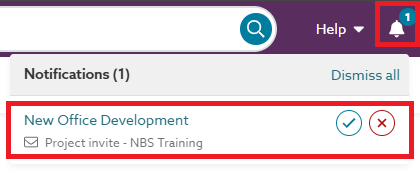
They will also receive a project invitation email.
If you wish to include an optional message for the person(s) you are inviting to the project, this can be done by selecting (ticking) the Yes, send the following message to all recipients checkbox.
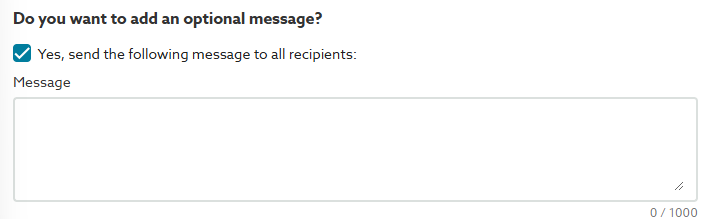
The Message field will then be displayed, in which you can enter your desired message.
Please note: the message will be included in the project invitation email; it will not be visible within the platform.
Video overview of inviting users to projects & master folders
The short video (no audio) below demonstrates how to invite users to a project (the same process can be used to invite users to a master folder).
Project invitation validity period
Project invitations will be valid for 30 days, after which they will expire, and the user will not be able to accept the invitation. However, you can revoke the invitation at any time. See below.
Revoking a project invitation
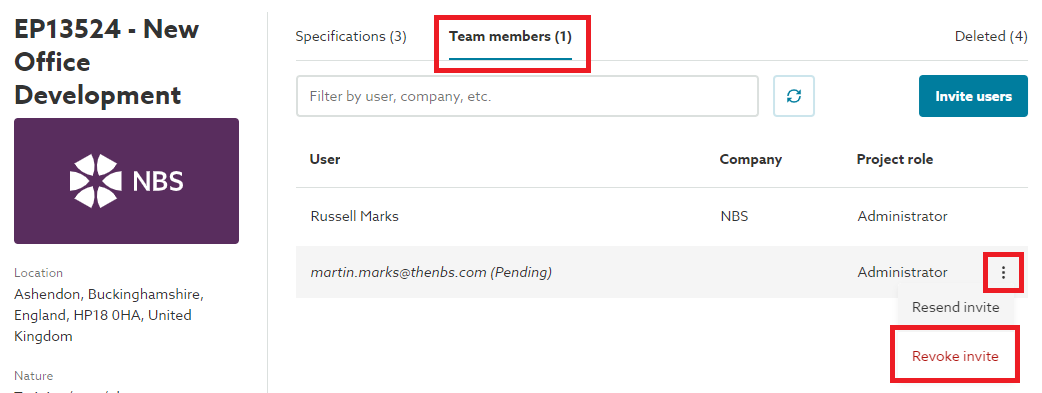
To cancel a previous project invitation before it's accepted, you need to revoke the invitation on the platform. Go to the Team members tab in the project, locate the pending invitation for the user, click the three-dot menu, and choose the Revoke invite option.
Removing a user from your project
If you wish to remove a user after they have accepted a project invitation. Navigate back to the Team members tab in the project. Find the user in the team members list, then click on the three-dot menu button and select the Remove user option.
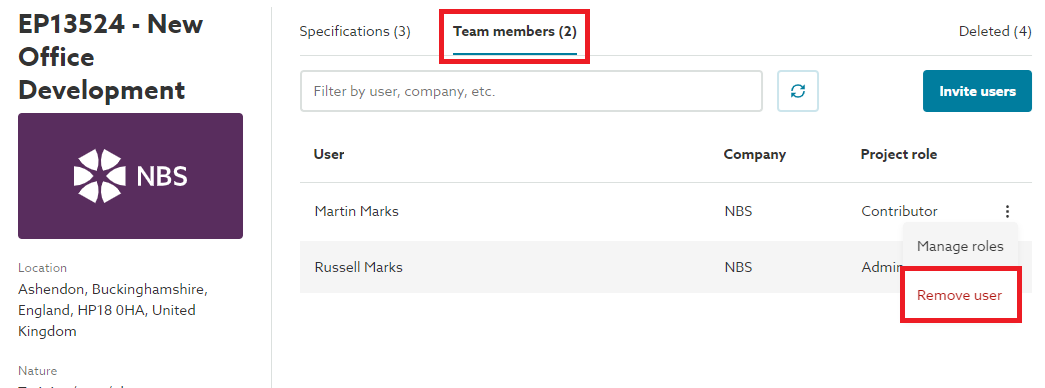
The project will be removed from the user's 'My projects' dashboardm and the user will no longer be able to access the project.
Changing permissions/ roles for a user in your project
If you wish to change the permissions/ roles of an individual user in your project. Navigate back to the Team members tab in the project. Find the user in the team members list, then click on the three dot menu button and select the Manage roles option.
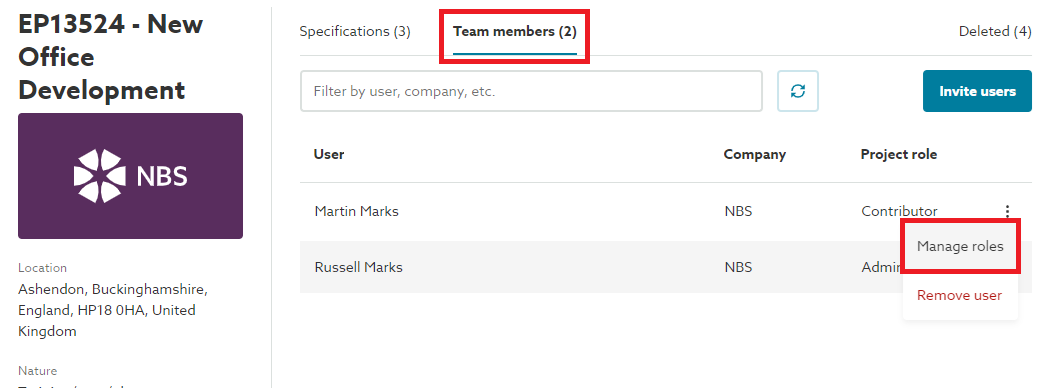
A dialog will open allowing the roles to be amended as needed.