
This article explains how to publish your schedule and what the report contains.
Steps to export schedule:
- Click into the applicable project and specification.
- Click on the 'Schedule' tab.
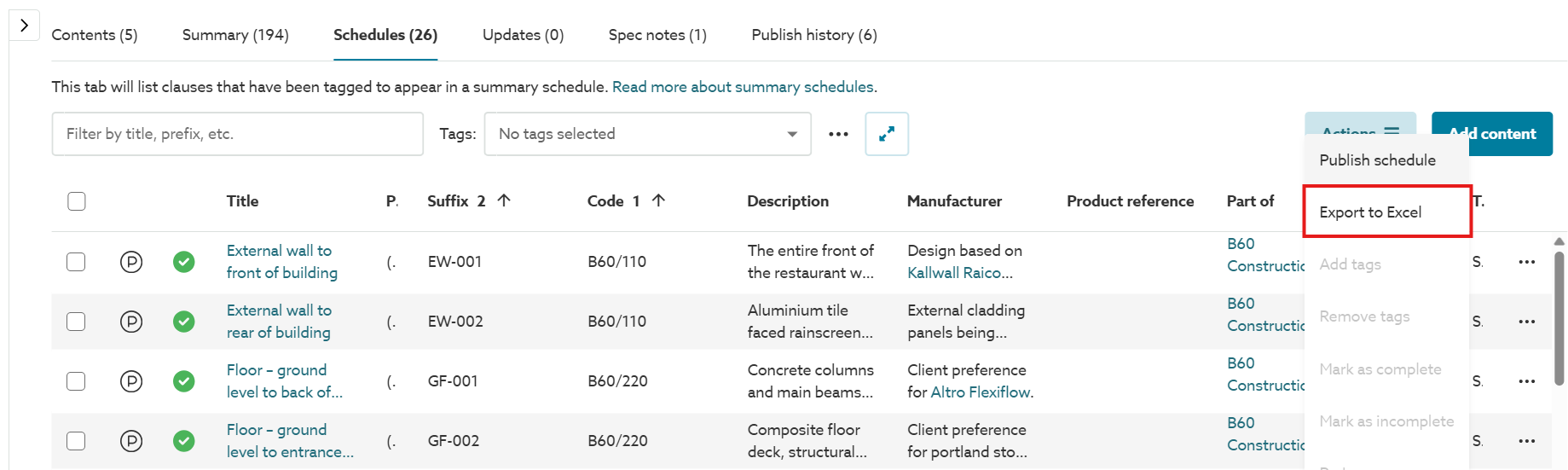
- To export all the items in the 'Schedule' tab, click on the 'Actions' button, then select the 'Export to Excel' option.
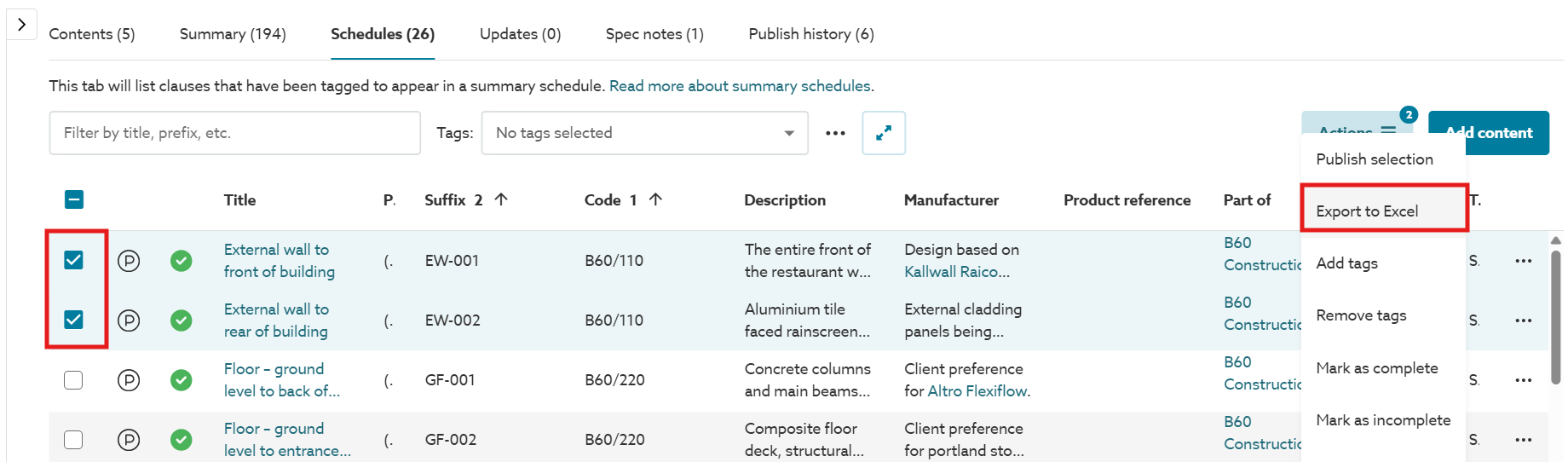
- To export a selection of content from the 'Schedule' tab, firstly select (tick) the checkbox(es) for the required items of content. Then click on the 'Actions' button and select the 'Export to Excel' option.
Your schedule is exported to Microsoft Excel.
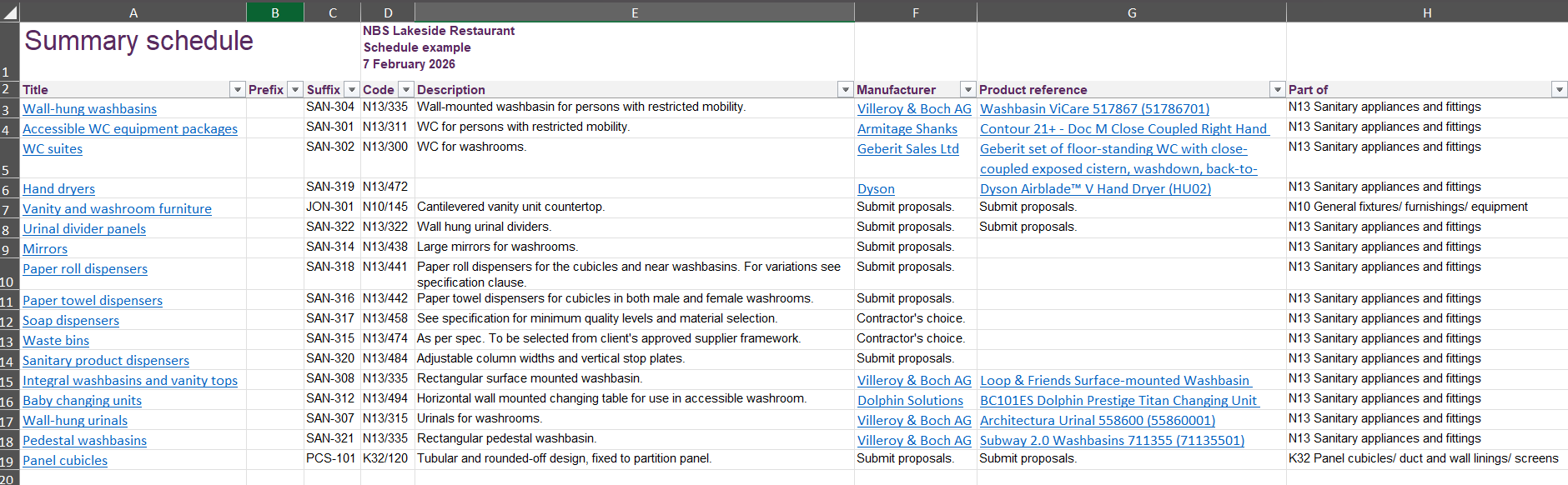
Screenshot of the schedule export in MS Excel
The export will include:
- The information from the 'Title', 'Prefix', 'Suffix', 'Code', 'Description', 'Manufacturer', 'Product reference', 'Part of' and 'Tags' columns.
- A 'Supporting information' column that contains a link to the construction manufacturer product added to the specification via the 'Products' panel or Source.
The export does not include the 'Image' column.
For the 'Title' column:
- The title cells contain hyperlinks. Clicking on the hyperlink will open the article/ clause in the platform. Permission to read the specification is required.
- If you plan to share the schedule with a third party and want them to click on the links and read the information in the platform, they should be permitted to access the specification.
Related article: Inviting someone to collaborate on a project - If you want to share the schedule without the hyperlinks, we recommend removing them using the ‘Clear hyperlink’ control in MS Excel.
- If you plan to share the schedule with a third party and want them to click on the links and read the information in the platform, they should be permitted to access the specification.
For the 'Description' column:
- Images and tables are not exported to MS Excel. Where they are found in the description, the platform will export a [Table] or [Image] placeholder text.
Numbered and bulleted lists found in the description will be exported as line breaks in MS Excel.