
The 'Add new schedule' option allows you to set up multiple custom schedules in a specification.
This feature makes it easier to organise and export your schedule data using three main attributes:
- 'Schedule name': A clear label for the schedule (for example, Internal finishes schedule).
- 'Schedule description': Explains the scope or purpose of this data set.
- ‘Associated tags’: The "engine" of the feature. By assigning tags to a schedule, the system automatically pulls in every article or clause that shares at least one of those tags.
Pro Tip: The final document’s 'Publication title' comes from your 'Specification title' and 'Schedule name.' This helps your exports look professional and consistent. If you want to change it, go to ‘Publish schedule’ and then ‘Publication details.’
Please note: Custom schedules use 'Tags' and are available with the 'Pro' subscription plan (and above).
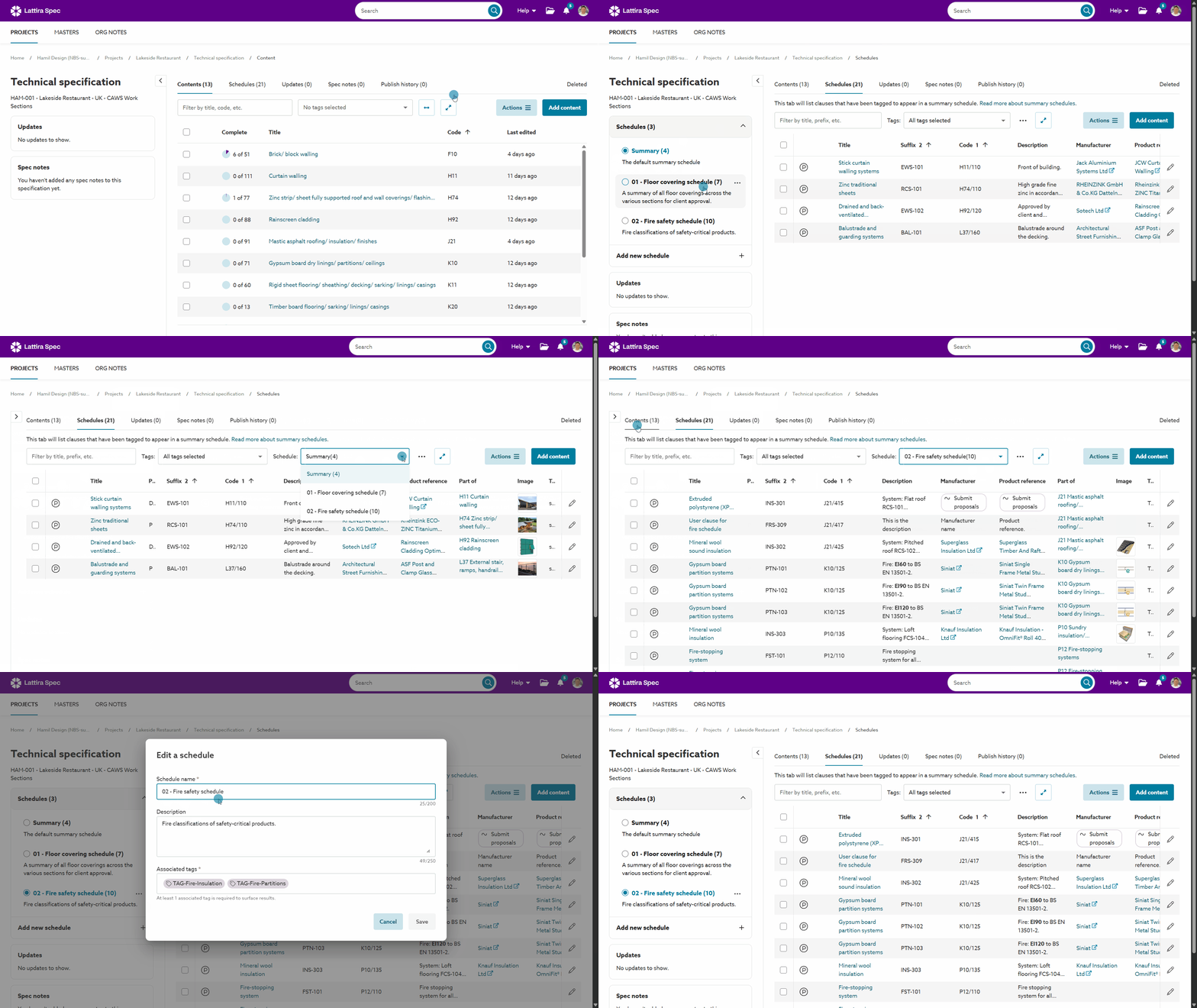
A screen capture to show switching between custom schedules within a single specification.
Dynamic Tagging: How to add new content to your schedules
One of the most powerful aspects of this workflow is how the system anticipates your needs when expanding a specification. Because your schedules are built on ‘Associated Tags’, the platform streamlines tagging as soon as you add new information.
How to assign tags via the 'Add Content' panel
When you add a new article or clause while working in a specific schedule, the system automatically links the new content to that schedule.
- Select your schedule: Make sure the schedule you want is active (for example, your Fire Safety Schedule).
- Open 'Add content': Use the side panel to find and select the new article or clause you want to add.
- The 'Tags' accordion: Before you click add, open the Associated Tags section. The 'Associated tags' for your current schedule will already be selected.
- If your selected schedule includes multiple 'Associated tags', all of them will be selected by default.
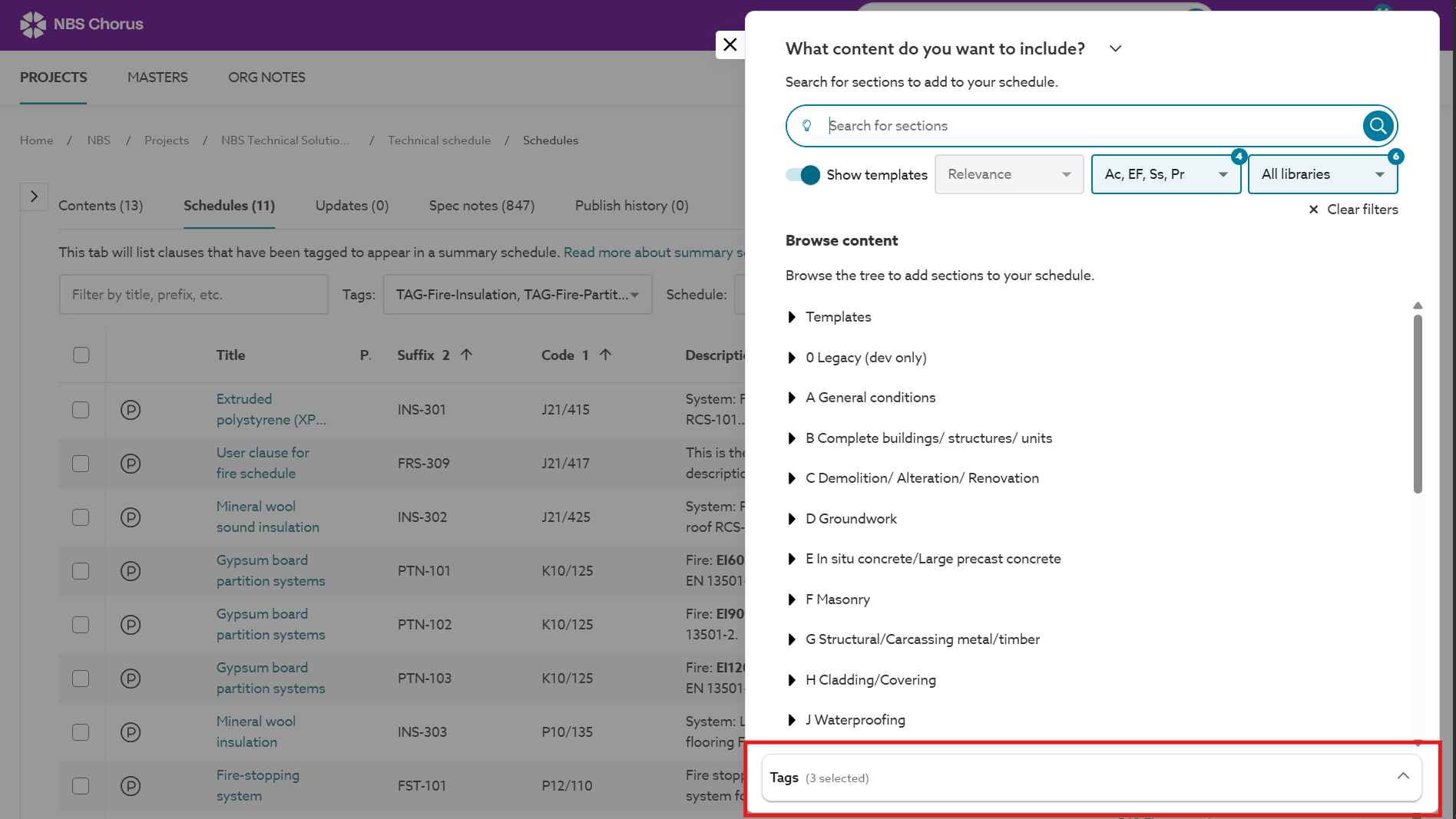 A screenshot of the 'Tags' accordion showing the 'Associated tags' for your selected schedule.
- If your selected schedule includes multiple 'Associated tags', all of them will be selected by default.
- Refine and Confirm: You can keep all the suggested tags or remove any that do not fit the item.
Reminder: Adding existing specification articles and clauses to your schedule
This guide shows you how to add new articles and clauses to your schedule. You can also easily tag existing articles and clauses so they show up in your schedule. The links below explain how.
- For 'Core', use the 'Summary schedule' checkbox, see:
- For 'Pro' plans, you can add custom tags. See Adding tags to articles, clauses and sections
- For 'Premium' plans, you can make these changes in bulk. See Schedule 'Bulk actions'
Example: Fire Safety Specification
Suppose you are managing a Fire Safety Schedule defined by two tags: TAG-Fire-Insulation and TAG-Fire-Partitions.
When you add a new item to your schedule for 'Fire stopping system...':
- The 'Tags' accordion will open with both TAG-Fire-Insulation and TAG-Fire-Partitions already selected.
- Since this specific item is intended for insulation, you deselect the TAG-Fire-Partitions tag.
- Upon adding the item, it is instantly tagged as TAG-Fire-Insulation.
The result: Your 'Fire stopping system' item is now correctly categorised and will automatically show up in your Fire Safety Schedule and any other schedule that uses the insulation tag.
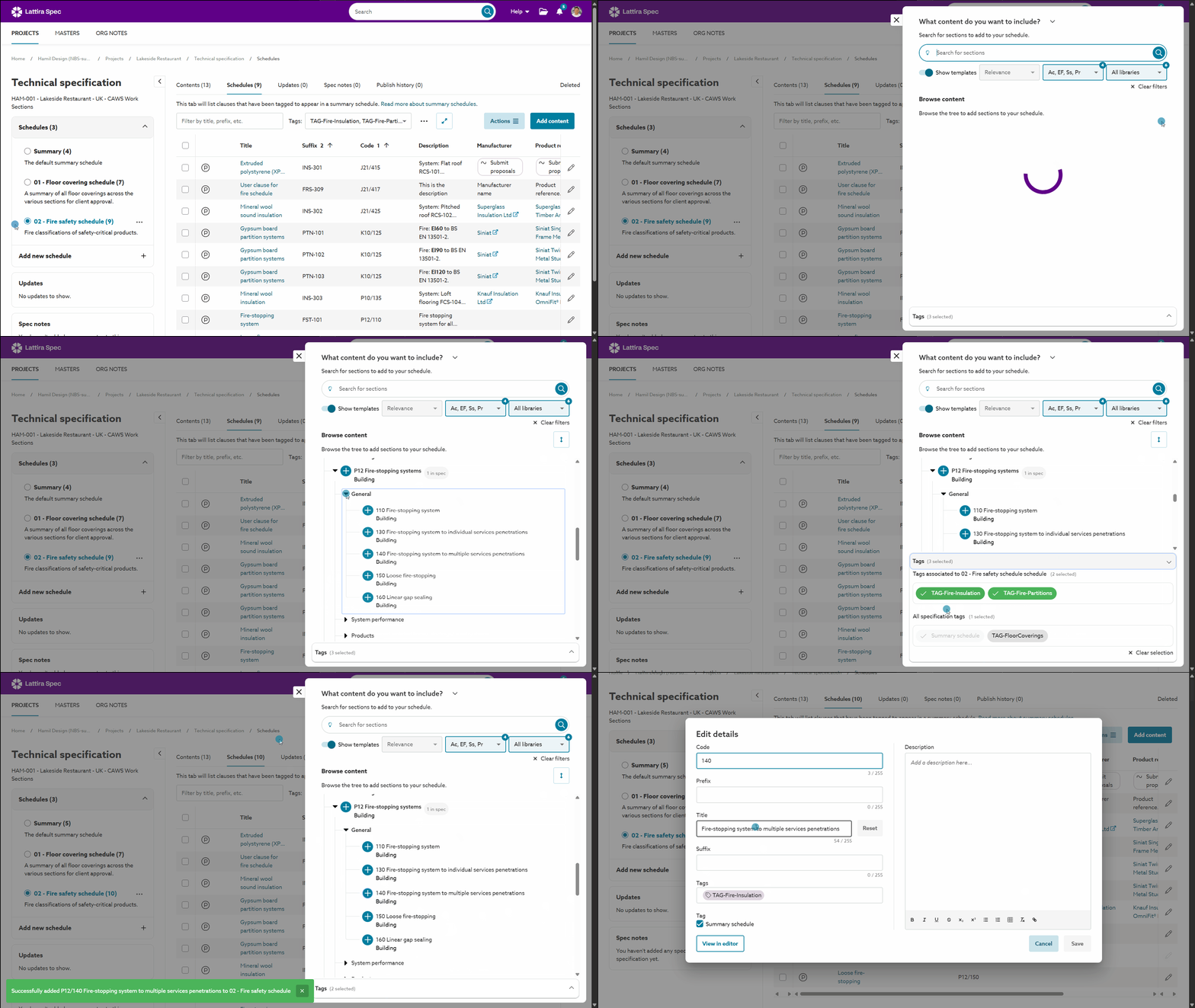
A screen capture showing how to assign tags when adding content to your custom schedule.