
Recreate publication allows you to select a historical version of your specification from the 'Publish history' and publish it again using the publishing wizard. It will produce a PDF/MS Word document with the historical specification data and allow you to change your publishing settings if desired.
Topics
- Why use 'Recreate publication'?
- How to recreate your publication
- About the Recreate publication wizard
Why use 'Recreate publication'?
'Recreate publication' is useful when:
- You need to recreate a PDF/MS Word document for a historical version of your specification and cannot download it from the Publication history or have a saved version outside of the platform.
- You want to republish a historical version of your specification using a different structure or different publication details.
- You want to compare any historical version of your specification. For example, you published your spec in the past and didn't compare it with a previous version at the time. Or perhaps you want to compare the historical version with another historical version.
- You want to republish a historical version of your specification and produce the PDF/MS Word document using a different stylesheet.
Related article: Variables and 'Recreate publication'
How to recreate your publication
The steps are:
- Go to the specification or master that you want to recreate.
- Click on the 'Publish history' tab.
- Find the version you want to recreate in the publish history grid.
- Click on the 3-dot menu on the right-hand side and select 'Recreate publication'.
- Follow the steps through the publish wizard.
About the Recreate publication wizard
The 'Recreate publication' wizard is similar to the 'Publish specification' wizard. It has the same four steps: Structure, Compare, Publication details, and Styling. It is different from the 'Publish specification' wizard because:
- On each step, where possible, the platform provides a reminder of the options selected when the record was originally published. If the option is not known, the reminder will say 'unknown'.
- The 'Recreate publication' is for republishing historical versions of the specification. Therefore, it does not include the option to save to the 'Publish history'.
Stepping through the Recreate publication wizard
Click 'Recreate publication' from the 'Publish history' tab in the specification.
Screenshot showing the 'Recreate publication' menu option in the 'Publish history'.
Step 1: Structure
- Choose your document format. The platform will say 'The previous publication was a PDF/MS Word document' depending on the option selected when the specification was originally published.
- For Uniclass Work section-based specifications, you can choose your specification structure. The platform will say 'The structure of the previous publication was single systems/grouped systems by code' depending on the option selected when the specification was originally published.
- Choose your output structure. The platform will say 'The structure of the previous publication was one document/separate groups.' depending on the option selected when the specification was originally published.
- Choose whether to add a revision history table. The platform will say 'The revision history was/was not added to the separator pages.' depending on the option selected when the specification was originally published.
- You can choose different options when you recreate your publication.
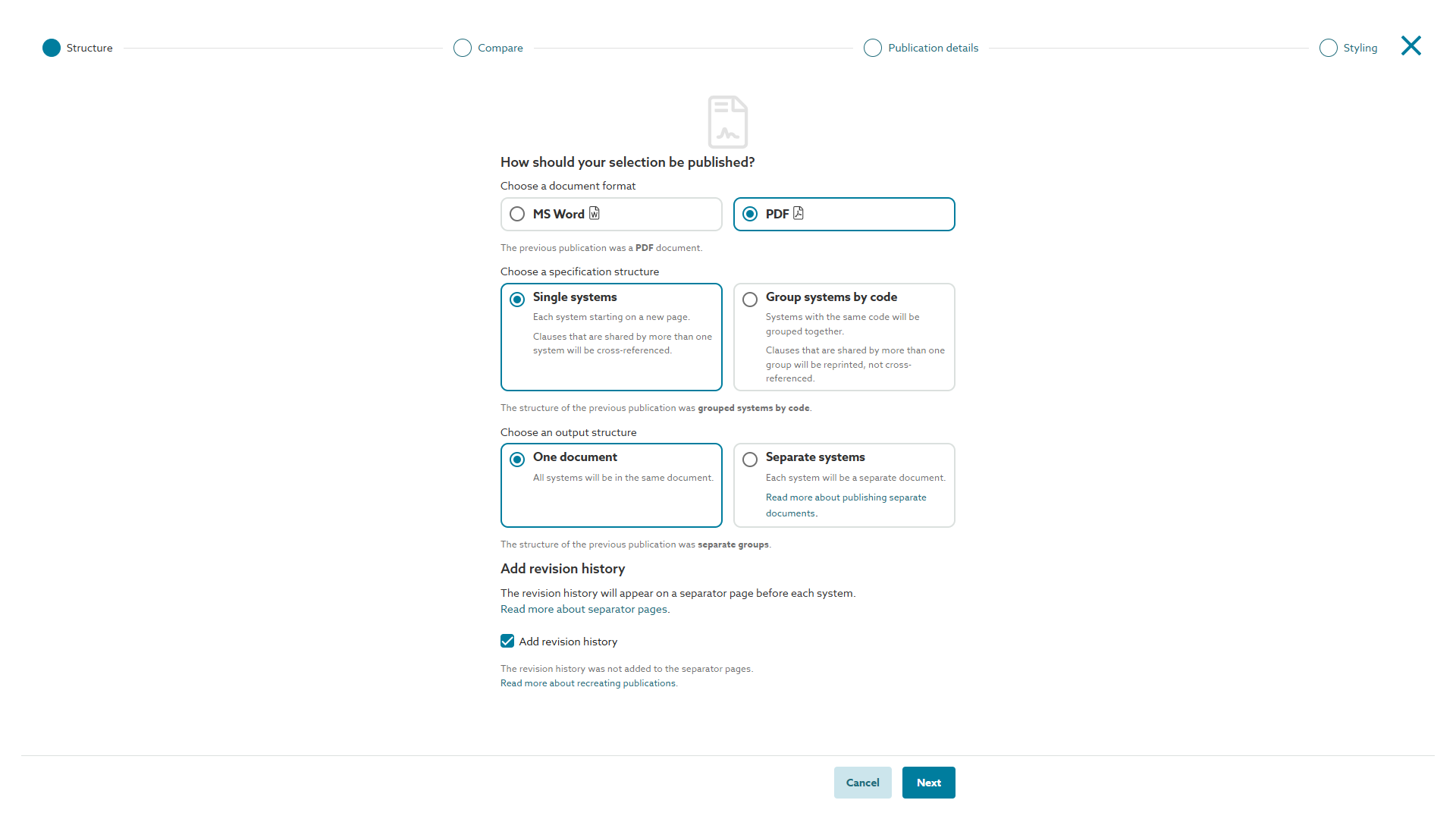
Screenshot showing the 'Structure' step on the 'Recreate publication' wizard.
Step 2: Compare
- If required, you can compare the version of the spec you are recreating, with another historic version from the 'Publish history' by selecting it from the presented list. Only versions that are older than the publication you are recreating will be shown in the list.
- If you have chosen to compare to an earlier historic version of the spec, you can also choose whether to add detailed revisions ('Premium' subscriptions only) and/ or add details of amended clauses. Also, if the selected earlier historic version only included a selection of content (as opposed to the full specification at the time), you can also choose how you want to compare.
- The platform reminds you which previous publication was compared to when the specification was originally published. If the option is not known the reminder will say 'unknown'. Additionally it will advise whether detailed revisions and/ or details of amended clauses were previously added.
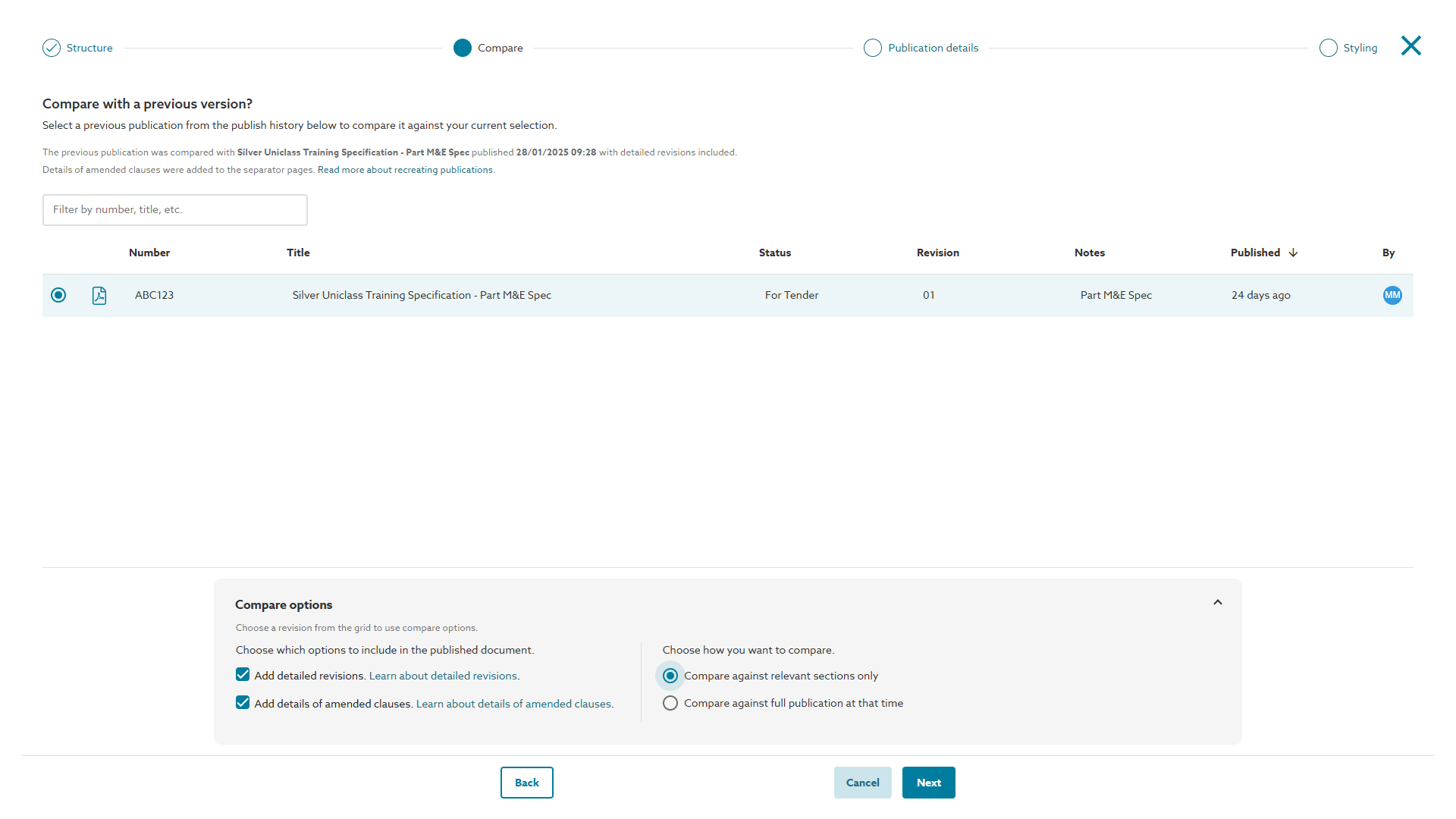
Screenshot showing the 'Compare' step on the 'Recreate publication' wizard.
Step 3: Publication details
- The details from the previous publication are prepopulated in the 'Publication details' step.
- The filename will have today's date.
- All fields are editable to allow you to change these details.
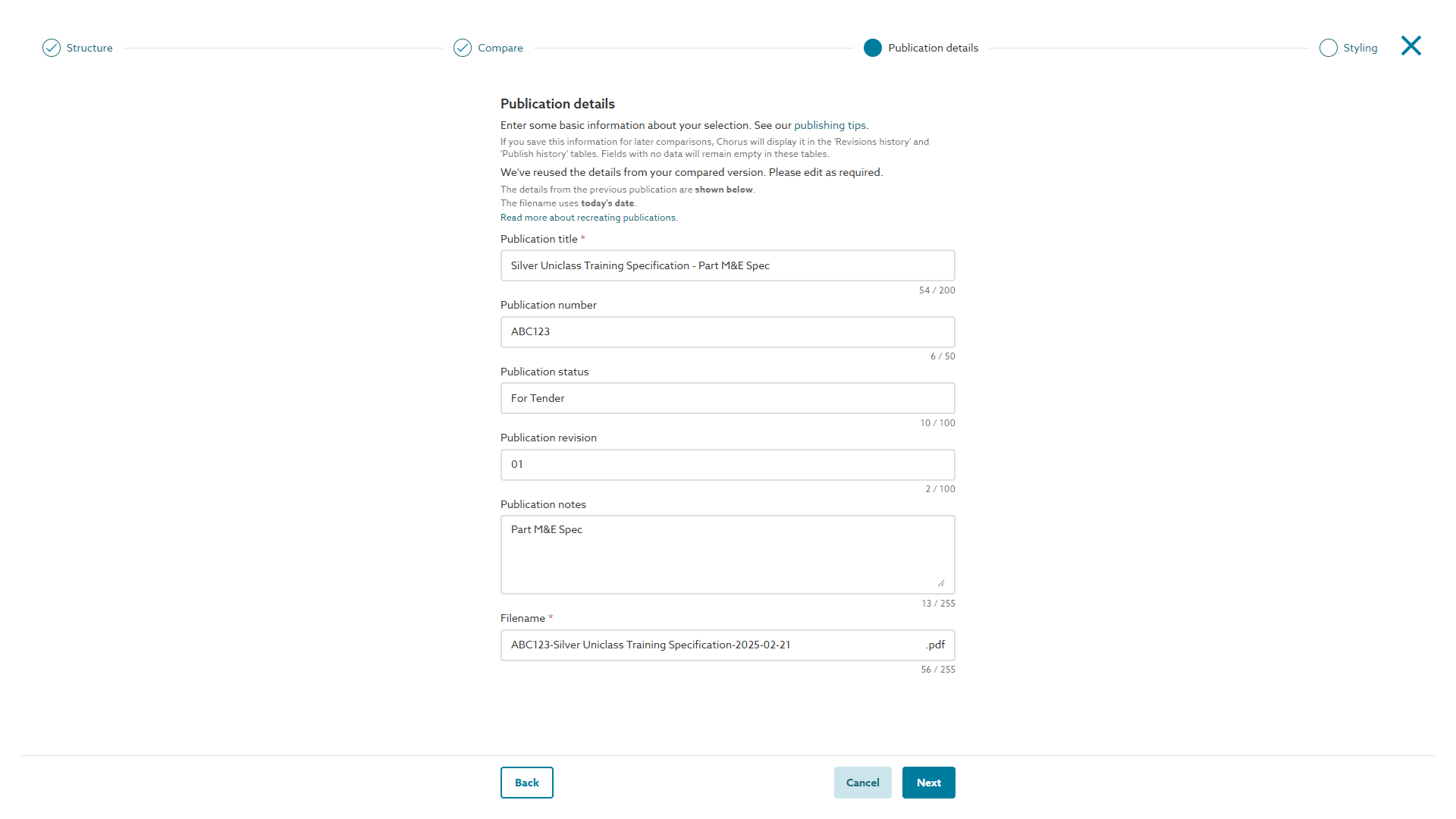
Screenshot showing the 'Publication details' step on the 'Recreate publication' wizard.
Step 4: Styling
- Choose the stylesheet to apply to your publication.
- The platform will default to the original stylesheet unless it is unavailable due to deletion or marked as inactive. In these situations, the platform will fall back to the organization's current default stylesheet or the 'Default stylesheet template' when the organization default is not set.
- The platform will remind you which stylesheet was originally used. If the stylesheet is not known, the reminder will say 'unknown'.
- For 'Premium' subscriptions, the platform will default to the tags originally selected. This means the tags displayed in the recreated publication will match those displayed in the original publication.
- The platform will remind you which tags were previously included.
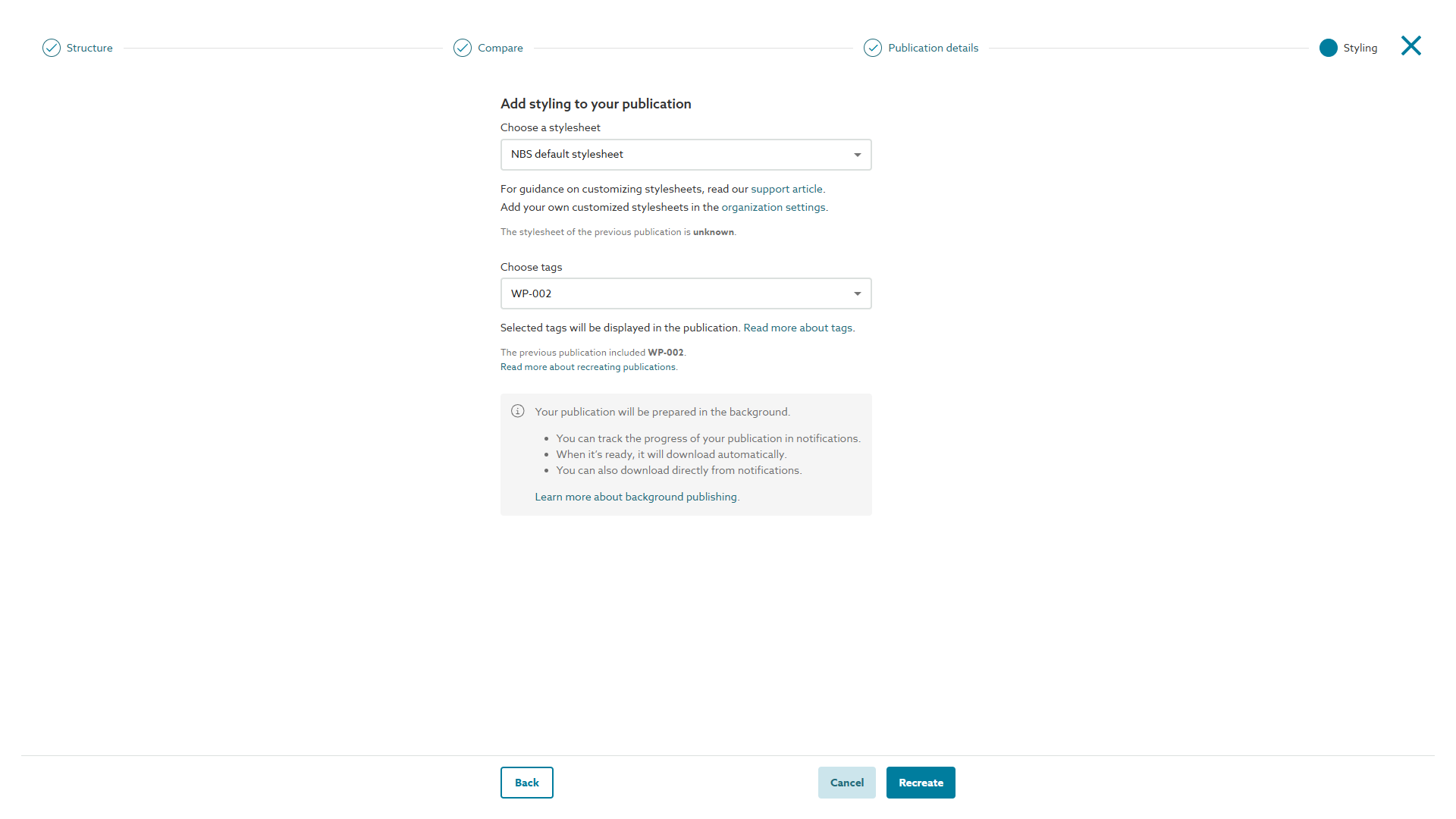
Screenshot showing the 'Styling' step on the 'Recreate publication' wizard.
Final step: click 'Recreate'
Click the Recreate button, and the recreation of the specification document(s) will be processed in the background. Once the publication process is complete, the document(s) will be downloaded to your computer/ device. Please refer to the Background publishing topic for further details.