This support article refers to Projects and Specifications throughout. It equally applies to Master Folders and Masters.
You can copy a selection of content from one specification to another or to your clipboard. This article explains how it works.
Please note: When copying a selection of content, 'Spec Notes' associated with that content are not copied. 'Spec Notes' is a 'Pro' (or above) feature.
TABLE OF CONTENTS
- Copying to clipboard
- Permissions required
- What can be copied
- Relationship with source and destination specifications
- What happens when the suffix clashes (Uniclass work sections)?
- Copying linked items (Uniclass work sections based specifications)
- Top tip! Copying shared clauses (Uniclass work sections based specifications)
- Copying and model associations
- Copying and NBS content 'Update' notifications
- Top tip! Using keyboard shortcuts is the fastest way to copy.
Copying to clipboard
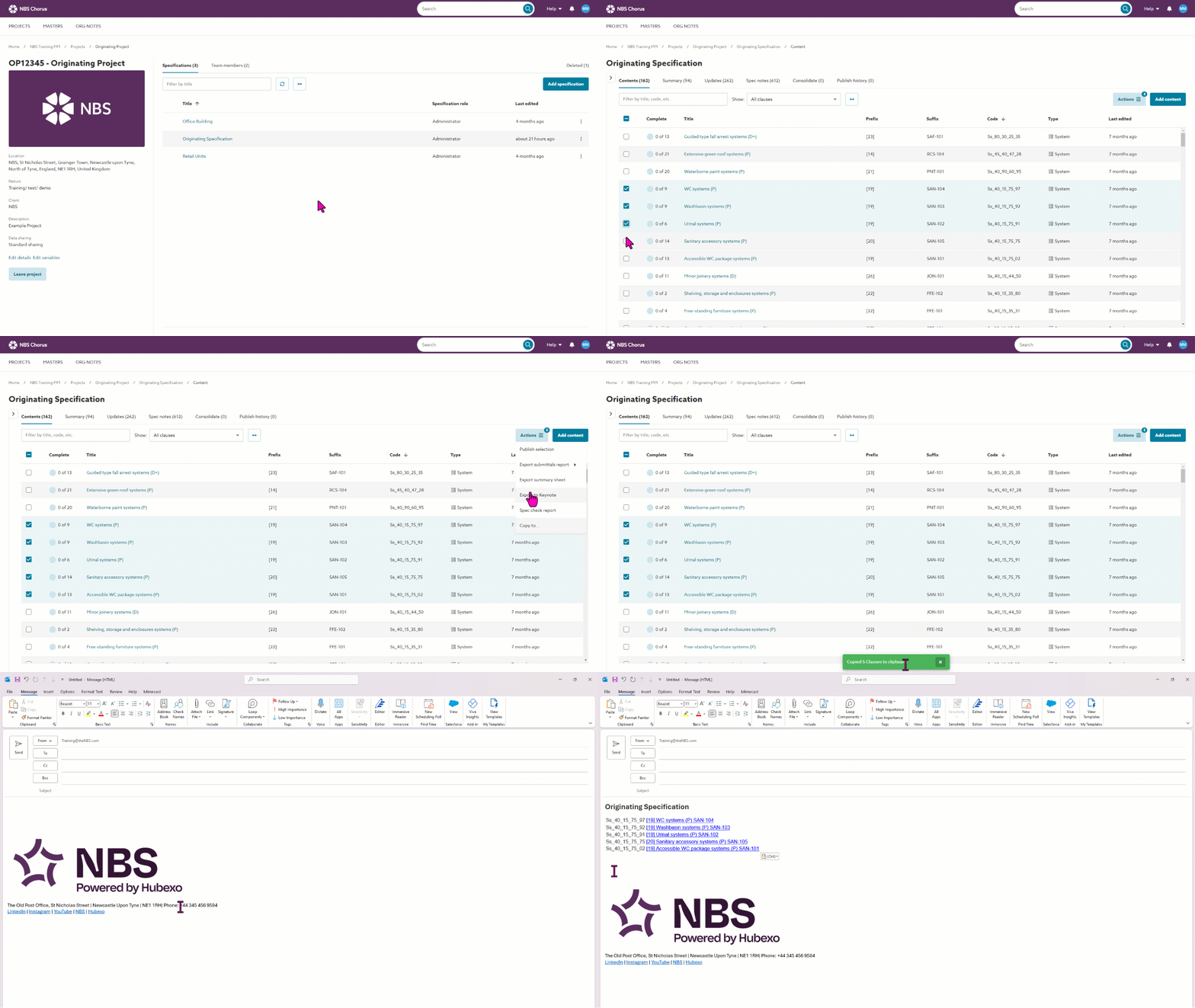
Instead of copying the specification content into another specification, you can copy it to your clipboard. This method allows you to paste the selection into another HTML-compatible program, such as Mail or Outlook.
The chosen items are pasted along with their 'Code' and 'Title' details. The title functions as a hyperlink that redirects you to the relevant section of the specification, assuming you have the required permissions.
You can use this to create task lists or send links to the specification to colleagues. Anyone clicking the link will be required to sign in to the platform. They must have a ‘Reader’ (or higher) role to access to the specification.
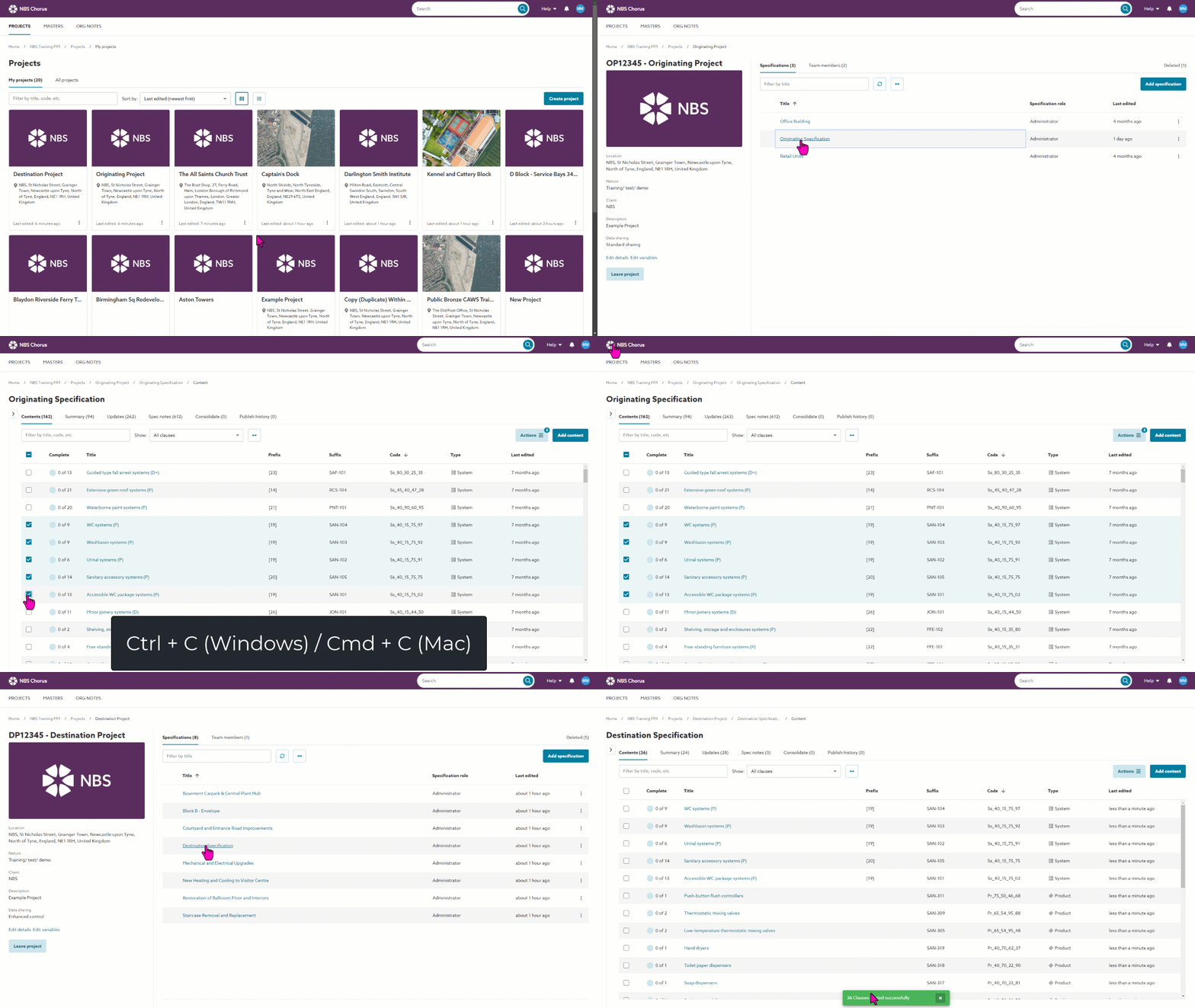
Alternatively, select the required content via the checkbox(es) at the left of the content items. Rather than using the Actions button method, you can simply press Ctrl + C (Windows) or Cmd + C (Mac) on the keyboard to copy the selected content to the system clipboard.
Permissions required
- To copy from a specification, you must have a ‘Reader’ (or higher) role on the originating specification.
What can be copied
What can be copied varies for the different content sets.
| Content set | What can be copied |
| Australia - SpeedSpec | Sections |
| Australia - SpecPack | Sections |
| Australia - SureSpec | Sections |
| Australia - Uniclass Preliminaries | Sections |
| Australia - Uniclass Work Sections | Systems, Products, Activities, Elements/ Functions and their linked clauses |
| Canada - NMS and CMS | Sections |
| Canada - NMS (French) | Sections |
| Canada - NMS UniFormat | Sections |
| Canada - NMS UniFormat (French) | Sections |
| UK - CAWS Work Sections | Sections |
| UK - CAWS Preliminaries | Sections |
| UK - Uniclass Preliminaries | Sections |
| UK - Uniclass Work Sections | Systems, Products, Activities, Elements/ Functions and their linked clauses |
| USA - USMS | Sections |
Copying to a specification
You can copy your selection into the same specifications, those in the same project, or those in other projects within the same organisation.
It is also possible to copy your selection into specifications in projects within a different organization. Please refer to the Copying sections and systems to another organization for further details
You can copy content from one specification to another if both are based on the same content set.
Permissions required
- To copy from a specification, you must have a ‘Reader’ (or higher) role on the originating specification.
- To paste, you must have a 'Contributor' (or higher) role on the destination specification. This includes guests (external users from other organizations) who can copy into a spec in that organization.
What can be copied
What can be copied varies for the different content sets.
Please note that you can only copy between specifications that are based on the same content set.
| Content set | What can be copied |
| Australia - SpeedSpec | Sections |
| Australia - SpecPack | Sections |
| Australia - SureSpec | Sections |
| Australia - Uniclass Preliminaries | Sections |
| Australia - Uniclass Work Sections | Systems, Products, Activities, Elements/ Functions and their linked clauses |
| Canada - NMS and CMS | Sections |
| Canada - NMS (French) | Sections |
| Canada - NMS UniFormat | Sections |
| Canada - NMS UniFormat (French) | Sections |
| UK - CAWS Work Sections | Sections |
| UK - CAWS Preliminaries | Sections |
| UK - Uniclass Preliminaries | Sections |
| UK - Uniclass Work Sections | Systems, Products, Activities, Elements/ Functions and their linked clauses |
| USA - USMS | Sections |
Related articles:
How to copy a selection of content from your originating specification
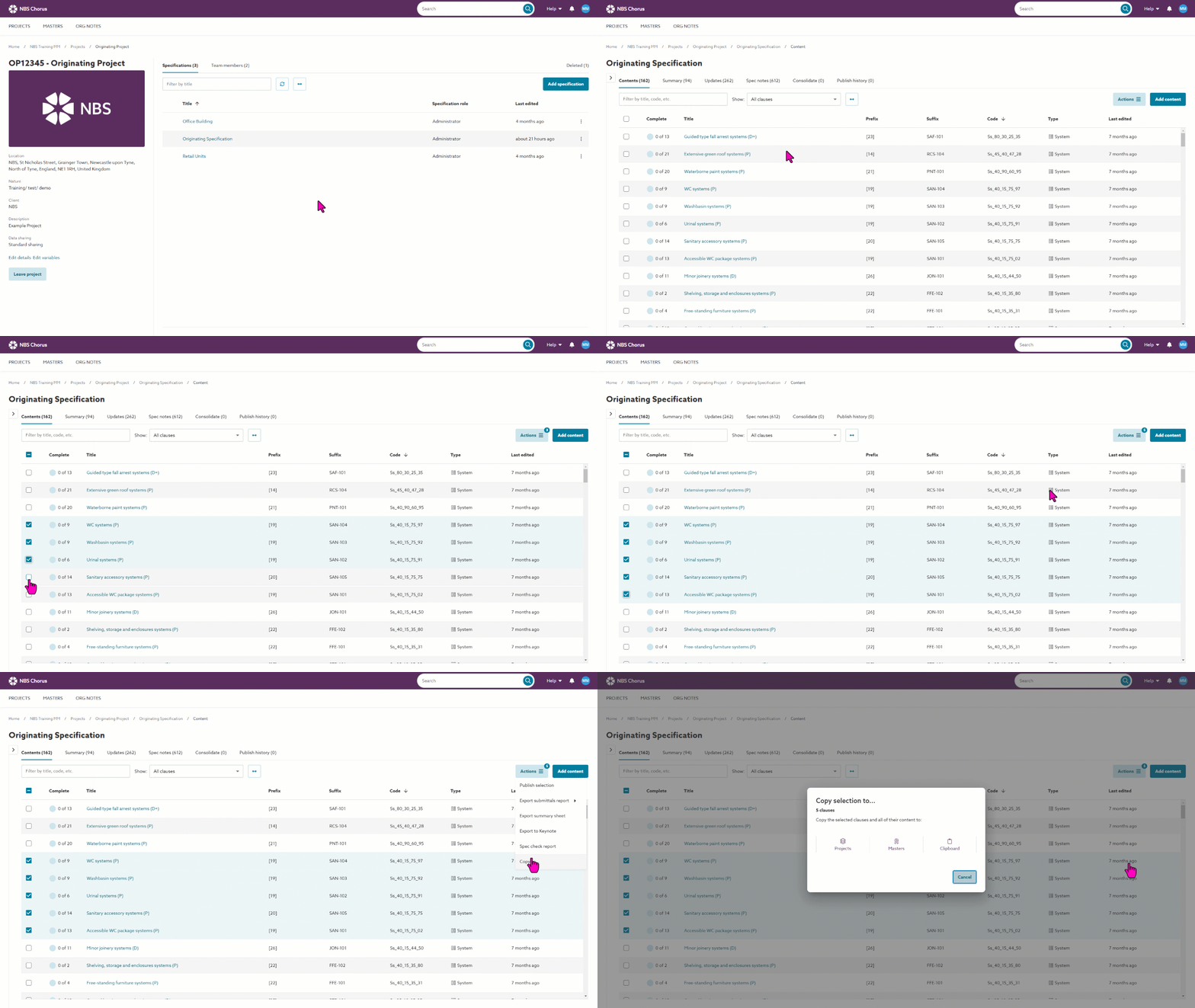
To copy a selection of content from your specification into another or the same specification, you first need to select the content to copy.
- Browse to the content overview page for the specification you want to copy from.
- Select (tick) the checkbox(es) for the items you want to copy, then click on the Actions button.
- Select the Copy to option.
- The Copy selection to dialog opens, giving you either two or three options, Projects and Clipboard for Chorus subscriptions, or Projects, Masters and Clipboard for 'Pro' (or above) subscriptions.
How to select the destination specification and paste the selected content
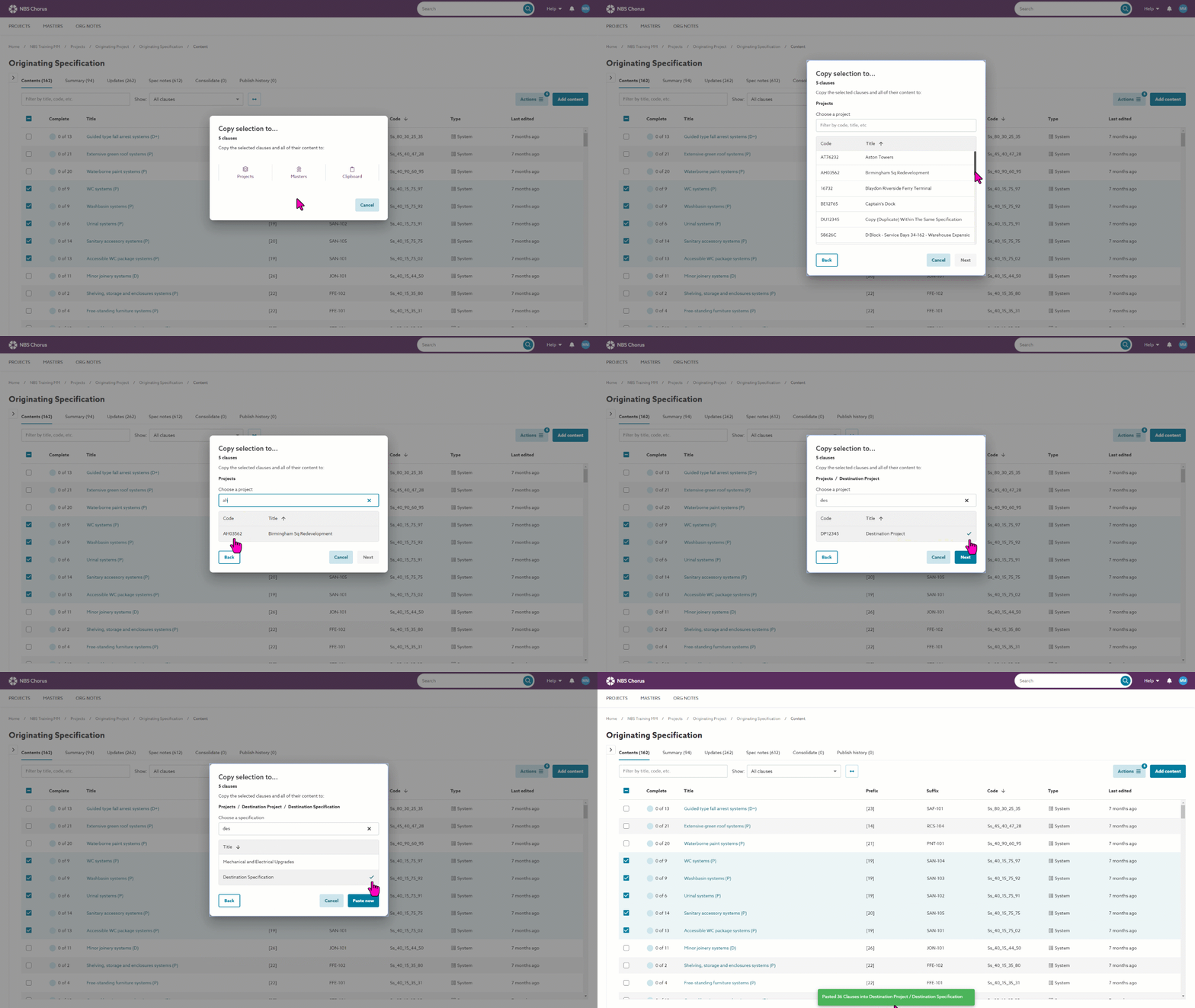
To then paste the selected content to another or the same specification, the destination Project and Specification needs to be selected.
Please note: if copying content to another specification, the destination Specification in the other project must exist/ be created beforehand to paste the content into.
- Select the Projects option from the Copy selection to dialog.
- A further Copy selection to dialog is displayed. Find the required destination Project in the list. You can either scroll up/ down to find the project, sort the list by clicking on either the Code or Title column heading (clicking a second time reverses the sort direction) and/ or filter the list by typing into the 'Filter by...' field. Please note: You will only see projects containing one or more specifications matching the content set of the originating specification.
- Select the destination Project from the list by clicking on it.
- Click to Next button.
- A further Copy selection to dialog is displayed. Select the destination Specification from the list by clicking on it. If required, the list can be scrolled, sorted, and filtered (in a manner similar to that noted above). Please note: You will only see specifications matching the content set of the originating specification.
- Click the Paste now button.
- Once copied, you will be brought back to the source spec. A confirmation message is displayed at the bottom of the screen with a link. Clicking the link will take you to the destination spec to view the copied items.
Video overview of copying whole sections and systems into another specification
The short video (no audio) below demonstrates how to copy whole sections and systems into another specification.
Relationship with source and destination specifications
If you copy from an originating specification to a destination specification, there is no link back to the original. This means that if you make changes to the original specification after copying content from it into another specification, those changes are not reflected in the destination specification, and vice versa.
Please note: Masters are the exception to this rule. With Master's, if you change the master, Lattira Spec and NBS Chorus can notify you of the change in project specs. For further information, please see the Master change notifications section.
What happens when the suffix clashes (Uniclass work sections)?
It is good practice to reference each item in your specification uniquely. If what you are copying has the same ‘code+suffix’ as something already in the specification you are pasting into, Chorus will change the suffix in the destination spec.
This means that when you paste content with the same ‘code+suffix’ combination as something already in the spec, NBS Chorus will change the suffix as part of the paste process to avoid items not being unique. NBS Chorus changes the suffix of the items you are pasting only. It does not modify the suffix of items already in the destination specification.
In these scenarios, NBS Chorus will do the following:
- The ‘headline’ clause (e.g. the system) and its children (the linked clauses) in your copy selection already exist in the destination spec.
Result = The suffix sequence is incremented for all. E.g.
Doorset System (already exists in destination) > will become > Doorset Systems Type A
Wood Doorsets (already exists in destination) > will become > Wood Doorsets Type A - A child clause (e.g. a product in a system) in your copy selection already exists in the destination spec, but the head clause does not.
Result = the child clause suffix sequence is incremented, but the head is left as it is. E.g.
Doorset Systems (doesn't exist in destination) > will become > Doorset Systems
Wood Doorsets (already exists in destination) > will become > Wood Doorsets Type A - The head clause in the selection already exists in the destination spec, but the child clause does not.
Result = The head clause suffix sequence is incremented, but the child is not. E.g.
Doorset Systems (already exists in destination) > will become > Doorset Systems Type A
Wood Doorsets (doesn't exist in destination) > will become > Wood Doorsets
Copying linked items (Uniclass work sections based specifications)
When copying systems containing linked clauses, the linked clauses will also be copied. This means that if you have a system with lots of linked clauses, e.g. performance, product and execution clauses and so on, when you copy the system, it will also copy all of these linked clauses.
Top tip! Copying shared clauses (Uniclass work sections based specifications)
Please see Duplicate clauses found (Uniclass - Work sections).
Copying and model associations
The NBS Plug-in can be used to make associations between your specification and model. When you copy items with associations, the associations are not copied.
More information about model associations
Copying and NBS content 'Update' notifications
Notifications are copied with specification content. You will get NBS content set update notifications for copy content from previous specifications. Use the notifications to bring copied content up-to-date with the latest NBS revisions in the new job.
Top tip! Using keyboard shortcuts is the fastest way to copy.
You can use keyboard shortcuts to copy your selection, Ctrl+C (Windows) or Cmd+C (Mac). This will put the copied content into the clipboard.
Then, browse to another spec in the platform and paste it, or paste it into a separate program outside of Lattira Spec and NBS Chorus using Ctrl+V (Windows) or Cmd+V (Mac). You can also have the specification platform open in multiple Browser tabs and copy between tabs.
Please note: Keyboard shortcuts are not supported on touch devices.
There are keyboard shortcuts for lots of actions. Please see Keyboard Shortcuts.