
When editing clauses within your specification there may be pre-defined suggestion options available to select from a drop down button located at the right of some of the row value fields. The drop down button would be displayed similar to the examples shown below.
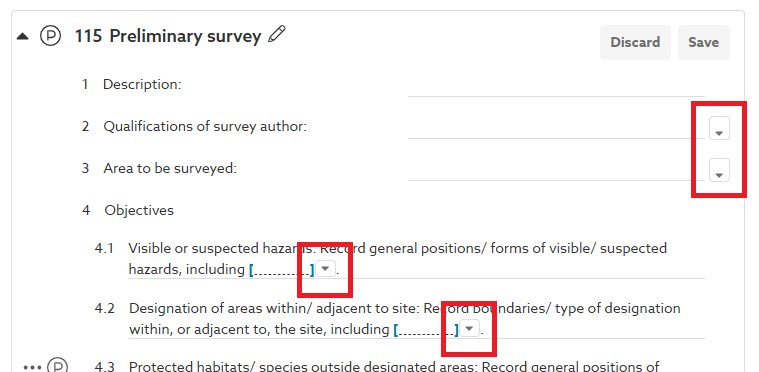
For the majority of content sets, where these suggestion options are available, they will be plain text based options. For AU/UK Uniclass Work Sections content sets only, these suggestion options may be either plain text based options, suggested clauses that you may wish to add and link or a mixture of both.
TABLE OF CONTENTS
- Plain text based content suggestions
- Clause based content suggestions (Uniclass Work Sections only)
- Video overview of adding content to your specification from a drop down menu
Plain text based content suggestions
Click on the drop down button for the row, the suggestion options list will be displayed. If there are more suggestion options than can be displayed, you will see a vertical scroll bar displayed at the right of the list.
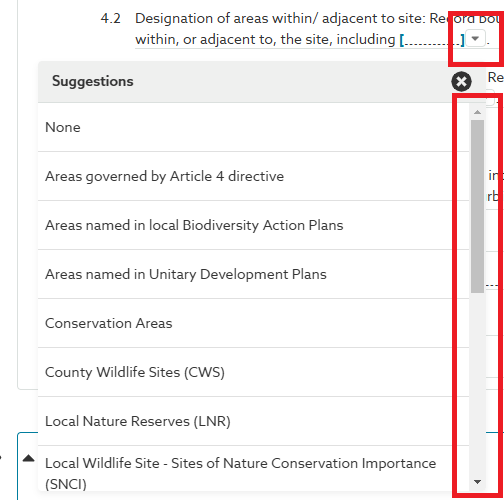
To insert a suggestion option from the list, click on the required option. If more than one option is applicable, click on each in turn, in the order in which you wish them to be inserted in the row.
If you do not wish to use any of the suggested options, you can simply close the suggestion list and add free text into the clause field instead.
To close the suggestions list, click on the Close/ X button in the top right corner of the list.
The selected option will be inserted in the row (or at the end of the row if it currently includes other text). If multiple options were selected, they will each be separated with a space.
If required the inserted text can be amended, formatted and/ or cut and pasted into a different position in the row.
Related: Formatting text in the editor
Clause based content suggestions (Uniclass Work Sections only)
For AU/UK Uniclass Work Section specifications. The suggestion options may be either plain text based options, suggested clauses that you may wish to add and link or a mixture of both.
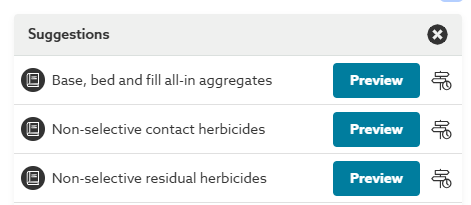
Clause based suggestions can be distinguished in suggestions list as they will each display a Book icon, a Blue button and a Signpost icon, together with the clause title as text. As shown for the three suggestion options below.
Inserting a clause suggestion (new clause)*
* The instructions provided in this section of the article relate to adding a new instance of a clause suggestion from the content set. If you wish link to an existing instance of a suggested clause, please refer to the Inserting a clause suggestion (existing clause) section below.
To insert a suggestion option from the list, click on the clause title (text) of the required option. If more than one option is applicable, click on each in turn, in the order in which you wish them to be inserted in the row.
If you do not wish to use any of the suggested options, you can simply close the suggestion list and either add free text into the clause field, or add a different clause using the All content feature instead.
Related: 'All content' for adding clauses from the content set and in this spec
To close the suggestions list, click on the Close/ X button in the top right corner of the list.
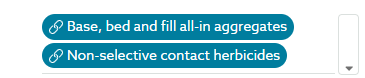
The chosen clause option(s) will be inserted in the row (or at the end of the row if it currently includes other text or linked clauses) and linked into the clause. Linked clauses are displayed as a blue content bubbles (rounded blue rectangles displaying the clause title).
 Related: The difference between blue, grey and red content bubbles in the editor
Although the selected clauses option(s) are displayed as linked clauses with a blue content bubble, they are not downloaded and added into the specification until the host clause (the clause you are editing) is saved.
Inserting a clause suggestion (existing clause)
If your specification already contains one or more instances of a suggested clause that is displayed on the list, the blue button will have a title of 'x in spec' (where x is a number). The number displayed on the button indicates how many instances of the clause there are currently.
Inserting and linking to an existing instance of a clause in the specification is undertaken differently than as described in the section above.
To insert an existing instance of a suggestion option from the list, click on the blue x in spec button.
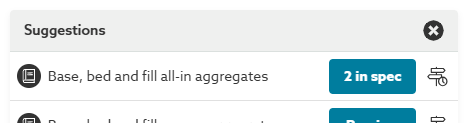
If you do not wish to use any of the suggested options, you can simply close the suggestion list and either add free text into the clause field, or add a different clause using the All content feature instead.
Related: 'All content' for adding clauses from the content set and in this spec
Once you have clicked on the blue button, a preview dialog is displayed, with a New instance of the clause pre-selected at the top of the Clause column (and therefore previewed at the right of the dialog). Clicking on the Add button at this point would add a further (new) instance of the clause from the content set.
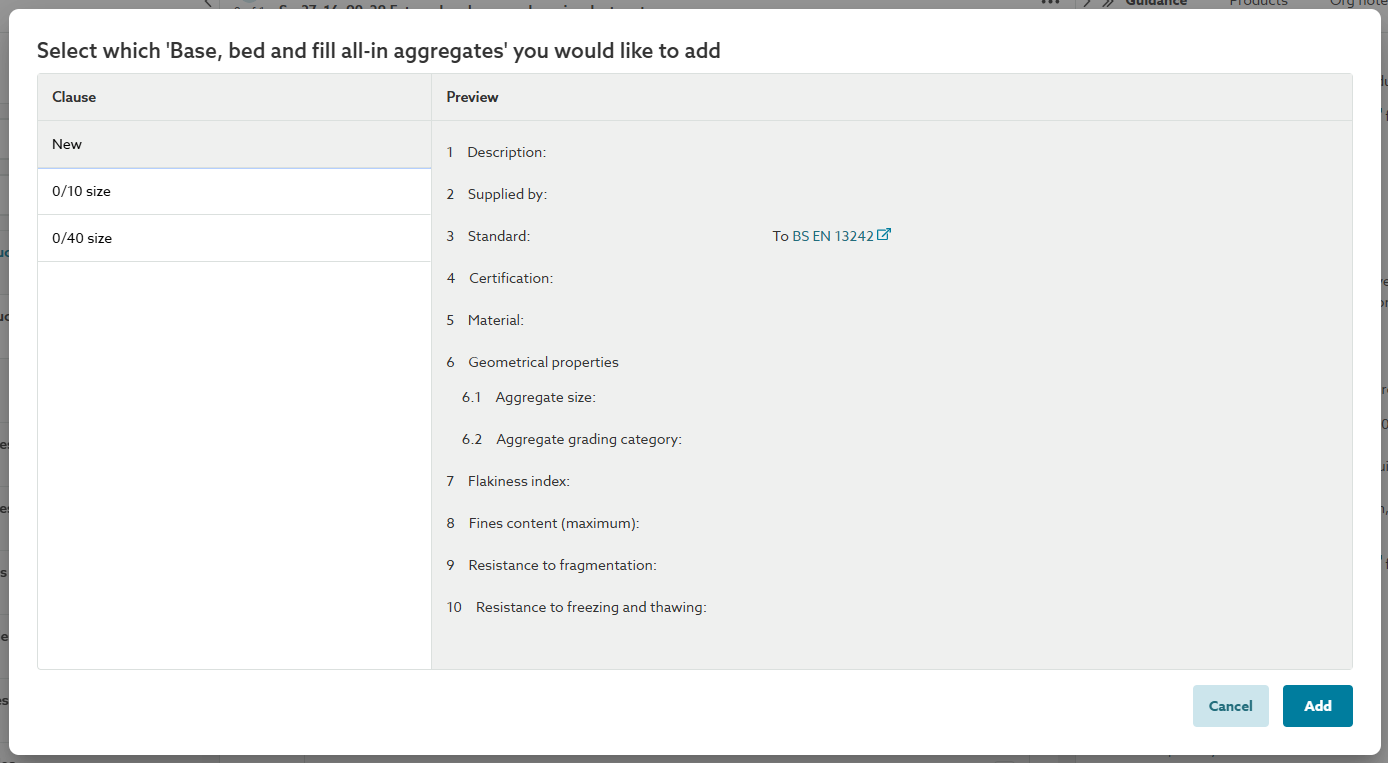
In the Clause column, displayed beneath the New clause option, the clause title or suffix of each existing instance of the clause is displayed.
Clicking on any of these clause instances in the Clause column will preview the content and structure of that instance of the clause. The Shared by: box, if displayed, at the top of the preview section will identify which other host clause(s) this instance of the clause is currently shared by/ linked into.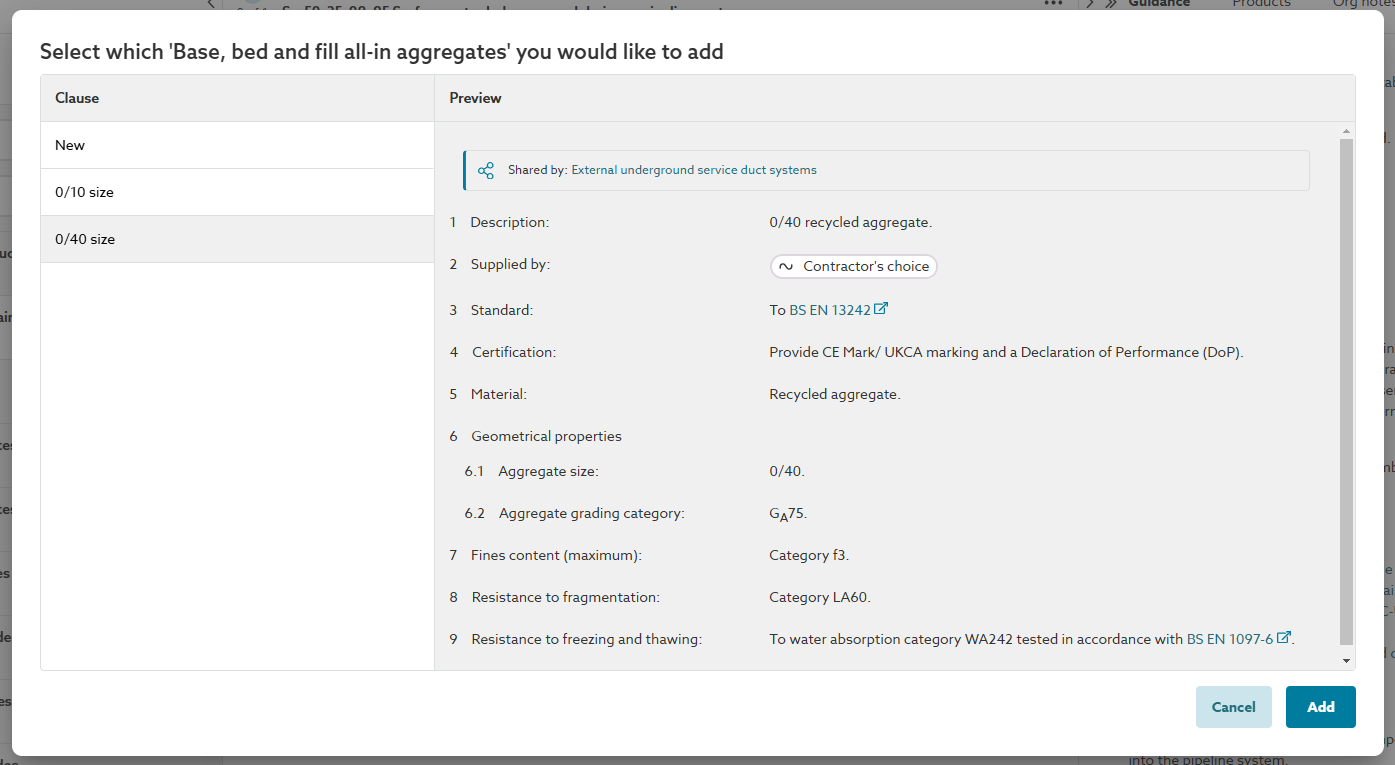
When the preview section is the showing the specific instance of the clause you wish to link into this host clause (the clause you are editing). Click the Add button. The dialog will close and a link to that instance of the clause will be inserted.
If other clause suggestions on the list are also applicable, insert them (in the order in which you wish them to be inserted in the row) as either a new clause, or a link to an existing clause as described above.
To close the suggestions list, click on the Close/ X button in the top right corner of the list.
The selected instance of the chosen clause option(s) will be inserted in the row (or at the end of the row if it currently includes other text or linked clauses) and linked into the clause. Linked clauses are displayed as a blue content bubbles (rounded blue rectangles displaying the clause title).Related: The difference between blue, grey and red content bubbles in the editor
Viewing the clause guidance for a clause suggestion
If you wish to view the NBS guidance information for one of the clause suggestions, click on the Book icon displayed at the left of the clause title in the list. The guidance will then be displayed in the guidance panel at the right of the window.
Related: Can I see more information about the NBS content before I add it to my specification?
Previewing the clause content and structure for a clause suggestion
If you wish to view the content and structure for one of the clause suggestions, click on the blue button displayed at the right of the clause title in the list. The blue button will either have a title of 'Preview' or 'x in spec' (where x is a number).
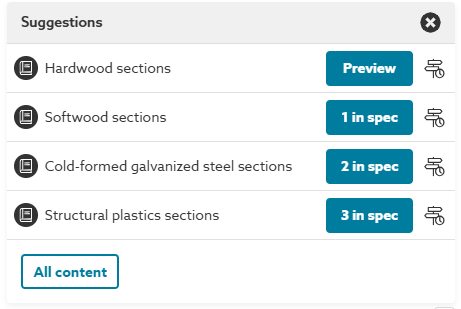
If the blue button has a title of 'Preview', this indicates that there no instances of this particular clause in the specification already. When the preview is displayed, click the Add button to add an instance of clause suggestion from the content set.
If the blue button has a title of 'x in spec', this indicates that currently there are one or more instances of this particular clause in the specification already. The number displayed on the button indicates how many instances of the clause there are currently.
For instructions on previewing and adding existing instances of clause suggestions, please refer to the Inserting a clause suggestion (existing clause) section above.
Adding a placeholder clause
You can add a placeholder to your specification instead of adding the full clause. Placeholders are a way of showing intent to add one or more of the clauses at a later date. Please refer to the separate How to add a placeholder clause topic for further information and instructions on adding placeholder clauses.
Video overview of adding content to your specification from a drop down menu
The short video (no audio) below demonstrates how to add content to your specification from a drop down menu.