
'Projects' are like folders. Projects contain all the specifications for the job and for the team members working to deliver them. This article explains how to access your projects.
TABLE OF CONTENTS
- The Projects home page and ‘My projects’ and 'All Projects' tabs
- When signing-in
- Navigating back to the 'My projects' dashboard
- If you do not see a project you anticipate on your 'My projects' dashboard
- Video overview of how to access 'My projects'
The Projects home page and ‘My projects’ and 'All Projects' tabs
The 'Projects' home page is split into two tabs, ‘My projects’ and ‘All projects’, each displaying its own respective dashboard view of projects.
The My projects dashboard view contains a tiled or grid view of all the projects that you are a member of. These are projects that you have either created yourself or have accepted an invitation to join.
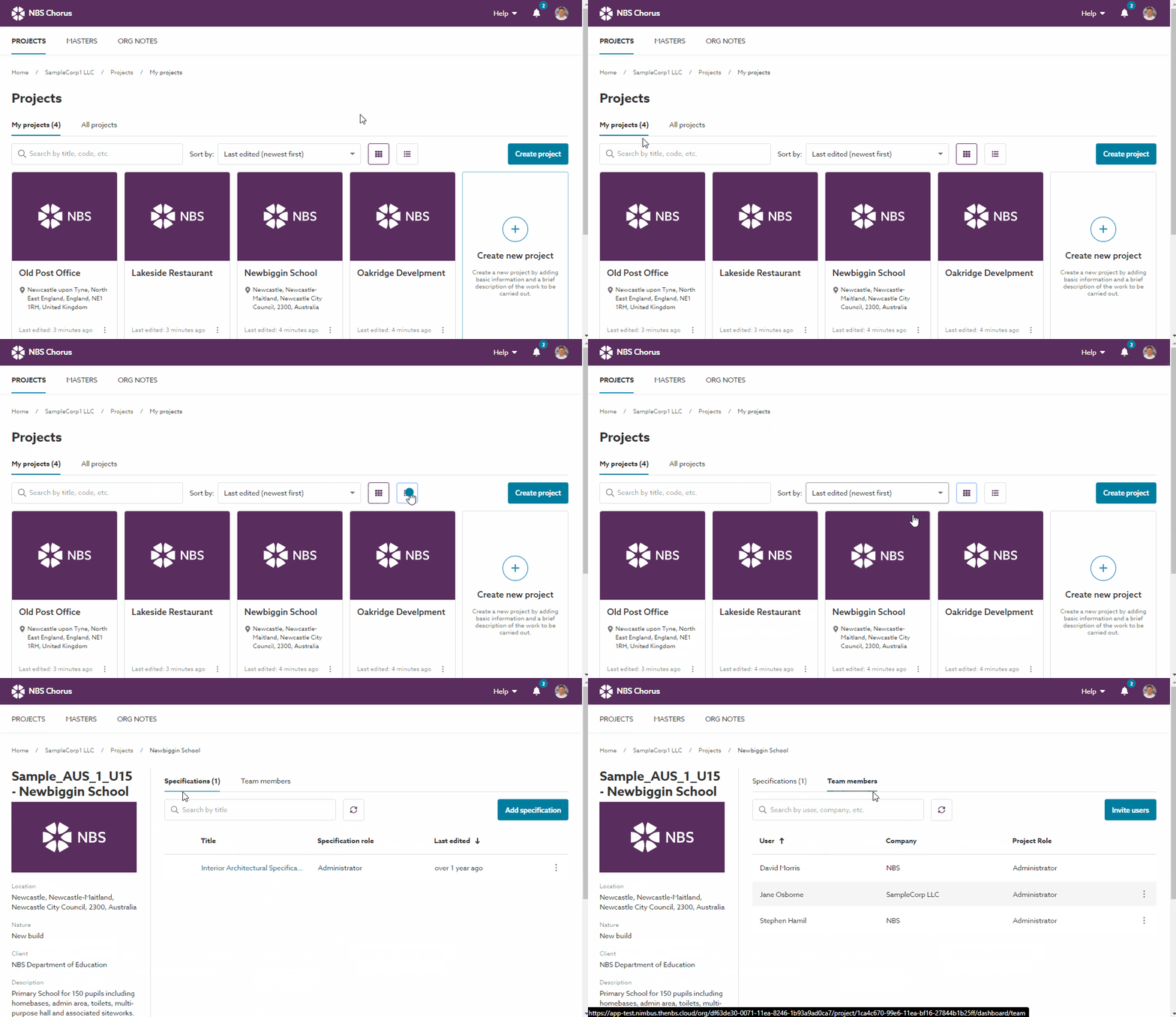
Projects will be visible on the My projects dashboard view to the team members who have accepted an invitation to join the project. When setting up a project, we recommend inviting everyone who is working on it so that it is displayed on their My projects dashboard. This includes members of the admin or management team who are not necessarily directly involved, but need visibility of its contents.
It is quite likely in most organizations, that each member of the organization will have a different selection of projects displayed on their own 'My projects' dashboard view. This would be because each member of the organization may have created their own projects and/ or been invited to join a different list of projects to other members of the organization.
The All Projects dashboard view contains a grid view of all the projects that have been set up by the organization. This will include all of the projects that appear on your 'My projects' dashboard view, together with all of the other projects in your organization which currently you have not been invited to.
Related: The ‘All projects’ dashboard
When signing-in
The 'My projects' tab and dashboard view is displayed by default when you initially sign-in to the platform.
Navigating back to the 'My projects' dashboard
Navigating back to the 'My projects' dashboard view from elsewhere in the platform is done by simply by clicking on the petal logo which is displayed in the top left corner of the platform.
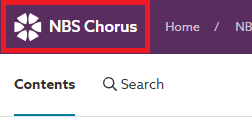
Sometimes, this may not be visible. For instance, if you've scrolled down in certain views, please scroll back to the top to see the logo. Also, if a full-page dialog or window is open, close or cancel it to display the logo.
If you do not see a project you anticipate on your 'My projects' dashboard
Project was previously displayed
If the project was previously displayed on your projects dashboard. Firstly, check and clear any text entered in the Filter field, this may be filtering out the project from your dashboard.
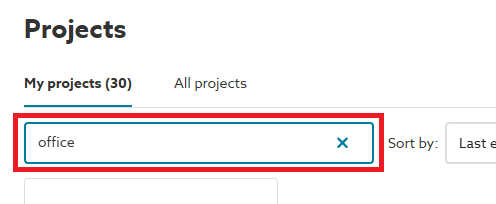
If the project is still not displayed, your access to the project may have been revoked, or the project renamed or deleted by the Project Administrator(s), in which case please check with them in the first instance.
Project was not previously displayed
If the project you anticipate seeing has not previously been displayed on your dashboard view.
Firstly, check if you have a pending invitation to the project that you have not accepted. You can check in two places:
- Your pending notifications are in the top-right corner of the platform.

- Your email. When you are invited to a project, you will be sent an email from ‘no-reply@thenbs.com’. Remember to check your junk folder.
Project (and master folder) invitations expire after 30 days. If the invitation has expired, please contact the project administrator(s) and ask them to reinvite you.
Related: What happens when I invite someone to a project?
If you do not have a pending invitation to the project, then you have not yet been invited to the project. Please contact the project administrator(s) and ask them to invite you.
Related: The ‘All projects’ dashboard will tell you who are the administrators on the project.
Video overview of how to access 'My projects'
The short video (no audio) below demonstrates how to access the 'My projects' dashboard view, and therefore access all of the projects you are a member of.
Related articles:
Inviting someone to collaborate on a project
‘All projects’ for the organization
Collaboration roles and permissions - Projects & master folders