
To get someone's attention in your specification, use @mentions.
You can chat with other 'Team members' within the ‘Spec notes’ and ‘Master notes’ panels in specifications and masters.
@mentions are in 'Spec notes' and 'Master notes', which are available with Pro (and above).
To start a chat with another person:
- Select the ‘Spec note’ or ‘Master note’ you want to chat in.
- You can add a ‘Spec note’ or ‘Master note’ to sections, articles, clauses and rows.
Related: Adding and replying to 'Spec notes' for sections, systems, articles, clauses and rows
- You can add a ‘Spec note’ or ‘Master note’ to sections, articles, clauses and rows.
- Add a new note or edit your existing one.
- Click the ‘@’ shortcut from the toolbar or enter ‘@’ followed by the user’s name.
- Please note: You can only @mention users with ‘Reader’ permission (or above) on the specification.
If the user has no individual permission on the project and spec or only a 'Group permission', you should invite them first. They must accept the invitation before you can @mention them.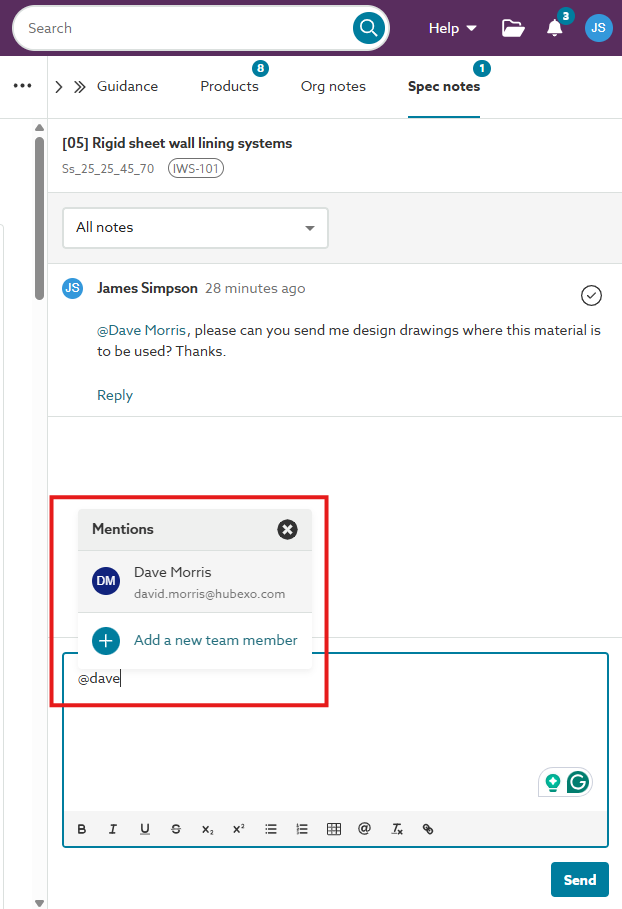 A screenshot of the '@' shortcut for starting a chat with someone in the 'Spec notes' or 'Master notes' panel.
- Please note: You can only @mention users with ‘Reader’ permission (or above) on the specification.
- Alternatively, click the ‘+ Add a new team member’ to open the ‘Team members’ tab in a new window. Use this to invite more users to the spec.
- Please note: Your invitee must accept your invitation before you can @mention them.
Related: Collaboration roles and permissions - Projects & master folders
- Please note: Your invitee must accept your invitation before you can @mention them.
- Click ‘Send’ to send your note.
What happens next?
When you mention yourself or another user, the platform sends them an email and adds an entry in the ‘Mentions’ section of the ‘Notifications’ menu.
Related article: When someone mentions you