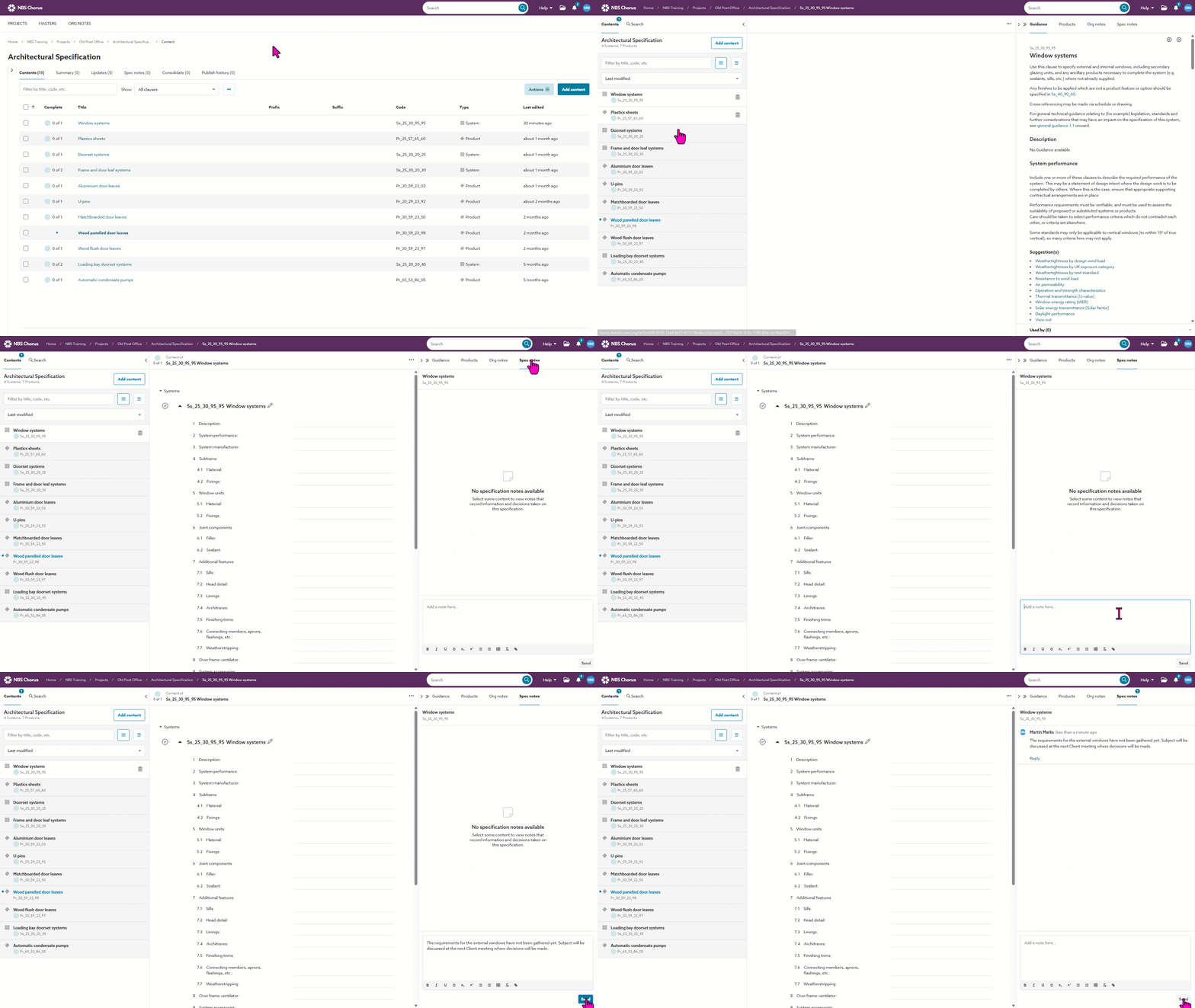
'Spec notes' can be recorded against a whole section, whole article or clause or a single row/ paragraph.
Tip: You must save any new rows you insert before you can add a note against the row.
1. In the example below, a note is being sent against the Window System.
- Select the section, system, article or clause you want to add the 'Spec note' to.
- Click on the 'Spec notes' tab in the right-hand panel.
- Enter your note.
- If appropriate, click the toggle to change the notes from a 'Shared note' to an 'Internal note'.
- This option is available to 'Org users' and hidden to guests.
- Related article: ‘Shared notes’ and ‘Internal notes’.
- Click 'Send'.
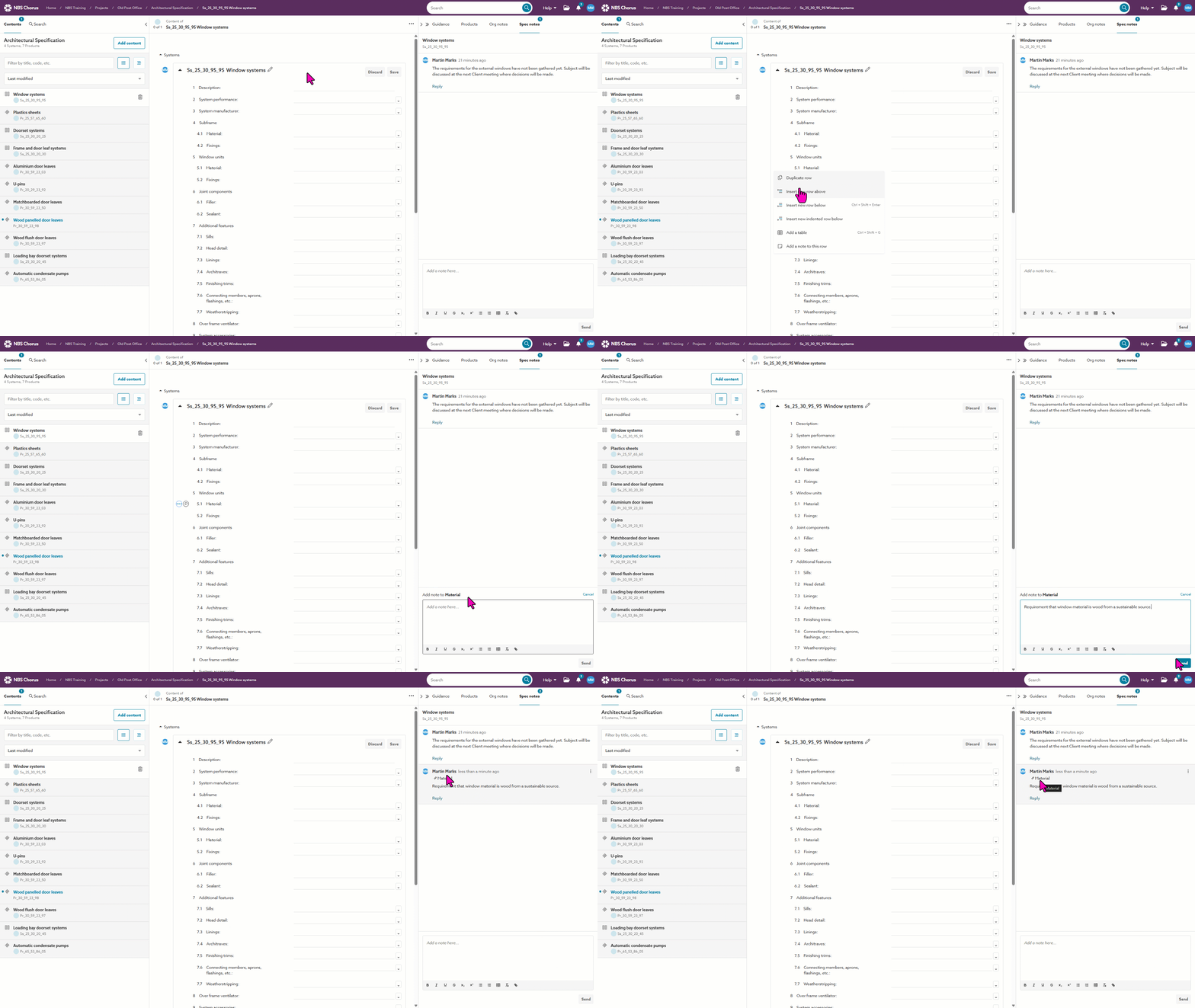
2. Below is how to send a spec note related to a specific row/ paragraph. We are making a note specific to the materials used in the Window unit.
- Select the article or clause to which you want to add the 'Spec note'.
- Click on the 3-dot menu to the left of the row or paragraph you want to add the 'Spec note' to.
- Click 'Add a note to this row'.
- Enter your note.
- Click 'Send'.
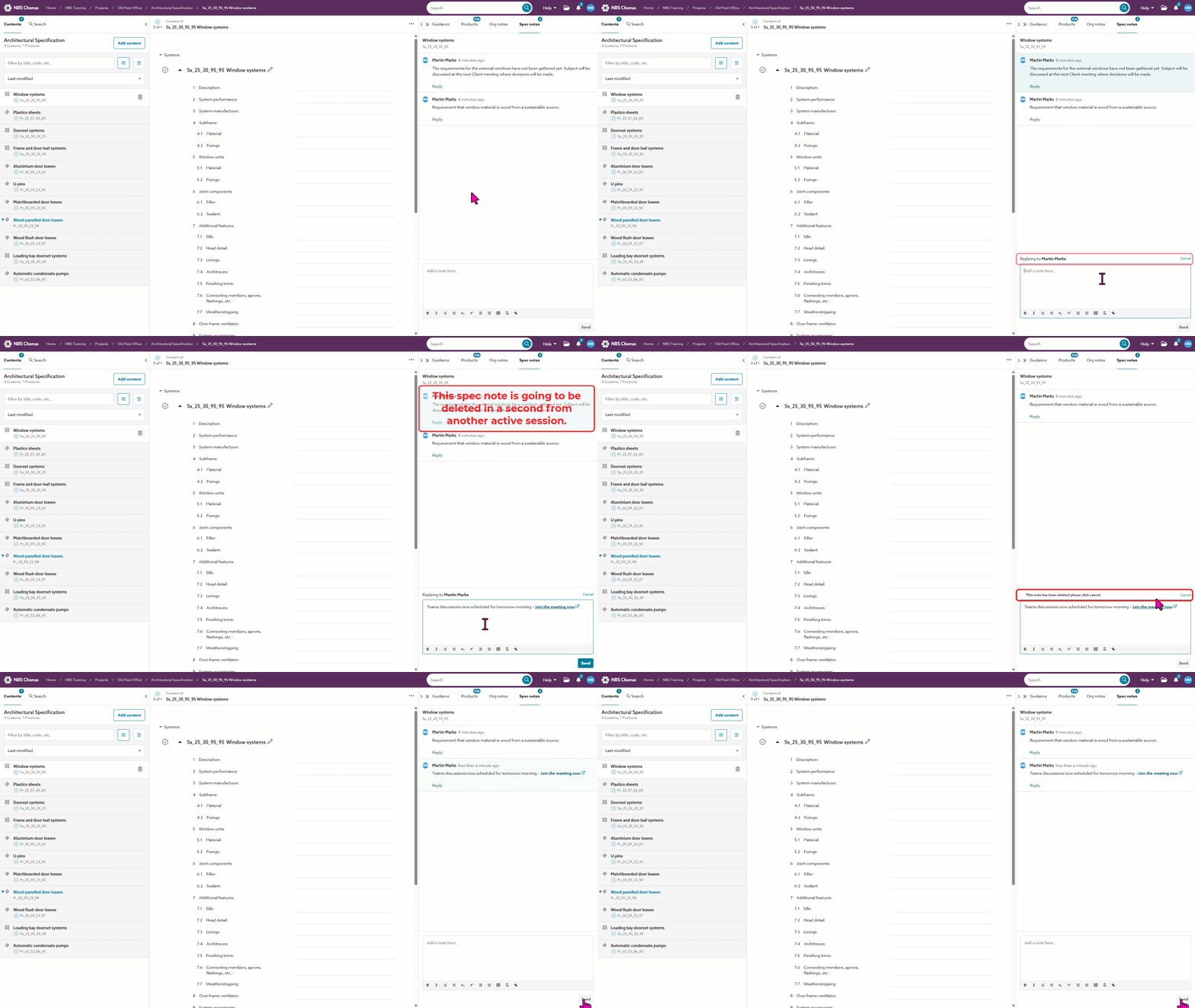
3. To reply to an existing note, click 'Reply' under the note you are responding to and add your response. Spec notes and replies are updated in real-time, so other users will see the note next time they access the content.
Scrolling to new notes
If there are already many spec notes against the article or clause, when you send a new note, the platform will automatically scroll the 'Spec notes' panel to display it.
Replying to a note that has been deleted
Adding, editing and deleting notes happen in real time. This means it is possible to be in the process of replying to a spec note when the original note gets deleted.
In this situation, you will see that the note has been deleted, and you can no longer respond to it.
However, your spec note can still be sent. It will be added a new spec note (as it is not possible to add it as a reply to the original deleted spec note).
- When the message 'This note has been deleted, please click cancel' appears, click on 'Cancel'.
- Finish composing your spec note. You may additionally wish to include context details, as it will now be a new separate note.
- Click 'Send'.