You will see this message when the clauses on your clipboard contain exact matches to the clauses in the specification you are pasting. It gives you the choice of how you want the exact matches to be pasted.
TABLE OF CONTENTS
- 'Do not consolidate and add as new'
- 'Consolidate these clauses with a shared relationship'
- ‘How copied clauses will be pasted’
- How does Chorus determine if a clause can be consolidated?
- Worked example
This function applies to 'Uniclass - Work section'- based specifications. There is a choice of two options:
- 'Do not consolidate and add as new types' – results in a new ‘Type’ clause for every clause on the clipboard that has the same code as a clause in the destination.
- 'Consolidate these clauses with a shared relationship' – results in existing clauses being updated to show where they are ‘Shared by’ rather than new clauses being added. This is explained in detail below.
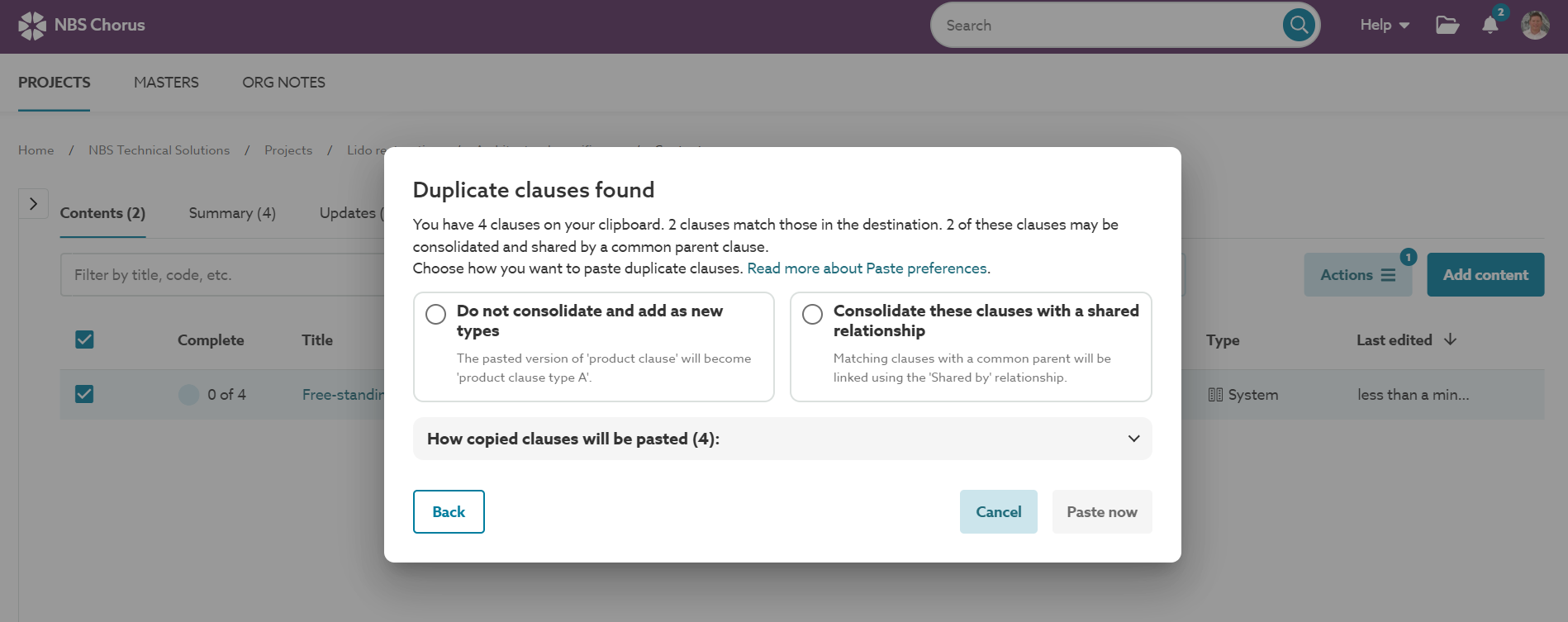
A screenshot of the ‘Duplicate clauses found’ options.
'Do not consolidate and add as new'
This is how NBS Chorus has historically pasted Uniclass clauses. When this option is chosen, every clause on your clipboard that has the same code as a clause in the destination will be given a new 'Suffix', e.g. Type A.
'Consolidate these clauses with a shared relationship'
Use this option when you want, for example, to create a new system but wish to retain the 'Shared by' relationships of its subordinate clauses. For instance, you might want to paste a 'Gypsum board partition system' and its child clauses, but you do not want every child clause to become a new 'Type'.
When you select 'Consolidate these clauses with a shared relationship', the clauses on your clipboard will be pasted as follows:
- The clause(s) you select in the ‘Contents’ grid always paste as a new ‘Type’. See 'Match type' in the 'How copied clauses are pasted' section below.
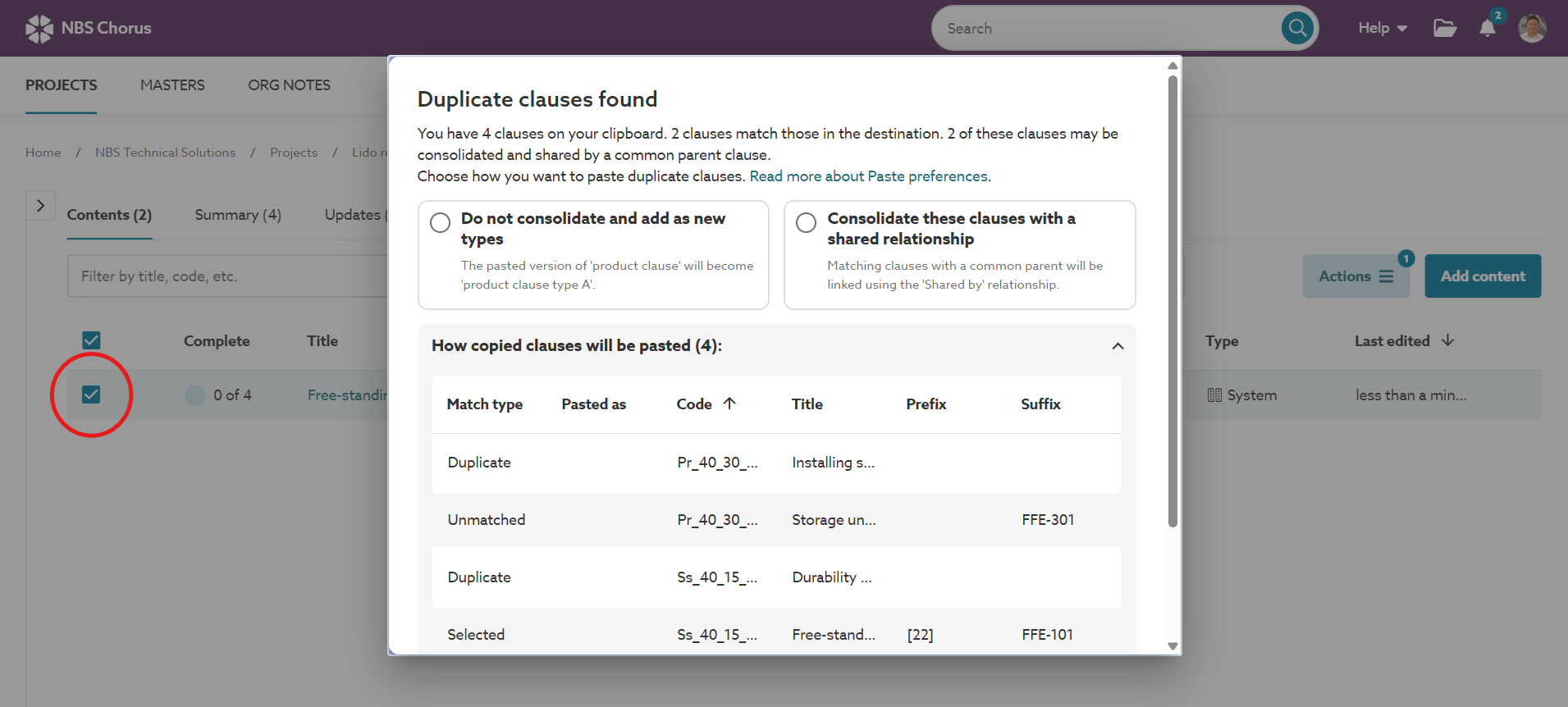 A screenshot showing the clause selected in the ‘Contents’ grid always pastes as a new ‘Type’.
 - For the unselected clauses on your clipboard:
- Clauses that precisely match those with the same clause code in the destination will have an updated ‘Shared by’ relationship to indicate what they relate to.
‘How copied clauses will be pasted’
The 'How copied clause will be pasted (#):' option can be expanded to show the clauses on the clipboard and how they will be pasted.
The table lists the clauses you are about to paste into the destination spec. The 'Match type' and 'Pasted as' columns clearly indicate how all of the clauses on your clipboard will be pasted into the destination specification.
The values in the 'Pasted as' column will vary depending on the paste option you choose from the menu.
The 'Match type' column shows:
- 'Selected' - this indicates the clause(s) you selected in the ‘Contents’ grid to copy. 'Selected' clauses are always pasted as a new type.
- 'Duplicate' - are clauses that exactly match at least one clause in the destination spec.
- 'Unmatched' - are clauses that do not match any clauses in the destination spec.
The 'Pasted as' column values change according to which paste option you select.
- 'New type'
- This means the clause will be pasted as a new type. Selected clauses and clauses that do not match anything in the destination spec are always pasted as a new type.
- 'New type' will be shown for all clauses when you select the 'Do not consolidate and add as new types' option.
- 'Shared by'
- This means existing clauses are being updated to show where they are ‘Shared by’ rather than new clauses being added.
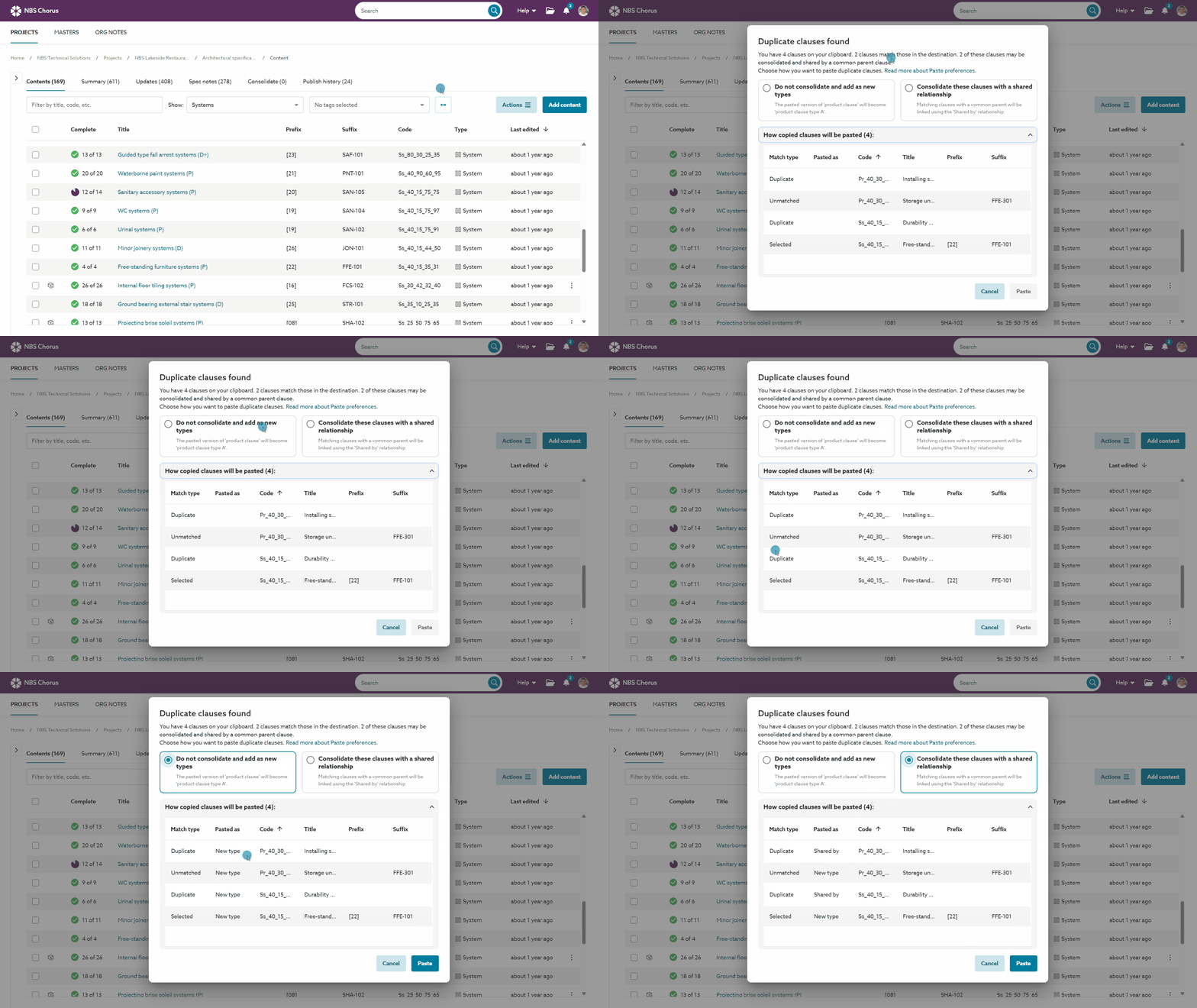
A screenshot illustrating how the 'Pasted as' column values update based on the chosen paste option.
When can a clause be consolidated?
When you paste into a destination, the platform compares the clauses on your clipboard with the clauses in the destination. It looks for exact matches.
- An exact match is a clause with the same code and the same clause body.
- The clauses 'Prefix', 'Title', and 'Suffix' are ignored during the matching process.
- Clauses are regarded as duplicates if their content is identical, and all their subordinate clauses' content is also identical, including grandchildren and further descendants.
- The clauses you select from the 'Contents' list before copying will always be pasted as a new ‘Type’ in the destination specification.
Related feature: 'Consolidate'
'Duplicate clauses found' offers options to prevent unnecessary duplication when pasting clauses. ‘Consolidate’ identifies identical clauses and allows you to combine them. This feature applies to 'Uniclass - Work section'-based specifications.
Please see Consolidate.
Worked example
Probably best explained in screenshots...
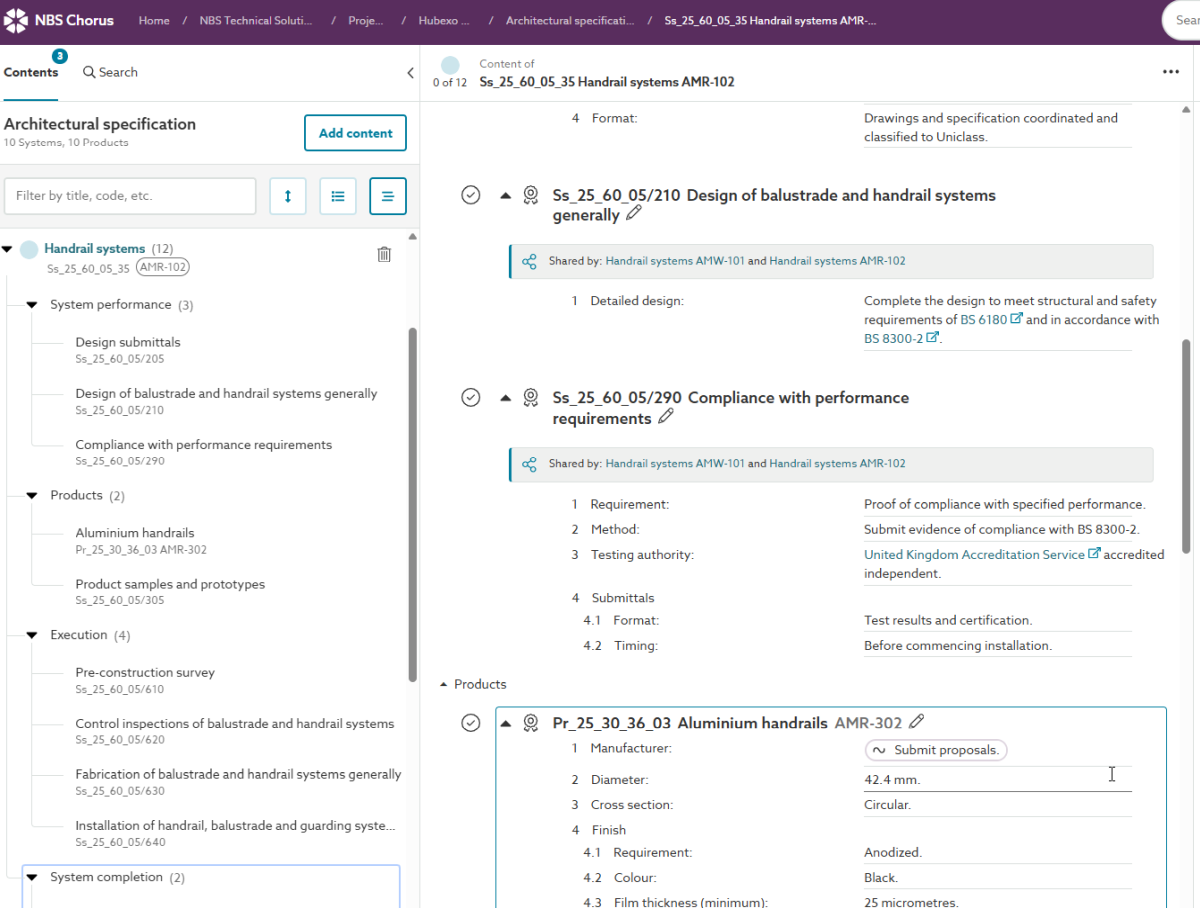
Step 1 - The user has a master handrail system
Note that this system contains 12 child clauses detailing performance, products, and execution requirements.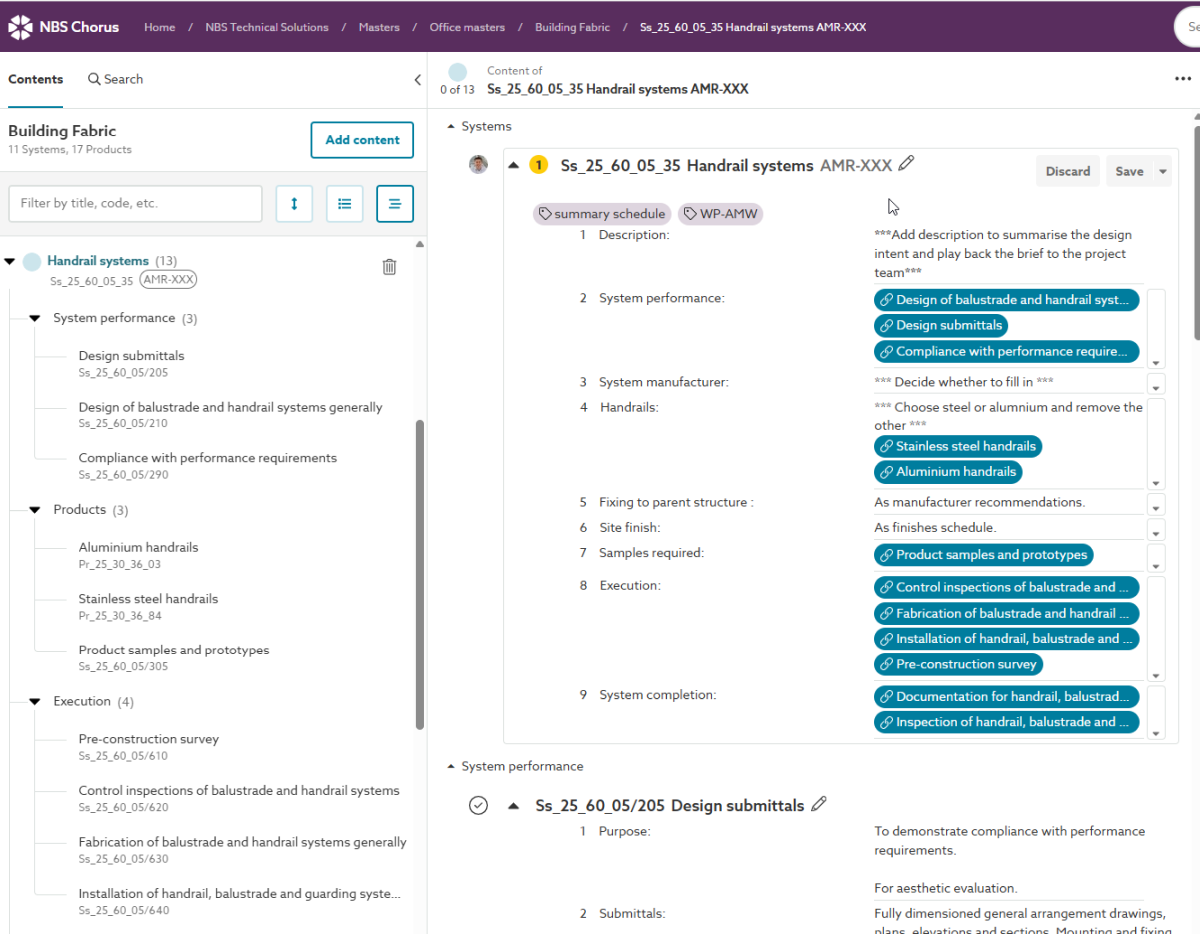
Step 2 - Copy into a project specification
The first time a system is added to a project specification, there are no decisions to be made. It drops into the project spec, and the user then makes it project-specific - such as adding a new clause suffix for drawing references, updating the description, and deciding whether to choose the stainless steel or aluminium handrail.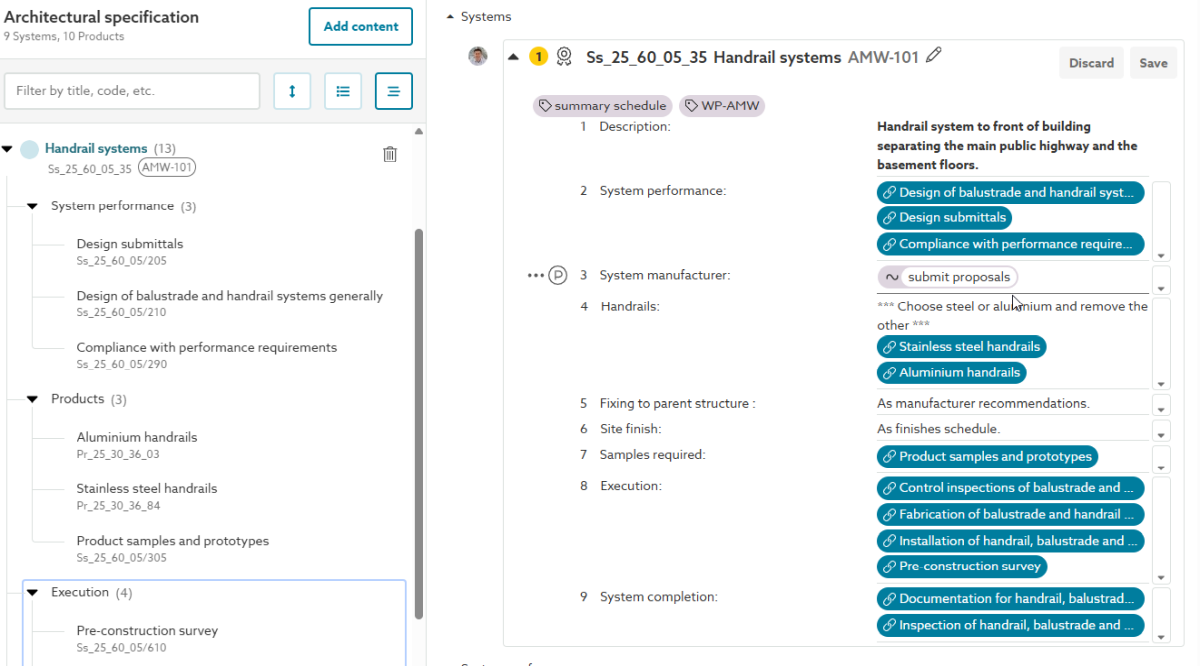
Step 3 - Copy into a project specification a second time
The second time (and any subsequent times) the system is added to the project specification, the specifier is now given the choice...
A. To duplicate all child clauses with the Type A suffix, or.
B. Consolidate all child clauses so they are initially shared by both parents.
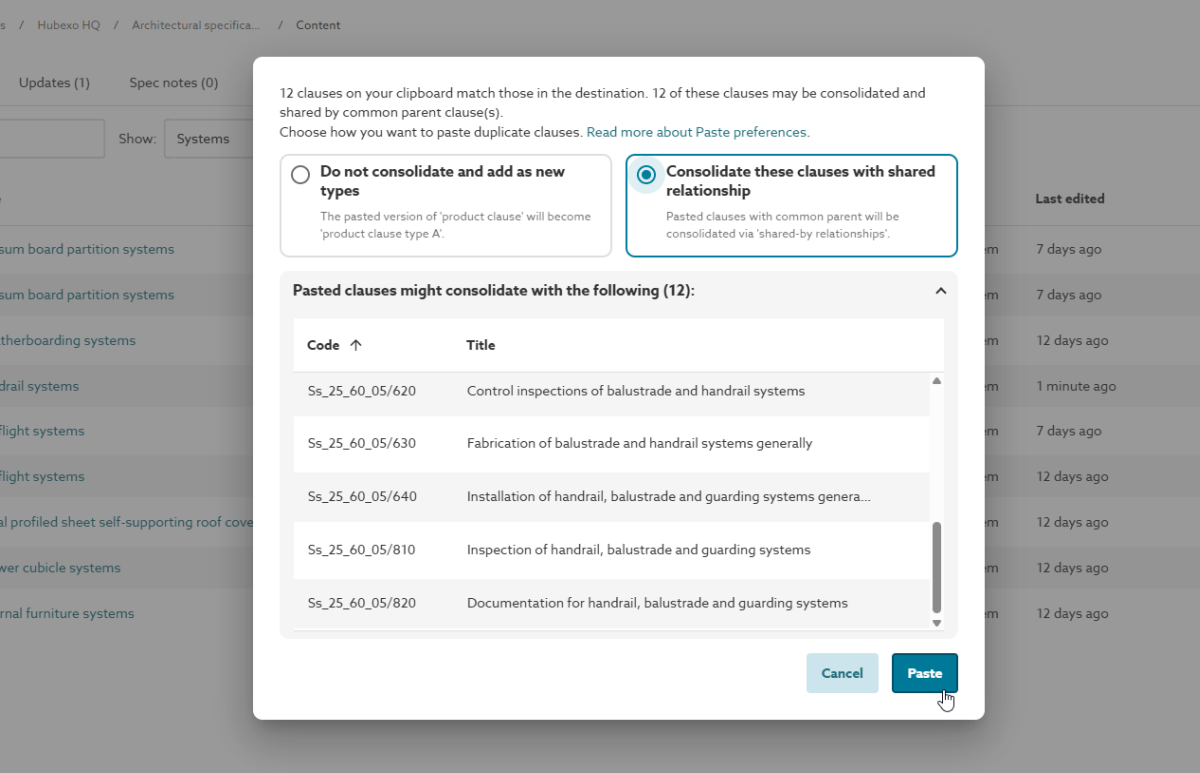
The final screenshot below shows the specification now with two handrail systems, with the child clauses consolidated (option B). Consolidated child clauses are included in the specification once, but with multiple parents.