
'Spec notes' are where you record decisions in specifications.
Not all notes are intended for the same audience. When adding a ‘Spec note’, you can manage the visibility of the note by designating it as a ‘Shared note’ or an ‘Internal note’.
This article explains ‘Shared notes’ and ‘Internal notes’.
About ‘Shared notes’ and ‘Internal notes’
‘Spec notes’ and ‘Master notes’ can be logged as either a ‘Shared note’ or an ‘Internal note’.
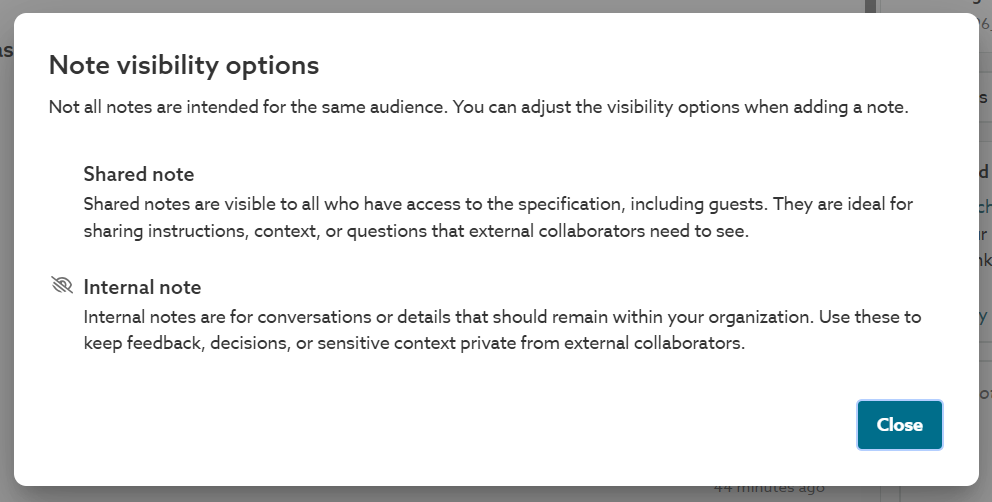
A screenshot of the 'Note visibility options' that describes a 'Shared note' versus an 'Internal note'.
In other words, a ‘Shared note’ can be viewed by third-party external collaborators who have been granted permission for the specification. An ‘Internal note’ is visible solely to the members of the organization and their colleagues.
If you wish to record a ‘Spec note’ but do not want external collaborators to view it, designate it as an ‘Internal note’.
In summary:
- ‘Organization users’ can set a note as ‘Shared note’ or ‘Internal note’.
- The option is not available for guests.
- The default is ‘Shared note’.
- ‘Shared note’ and ‘Internal notes’ only apply to ‘Spec notes’ and ‘Master notes’.
- In contrast, ‘Org notes’ are only visible to Org users and hidden from guests.
How to record an ‘Internal note’
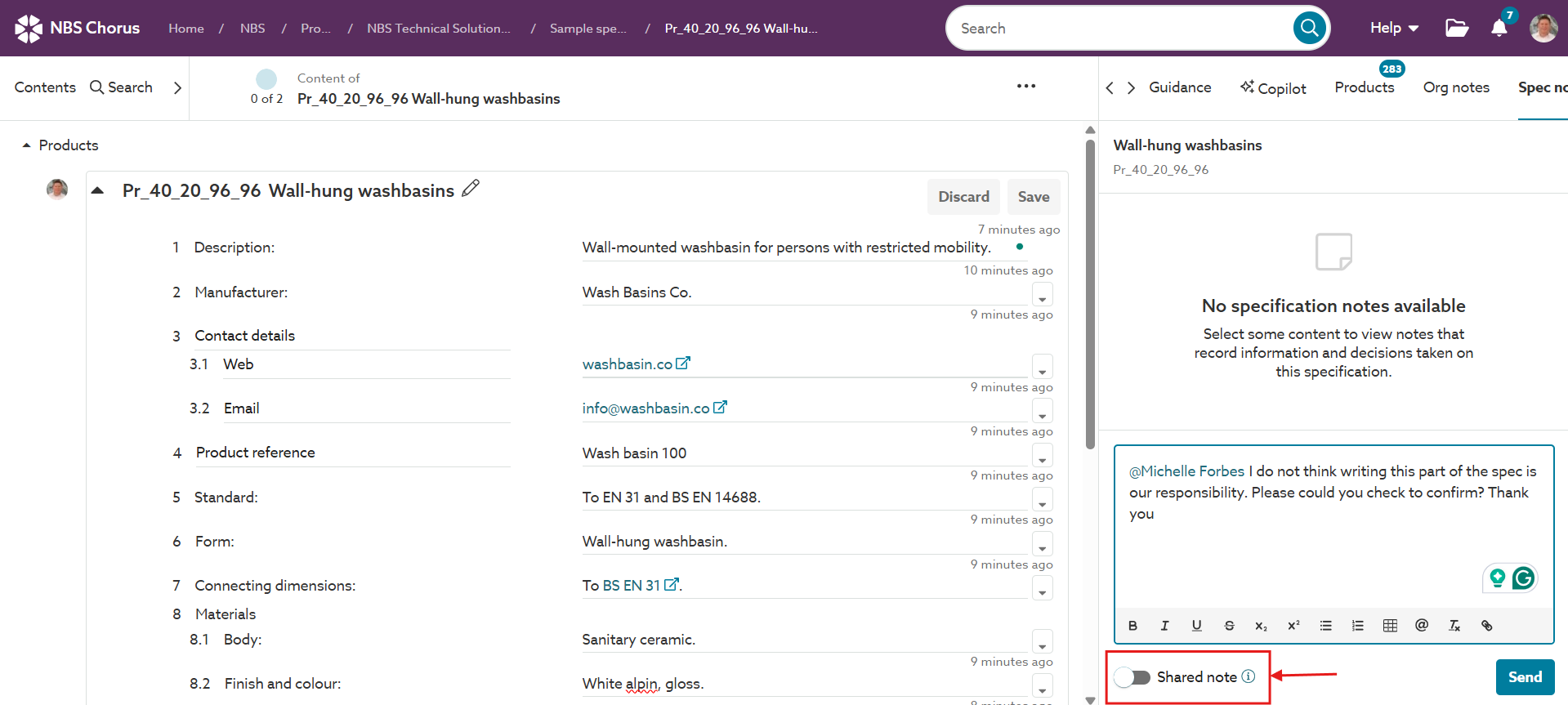
A screenshot of the 'Shared note' toggle within the 'Spec notes' panel.
By default, ‘Spec notes’ and ‘Master notes’ are set as ‘Shared notes. To change the visibility of the note to an ‘Internal note’:
- Enter the specification requiring the note.
- Select the article or clause requiring the note.
- Click on the ‘Spec notes’ or ‘Master notes’ panel alongside the specification editor.
- Enter your note text.
- Click on the ‘Shared note’ toggle to change it to ‘Internal note’.
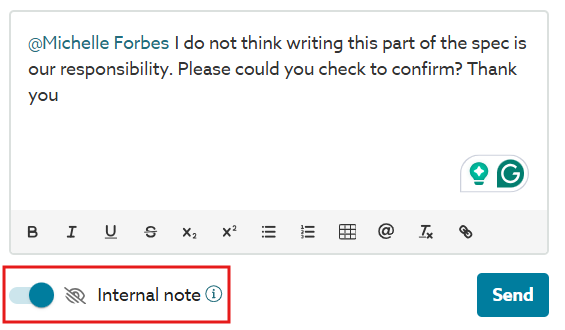
- Click ‘Send’.
‘Organization users’ can set a note as ‘Shared note’ or ‘Internal note’. The option is not available for guests.
How to tell when a note is an ‘Internal note’
When a note is set as an ‘Internal note’, you will see this icon alongside it.
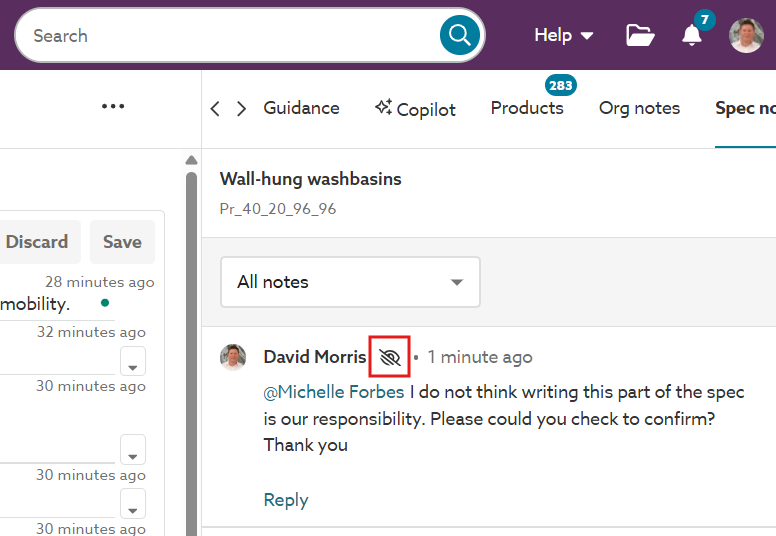
A screenshot of the 'Internal note' icon in the 'Spec notes' panel.
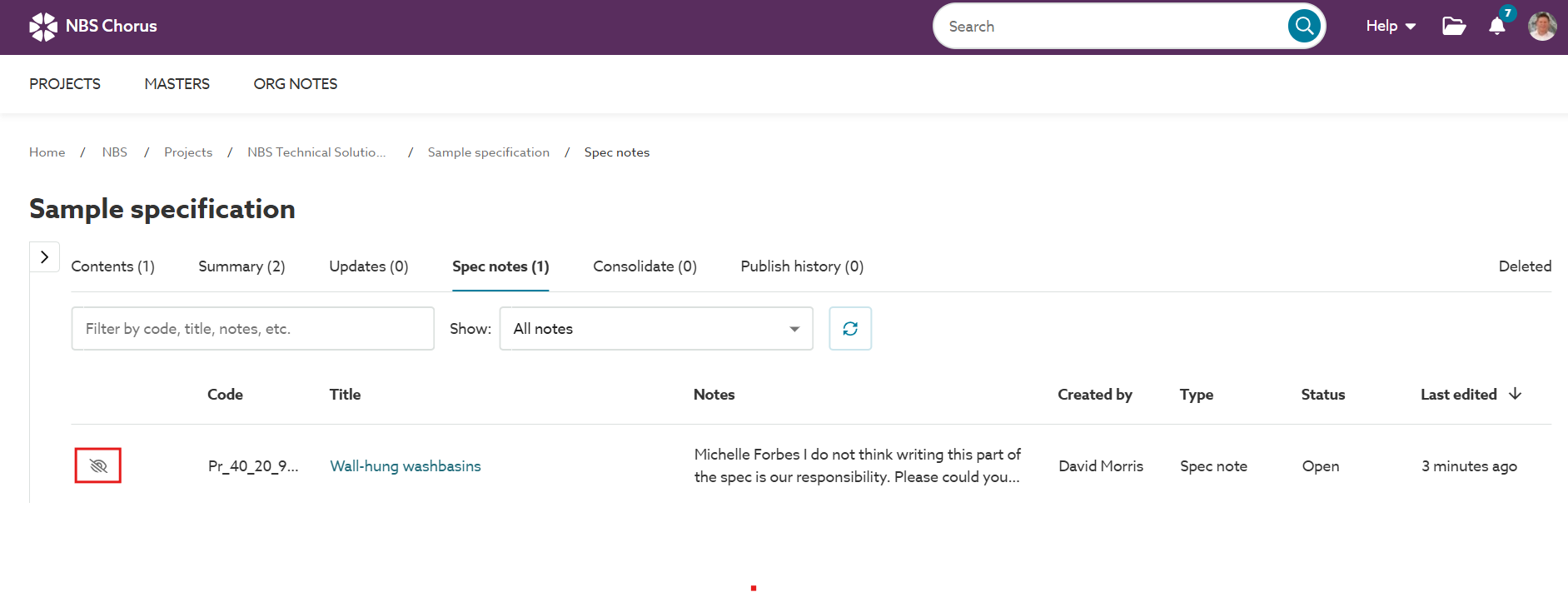
A screenshot of the 'Internal note' icon in the 'Spec notes' grid.