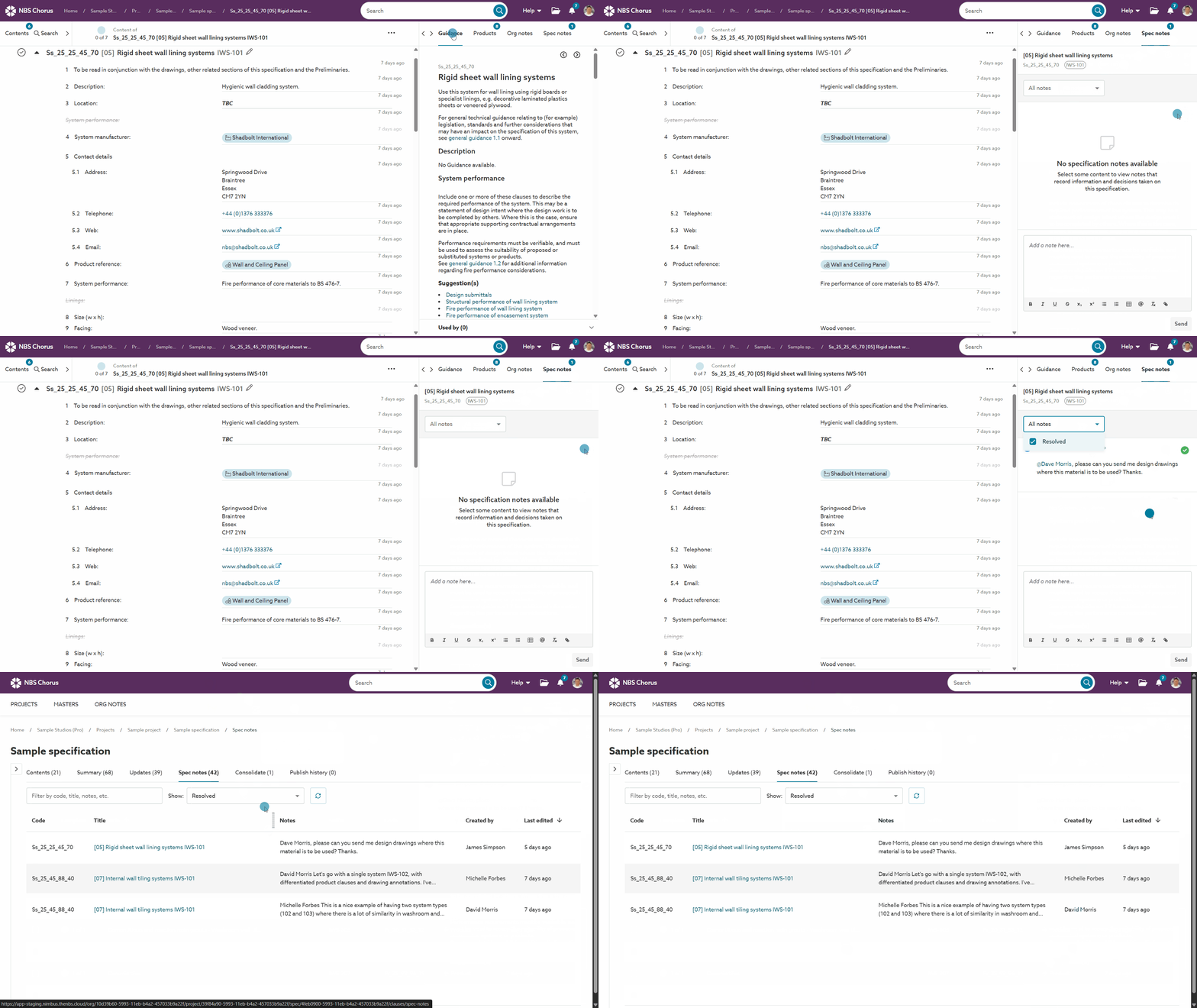
‘Spec notes’ and 'Master notes' are used to document events and tasks, among other purposes. Marking a note as resolved indicates that a task has been completed. The 'Spec notes' filter allows you to hide event-related and resolved notes, helping you concentrate on your remaining priorities.
TOPICS
Resolving notes
'Spec notes' can be marked as 'Resolved.' When a note is resolved, it displays a tick icon. You can filter out resolved notes to hide them from your view. This feature is helpful when you want to focus on your remaining priorities.
Key points about resolving notes:
- To resolve a note, click the checkmark icon in the 'Spec note' or 'Master note' panel next to the editor.
- Only parent 'Spec notes' and 'Master notes' can be resolved; replies to notes cannot be resolved.
- Anyone can resolve a note.
- Anyone can mark a note as unresolved.
- The user's name and timestamp are recorded when they resolve a note.
- Resolved notes are filtered out by default, but you can easily view them again by selecting 'Resolved' from the filter options.
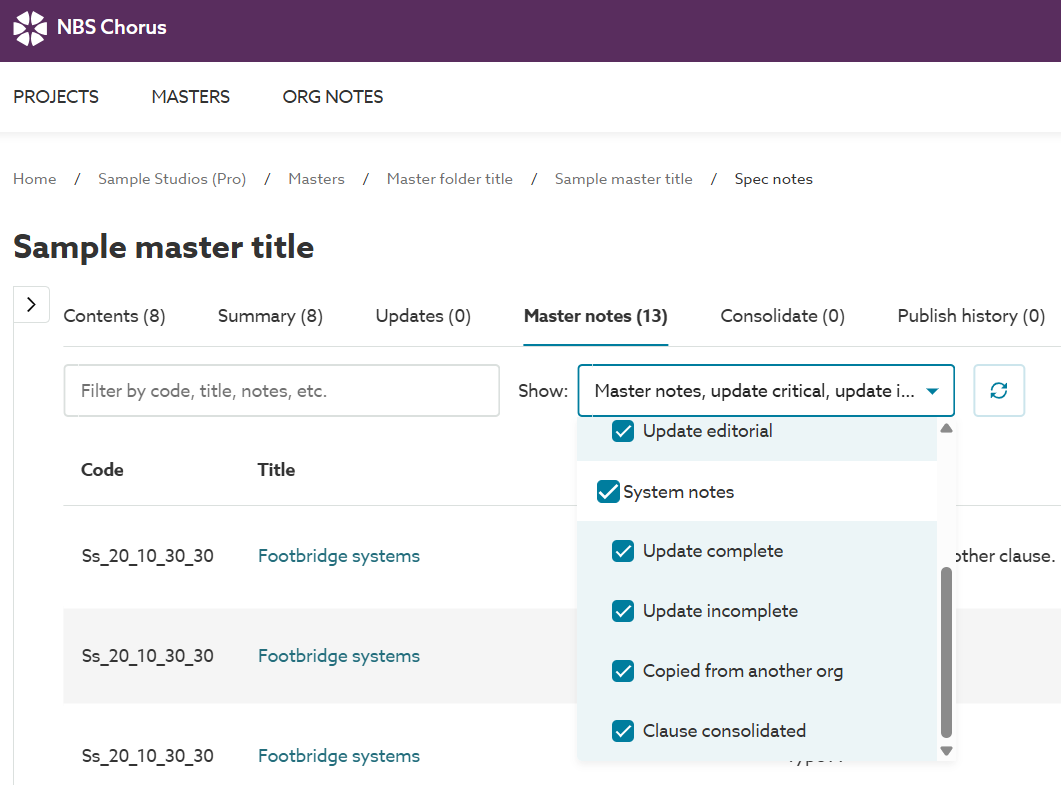
Filtering notes
You can apply a filter to the 'Spec Notes' and 'Master notes' panel (located next to the editor) and the 'Spec Notes' and 'Master notes' tab. These filters are useful for hiding 'System Notes.'
Here are some key points about filtering notes:
- Your filter selections are saved as user preferences.
- The filters you choose apply to both the notes panel (in the editor) and the 'Spec Notes' or 'Master Notes' tab. For instance, if you select 'Resolved' notes, this filter will apply to both locations.
- The filter menu is contextual, which means it will only display options for the types of notes that exist in the notes grid or panel.
'System notes'
The specification automatically records a note when you perform specific actions. These are grouped under 'System notes' in the filters.
The specification records a 'System note' for the following actions:
- 'Clause consolidated' – when 'Consolidate' has been used to merge duplicate clauses.
- The note text says, 'Consolidated with # other clauses'.
- Related article: Consolidate - an overview.
- 'Copied from another org' – when a clause has been copied from one organization to another.
- The note text says, 'Copied from {organization name} by {user's full name}'.
- Related article: Copying sections and systems to another organization.
- 'Update complete' and 'Update incomplete' – when a master article or clause has been marked as complete.
- The note text says, '{Article/ Clause} marked as {complete/ incomplete}'.
- Related article: Master change notifications: 'Updates' tab.
- 'Update parked' and 'Update unparked' –when a master article or clause has been parked or unparked.
- The note text says, '{Article/ Clause} {parked/ unparked}'.
- Related article: Master change notifications: 'Updates' tab.