
'Consolidate' identifies identical clauses and lets you consolidate them. This article is a step-by-step guide to using ‘Consolidate.’
Related:
- See ‘Consolidate – An overview’ for a demo of this feature.
- Duplicate clauses found (Uniclass - Work sections).
How to use ‘Consolidate’
- Open your ‘Uniclass – Work Sections’ based specification.
Please note:- ‘Consolidate’ is only available for Australia and the UK Uniclass – Work Sections. For other content sets, we recommend the ‘Spec check’ report’s ‘Consider consolidating.’
Please see Consolidating your specification using Spec check. - The ‘Consolidate’ tab is available for users with ‘Contributor’ permission (and above) on the specification.
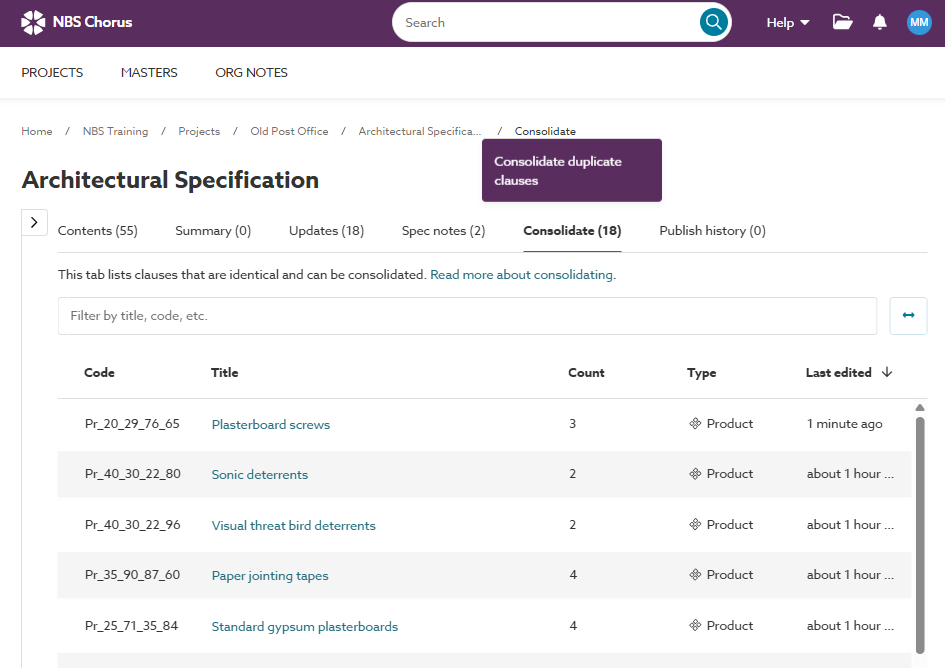 A screenshot of the 'Consolidate' tab in 'Uniclass - Work Sections'-based specification.
- ‘Consolidate’ is only available for Australia and the UK Uniclass – Work Sections. For other content sets, we recommend the ‘Spec check’ report’s ‘Consider consolidating.’
- Click on the ‘Consolidate’ tab. The grid shows:
- Clauses that have been compared and identified as identical.
- The ‘Count’ column shows how many identical instances of each clause there are in the spec.
- Click on the title of a clause you want to consolidate.
- The 'Consolidate' wizard is displayed, showing each identical instance of the clause.
- The platform automatically checks out each instance of the clauses (and their 'parent' clauses) so they cannot be edited while you are consolidating them.
- If you want more context, click on the ‘Part of’ link to open the 'parent' clause in a new browser tab. If the clause has more than one 'parent' clause (i.e. it is a shared clause), the 'Part of' column will show the first clause it was linked to.
- Clicking over the Prefix, Title, Suffix or Last Edit details for any of the listed clauses will display a preview of the clause in the ‘Preview’ panel on the right-hand side.
- Clauses that are 'Marked as complete' cannot be selected. We recommend marking them as incomplete before consolidating them.
- Select/ tick the checkbox(es) next to the clause(s) you want to consolidate.
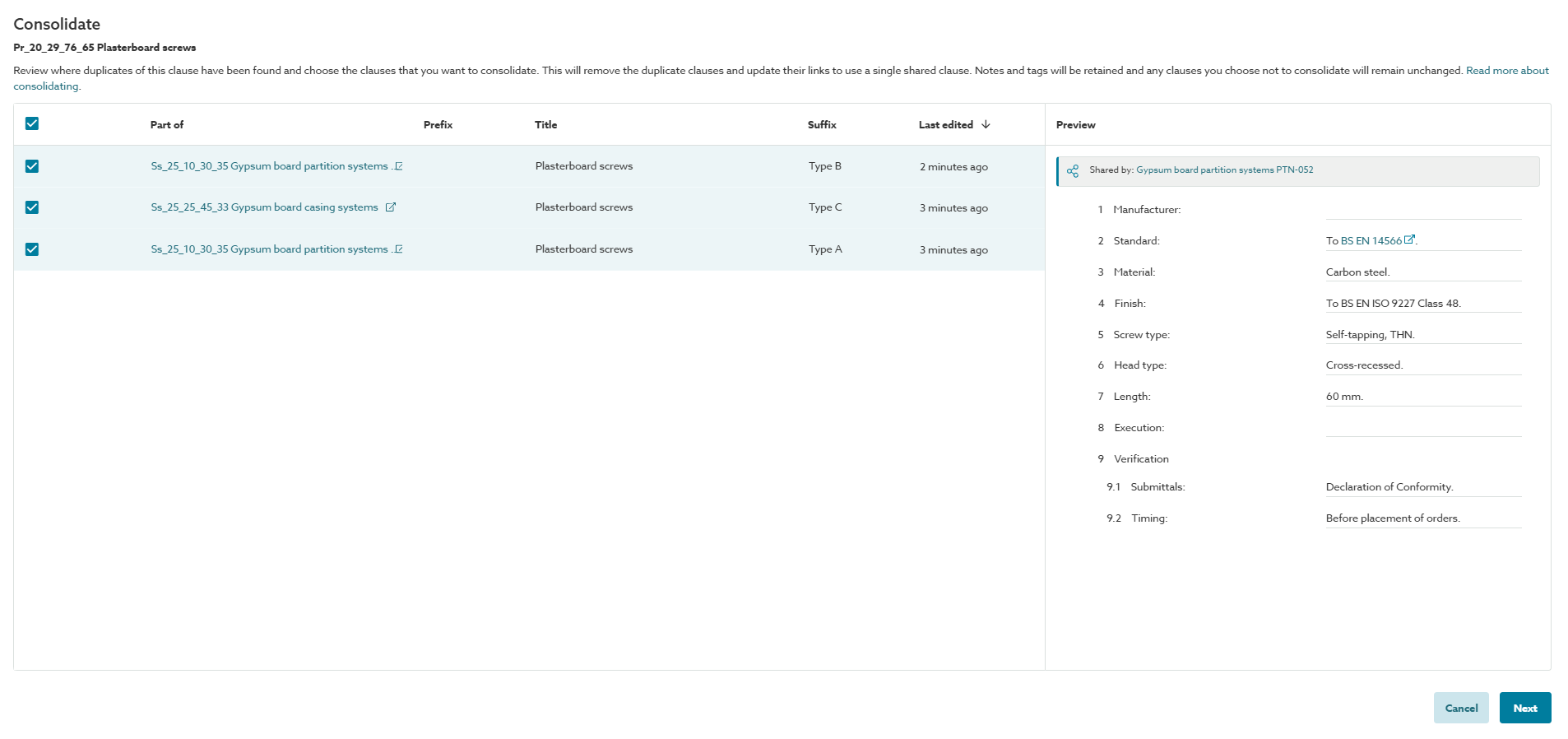 A screenshot of the 'Consolidate' wizard showing clauses selected to consolidate.
Please note that if your selected clauses contain either scenario below, you cannot consolidate them. Please see 'Max 1 clause' for more information.A screenshot of the 'Max 1 clause...' messages displayed in the 'Consolidate' wizard.
- The message 'Max 1 clause associated with a model' is shown when the clauses you have selected have been associated with more than one object in a BIM model, such as Autodesk Revit.
- The message 'Max 1 clause copied from a master' is shown when the clauses you have selected originate from different clauses in the master.
- Now enter the ‘Prefix’, ‘Title’, and 'Suffix’ you want your consolidated clause to have. As a reminder, clicking into the prefix or suffix fields will each show a drop down list displaying the details your selected clauses already contain.
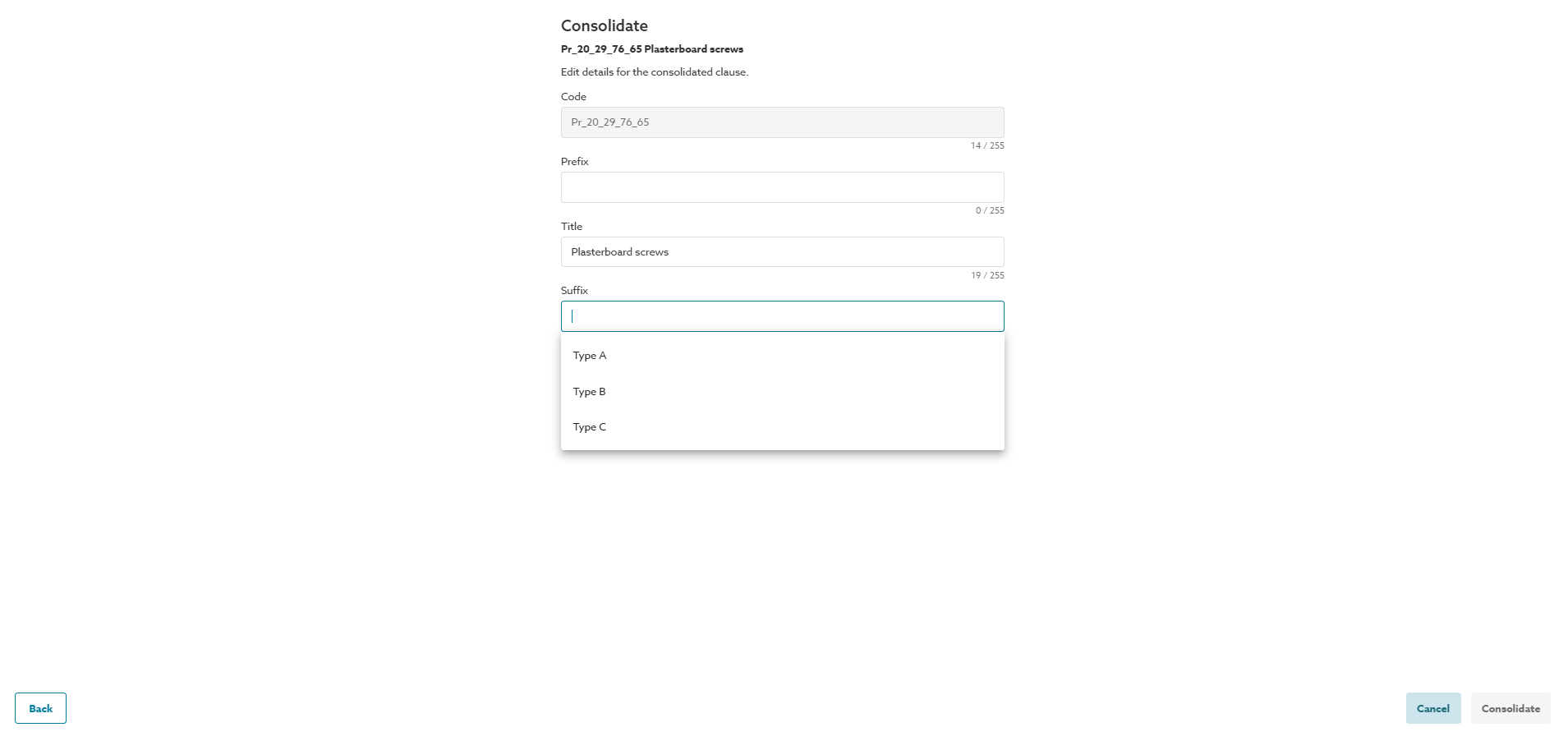 A screenshot showing how to set the ‘Prefix’, ‘Title’, and Suffix’ on your consolidated clause.
 - The pla will consolidate the clauses and present a confirmation message. Clicking 'View in editor' will open your consolidated clause in a new browser tab.
 A screenshot of the confirmation message with the option to 'View in editor'.
 - Clicking on ‘View in editor’ will open the consolidated clause in a new tab. The ‘Prefix’, ‘Title’ and ‘Suffix’ will be set to what you entered in step 6. The ‘Shared by’ information will show as updated.
A screenshot showing the 'Shared by' information for the consolidated clause.