
You can search for articles and clauses across all projects and masters. This feature can be helpful when looking for someone who has specified something you haven't or when trying to find where the organization has specified something.
This guide provides an overview of its functionality.
Please note:
'Cross-project and master search' is available with 'Premium'.
Related article: Cross-project and master search permissions
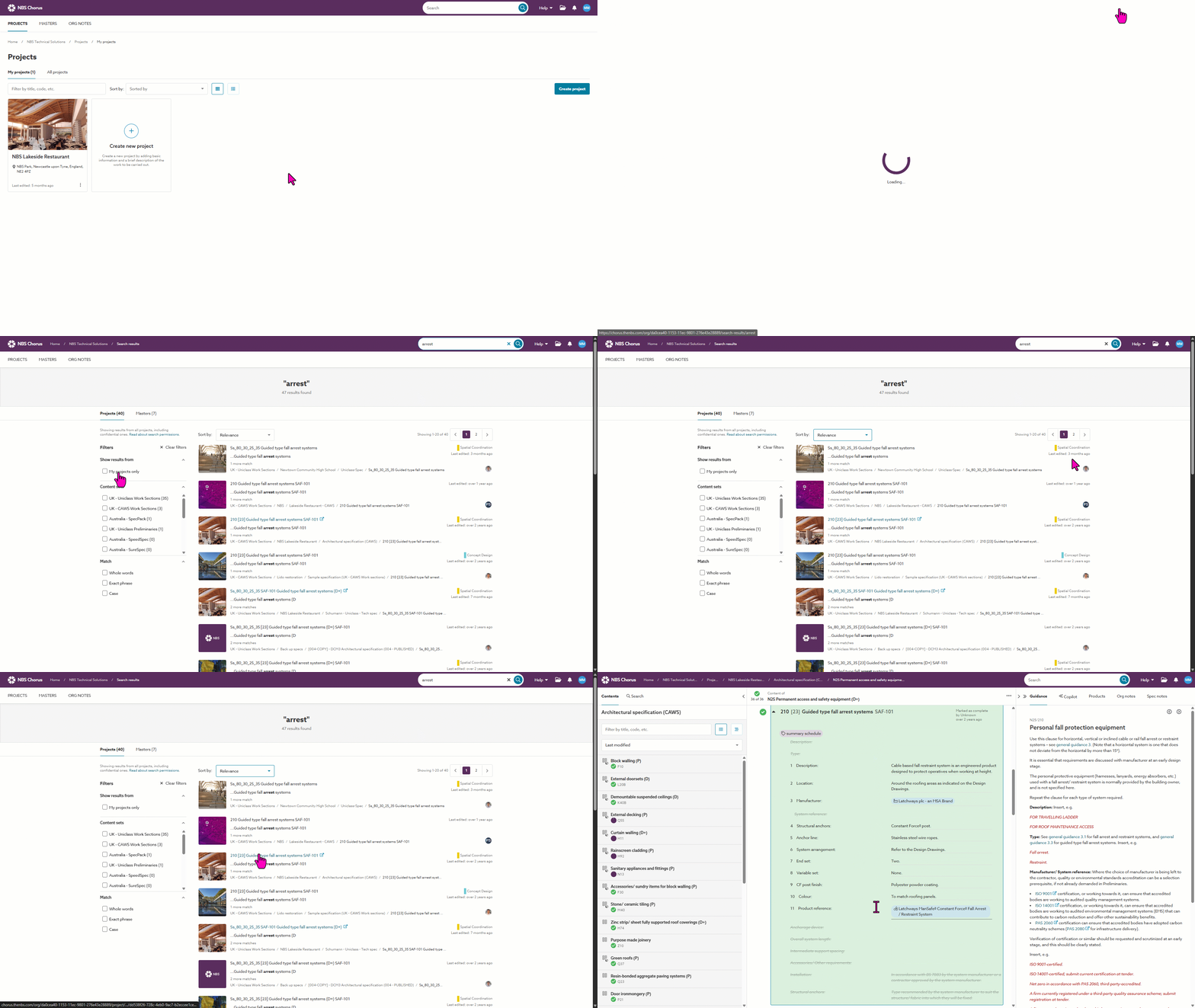
A screen capture showing the cross-project and master search.
Results are shown based on your role
Org admins will see results from all projects and masters, except for any specifications they have been excluded from.
By default, org users and guests can view results only from the projects and masters they have permission for. However, org admins have the option to change this setting, allowing all org users to see results from every project and master, even those they are not members of.
Please see Cross-project and master search permissions
Which parts of the specification can be searched?
You can search:
- The specification articles, clauses, sections and systems.
- This includes:
- Article and clause code, prefix, title and suffix.
- Article and clause rows/ paragraphs.
- Hyperlink display text.
- Manufacturer and product chips.
- Tables.
- Variable values.
You cannot search:
- The Hyperlink target URL.
- Org notes.
- Spec notes.
- Variable names.
About the search results
You will see one result per article or clause.
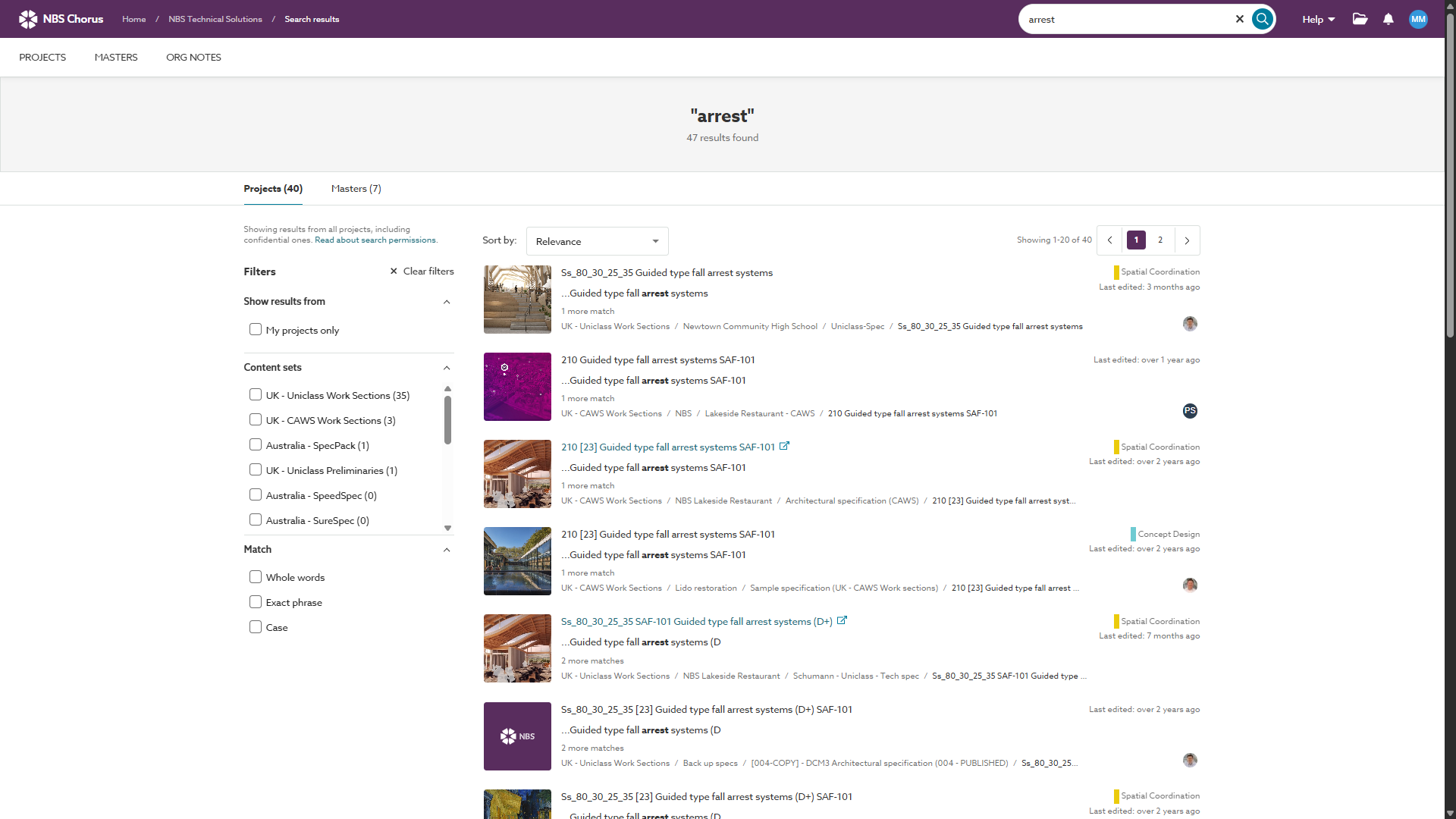
A screenshot of the cross-project and master search results.
'Projects' and 'Masters' – the results are split into separate tabs to make it easy to find results in either 'Projects' or 'Masters'.
Each result will show:
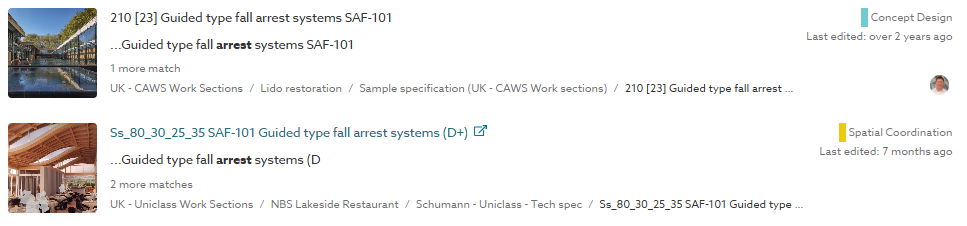 A screenshot showing a closer look at the search results.
- The project or master thumbnail to help with identification.
- Article or clause code, prefix, title and suffix.
- This will be a hyperlink when you have a role on the project or master. The link will open the article or clause in a new browser tab.
- When you do not have permission to the project or master, this will be plain text.
- If you do not have permission to open an article or clause in the editor, we recommend contacting the project or master administrator(s). They can invite you to the project or master if appropriate.
- The project or master 'Work stage'.
- The relative time the article or clause was last edited.
- A tooltip shows the exact date and time.
- A snippet of the text from the article or clause before and after your search term.
- 'X more matches' indicates the number of instances of your search term in the article or clause.
- The breadcrumb shows: Content set name / project or master folder title / specification title / row number / article or clause title.
- The content set name is included to help when you want to reuse an article or clause and pick one compatible with the specification you are working on.
- If you do not have permission to open the article or clause in the editor, the initials or avatar of the project or master administrator(s) will be shown.
- The platform shows up to two administrators directly. If there are three or more, it displays a count. Hovering over an avatar or the count reveals the administrators' names.
- The tooltip shows the names of the administrators.
- If you do not have permission to open an article or clause in the editor, we recommend contacting the project or master administrator(s). They can invite you to the project or master if appropriate.
Narrowing your search results
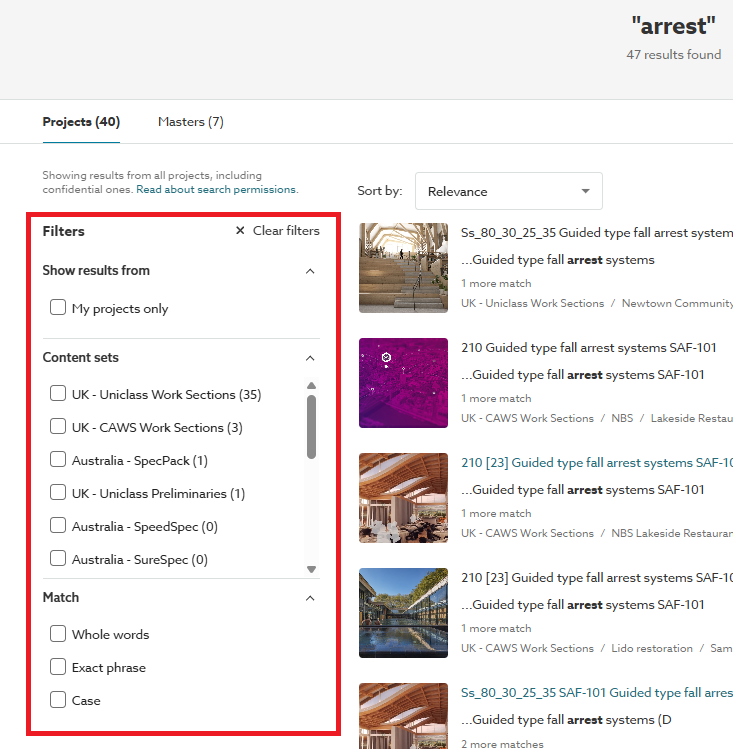
A screenshot showing the 'Filter' controls.
Show results from
Use the' Show results from' menu to narrow your search results to the projects you are a member of by checking the 'My projects only' checkbox.
Content sets
If you are searching for an article or clause to copy, use the 'Content sets' to filter and narrow the results to those compatible with the specification you are copying into.
The 'Content sets' list will show all the content sets the organization subscribes to. The list is sorted to show the content sets with the highest results at the top.
Match
Use the 'Match' menu to narrow your search results by your search term and article or clause status.
'Whole words' – check the 'Whole words' when you want results that match your whole search term word and avoid partial matches (known as stemming).
For example, you want to find instances of the term 'plant' and avoid results for 'planted'.
For an explanation of stemming, please see the section 'Stemming' section in Searching my specification - an overview.
'Exact phrase' – check the 'Exact phrase' when you want results that match the sequence of words you have entered as your search term.
For example, you want to find instances of the phrase 'to be confirmed' and avoid results for instances of 'to', 'be' or 'confirmed'.
'Case' – check the 'Case' when you want results matching your search term's case.
For example, you'd like to find instances of 'LEED'.
Sorting your results
'Sort by' – you can sort your results by 'Relevance', 'Last edited - newest first' or 'Last edited - oldest first'.
- 'Relevance' is determined by the number of instances of your search term in the article or clause. The higher the number, the higher the relevancy.
- 'Last edited' refers to the date the article or clause was last saved.