There are times when it is necessary to set up a trial license or suspend the sync between Salesforce and NBS Chorus such as:
- A Supplier agrees to renew as their invoice terms are different to specifiers.
- A customer upgrades their subscription mid-term and the account manager agrees access whilst the invoice is being raised
- A US or Canadian customer signs up for a Chrous trial (See Internal - Canadian Trial Licences : NBS Support (thenbs.com) )
- An Org has training for multiple users and their licence does not have enough licences to accommodate the training.
- An organization has subscriber to Chorus Lite and wishes to activate one of their periods of full access
The Salesforce-to-Chorus sync
An automated sync applies the latest information in Salesforce to Chorus.
The sync:
- Creates new orgs.
- Creates new subscriptions.
- Updates existing subscriptions including renewing them.
The sync does not:
- Apply changes in Org name based on Salesforce org name.
The sync runs several times during a working day:
- Full syncs at 1300 and 1800 UTC - the full syncs are there to make sure everything remains consistent and update all customers if we make any changes to the license tiers/feature set.
- Every 30 minutes - a sync of changes made to accounts in Salesforce every 30 minutes throughout the day.
Creating the temporary license
Note: Do Not edit the licence brought in via the Saleforce/Chorus sync. Only ever create new licences.
- Set up a new license with the desired 'License type' (Chorus, Chorus Pro, etc...).
- Enter the start and end dates for the temporary licence.
- Add '(Trial)' in the 'CRM reference'
Important! Ensure brackets surround the word and there are no spaces between words as this ensures the sync is suspended successfully. E.g. (Trial) and not (Canadian Trial). - Add the number of seats and each library.
- Enter the total amount of Writer seats.
- If you want the trial to include designer roles add an amount into the 'Designer capacity'.
Once completed select 'OK'
Please do not enter a CRM ID in here as this will cause issue when the customer eventually purchases the licence.
Also, ensure there are no spaces in the CRM Reference field as this will cause the sync to fail.
Also, ensure there are no spaces in the CRM Reference field as this will cause the sync to fail.
Suspending a CRM-sync'd license
- Suspend at the license level, not the org level.
- To suspend a sync'd licence:
- Add a reason in brackets in front of the licence CRM ID
- Brackets come BEFORE the ID.
- No spaces within the brackets.
Chorus Lite Full access period activation
If a customer has the Chorus Lite subscription their licence in Chorus will default to a Chorus Viewer licence. When they request one of their months of full access you will need to follow the below:
- Set up a new license with the desired 'License type' (Chorus, Chorus Pro, etc...).
- Enter the start and end dates for the temporary licence.
- Add '(Trial)' in the 'CRM reference'
Important! Ensure brackets surround the word and there are no spaces between words as this ensures the sync is suspended successfully. E.g. (Trial) and not (Canadian Trial). - Add the number of seats and each library.
- Enter the total amount of Writer seats.
- If you want the trial to include designer roles add an amount into the 'Designer capacity'.
Once completed select 'OK'
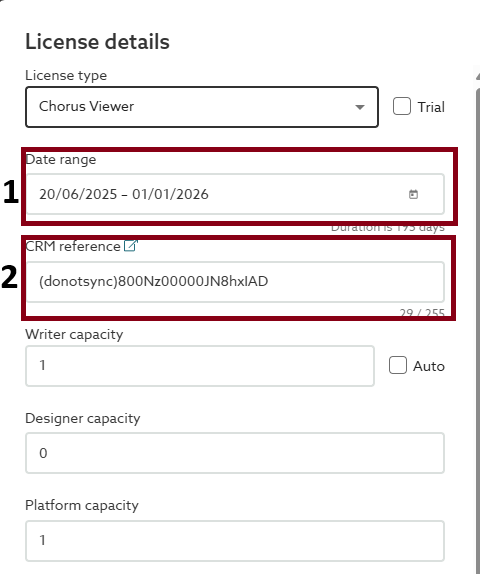
Next, you will need to adjust the existing Viewer licence. This is because you can't have 2 different levels of subscription in NBS Chorus as when a user signs in there isn't an option for them to select which subscription level they wish to use.
- Adjust the start date in the 'Date Range' field to the day after the period of full access ends
- insert (donotsync) before the CRM reference in the 'CRM Reference' field making sure there are no spaces and the CRM Reference is still present.
Important! Ensure brackets surround the word and there are no spaces between words as this ensures the sync is suspended successfully. E.g. (donotsync) and not (do not sync).