
Background
When opening content in your spec, you may on occasion notice that articles or clauses are greyed out and display a padlock in the top right-hand corner.
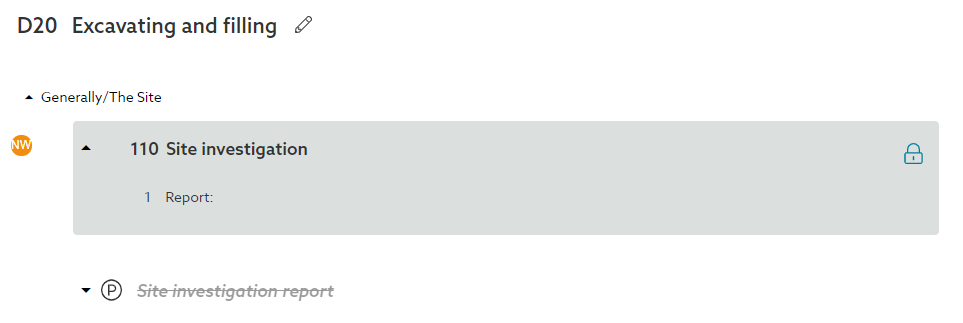
This indicates that the content is checked out by another user or by yourself, for further information on checking out content please see Checking out content in the editor.
In the specification editor, articles/ clauses will become checked out to ensure that whilst you are editing something, it cannot be changed by anyone else and means you are always editing the most up to date version. This means multiple specifiers can work in the same section or system at the same time without undoing one another's work.
Identifying who has the content checked out
To the left-hand side of the checked-out clause, you will see an icon which will display the user's avatar or initials, hovering over this icon will show their full name and email address.
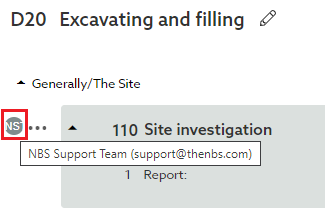
If you need to edit something that is checked out by someone else we recommend asking them to save their changes and click off the article or clause. This will immediately release the check out, the grey background will disappear and you will be able to select the clause, check it out yourself, and edit it.
What to do when the user has gone away?
If you know this user is away, for example, they are away from their desk or they are not currently working on the section (accidentally left logged in) the check out will release automatically after 60 minutes.
Content checked out by yourself
On occasions, you may notice the article or clause is checked out by yourself. This means that you have this content open in either another browser tab, another browser window, in a different browser, in modelling software (e.g. Autodesk Revit, Bentley Systems OpenBuildings Designer, Graphisoft ArchiCAD or Vectorworks) or on another device. Please note: certain functionality within Lattira Spec and NBS Chorus will automatically check out articles/ clauses to yourself, for example if you are reviewing a clause in the 'Updates' tab or reviewing duplicate Uniclass clauses in the 'Consolidate' tab.
Check your browser tabs
The initial step in releasing checked-out content is to visually verify that no other instances of the platform are open with the content checked out. This involves ensuring that there are no extra browsers, open tabs, platform sessions within your BIM modeling software, or on another device where the content is currently being edited.
Check for other instances of Lattira Spec or NBS Chorus running
If you can see that you do not have the content checked out on your device, select the icon with your initials in the top right-hand corner of the platform and select Active Users. From here, you will be able to see which web browser you are logged in with, how long ago you were active, and even the device you are signed in on.
This will show you separate browsers on the same device or separate devices.
Please note: When using Lattira Spec and NBS Chorus in Autodesk Revit, this is shown as Chrome.
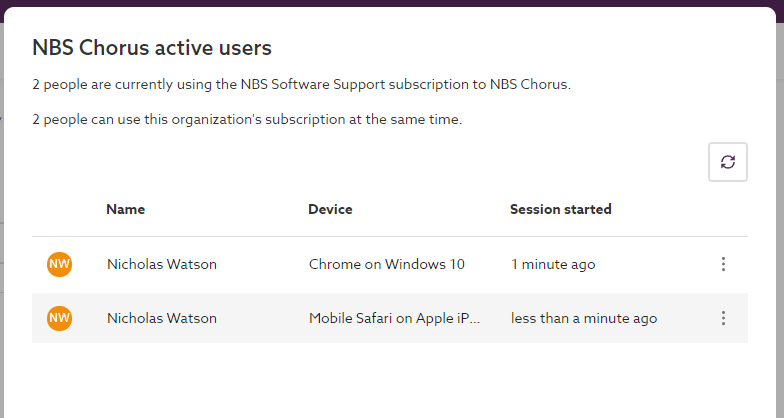
Once you have found the other active session, on that device/ browser, save your changes, if needed, to the clause you have checked out for editing, then click off the article or clause. This will release the checkout of the article/ clause in your original browser.