
Chorus enables teams to work on the same specification at the same time. It will support two or more people editing the same spec, even within the same section or system at the same time.
When someone else is working in the same place as you, you will see when they check out something to edit. Their avatar or initials will be displayed to the top left of the article/ clause they are editing. The article/ clause they are working on will have a solid grey background and there will be a lock icon in the top right corner. While they are editing that item you will not be able to edit it.
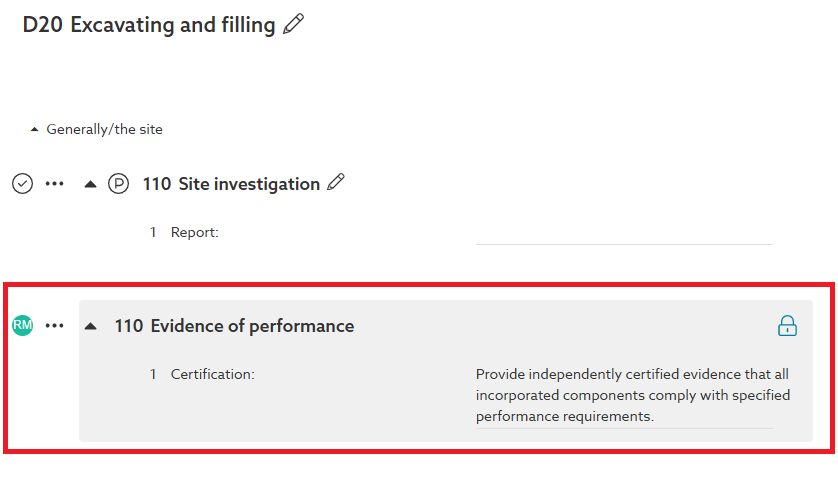
When they save their changes, their edits will update in front of you. When they click on something else to edit you will see the original item they were editing check back in, and the new item they are then editing check out in the editor.
Similarly, when you are editing a specification, the article/ clause you click on will become checked out to you. Your avatar or initials will be displayed to the top left or the article/ clause and it will have a grey border displayed around it. It will remain checked out to you until you click out of it, e.g. by clicking into a different article/ clause or by navigating to somewhere else within Chorus. This is to help ensure that while you are working on it no other users will be able to edit it. If however you leave the clause inactive for 60 minutes the check out will be automatically released, the 'Automatic check in' section below has further information regarding this.
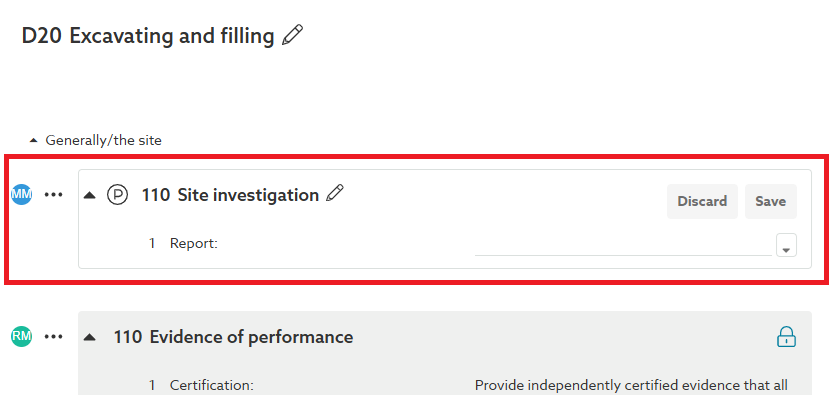
Additionally, certain functionality within Chorus will automatically check out articles/ clauses to yourself, for example if you are reviewing a clause in the 'Updates' tab or reviewing duplicate Uniclass clauses in the 'Consolidate' tab.
Automatic check in
When you click on something in the editor you will check this out. Chorus will automatically check this back in again after 60 minutes of inactivity. So, for example, if you click on a clause to edit it then leave your desk. The clause will remain checked out to you for 60 minutes. After this time, the checkout will release automatically and other users will then be able to edit that item. If you have unsaved changes in that clause, you will still be able to save them* when you return, even if the check out has been released. Please be aware however that in doing so, your version of the clause, i.e. as it is displayed on your screen, will overwrite any changes others have made whilst you have been away.
*This assumes you have retained your internet connection for the duration you were away.
Recommended practice for the editor
We recommend that you save your changes before leaving the editor idle for any significant length of time. Ideally you should log out of Chorus while you are not using it, so as not to prevent a colleague from signing in.