
You may want all the specifications you publish to incorporate your company branding and style. Pro (and above) subscriptions include a dedicated Stylesheets feature to support this. This feature allows your organization to create and add to the platform any number of bespoke, branded and customised output formats (custom stylesheets). Everyone in your organization can then use these directly from the platform to consistently apply your company branding and style when publishing specifications. Please refer to the Styling your specification for 'Pro' and above topics for detailed information about this feature.
If your subscription lacks access to this feature, you can still obtain a similar outcome by taking extra steps outside the platform. This involves exporting your work to a Microsoft Word document and then customizing the styling within Word.
This guide will take you through applying a previously set-up style template to your published specification. For guidance on setting up and saving your style template, please see Stylesheet: Creating A Microsoft Word Template ('Core' subscriptions).
Please note: When using this method, there are a few restrictions to be aware of before you start. The Templates in Word are designed to apply text styling (formatting) to your document, so any text or images entered into this template will not be carried across to the specification you apply this Template to. If you want to include prewritten text and/ or images, please see Creating A Microsoft Word Template - Advanced.
This article is therefore suitable for those who:
- Do not have access to the dedicated 'Stylesheets' functionality.
- Wish to make minor adjustments to the text styling (formatting) of their specification.
- Do not wish to include pre-written text or images/ logos.
Please note - This guide was written using Microsoft Word for Microsoft 365 MSO Version 2501, some of the options may be in different locations depending on the version of Word you are using.
Applying A Template
- First, publish your specification to Microsoft Word (see Publishing your specification).
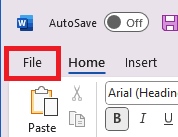
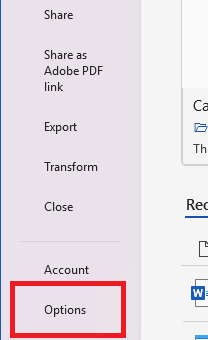
- Open your specification in Microsoft Word, select the File menu in the top left-hand corner, then select Options at the bottom left of the screen.
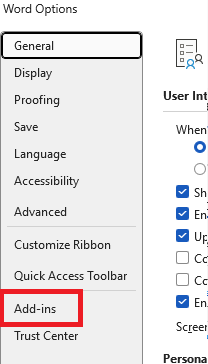
- The Word Options dialog will be displayed, select the Add-ins option at the left-hand side of the dialog.
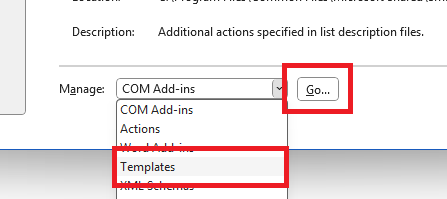
- At the bottom of the Word Options dialog you will now see the Manage drop down menu option. Click on this and select Templates, then click the Go button.
- Click the Attach button at the right-hand side of the Document template field, a file browser dialog will be displayed, navigate to and select the previously created style template file then click the Open button. The name of your template file will now be displayed in the Document template field. Beneath this, select (tick) the checkbox for Automatically update document styles and then click the OK button.
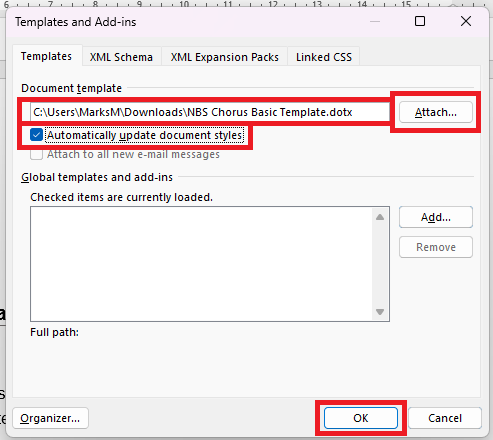
Your style template has now been applied to your specification. You can save, export, or print this document as required.