
Applies to: Australian and UK Uniclass work sections content sets.
TABLE OF CONTENTS
- Background information
- When is this relevant / when does this occur
- What specifically do the keep linked clause and delete options do
- How to delete a previously kept linked clause
Background information
The platform allows you to link/ add clauses into systems, as well as remove those clause links at a later time. Clauses may be linked into just a single system, or, linked into two or more systems. Clauses that have been linked into two or more systems are usually referred to as Shared clauses, as the clause is 'Shared by' all of the systems it is linked into.
When you remove a link to a shared clause from a system, the shared clause will remain within the specification and will also remain linked into all of the other systems as it was previously. It is just the blue clause link bubble (chip) that is removed from that specific system clause.
However, when you remove a link to a clause that is only linked into the system you are currently editing, an additional keep or delete option is presented. This could be removing a link to a clause that has only ever been linked into that single system, or one that was previously linked into/ shared by multiple other systems, but where the clause links have already been removed from all of the other systems. In either case, removing that link to the clause would be removing the 'last link' to the clause.
This support article provides information relating the additional option that is presented when saving the system clause after removing the 'last link' to a clause. The separate support article How to unlink a clause (applies to Uniclass) provides details on how to remove clause links.
When is this relevant / when does this occur
When saving a system after a last link to a clause has been removed, a dialog similar to the examples shown below will be displayed. The 'x' in the green text 'x can be deleted', which can be seen in both of the below examples, represents the total number of last links to clauses which have been removed. You can click on the green text to expand that section and reveal which clause or clauses the dialog relates to.
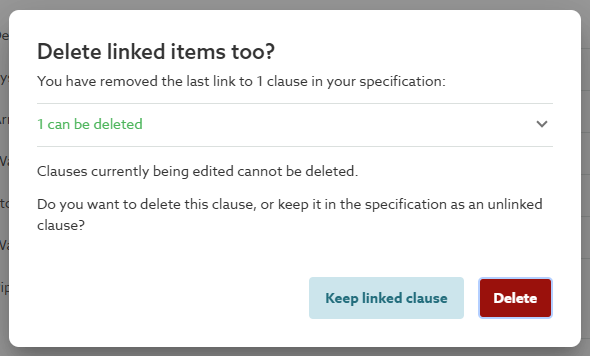 In the above example the last link to one clause has been removed. In the above example the last link to one clause has been removed. | 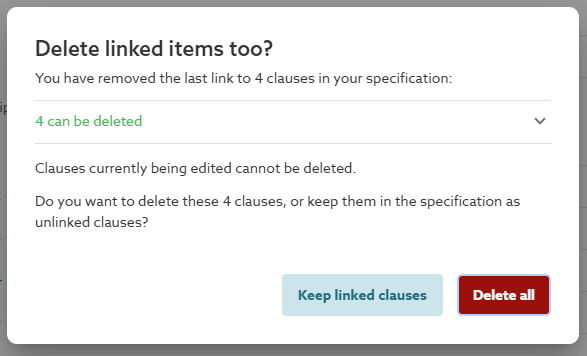 In the above example the last links to four clauses have been removed. In the above example the last links to four clauses have been removed. |
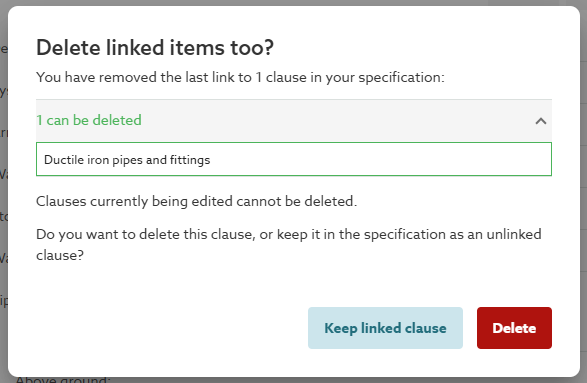 With the green text section expanded. With the green text section expanded. | 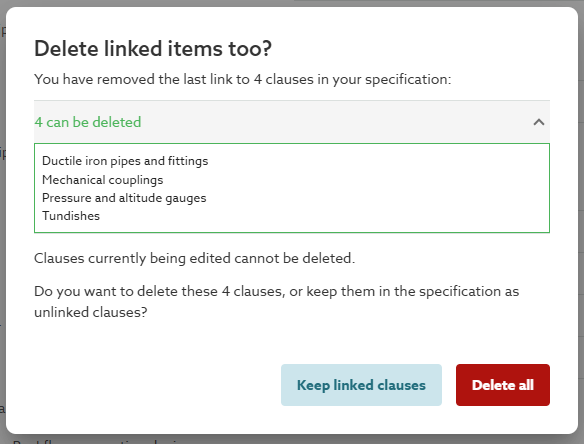 With the green text section expanded. With the green text section expanded. |
As you would imagine, and as can be seen from the above examples, when editing the system clause it is possible to remove any number of clause links prior to saving the system clause. The dialog (as shown above) will only identify specifically the clause or clauses for which the last link has been removed, i.e. the clause(s) that are not linked into any other system within the specification. Any clause link which has been removed, where that clause is also linked into one or more other systems will not be identified in this dialog and will not be affected by the choice that you make.
What specifically do the keep linked clause and delete options do
At the bottom of the dialog (shown above) there are two option buttons.
- Keep linked clause / Keep linked clauses - This option button will remove from the system clause, the blue clause link bubble (chip) for the clause or clauses identified in the dialog. But the clause or clauses themselves will be kept in the specification.
Use this option if you wish to reuse (relink) one or more of the clauses at a later stage, or if you are not sure whether one or more of the clauses may be needed later.
Choosing this option will result in unlinked (Orphaned) clauses. Orphaned Product clauses will be included in the published output when publishing the whole specification. Please refer to the 'How to delete a previously kept linked clause' for details of how to delete 'kept' clauses.
- Delete / Delete all - This option will remove from the system clause, the blue clause link bubble (chip) for the clause or clauses identified in the dialog and delete the clause or clauses themselves from the specification.
Use this option if none of the identified clauses are required any further.
Tip: It is always possible to delete clauses from the specification later, however it is not possible to restore clauses once deleted.

Please refer to the 'How to delete a previously kept linked clause' section below for details of how to delete 'kept' clauses.
How to delete a previously kept linked clause
Where previously kept clauses are no longer required, it would generally only be 'necessary' or 'desirable' to delete Product type clauses, as this clause type will be included in the published output if publishing the whole specification. However, it is possible to keep them in the specification and only publish the required selection of your specification instead. The separate support article How to publish and export a selection of content from your specification provides further information on this.
Please note: if you had kept previously linked Activity, Element/ function or System type clauses, the same applies as for Product type clauses above.
Quick steps
- For Product type clauses, delete the clauses from the contents panel displayed at the left of the editor screen.
- For Performance, Execution, Completion or Facilities Management type clauses, link/ add the clause in question back into the appropriate system clause, save the system clause, then delete the newly linked/ added clause and save the system clause once more. You will then be prompted to keep or delete the clause in question.
Detailed steps
Delete kept Product or Activity, Element/ function or System type clauses
The process is different for Product type clauses (or Activity, Element/ function or System type clauses) as these will appear in the contents panel at the left of the editor screen and can be deleted from there. The separate support article How to delete sections/clauses from your specification provides further information on deleting clauses from the contents panel.
Delete kept System performance, Execution, Completion or Facilities management type clauses
For any other clause type, e.g. System performance, Execution, Completion or Facilities management, the first step you will need to take is to relink (add back in) the specific clause you wish to delete from your specification.
To do this simply navigate into the system clause that the clause you now wish to delete originally sat within. Then on the row it was originally included within, select the drop down arrow at the right of the row value field.
If the title of the clause you wish to delete from the specification appears within the suggestion list, follow the instructions directly below under the heading 'The clause is listed'. Otherwise, skip down to the instructions under the heading 'The clause is not listed'.
The clause is listed
Click the blue x in spec button for that clause.
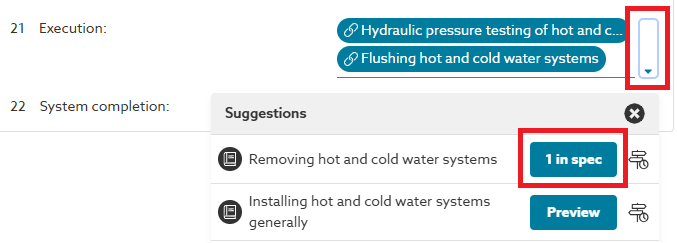
A Select which... dialog is displayed. Select the specific version of the clause you wish to delete from the list displayed at the left of the dialog, then click the Add button. 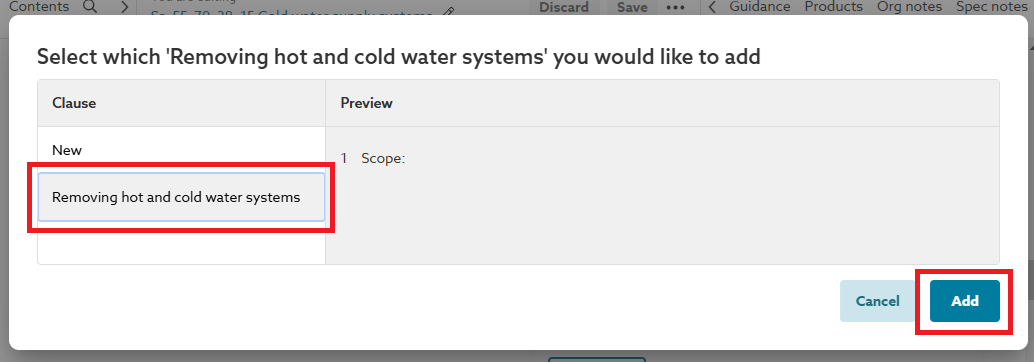
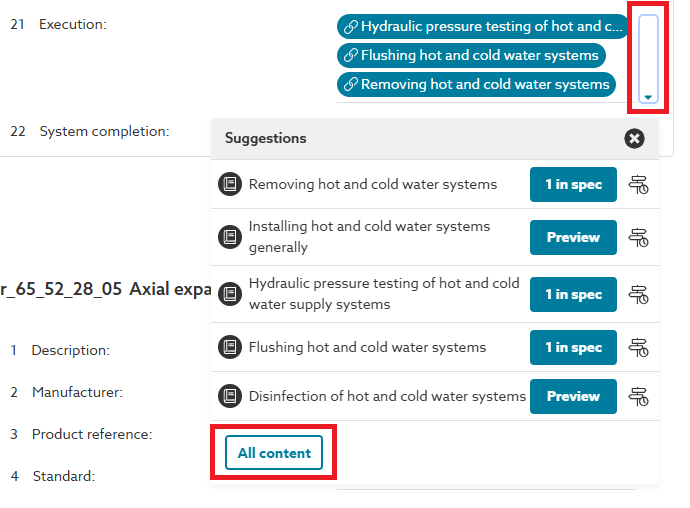
The dialog will close and you will be returned back to the editor view with the Suggestions list still displayed. Close the suggestions list, the blue clause link bubble (chip) for that specific clause will now be displayed in the row.

Next, save the system clause (Please note, this is an important step, if the system clause is not saved at this point you will not be prompted to delete the clause in the later steps).
The final step is to click to the immediate left or right of the newly added blue clause link bubble (chip) to position the flashing insertion marker. Then use either the delete or backspace key on the keyboard to remove the blue clause link bubble (chip) for that clause. Next, save the system clause once more, you will then be presented with the option to Keep linked clause or Delete, please select Delete and this will completely remove the clause from your specification.
The clause is not listed
If the clause you wish to delete from the specification does not appear within the suggestion list, click on the All content button at the bottom of the suggestion list.
Select the In this specification tab.
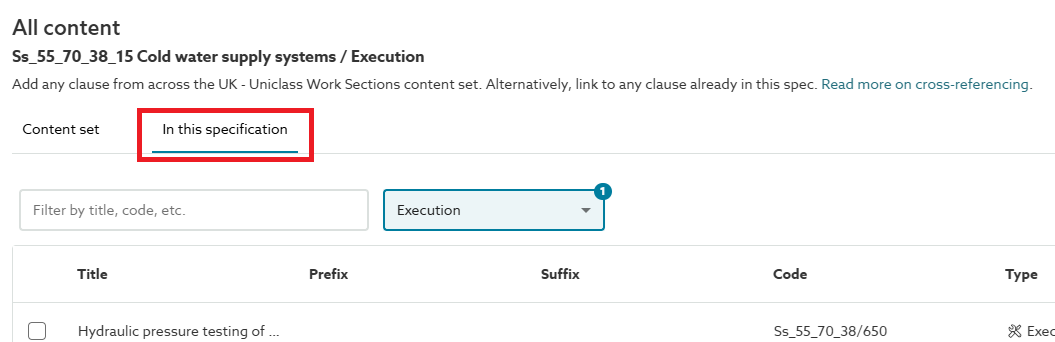
Use the Filter by title, code, etc. field to help find the clause in question, once found, tick (select) the check box for that clause, then click the Add button.
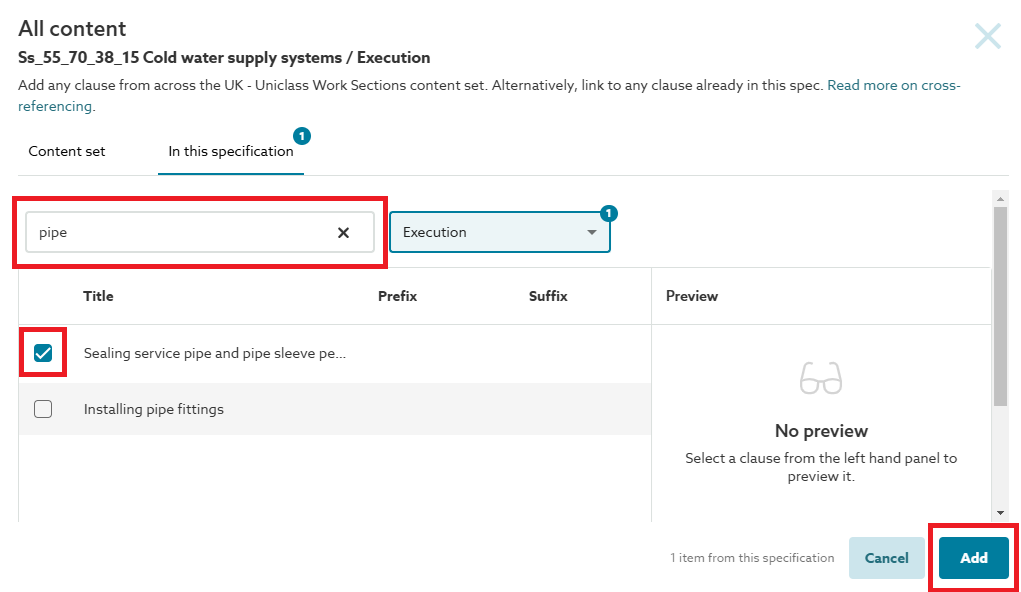
The dialog will close and you will be returned back to the editor view with the Suggestions list still displayed. Close the suggestions list, the blue clause link bubble (chip) for that specific clause will now be displayed in the row.

Next, save the system clause (Please note, this is an important step, if the system clause is not saved at this point you will not be prompted to delete the clause in the later steps).
The final step is to click to the immediate left or right of the newly added blue clause link bubble (chip) to position the flashing insertion marker. Then use either the delete or backspace key on the keyboard to remove the blue clause link bubble (chip) for that clause. Next, save the system clause once more, you will then be presented with the option to Keep linked clause or Delete, please select Delete and this will completely remove the clause from your specification.