
TABLE OF CONTENTS
- Deleting sectional content from your specification
- Deleting Uniclass Work Section clauses links
- Deleting Uniclass Work Sections clauses from your specification
Deleting sectional content from your specification
If a Section in your specification is no longer required, it can be deleted. Once a section is deleted, it cannot be restored. If you wish to retain the section within the specification, but publish the specification without including it, please refer to the How to publish and export a selection of content from your specification topic for further information.
To delete sectional content from your specification, you will need to navigate to the editor view. Firstly, click into the project, then into the specification, and you will then see the contents list, showing the sections included in the specification.
To then navigate into the editor view, click on any section title in the contents list.
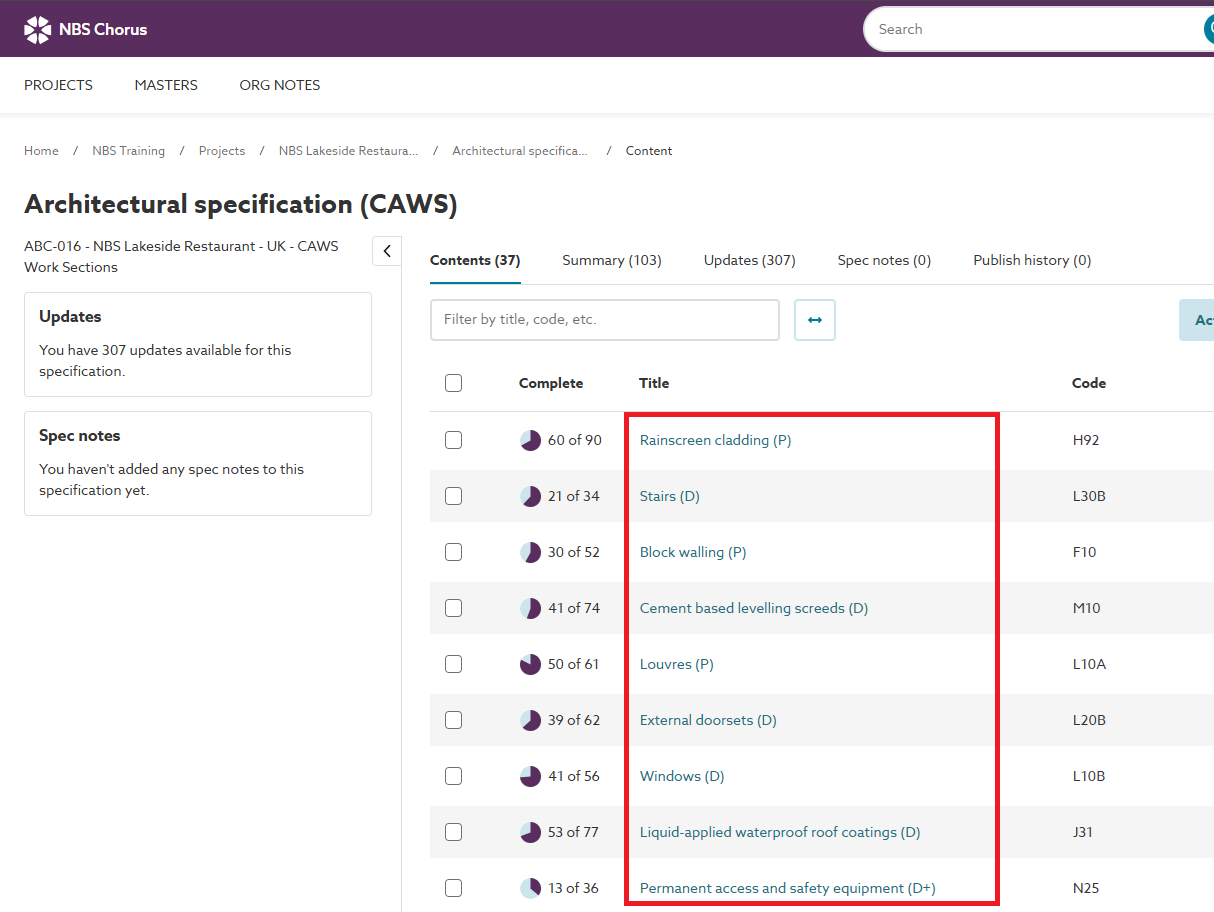
The same list of sections will be displayed in the Contents panel at the left of the screen.
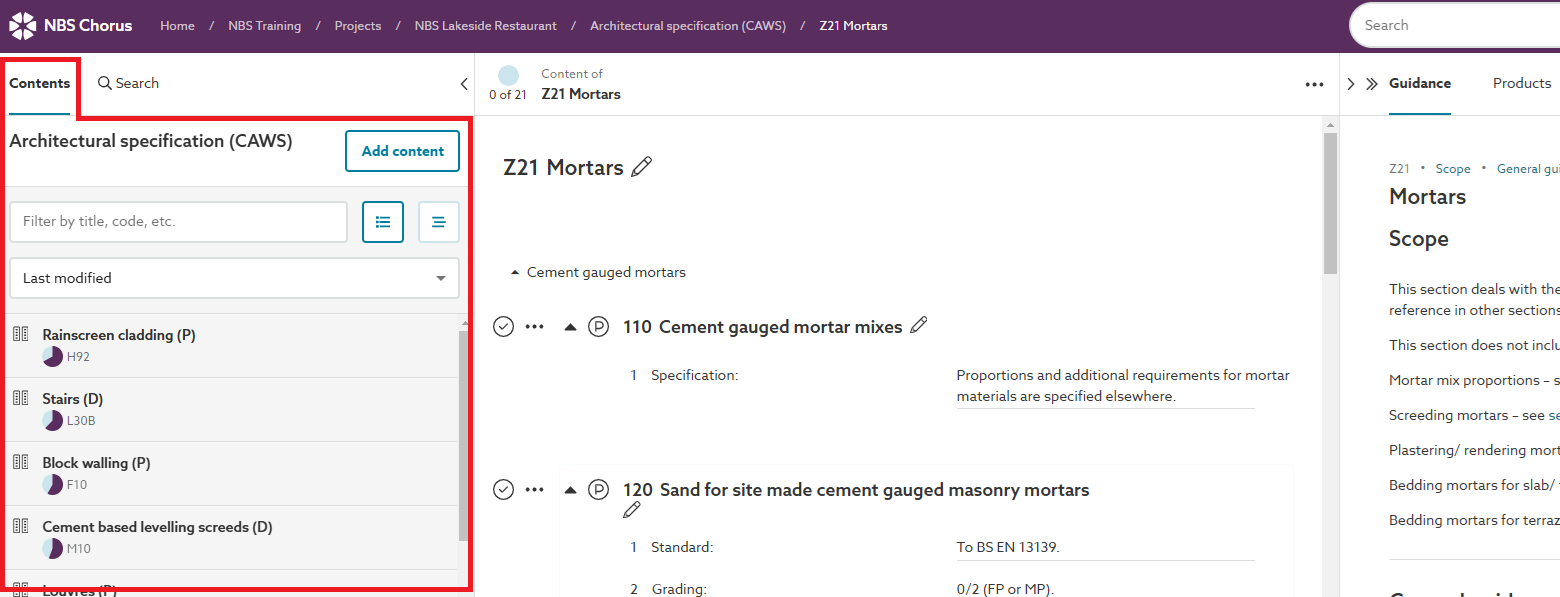
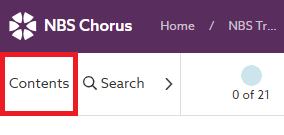
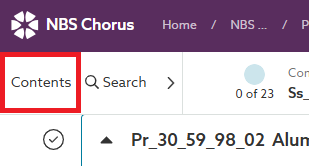
If you do not see the Contents panel (as shown above), click on the Contents button in the top left corner of the the platform, the panel will then be shown.
Within the Contents panel, locate and hover the mouse cursor over the section that you wish to delete, a Bin icon will be displayed to the right of the section details.
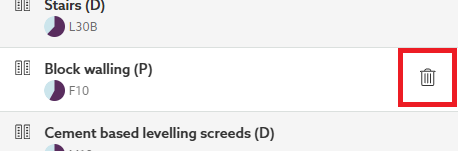
Click on the Bin icon, you will be prompted to confirm this action, by clicking on the Delete button.
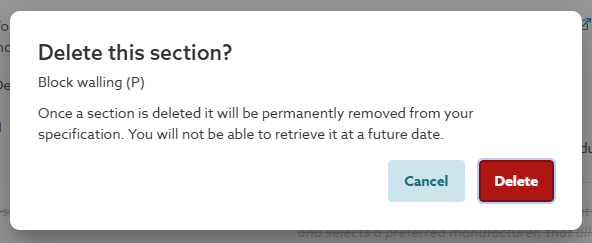
The short video (no audio) below demonstrates how to delete a section form your specification.
Deleting Uniclass Work Section clauses links
This section relates to deleting a clause link within AU/UK Uniclass Work Sections specifications only. For deleting content in all other content sets please refer to the Deleting sectional content from your specification section above.
To delete a link to a clause from its parent or host clause, follow these steps. When the last link to that clause is removed from the final parent or host clause, you'll be given the option to either retain the clause within the specification or delete it completely.
You may wish to do this, to enable you to publish the specification without including the clause, while retaining the clause in the specification.
To delete a clause link, click into the parent/ host clause. If you have made any other changes in the clause, save them or discard them first. Next, click into the row to the immediate right of the clause link to be deleted. Press the Backspace key on the keyboard.
Click on the Save button above the clause to save the changes.
When deleting the last link to the clause in question, you will be prompted to choose whether or not to delete the actual clause in question from the specification. To review which clause (or clauses if you also deleted the last link to other clauses from the parent/ host) click on the drop down button highlighted below.
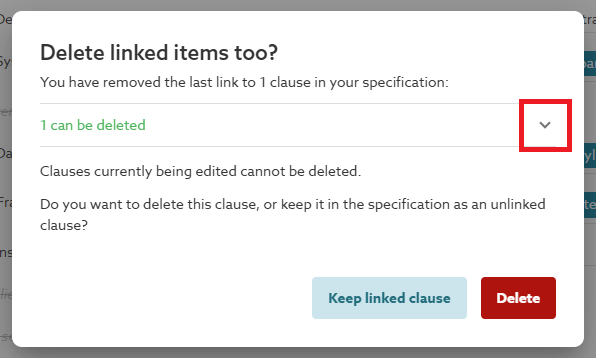
It will then show the clause, or clauses, to which the message relates.
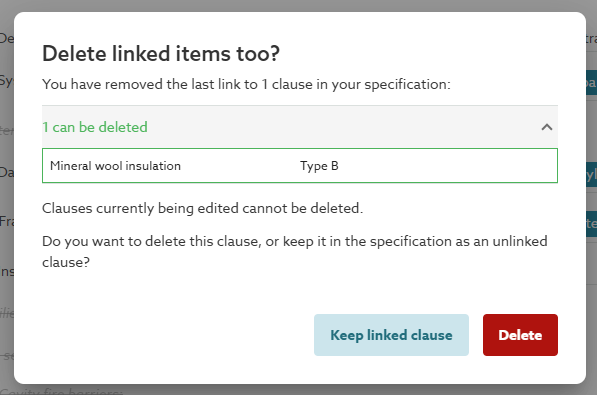
To keep the actual clause in the specification, but remove the link to it from the parent/ host clause, click the Keep linked clause button.
To delete the actual clause from the specification, and remove the link to it from the parent/ host clause, click the Delete button. Once a clause is deleted, it cannot be restored.
To cancel, without deleting anything, press the Escape key on the keyboard (on some keyboards this may not be a physical key, please consult your computer's documentation. For example, on some MacBook models the Escape key is located on the left hand side of the Touch Bar.
If you kept the actual clause, but now wish to delete it, please follow the details in the Deleting Uniclass Work Sections clauses from your specification section below.
Related: How to publish and export a selection of content from your specification
Deleting Uniclass Work Sections clauses from your specification
This section relates to deleting a clause from AU/UK Uniclass Work Sections specifications only. For deleting content in all other content sets please refer to the Deleting sectional content from your specification section above.
If you wish to retain the clause within the specification, but for example, publish the specification without including it, please refer to the Deleting Uniclass Work Section clauses links section above.
The method detailed below would be principally used to delete the dominant clause type within the specification hierarchy of your specification, i.e. the hierarchically highest level clause type used in your specification. For the majority of specifications this would typically be Activity and/ or System clause types, or the Element/ Function clause type if used.
Deleting a clause which is not the dominant clause type in the specification could result in a broken link in the parent/ host clause. For example, deleting a product clause that is linked into a system or activity clause, or deleting a system clause that is linked into an element/ function clause.
Related:
What are broken links and how to fix them
Why are some of my clauses highlighted in Red
Use the Spec check report to find part of the specification needs attention
If are wishing to delete a non-dominant clause type within your specification, we would recommend that you check first if it is linked into one or more parent/ host clauses. To do this, click on the clause you wish to delete from the contents list. The clause will be displayed in the editor panel, allowing you to check if it is linked to a clause or multiple clauses.
- If it is linked into multiple parent/ host clauses, the Shared by section will be shown at the top of the clause identifying which ones. You can use this information to remove the clause links for all of these clauses, using the steps detailed in the Deleting Uniclass Work Section clauses links section above.
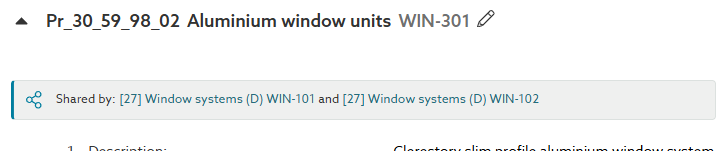
- If it is linked into a single parent/ host clause, it will be displayed in the editor panel within the context of the clause in which it is linked. You can then remove the clause link from this clause, using the steps detailed in the Deleting Uniclass Work Section clauses links section above.
- If is not linked into any parent/ host clause, it will be displayed in editor panel by itself, or only with clauses linked into it. In which case you can delete the clause by following the remaining steps detailed in this section below.
If a clause in your specification is no longer required, it can be deleted. Once a clause is deleted, it cannot be restored.
To delete a clause from your specification you will need to navigate into the editor view. Firstly, click into the project, then into the specification, you will then see the contents list, showing the activity, element/ function, product and/ or system clauses included in the specification.
To then navigate into the editor view, click on any clause title in the contents list.
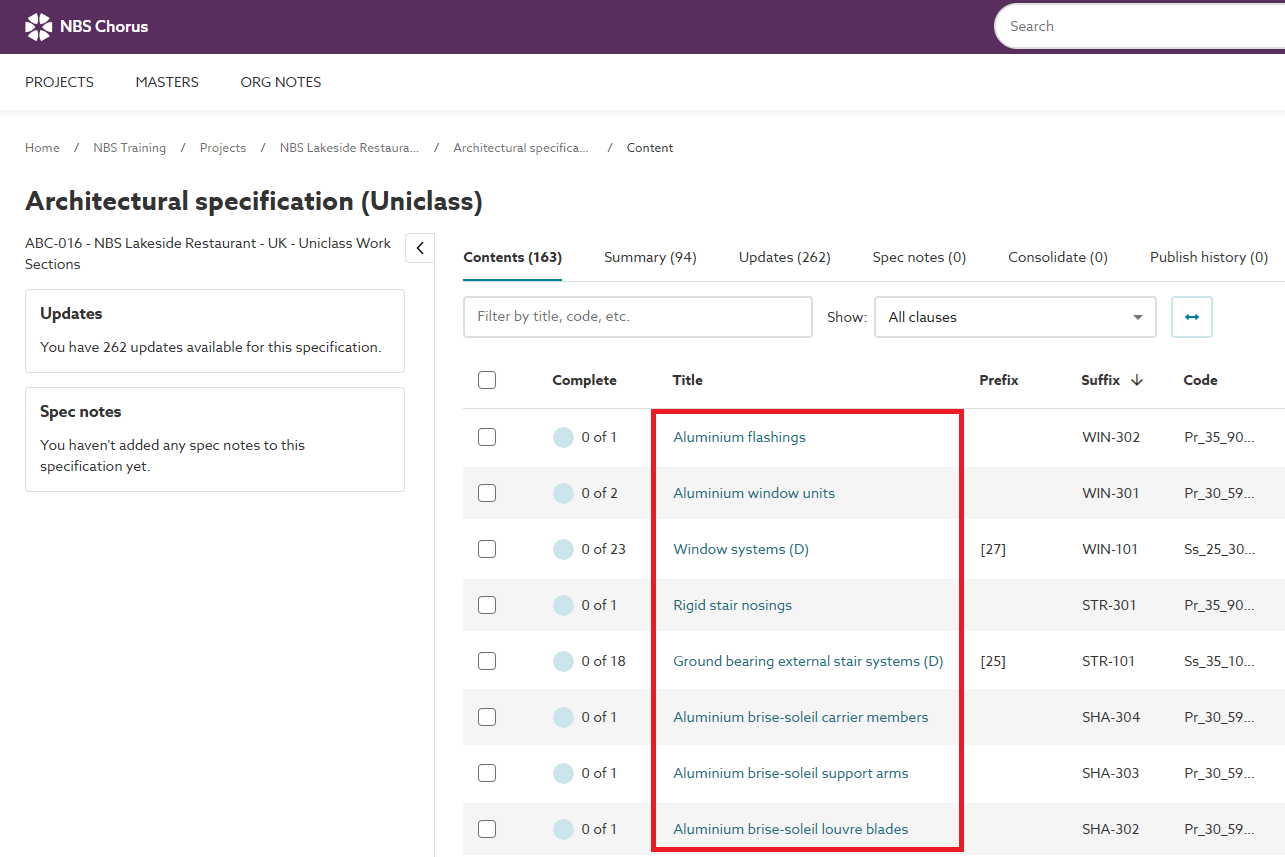
The same list of clauses will be displayed in the Contents panel at the left of the screen.
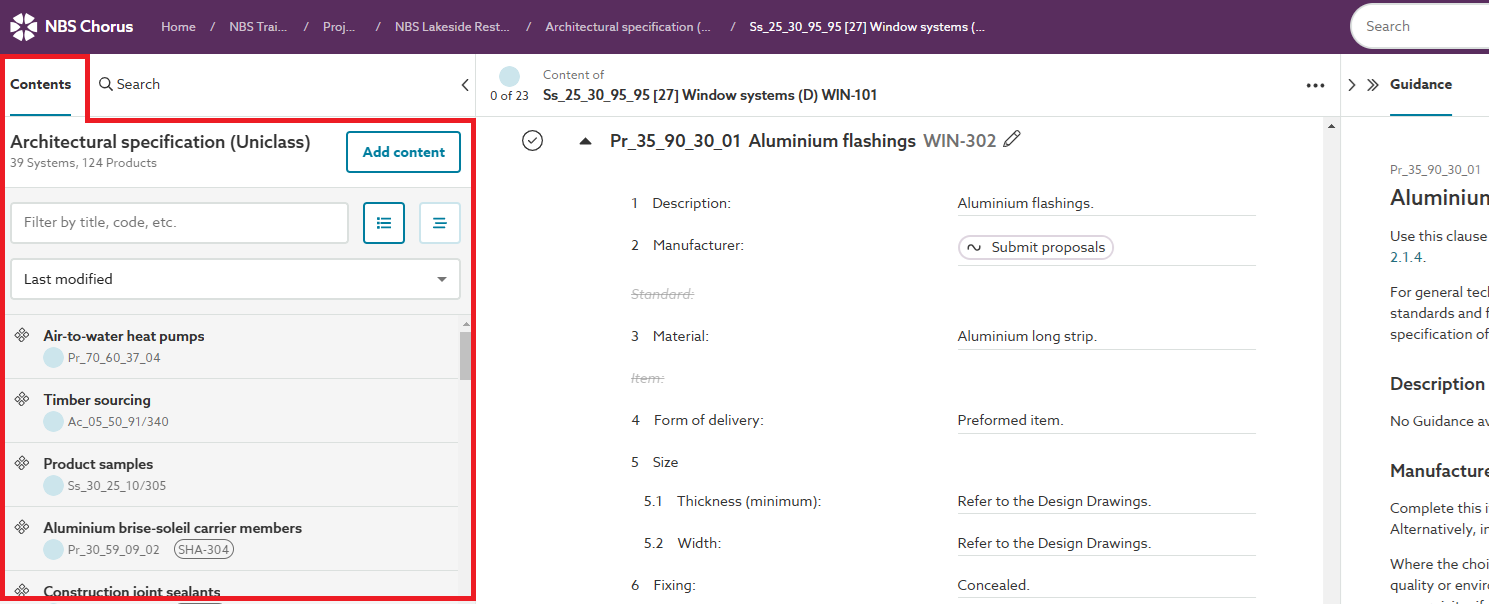
If you do not see the Contents panel (as shown above), click on the Contents button in the top left corner of the platform, the panel will then be shown.
Within the Contents panel, locate and hover the mouse cursor over the clause that you wish to delete, a Bin icon will be displayed to the right of the clause details.
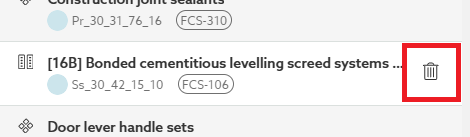
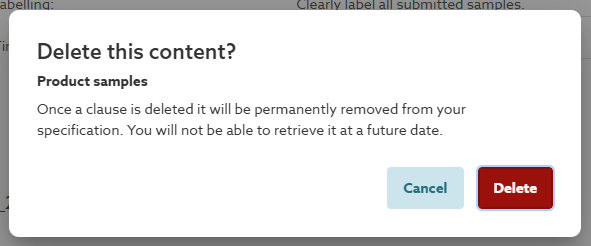
Click on the Bin icon, you will be prompted to confirm this action with one of two different message dialogs. As follows:
| A Delete this content dialog
This style of dialog message is displayed if the clause you are deleting either:
To cancel and keep the clause in the specification, click the Cancel button. To delete the clause from the specification, click the Delete button. Once a clause is deleted, it cannot be restored. | A Delete this content and its linked items dialog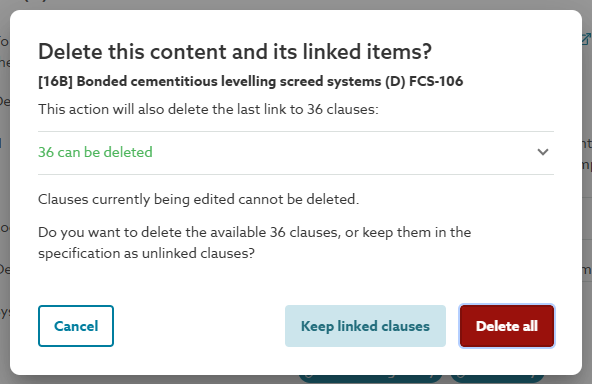 This style of dialog message is displayed if the clause you are deleting:
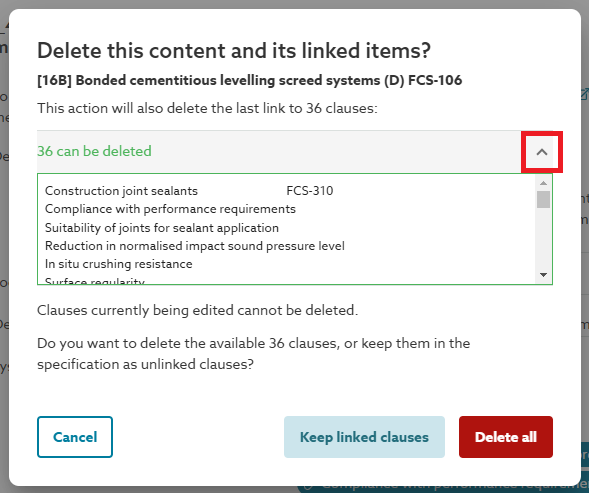
To review which clause, or clauses, the message relates to, click on the drop down button (highlighted below).
To cancel the action without deleting anything, click the Cancel button. To delete the original clause but keep all of the other clauses listed in the message dialog, click the Keep linked clause button. To delete the original clause and all of the linked clauses listed in the message dialog, click the Delete all button. Once a clause is deleted, it cannot be restored. |
The short video (no audio) below demonstrates how to delete Uniclass clauses form your specification.