
The Update tab can be used to review how existing technical content within a specification has changed, compared to a newer (updated) version of the matching content in the content set. The update tab can also be used to review 'notified' changes in articles or clauses that you have copied from a Master (these types of updates are referred to as 'Master Change Notifications').
This article relates specifically to updates to the technical information in the platform rather than Master Change Notifications. Please refer to the separate Master change notifications: 'Updates' tab support article for information regarding reviewing Master Change Notifications in the updates tab.
You would use the Update tab when you have been developing a specification over a long time or have copied information from a previous project. It will help to keep the technical content up-to-date with changes in best practices and standards.
Related articles:
Update notifications - an overview
Update notifications for Uniclass specifications
We recommend referring to the technical update notes that accompany a content set update when you are using ‘Update’. The notes highlight the key areas where changes have been made.

Technical update notes are posted to the 'Technical content releases' page for every content set change. For convenience, these can be accessed from the 'Help' menu within the platform.
How does Update work?
1. Go to the Updates tab in the specification. This is displayed in Projects and Masters.
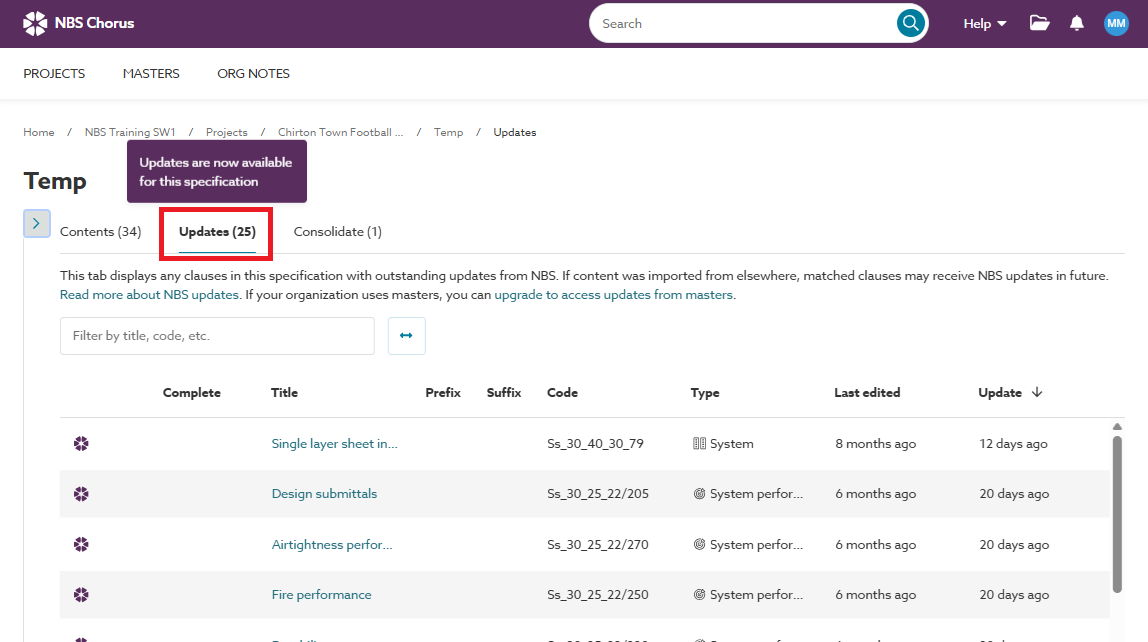
Screenshot showing the Update tab showing content set changes for items in the specification.
2. The Update tab:
- Displays a list of all the outdated templates in your specification (or master). By outdated templates, this means articles/ clauses/ sections/ systems. The templates have been revised in a newer version of the content set since they were added to the specification.
- While the Contents tab only lists the leading parts of the specification - whole sections/ systems/ product clauses - the Update tab displays all parts of the specification.
- For example, the Contents tab will display systems and sections, the Updates tab will display any associated performance or execution clauses linked to the systems that have been changed.
- Is visible to users with contributor permission (and above) for the specification. Designers or Readers do not see the Update tab.
- Is displayed for specifications based on
- Australian and UK - Uniclass (preliminaries and work Sections) content sets.
- UK - CAWS (preliminaries and work Sections) content sets.
3. Clicking an item in the update table opens the preview window to show how the template has changed. The preview shows what your specification says currently, the newest version, and the latest guidance.
- The left-hand panel displays your current template in the specification.
- The middle panel displays the latest version of the template from the content set. It shows what the template will update to/ be added as.
For Uniclass clauses this panel:- Shows the newest template with your specification edits.
- Has icons to show how the template has changed.
- Displays tooltips with a short description of what has changed.
Please see Update notifications for Uniclass specifications.
- The right-hand panel displays the latest guidance for the new template.
- The guidance is helpful for understanding what the template includes.
- The platform compares the latest guidance with the previous guidance and displays the differences.
- Newly added guidance is presented with a green background and underline.
- Removed guidance is presented with a
red background and strikethrough. - Guidance differences also highlight changes in hyperlinks including the underlying URLs.
- Screen size – The previewer is displayed in browser windows wider than 1100px. On mobile devices such as phones and in smaller browser windows the message “This feature is currently only available on larger screens” is displayed instead.
- When you have something open in the update previewer it becomes checked out to you. It is checked out to avoid another user editing the item while you are reviewing it. The item is automatically checked in when you close the preview window.
4. There are buttons to deal with each update; Cancel, Ignore, Update, Add, Keep or Delete.
Updated articles and clauses


Cancel - closes the previewer, returns you to the Update tab and leaves the specification unchanged. The update notification remains in the update tab.
Ignore changes - rejects the new template, leaves your specification unchanged and closes the previewer. Ignoring this update clears the notification from the update tab. The last edited date for the article/ clause on the contents tab is unchanged.
Even if you ignore this update notification, notifications of future content set changes affecting this template will be displayed in the update tab.
The version of the template and the corresponding guidance will remain as the old version when you ignore an update. If you were to add the same item to your specification from the content set, this will be added as the latest version and guidance.
Update article/ clause - adopts the new template. Your edits are migrated from the old template to the new template. This means the text you have entered, menu suggestions, parked and inserted rows and so on are all brought over to the new template. The corresponding guidance is updated in-line with the new template.
The update preview is closed and the notification is cleared from the update tab. The last edited date for the article/ clause on the contents tab is updated.
Notifications when the template changes in the future will be displayed in the update tab.
Add as new article/ clause - adds the new template into the section. The old template is left unchanged in the section. You will need to migrate your edits from the old template to the new template, then park or delete the the old template.
The update preview is closed and the notification is cleared from the update tab.
Notifications when the template changes in the future will be displayed in the update tab.
Deleted articles and clauses

Occasionally articles and clauses are removed from the content set. This happens when templates are consolidated or removed entirely.
When something is removed from the content set the middle and right panels clearly indicate the item is being removed and the action buttons will change from ignore/ update/ add to keep/ delete.
Keep article/ clause - rejects the content set change and retains the existing template in the specification. It is converted to a user-template. It will not receive any update notifications in the future because it has been removed from the content set. The last edited date for the article/ clause on the contents tab is unchanged.
Delete article/clause - removes the template article/ clause from the specification and closes the previewer. Deleting this update clears the notification from the update tab.
Please note - deleting linked clauses. If the item being removed contains links to other clauses (supported by the Uniclass Work Sections content set) and they are the last links in the specification you will get the option to remove them as well. Please see the support article 'removing the last links to a clause'.