
Quick steps
- Navigate to your 'Projects' dashboard.
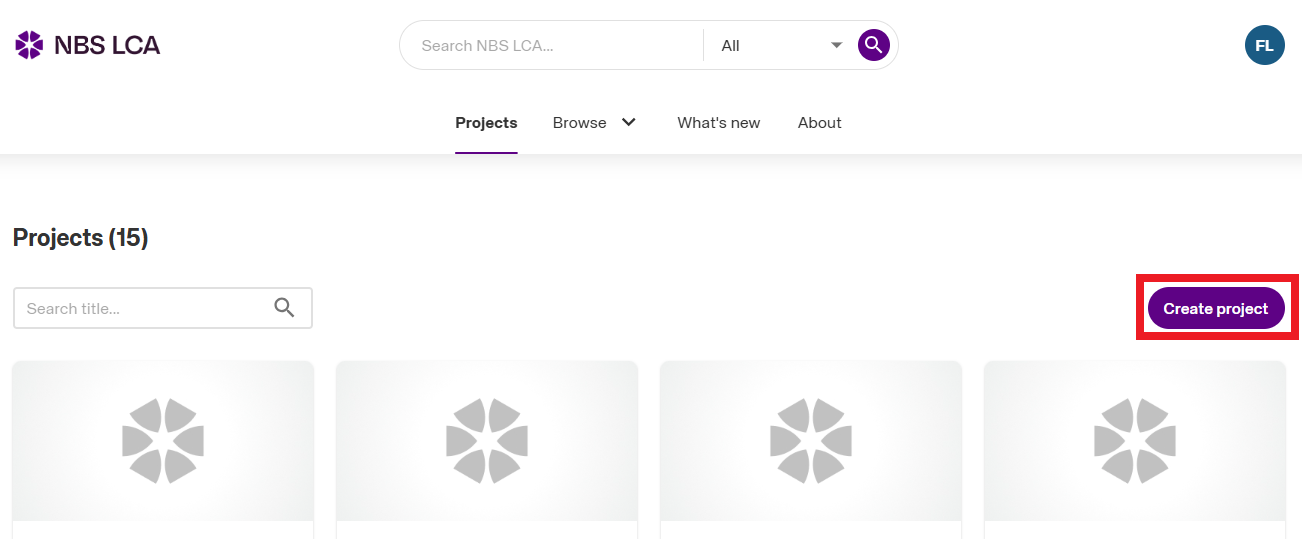
- Click the 'Create project' button in the top-right corner of the platform.
- Complete at a minimum the required fields, marked with a * red asterisk.
- Click the Create project button when done.
Detailed steps
- To create a new project, first navigate to your 'Projects' dashboard view. You can do this by clicking on the 'Home' link in the navigation breadcrumb if you are in an existing Project.
- Having navigated to your 'Projects' dashboard view, click on the purple Create project button located towards the top-right corner of the platform.
- The full page 'Create project' dialog is displayed. Complete, as a minimum, the 'Code' and 'Title' fields. Optionally, complete the 'Description' field.
- Once the required details have been entered/ selected. Click the purple Create project button. Your new project will be created, and you will be taken back to your 'My projects' dashboard, upon which your new project will be displayed.
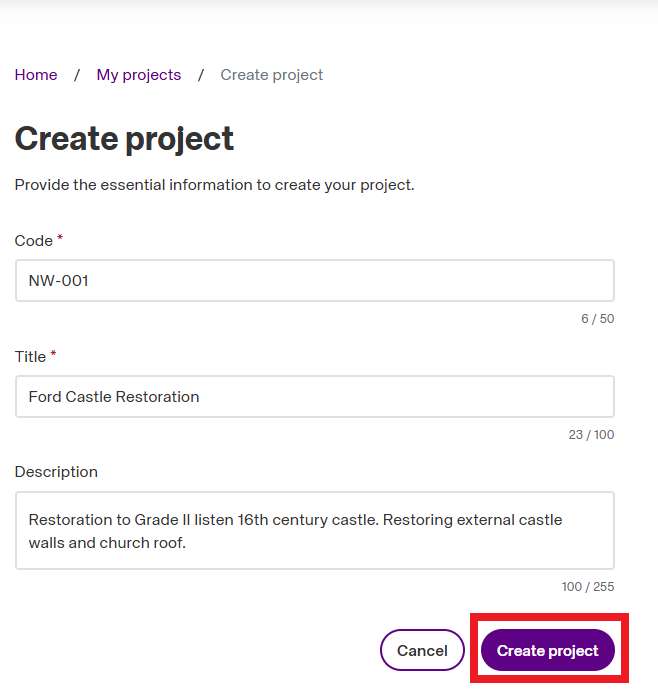
Please note: If the Create project button is greyed out, one or more of the required fields (marked with a * red asterisk) requires attention.