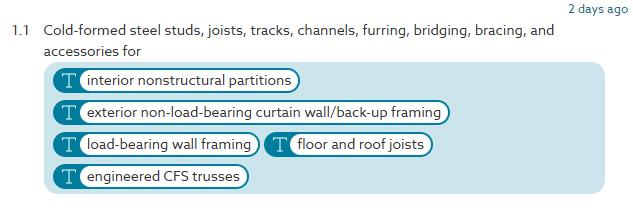
Chorus Content Authoring Platform (CAP) has been developed to import text files for the USA sections into bundles. This guide explains how to use it.
Summary
- As of 20 November 2025, this functionality is only recommended for USA - USMS bundles. Please do not use it for any other content set.
- The guide below includes Copilot prompts to use.
- The trigger word to import your file is 'Import draft'.
- The keyboard shortcut for the [] bracket-to-insert converter is Ctrl + [ (Windows) or Command + [ (Mac).
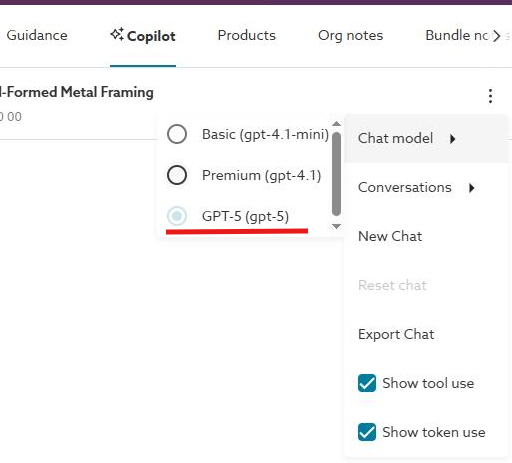
- For best results, we recommend setting your Copilot model preference to GPT-5.
User guide
1. To use this functionality, please make sure Copilot is set to GPT-5.
2. This is the prompt to use in Copilot;
Create a new full section workspace object from the following document.
Do not read the object back.
Part 1 General, Part 2 Products and Part 3 Execution are not clauses, so don't generate them, but make sure to set the clauseTypes for the rest of the clauses in their respective part
When generating content for clause items, always set the values array to empty [] and always set itemTemplate with the generated content.
Parse the whole thing, including clauses, items, guidance etc.
All items must be the sentence style item type
3. After the prompt, paste the entire text file you are trying to import.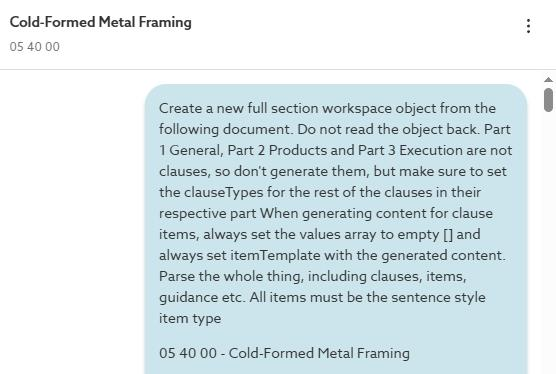
4. Copilot will now work through the file; this will take some time.
5. Once it has completed, enter 'Import draft' into Copilot.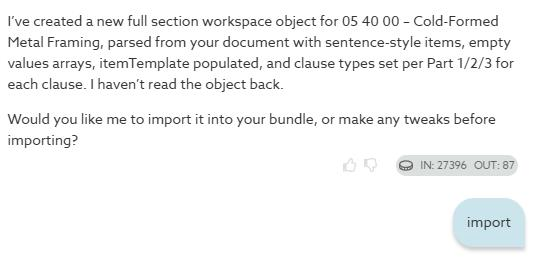
6. When this completes, the section will now be in your bundle, ready for editing.
7. To use the [] bracket-to-insert converter, you can either select the text in a row and click the button on the toolbar.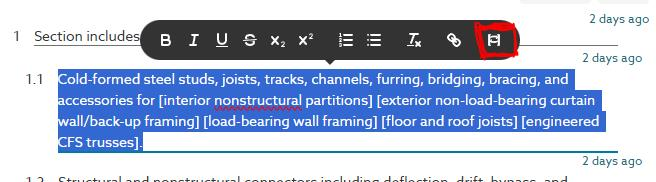
8. This can also be done with the shortcut Ctrl + [ (Windows) or Command + [ (Mac).