
The 'Maximise grid' function expands the data grid to fill the entire width and height of the screen, enabling specifiers to view more of their data at once.
This is perfect for complex projects, as it allows you to view more of your specification data on-screen.
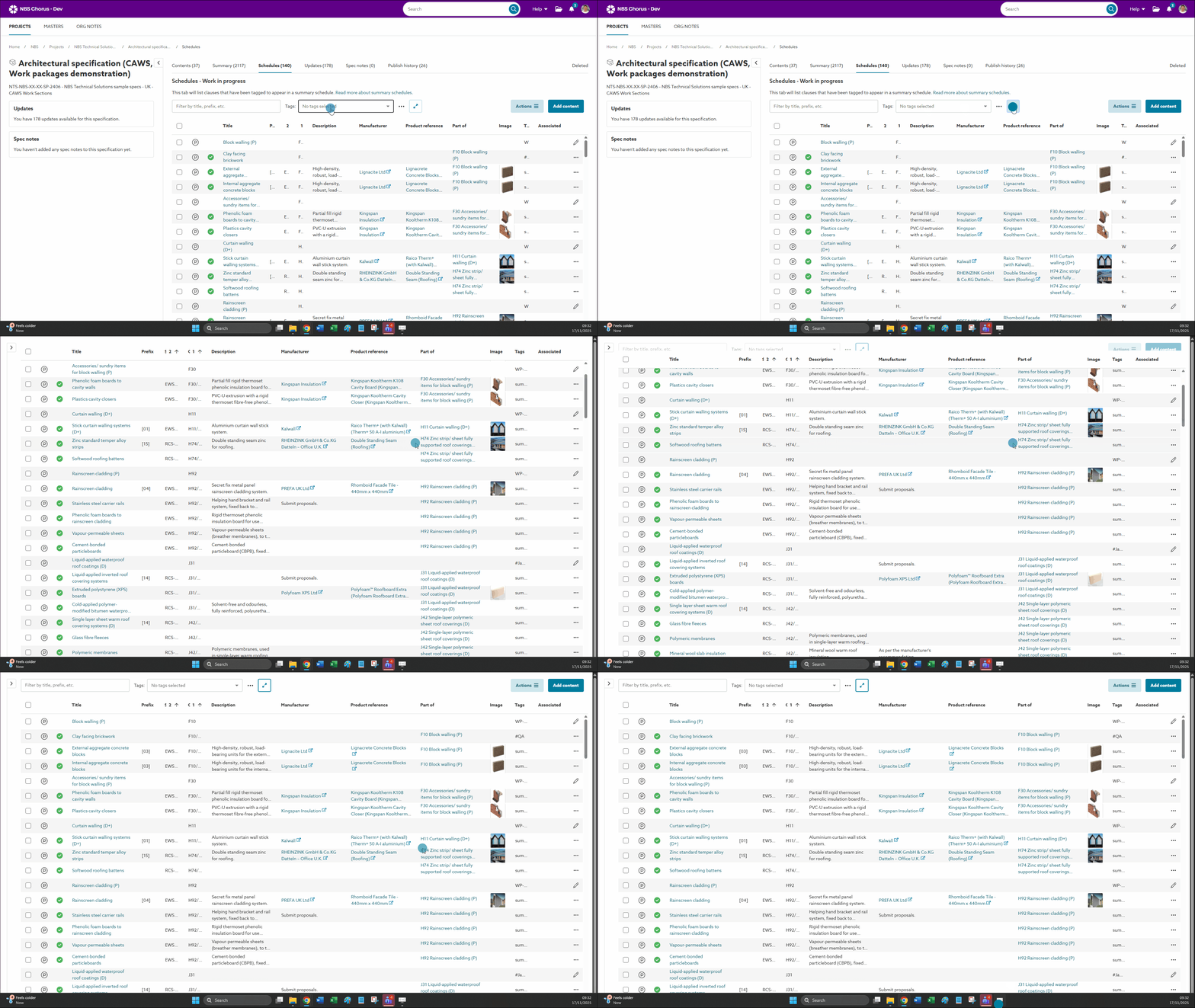
A screen capture showing 'Maximise grid'.
How to engage 'Maximise grid'
- To enable this option, click on the 'Maximise grid button'.
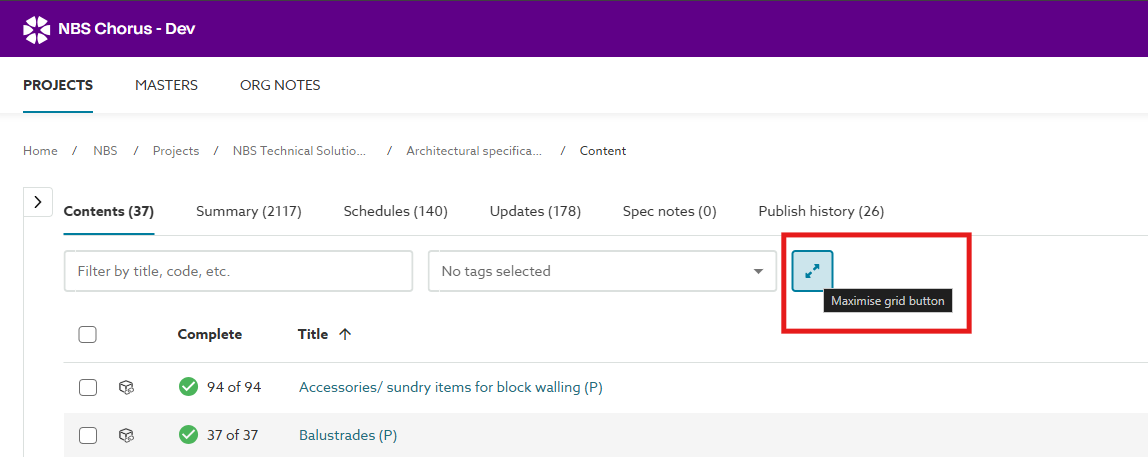
- To turn it off, either press the 'Escape' key or click the 'Maximise grid button' again.
Related: Compact view
How Maximise grid works
The grid filter controls are hidden when all of the following happen:
- The grid is scrolled downwards.
- None of the containing elements has focus.
The grid filter controls are shown again when any of the following happen:
- The grid is scrolled upwards.
- The user uses 'tab' to move through the filter controls.
- The user hovers the cursor over the top area of the grid.
It is enabled for the following grids:
- Projects/Master folder > Specification/Master > 'Contents' tab.
- Projects/Master folder > Specification/Master > 'Summary' tab.
- Projects/Master folder > Specification/Master > 'Schedule' tab.
- Projects/Master folder > Specification/Master > 'Updates' tab.
- Projects/Master folder > Specification/Master > 'Spec notes' tab.
- Projects/Master folder > Specification/Master > 'Consolidate' tab.
Further work is planned to apply it to:
- Projects/Master folder > Specification/Master > 'Publish history' tab.