
The 'Compact view' option is designed for proofreaders and users who prefer to see more text and less whitespace on their screen.
By selecting the 'Compact view' option, you will reduce the vertical whitespace throughout the platform.
Lattira Spec and NBS Chorus will remember this setting for you, even when you sign in from different devices.
How to set 'Compact view'
To switch to compact view, click on your profile menu located in the top-right corner, then select 'Compact view.'
This setting will be saved for you, ensuring it is retained across your browsers and devices.
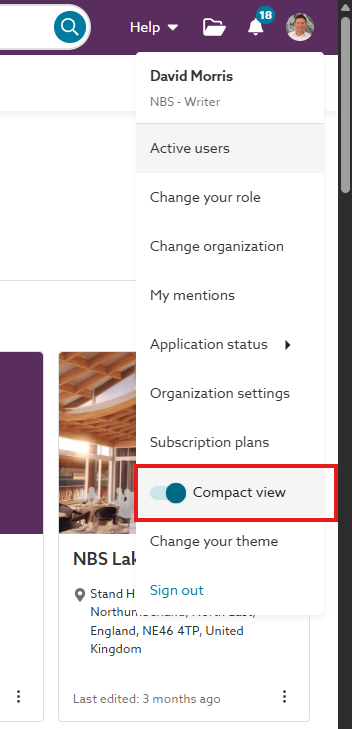
A screenshot of the 'Compact view' option on the profile menu in the top-right corner of the platform.
The 'Compact view' option has been relocated. It now applies to screens throughout the platform and has moved from the specification editor 3-dot menu to the profile menu.
NBS Product management, August 2025.
Compact view in the specification editor
'Compact view' reduces white space in the specification editor's 'Contents', 'Editor' and 'Guidance' panels.
In the 'Contents' panel's 'List layout' on the left-hand side, 'Editor' panel in the middle, and 'Guidance' panel on the right-hand side.
- This option will not change the view for either the 'Contents' panel's 'Tree layout' if displayed at the left-hand side or the 'Products', 'Org notes' or 'Spec notes' panels if displayed on the right-hand side.
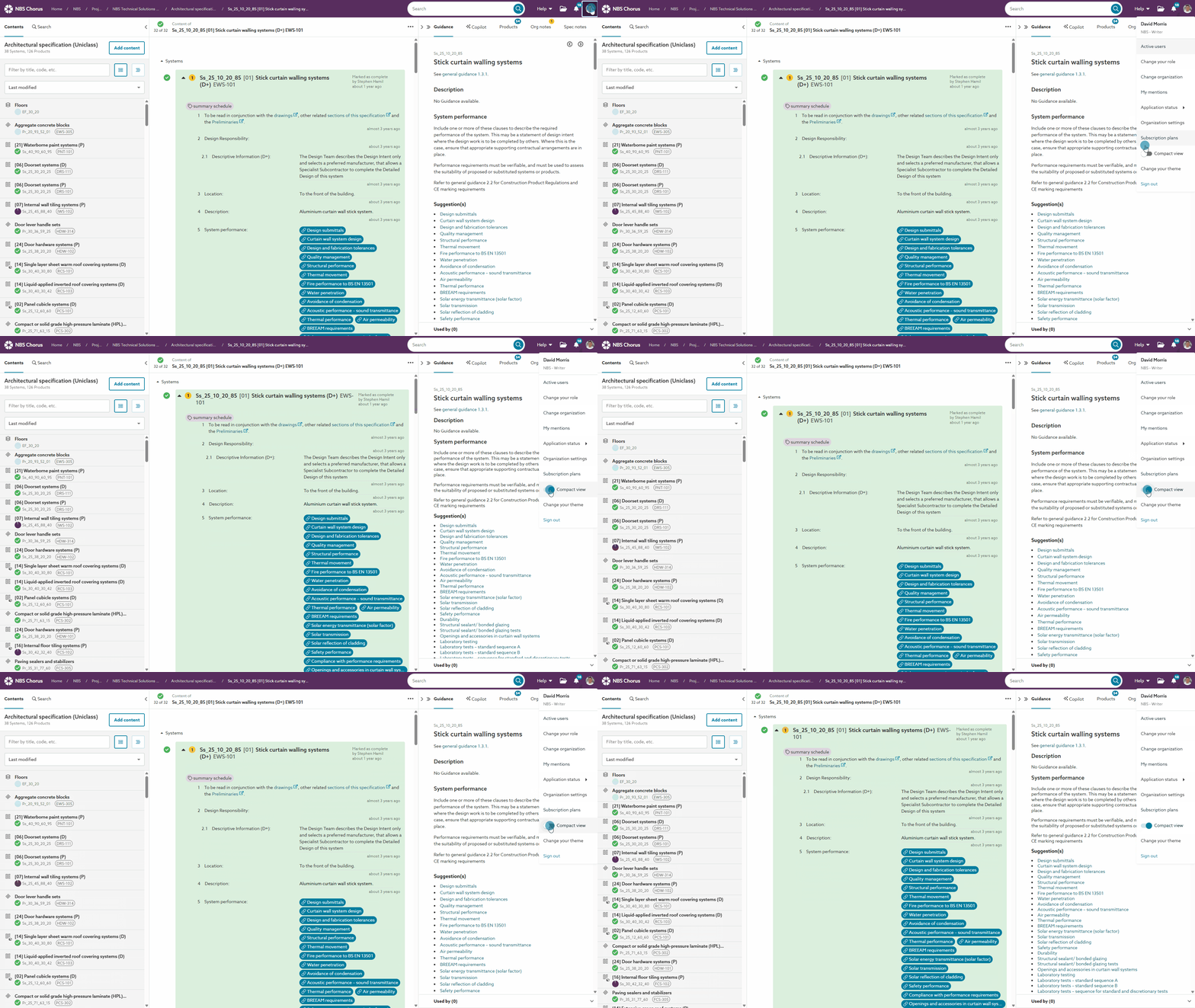
Screen capture of the 'Compact view' in the specification editor.
Compact view in the specification data grids
'Compact view' reduces whitespace in data grids, allowing more information to be displayed.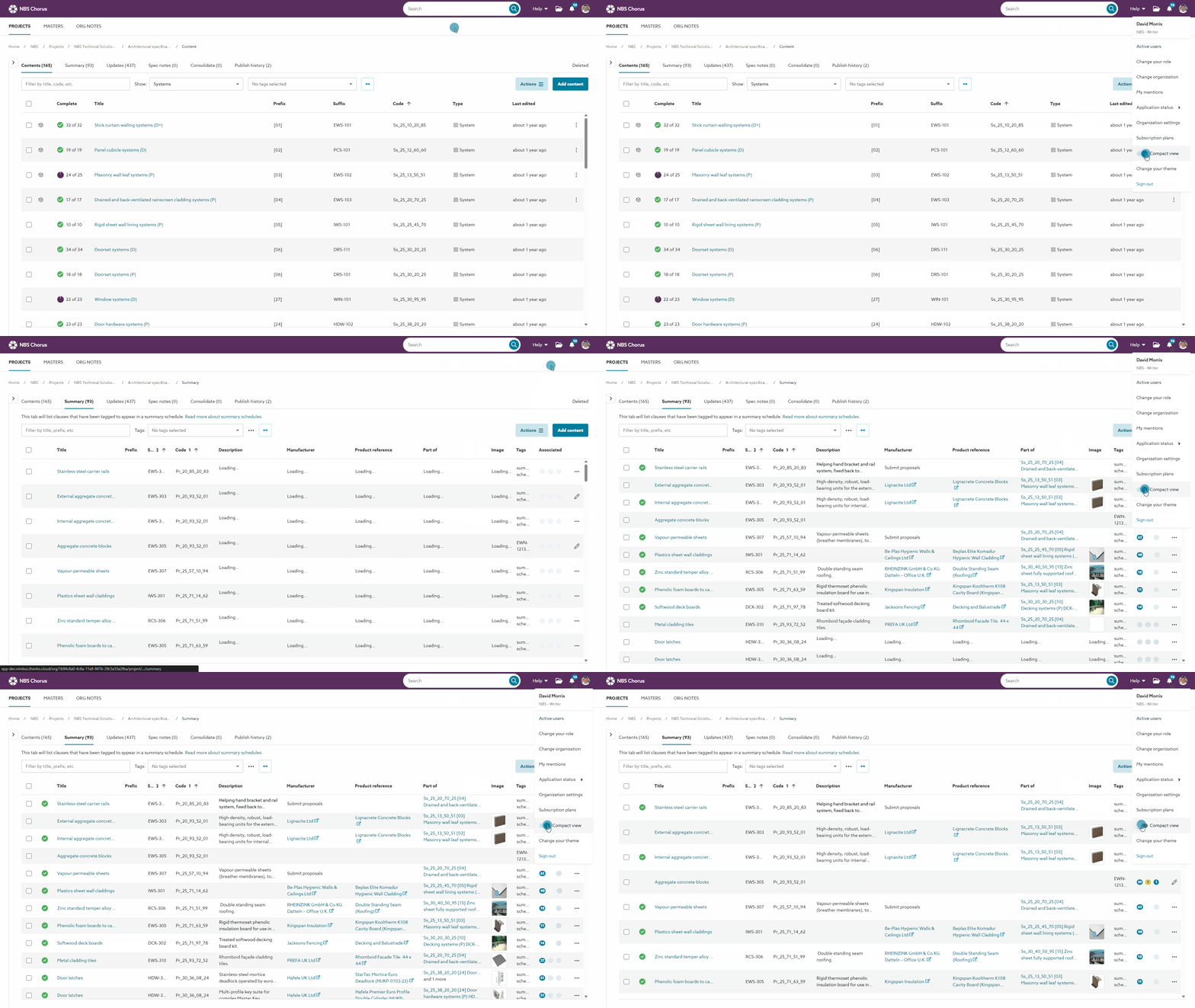
Screen capture showing the 'Compact view' when applied to the specification data grids.