
'Copilot' utilises various tools to generate responses to your prompts. This article describes those tools.
TOPICS
'Show tool use'
Firstly, you can see which tools Copilot has employed to provide a given response.
To show the tools used for a response:
- Click the ‘Copilot’ tab.
- Click the 3-dot menu in the top right corner of the ‘Copilot’ panel.
- Check ‘Show tool use’.
- Now, Copilot will show you the tools it used to produce each response.
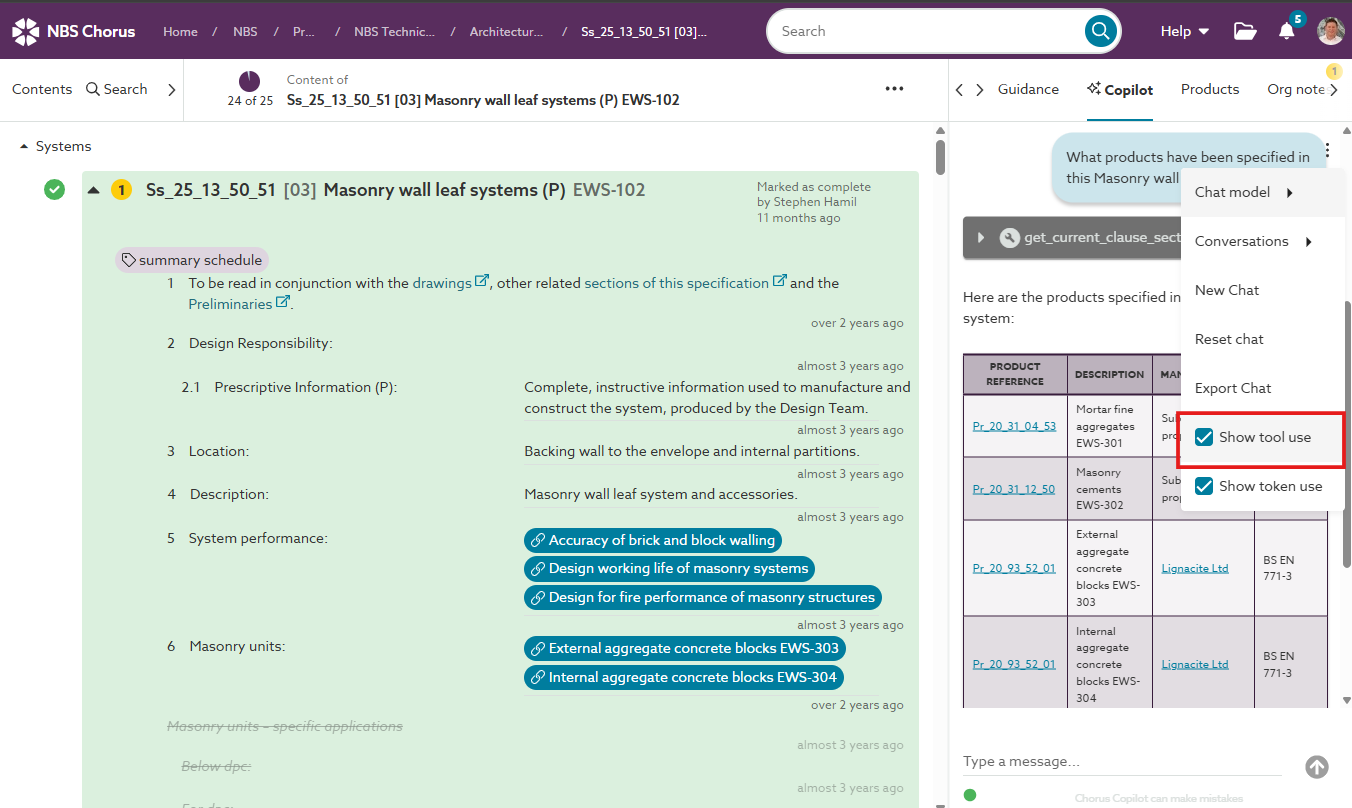
A screenshot of the 'Show tool use' setting in the 'Copilot' panel.
When 'Show tool use' is enabled, the tool(s) used to generate the response are displayed below the prompt in a grey box.
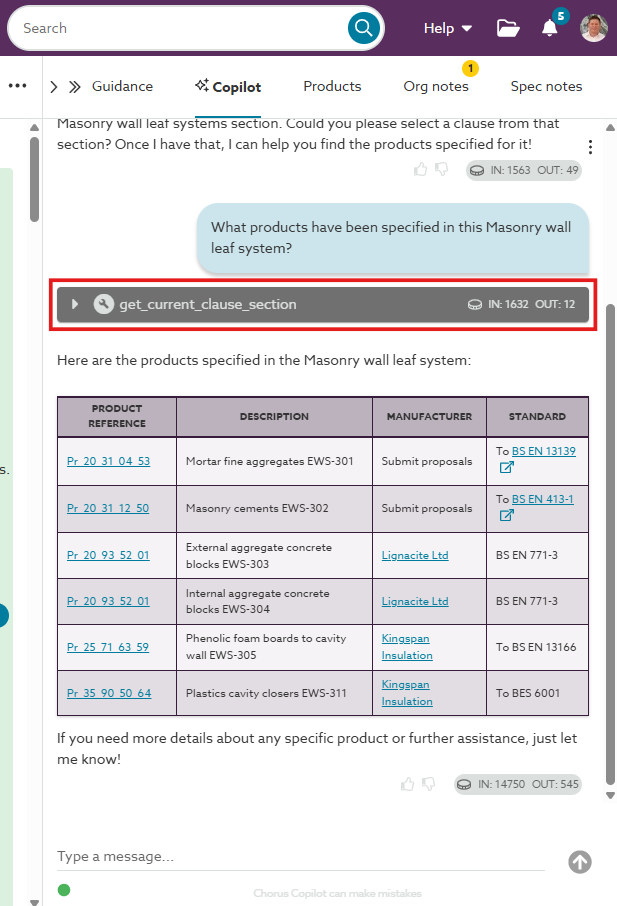
A screenshot illustrating how the tool(s) utilised to generate the response appear in the 'Copilot' panel.
About the Copilot tools
'Copilot' has several it calls upon to generate responses. They are:
| Tool name | Tool description |
| get_current_project_info | Returns details from the open project (or master folder): Project budget cost and currency Project category Project client Project description Project location Project main contractor Project title Project type |
| list_specification_sections | Returns a list of the sections in the open specification: Section/ system code Section/ system title |
| get_clauses_in_section | Returns the content of the entire section or system, including all of the section articles and clauses and linked Uniclass clauses. Renders any section and its children in the spec that you tell the AI to render, for example, you have a section open in the editor, e.g, L20, and you ask a question about another section in the specification, e.g. D40. |
| get_current_clause_section | Returns the content of the entire section or system, including all of the section articles and clauses and linked Uniclass clauses. Renders the section and its children that you are currently focused on in the spec editor. So if you're working on L20 and ask a question about D40, it will fail to answer you. |
| get_product_details | Fetches detailed information about a specific NBS Source product, identified by a Source 'Product reference' chip from the specification or Source platform. |
| suggest_products_for_clause | Returns summaries of NBS Source products potentially suitable for use in a clause. Note: Products will need to be evaluated for suitability in the specific context. |
| get_nbs_guidance_for_clause | Returns specific guidance for a clause from the NBS, summarising:
|
| search_nbs_guidance | Searches and returns excerpts about UK-wide construction or building standards and how to apply them. You must quote the code associated with the guidance when using the information as context. |
| get_wikipedia_summary | Get a summary of a Wikipedia article. |
Chat model
Chorus 'Copilot' has access to two ChatGPT models.
- 'Basic (gpt-4.1-mini)' – offers a cost-effective, fast, and resource-efficient alternative, ideal for general-purpose use, rapid prototyping, and applications where affordability and speed are prioritised over absolute accuracy and power.
- 'Premium (gpt-4.1)' – delivers the highest performance and capability, suitable for demanding and complex tasks, but at a much higher cost and resource requirement.
- 'GPT-5 (gpt-5)' – previous intelligent reasoning model for coding and agentic tasks.