
When you're mentioned in a ‘Spec note’ or ‘Master note’, the platform notifies you via email and logs it in the ‘Mentions’ section of your ‘Notifications’ menu.
@mentions are in 'Spec notes' and 'Master notes', which are available with Pro (and above).
Key points
- Both the email and the notification contain a link to access the note. Clicking it will take you directly to the note in the specification.
- The ‘Mentions’ section of the notification menu displays:
- ‘Mentions’ from all organization you collaborate with.
Related article: - A maximum of five mentions, specifically the five most recent ones.
- ‘Mentions’ from all organization you collaborate with.
The notification contains:
- The user who mentioned you.
- The project title, specification title and article or clause number.
- An excerpt from the note text.
- The relative time you were mentioned, for example, ‘X minutes ago’.
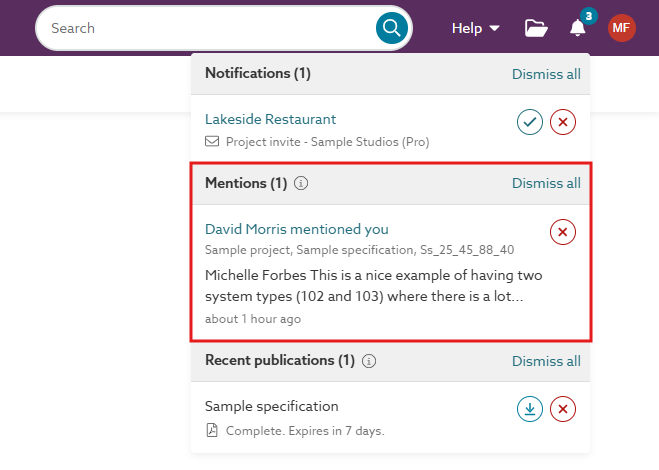
A screenshot of the alert in the 'Mentions' section of the 'Notifications' menu.
The email contains:
The platform sends an email to the mentioned user. It is sent immediately and originates from 'no-reply@theNBS.com' or no-reply@lattira.com'.
It contains:
- Subject: {Mentioner first name} has mentioned you in {section code/clause code prefix title suffix}.
E.g. 'James mentioned you in Ss_30_25_10_10 [12] Board suspended ceiling systems (D) CLG-101'. - The name of the user who mentioned you.
- The article, clause or section where you were mentioned.
- The specification title.
- The project title.
- The 'Spec note' or 'Master note' text (maximum of 1000 characters).
- A link to open the note in their browser. Selecting it takes them directly to the note in the specification.
- The email address of the user who mentioned you.
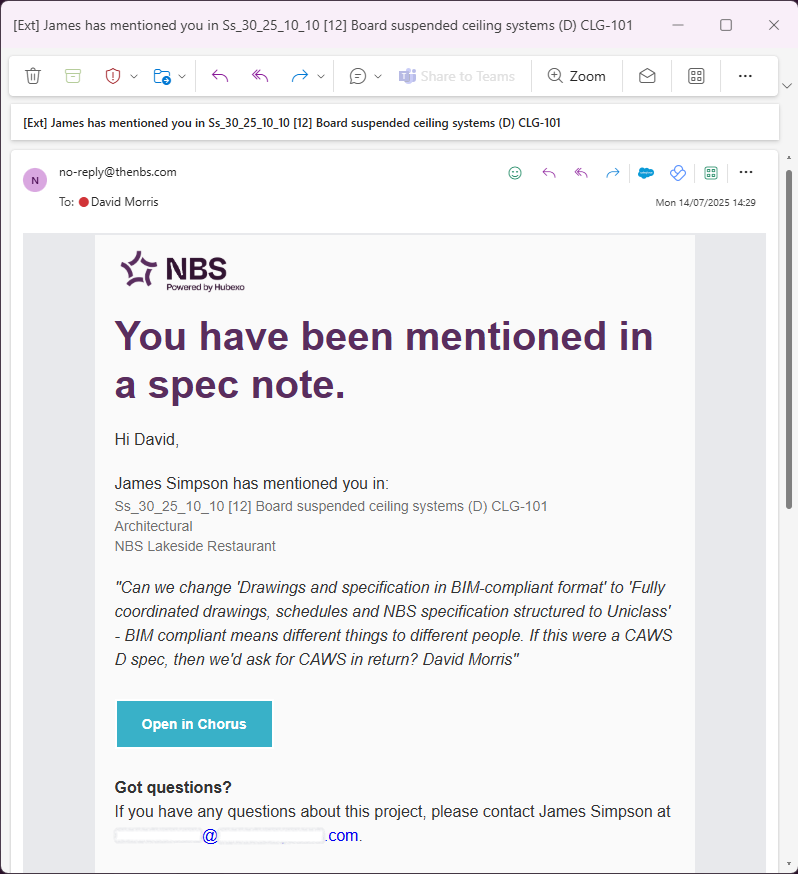
A screenshot of the email sent to users when they are mentioned in 'Spec notes' and 'Master notes'.