
You can publish your specifications and produce separate MS Word or PDF files, one file per 'Tag'.
This article explains how to publish your specification using 'Separate tags'.
Please note: 'Separate tags' is available with 'Premium'. 'Tagging' is a Premium feature.
Related article: Publishing your specification as separate documents
'Separate tags' offers an alternative to 'Separate systems', 'Separate groups' and 'Separate prefixes'.
Publishing by 'Separate tags' will produce:
- A separate MS Word or PDF for each unique 'Tag' in your publish selection.
- Systems and sections with the same tag are combined into the same MS Word/ PDF document.
- Systems or sections with multiple tags will be included in each MS Word/ PDF document.
- The tag is appended to the end of each filename.
- You will get a separate file for every tag in your publish selection. This could include non-publishing-related tags. You should delete unwanted files.
How to publish 'Separate tags'
To produce your specification to separate documents by the tag:
- First, select the tags you are interested in publishing.
- Use the tags drop-down menu on the specification 'Contents' tab to filter the grid for the tags you want to publish.
- Select the items in the grid using the checkbox column.
Please note: The platform produces a separate MS Word PDF file for every tag contained in your selection. You deleted the files for the tags you do not want.
- Click the 'Actions' button, then click 'Publish selection'.
- On the 'Structure' step:
- Choose your preferred document format (MS Word or PDF).
- Choose 'Separate tags' from the 'Choose an output structure' options.
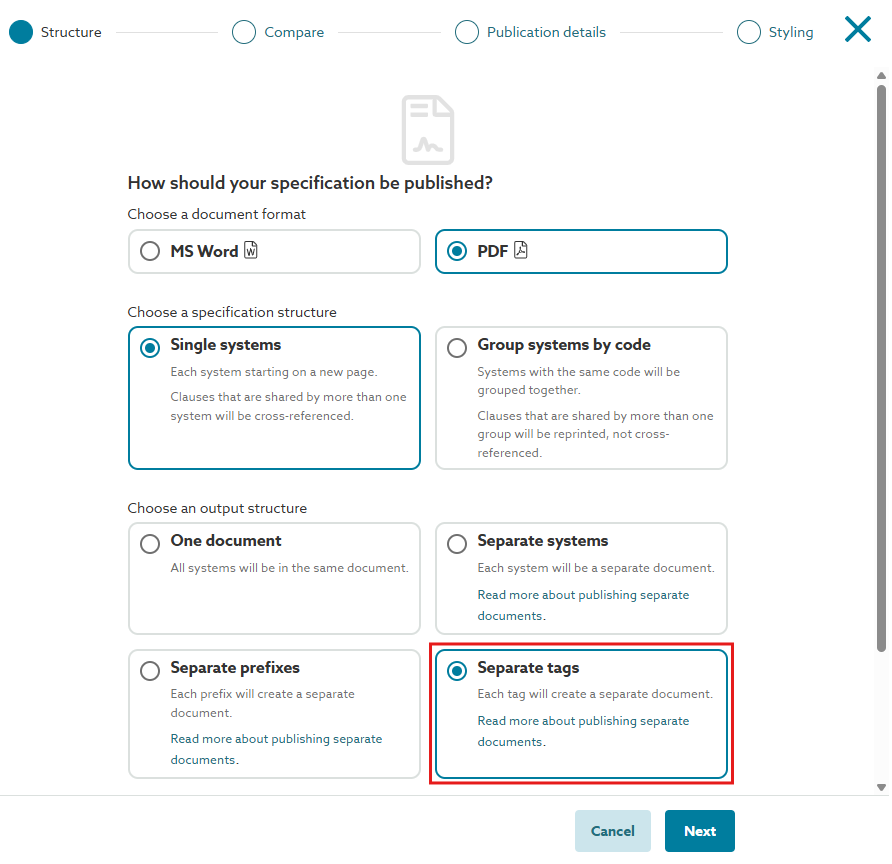
- Complete the 'Publish selection' wizard.
The 'Notifications panel' will show when your documents have been published as separate files, with a different file-type icon for .zip.
When you publish separate documents, the platform produces a single .zip file containing all the individual files. The tag is added to the end of the individual filename.
Worked example
I will demonstrate the tagging functionality using a sample specification based on the 'UK - CAWS Work sections' content set.
- Begin by adding a tag to identify your work packages. Add the work package tags to the sections or systems in your specification.
The tag name will appear in your specification filenames and publication title (see steps 5 and 6).
I have used a naming convention of 'WP-XXX Package title'.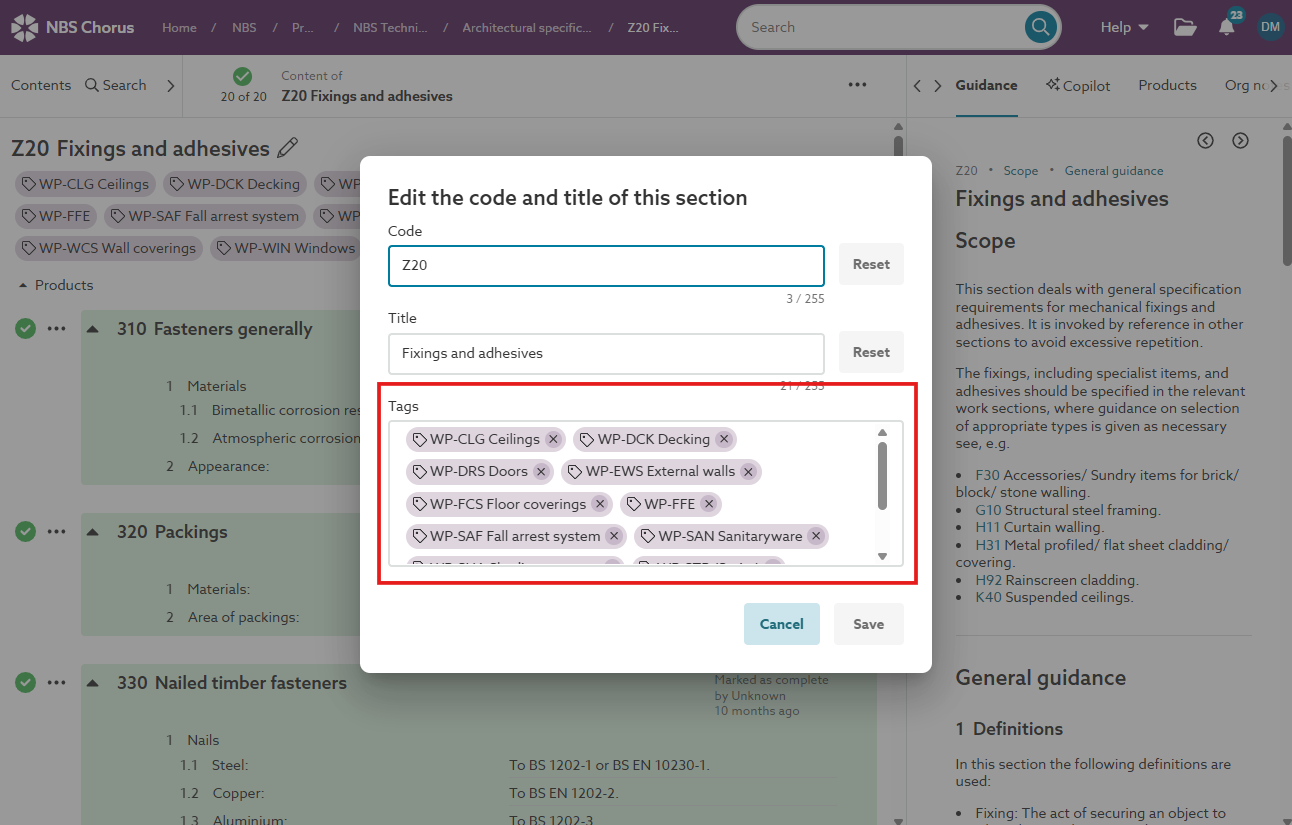 A screenshot showing tags added to a section, 'Z20 Fixings and adhesives'.
 - Sections that are shared between work packages will have multiple work package tags. For example, 'Z20 Fixings and adhesives' is in most work packages.
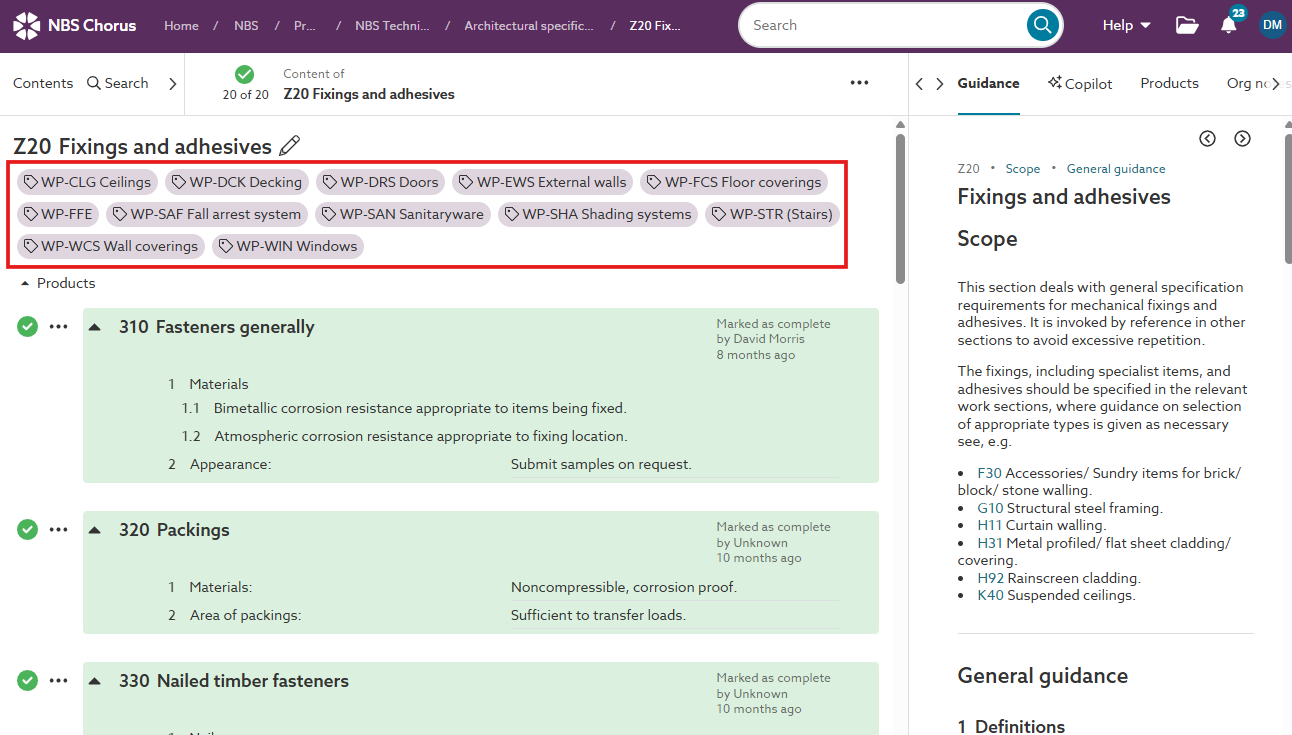 A screenshot showing a single section can be assigned with multiple work package tags.
 - Select the work page tabs you want to publish on the specification 'Contents' tab.
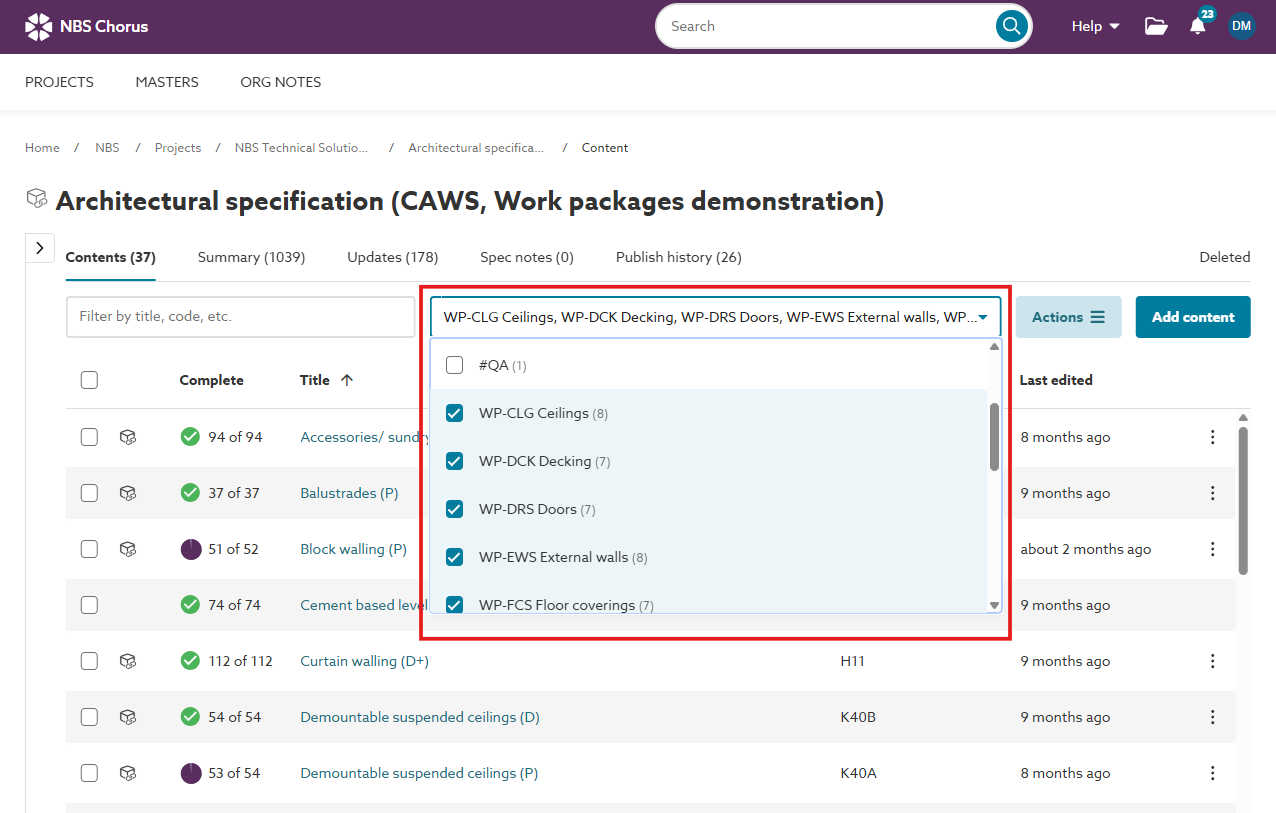 A screenshot displaying the selected work package tags on the 'Contents' tab to filter the data grid.
 - Select your filtered list of sections and 'Publish selection'.
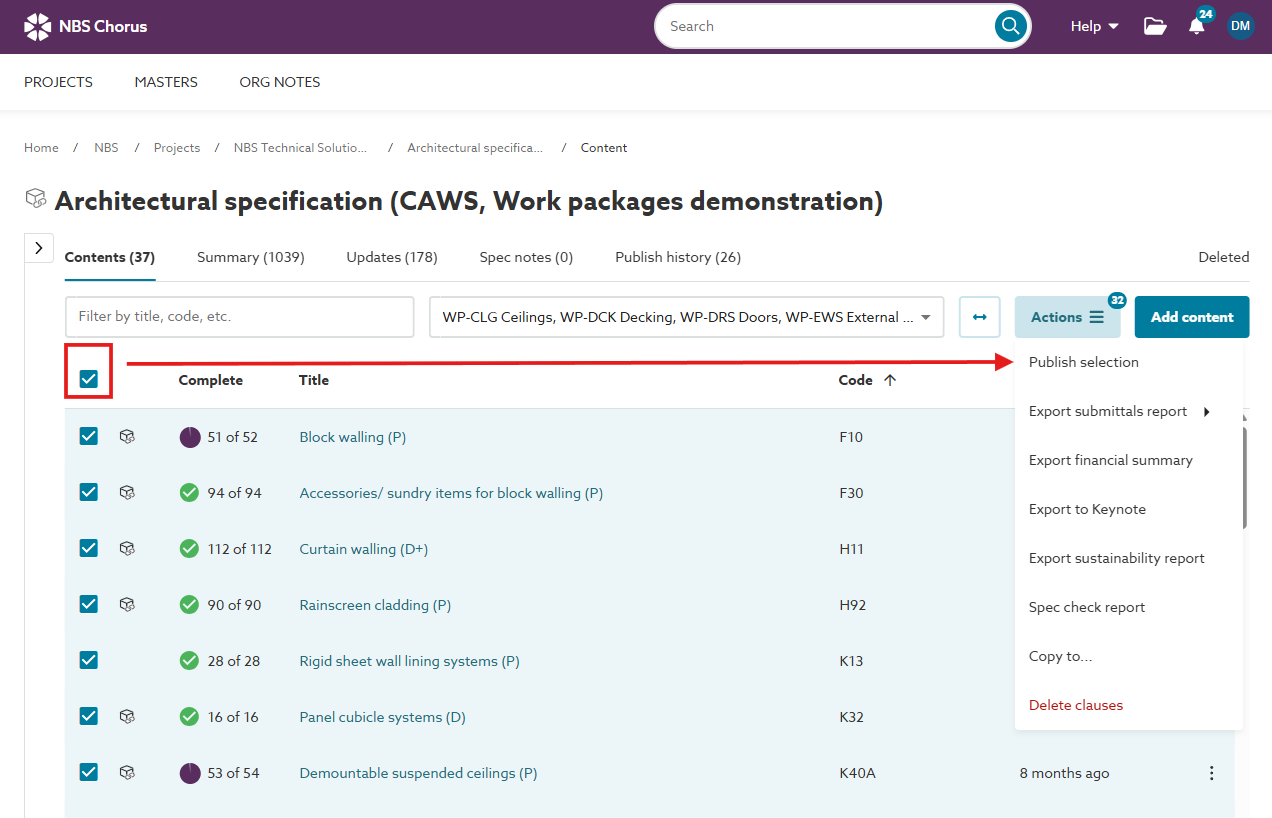 A screenshot showing the selected target sections for publishing.
 - 'Separate tags' generates a file for each tag, appending the tag name to the end of the file filename.
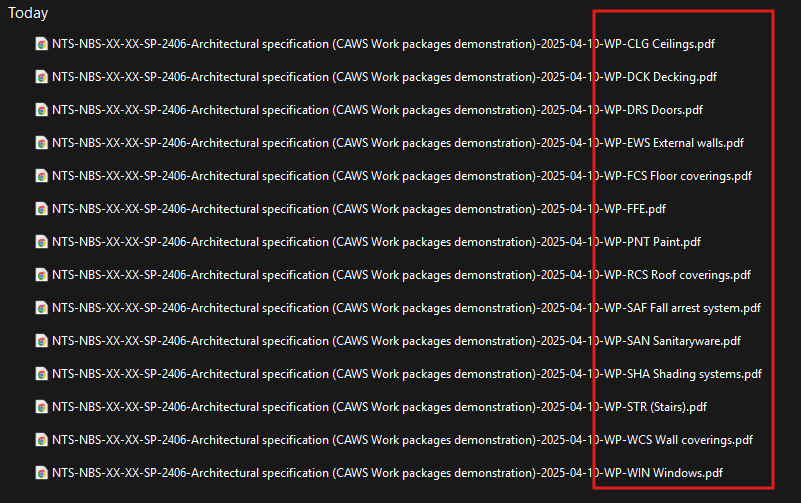 A screenshot of the files produced when publishing by 'Separate tag'.
 - Each specification file contains the sections with the work package tag. In this case, the Ceilings work package contains the sections tagged with 'WP-CLG Ceilings'.
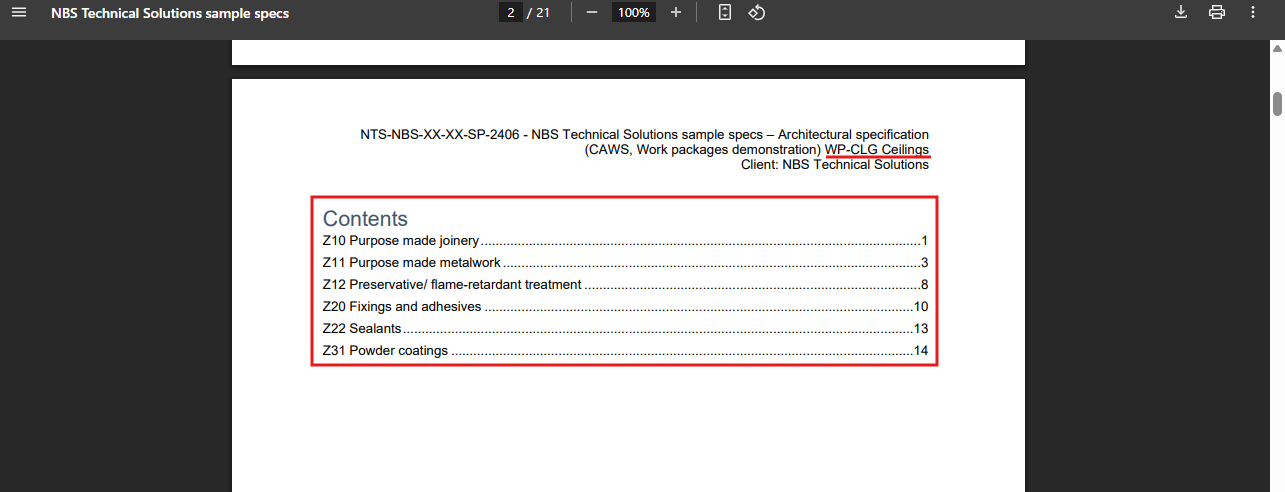 A screenshot showing the table of contents for the ceilings specification.