
You can add construction products from Source to your specification by copying and pasting, or dragging and dropping. This article explains the drag-and-drop method.
You would use this functionality when:
- You are using Source to find and select construction products to specify. We encourage specifiers to use Source to discover, evaluate and decide on construction products. Source has advanced filter and comparison functionality that Lattira Spec and NBS Chorus do not.
- You want to add a construction product into an article or clause for which the product is not classified. You may want to add a product to an article or clause that the supplier did not intend.
You can do this using both the copy and drag-and-drop methods. Please check that the product is suitable for your application. 'Application' information is provided for each product in Source. If you have any doubts, we encourage you to contact the manufacturer. This can be done in Source.
Related articles:
- See 'Copy the manufacturer product from Source' from Adding manufacturer product details from Source
- Specification writing partner
- Primary & Secondary classifications
How to drag and drop products from Source into your specification
To drag and drop products from Source, you should check out the intended article or clause in the specification editor.
Steps:
- Top tip: Arrange your specification and Source browser tabs side by side. You can drag and drop without doing this step, but it is easier if you can see the specification and Source side by side.
- Important step! Before you place the construction product, you must check out the article or clause in the specification editor.
- Locate the Source product. Click and hold your mouse pointer on the product image.
- Drag the product image over your article or clause. The background colour of the article or clause will turn blue.
- Now, release your mouse button to drop the product into your article or clause.
The short, silent video below shows how to drag and drop products from Source into an article or clause.
Related articles:
- Product variants
- See 'Code check warning- Uniclass, CAWS, SpecPack, SpeedSpec or SureSpec specifications only' from Adding manufacturer product details from Source
About drag and drop
- You can drag and drop 'Products' from Source. You cannot drag any other type of information, e.g. 'Manufacturers', 'Literature' or 'Case studies' records.
- You can drag and drop between Source and your specification when they are on separate tabs within the same browser.
- Drag-and-drop functionality is compatible across different browsers on the same device. For instance, you can transfer from Source in Google Chrome to your spec in Autodesk Revit 2020, or from Firefox to Microsoft Edge.
A screenshot showing example 'Product' records that can be dropped into your specification.
The article or clause needs to be checked out
If you attempt to drag and drop products when the article or clause is not checked out or is being edited by another specifier, the background colour will turn red.
You cannot drag and drop when the article or clause:
- Is not checked out.
- Is parked.
- Is marked as complete.
- Is checked out by another user.
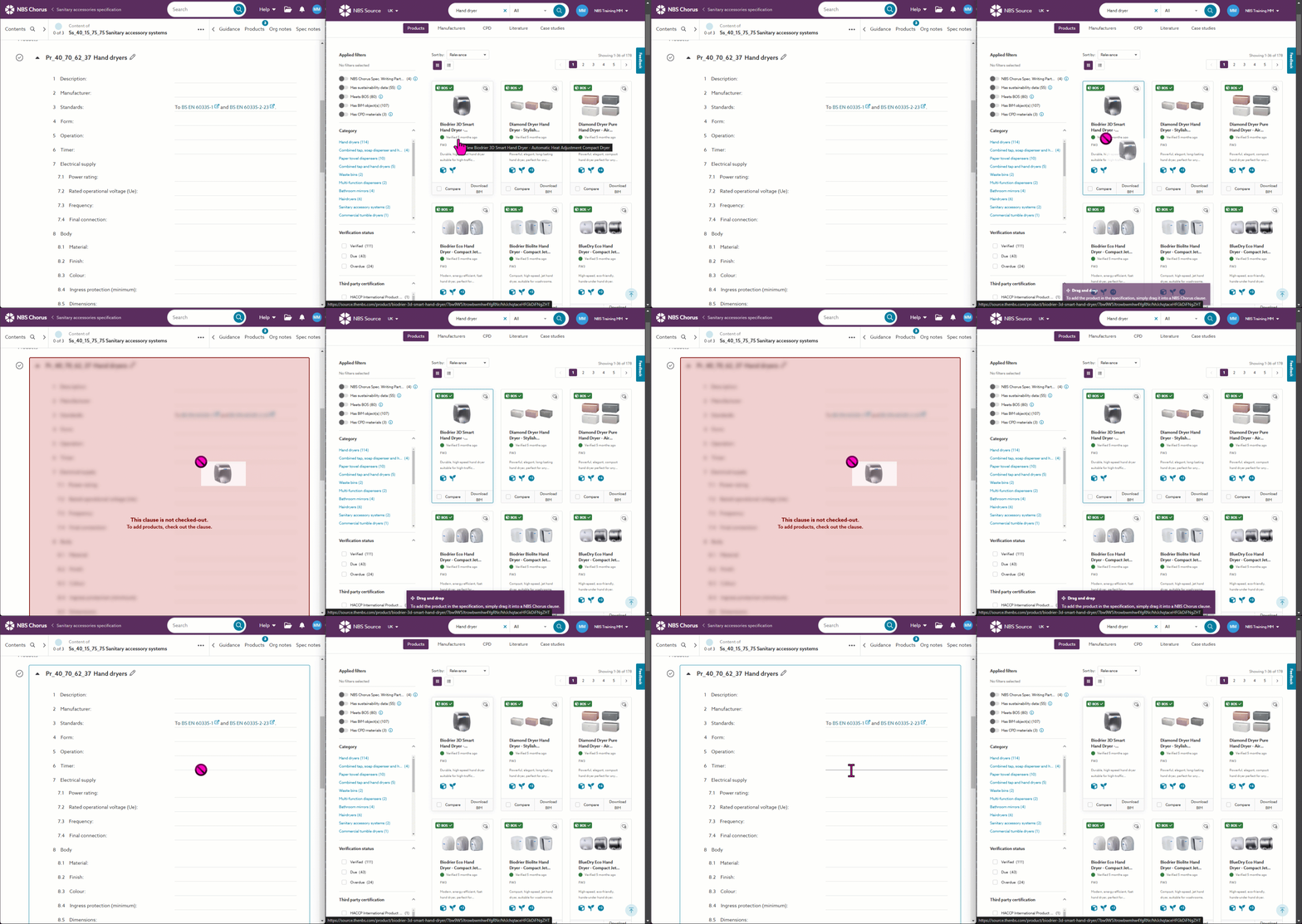
A screen capture shows when the product cannot be dropped, such as when the clause is not checked.