
To speed up their setup, you can import and export variables. This article explains how to import and export variables.
You would use the import and export variables because you:
- Want to share the variables you have set up with another organization.
- You want to set the same ‘Project variables’ in another project.
- You want to replicate project-level variables in the organization-level variables.
- You want to keep an offline record of the variables and their values.
Exporting variables
- Go to the variables grid that you want to export.
- Organization administrators can export variables in the ‘Organization settings’ > ‘Variables’ area.
- Project administrators can export variables in the ‘Project’ (or ‘Master’) > ‘Edit variables’ area.
- Click the ‘Actions’ button > ‘Export variables’.
- The platform will download a Comma Separated Values (CSV) file containing the variable name and value.
- The filename convention is ‘[Project code]-[Project title]-project-variables-YYYY-MM-DD.csv’.
- This will also contain any variable formatting, tables and images.
Importing variables
Variables can be imported from a CSV file. For the file to import successfully, it:
- Must contain two columns with the following headers: ‘name’ and ‘value’.
- The ‘name’ and ‘value’ column headers are case insensitive.
- Must contain at least one variable name. You do not need to define a value for the variable name.
- Must not contain two variable names that are the same. Variable values can be the same.
- Unlike the column headers, variable names are case-sensitive. So, variables with the same name but different cases will be imported.
We have provided a variable import template to download from this article.
Related: Importing variables - errors
How to import variables
Follow these steps to import variables via CSV file:
- Go to the variables grid that you want to import variables into.
- Organization administrators can import variables in the ‘Organization settings’ > ‘Variables’ area.
- Project administrators can import variables in the ‘Project’ (or ‘Master’) > ‘Edit variables’ area.
- Click the ‘Actions’ button > ‘Import variables’.
- Click ‘Choose a file’, a file browser window will open. Navigate to the location of your CSV file, select it and click the 'Open' button.
A screenshot of the ‘Choose a file’ step on the ‘Import variables’ wizard.
- The filename will now be displayed in the Import variables dialog. Click the ‘Next’ button to continue.
- A further 'Import variables' dialog will be displayed listing out all of the variables included in the selected csv file, allowing you to review and select the variable(s) to be imported. For each variable, it will identify if the variable is new or if it already exists. If existing variables are imported, the imported value in the csv file will overwrite the current value in the platform.
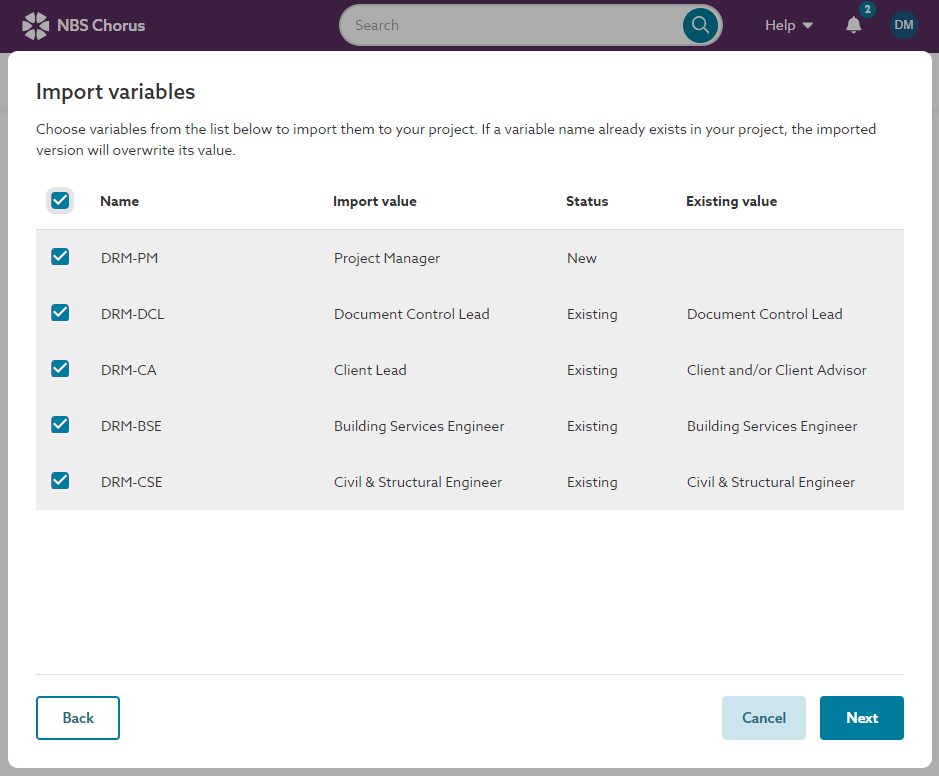 A screenshot showing the checkboxes to select the variable(s) you wish to import and which ones are new and already exist.
- Select the variable(s) you want to import using the checkboxes to the left of each variable.
- Confirm your selection of variables to import. New variables will be set up. For existing variables, where the value is different, the imported variable value will overwrite the current value of the variable. Click ‘Import’.
A screenshot showing the confirmation step. Clicking 'Import' will create new variables and overwrite existing variable values with the imported value.
- Your imported variables will appear in the variables grid. The ‘Last edited’ column will update to confirm the change.