
This article describes updating an existing stylesheet with new styles to enable users to configure how the ‘Detailed revision’ function appears in a published specification.
Chorus highlights added and deleted text from your previous version when you publish with 'Detailed revisions'. Chorus uses styles to format the revised text in the final document. This article explains how to add the 'Detailed revision' styles to existing stylesheets.
You should follow this guide if you have an existing stylesheet(s) based on an 'Default stylesheet template' from June 2023 or older and want to publish with detailed revisions. Please ignore this guidance if you are customizing the 'Default stylesheet template' dated July 2023 or newer: it already contains the detailed revision styles.
Please note: 'Detailed revisions' are available with 'Premium'.

Uploading and managing stylesheets is restricted to 'Organization administrators'.
To copy the detailed revision styles to your existing stylesheet
- Download the latest 'Default stylesheet template'; it contains the detailed revision styles we need. Please see 01 Download the 'Default stylesheets templates'.
- Get the MS Word version of your existing stylesheet. If you do not have a saved version, you can download it from Chorus. Please see How to download a custom stylesheet from Lattira Spec and NBS Chorus.
- Open your existing stylesheet.
- Click on the ‘Home’ tab, then open the ‘Styles’ pane.
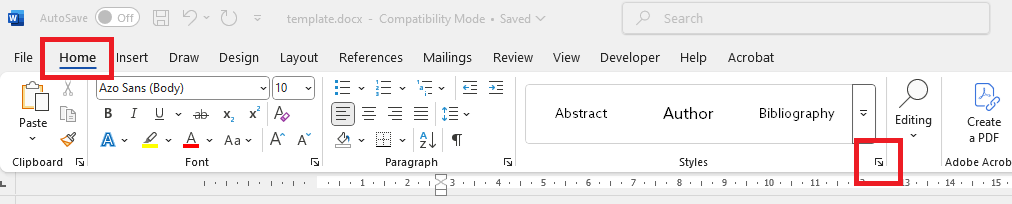
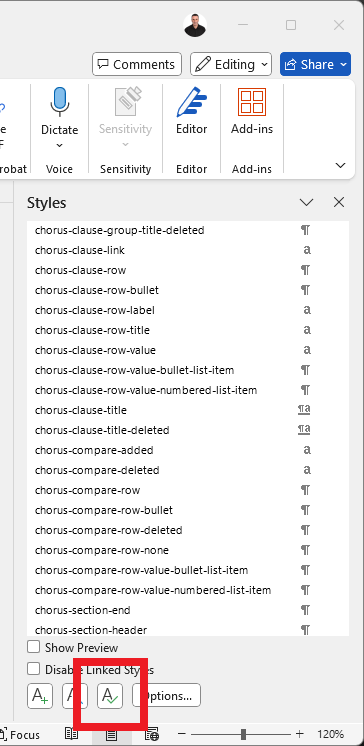
- Click on the ‘Manage Styles’ button.
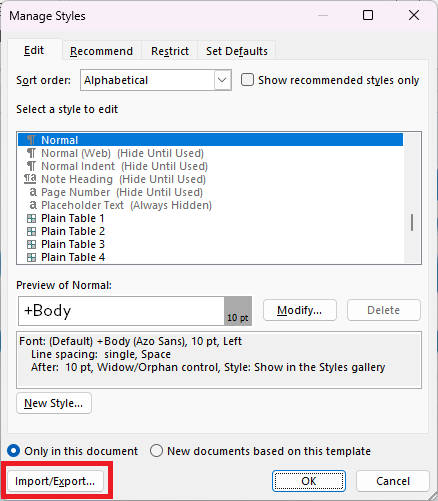
- Click on ‘Import/Export’.
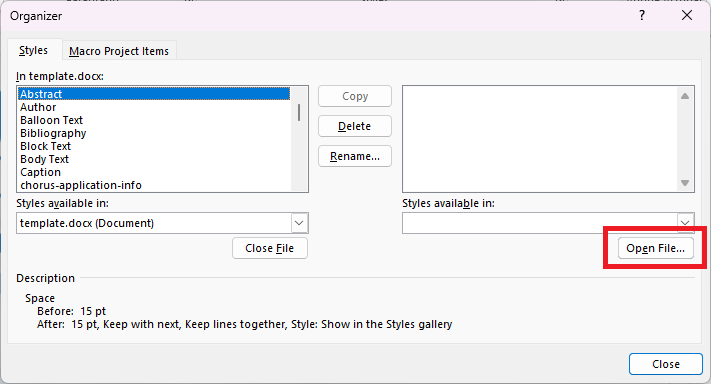
- In the ‘Organizer’ modal, click on the 'Close File' button at the right hand side.
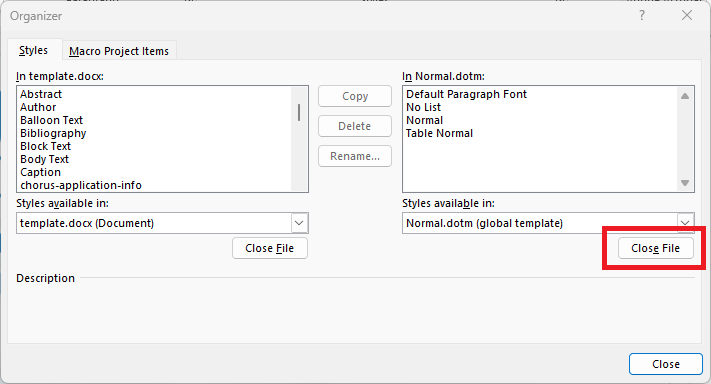
- Click on the 'Open File' button at the right hand side.
- Change the file type option to either 'All Files (*.*) or 'All Word Documents (*.docx;*.docm...)'.
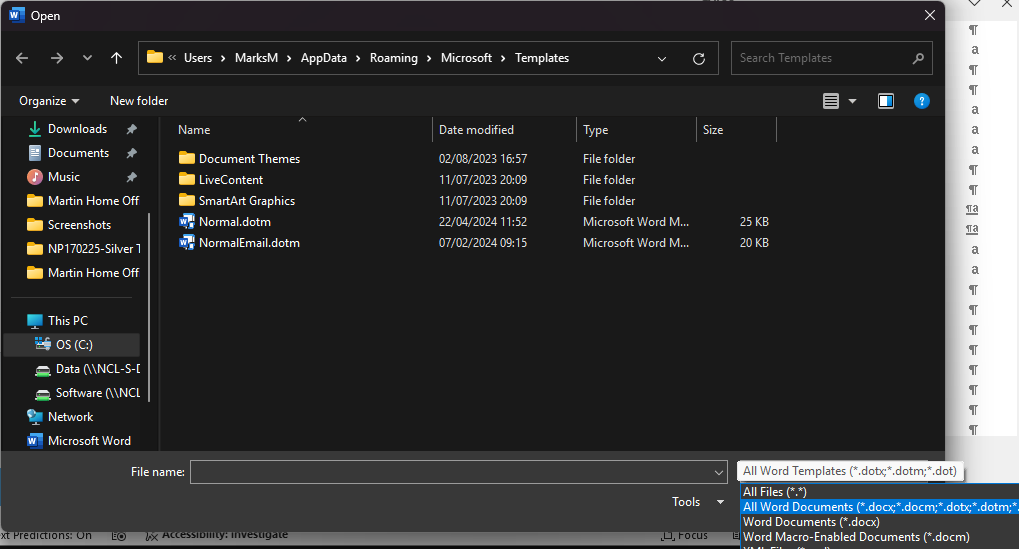
- Browse to and open the saved copy of the latest 'Default stylesheet template' (obtained at step 1 above).
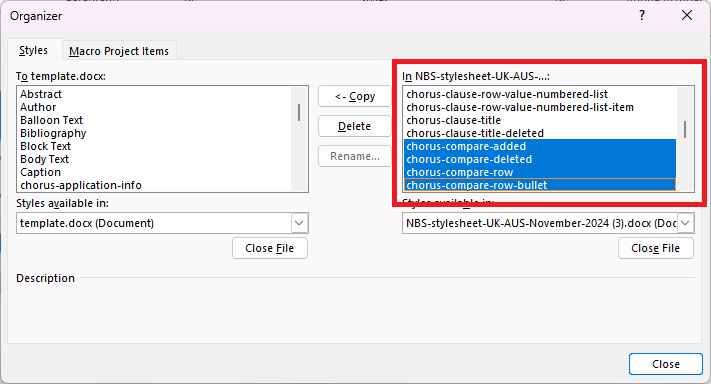
- In the list field on the right-hand side, select the following nine styles:
- chorus-clause-row-none-list
- chorus-compare-added
- chorus-compare-deleted
- chorus-compare-row
- chorus-compare-row-bullet
- chorus-compare-row-deleted
- chorus-compare-row-none
- chorus-compare-row-value-bullet-list-item
- chorus-compare-row-value-numbered-list-item
 Click on the ‘< - Copy’ button, then the 'Close' button.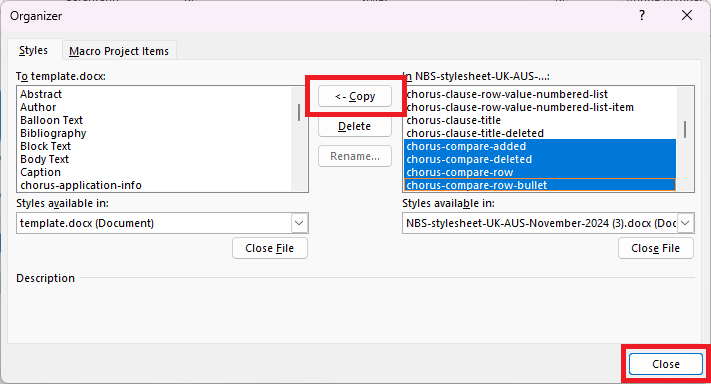
- Save your existing stylesheet, then close MS Word.
- (Optional) Before re-uploading your stylesheet:
- Open your stylesheet and use the Style pane to check that the nine styles listed above are there.
- Decide if you want to change the detailed revision styles to customize their presentation. Please see Customizing detailed revision stylings.
- Re-upload your updated stylesheet into the platform. Upload it in the 'Stylesheets' area of 'Organization settings'.
- Test your new stylesheet. When you upload a stylesheet, it will initially have an ‘Inactive’ state. This is so that you can publish a test version before making it available to the rest of the organization’s users.
- Approve your stylesheet. Once you have tested it and approved it, you should change the state of the stylesheet from ‘Inactive’ to ‘Active’.
- (Optional) Set your updated stylesheet as your default. Remove previous stylesheet or change their description.