You can control what and how you see the information in the specification editor using the three-dot menu button in the top right corner.
Your selected settings are saved. If you leave the specification editor or sign out, your preferences will be preserved when you return
This article explains what the view settings do.
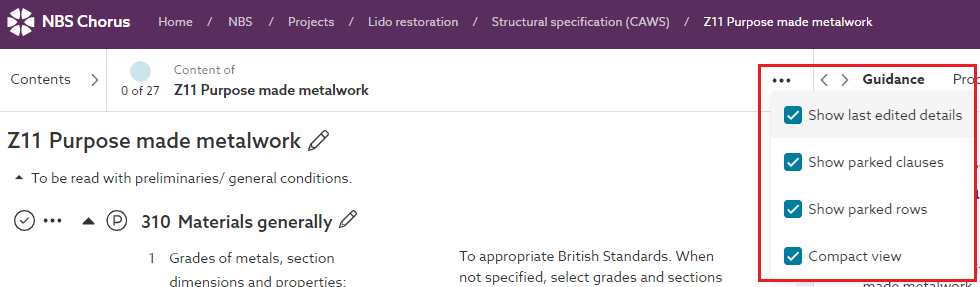
The screenshot shows the view settings menu in the specification editor.
Related article: Compact view.
Show the last edited details
Checking the 'Show last edited details' option will display the relative time articles, clauses and rows (also referred to as clause items or paragraphs) in the editor were last changed.
Hovering over the relative time will display the name and email address of the user and the full date and time when the last change was made.
Please note: you will need to close the three-dot menu (by clicking somewhere outside of it) before the hover-over details will be shown.
Show parked articles or clauses
This option will not be shown for Uniclass Work Sections-based content sets; it will be shown for all other content sets, including Uniclass Preliminaries content sets.
Depending on the content set you are currently using, this menu option will be either be displayed as 'Show parked articles' or 'Show parked clauses' in the three-dot menu.
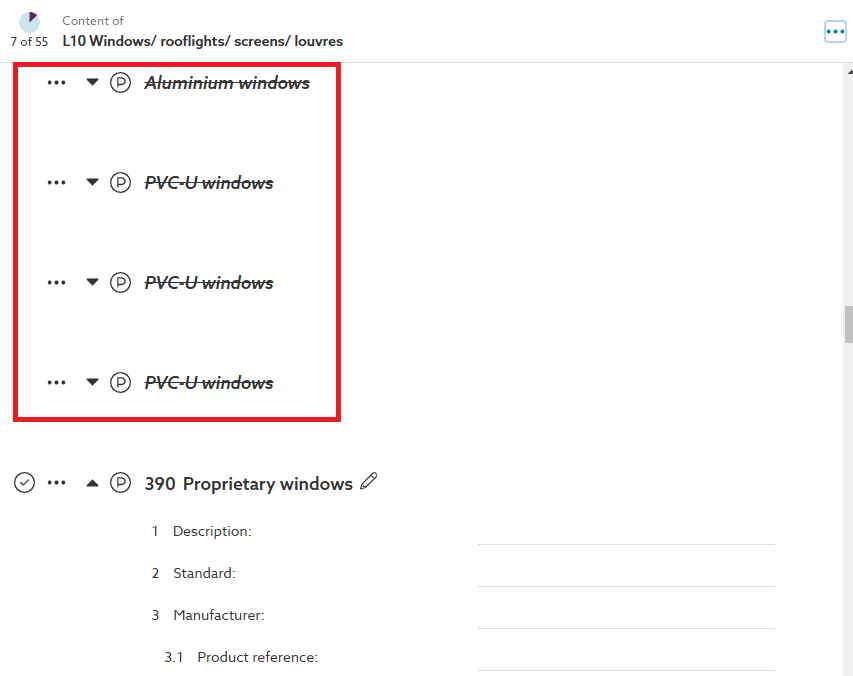
Within sectional content sets, you can park any articles or clauses within the section. Generally, this may be done for some of the pre-written specification content where it is not relevant to the particular specification you are producing. For example, in the UK CAWS work section 'L10 Windows/ rooflights/ screens/ louvres', there are clauses for Wood windows, Steel windows, Aluminium windows and PVC-U windows. If the project only has wood windows, you would complete the relevant clauses relating to the wood alternatives and park the clauses relating to steel, aluminium and PVC-U alternatives.
Checking the 'Show parked articles/ clauses' option will display the parked items with rolled-up and struck-through titles in the editor view, as shown in the example below. Unchecking this option will hide them within the editor view, so you can focus on the active articles/ clauses. Parked items are not included in the published output, so this setting does not affect what is, or is not, included when the specification is published.
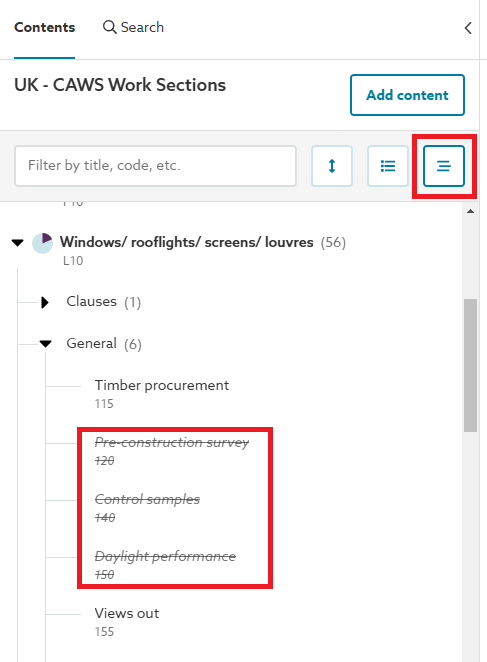
This setting will also apply to the 'Contents' panel's 'Tree layout'. The tree layout also shows parked articles/ clauses with a strikethrough. If you have chosen to hide parked articles or clauses, they will be hidden from the tree layout as well.
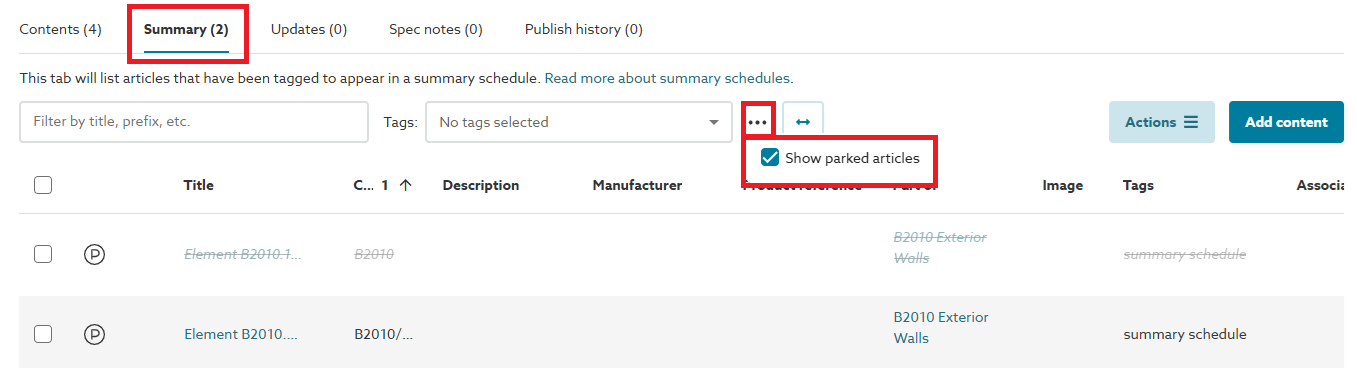
This setting does not affect the visibility of parked articles/ clauses within the Summary schedule tab/ view. There is a separate, but similar-functioning, setting within this view which can be used independently.
Related article: Parking unwanted information from your specification
Show parked rows
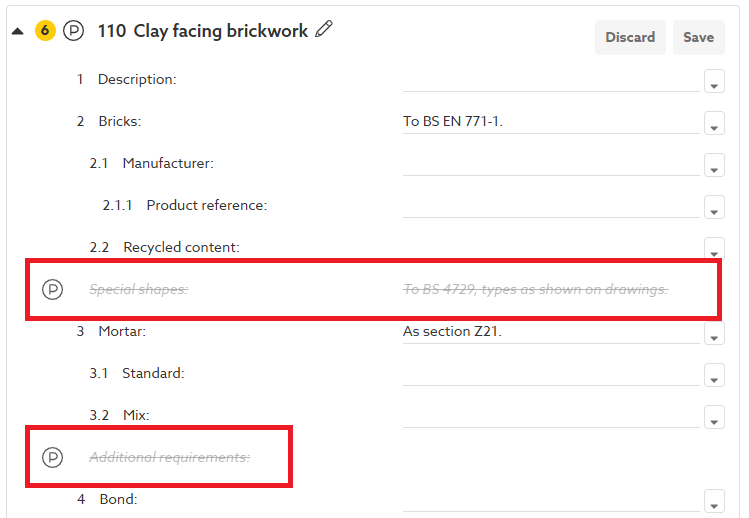
It is possible to park any of the rows (also referred to as clause items or paragraphs) within any article/ clause. Generally, this may be done if one or more of the pre-defined rows are not relevant in the article/ clause for the particular specification you are producing.
Checking this 'Show parked rows' option will display parked rows as rolled-up and struck through. Unchecking this option will hide them within the editor view, so you can focus on the active rows. Parked rows are not included in the published output, so this setting does not affect what is, or is not, included when the specification is published.