
Variables are a way of defining a 'name' and a 'value' for commonly used terms that are likely to change from one project to another or as the project progresses.
For example, you could create a variable for your role (e.g. ‘Architect’). The variable can be added to articles and clauses throughout your project specifications. If your role is different from one project to another or as the project progresses, you can change the variable’s value, and Lattira Spec and NBS Chorus will apply the change for all specs in the project. So, if you need to change your role (from ‘Architect’ to, e.g. ‘Employer’s Agent’, 'Client's Agent’, Client's Representative’ or ‘Contract’s Administrator’ and so on), you can change the variable’s value, and the platform will apply the change for all instances of the variable in the project.
Please note: 'Variables' are available with 'Premium'.
Topics covered:
- How do variables work?
- Who can set up and use variables?
- Organization variables
- Project (and master folder) variables
- Inherited variables
How do variables work?
Each variable has a name and value. Variables can be set up at the organization level and individual project (or master folder) level. Organization variables will automatically appear for every project (or master folder). Variables can be added to articles, clauses, spec and org notes, and tables.
Who can set up and use variables?
- Organization variables can be set up and managed by org admins.
- Project (and master folder) variables can be set up and managed by project (and master folder) administrators.
- Variables can be added to articles, clauses, spec notes, org notes and tables by anyone who can edit these items.
Organization variables
Org admins can review, add and manage organization variables in the ‘Organization settings’ > ‘Variables’ area.
Default organization variables
There are three default organization variables (organization, contractors choice and submit proposals) which are 'inherited' from NBS.
| Variable name | Variable value | Description |
| organization | Inherited from the organization name set up for the 'Organization' subscription. | The organization variable will show the name of your organization as it has been set up on your 'Organization' subscription. The purpose of this variable is to support a different organization name on a project-by-project basis. For example, you could represent your company slightly differently from one project to another. Changing the variable value in the project’s ‘Edit variables’ area will override the name of your organization in the published specification. |
| contractors choice | Contractor's choice | This is suggested against 'Manufacturer', 'Supplier' and 'Supplied by' clause rows. Related: Contractor's choice and submit proposals |
| submit proposals | Submit proposals |
Inherited org variables are shown with an 'NBS' icon in the 'Organization variables' list.
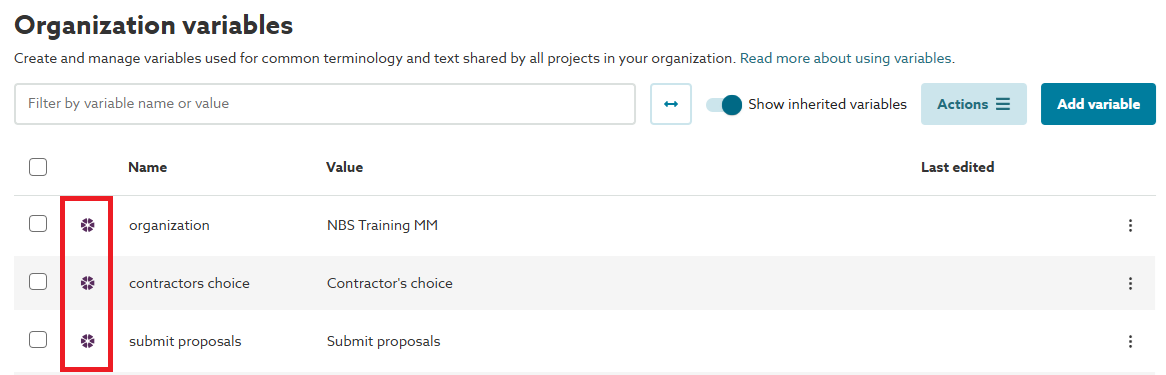
Variable inheritance is discussed in more detail in the 'Inherited variables' section below.
Changing default Organization variable values
The default Organization variable values can be changed by clicking on the 3-dot menu button at the right-hand side of the variable in the organization variables list, then selecting the 'Edit variable' option.
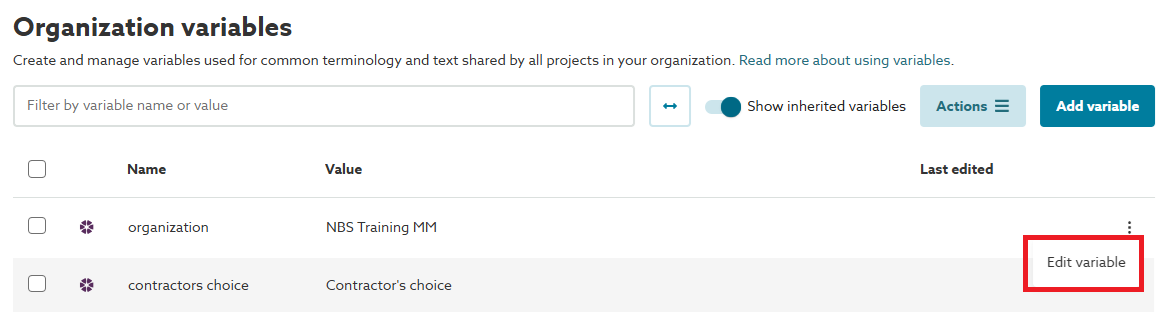
Please refer to the separate Changing variables support article and the 'Inherited variables' section below for additional information. When a default organization variable value has been changed it is then shown with a 'right-left arrow' icon in lieu of the 'NBS' icon in the organization variables list.
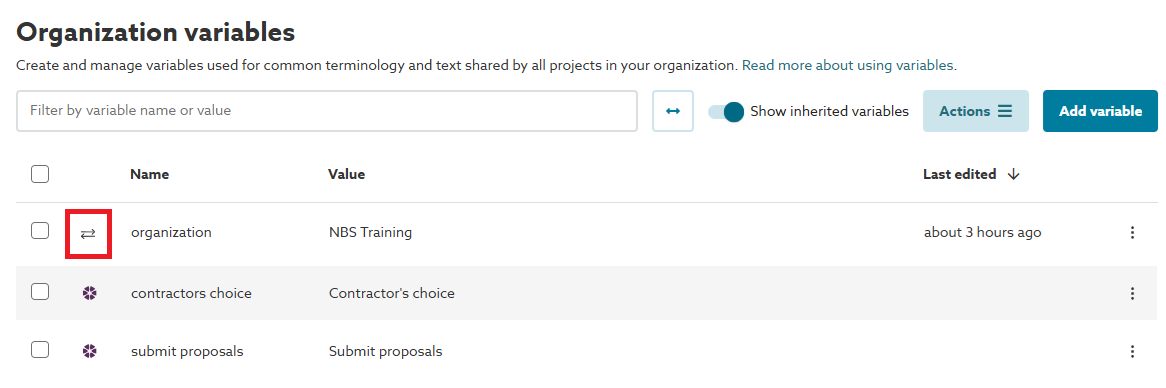
To change it again, or reset it back to the default NBS value, select the 'Edit variable' option again from the 3-dot menu button.
Adding Organization variables
Organization variables can be added by clicking on the 'Add variable' button at the top right-hand side of the organization variables list.

You can then enter the desired 'Name' for the variable and optionally the required 'Value'. The formatting controls at the bottom of the value field can be used to apply formatting styles, create lists, add tables and add hyperlinks. Once the required details have been entered click the 'Save' button.
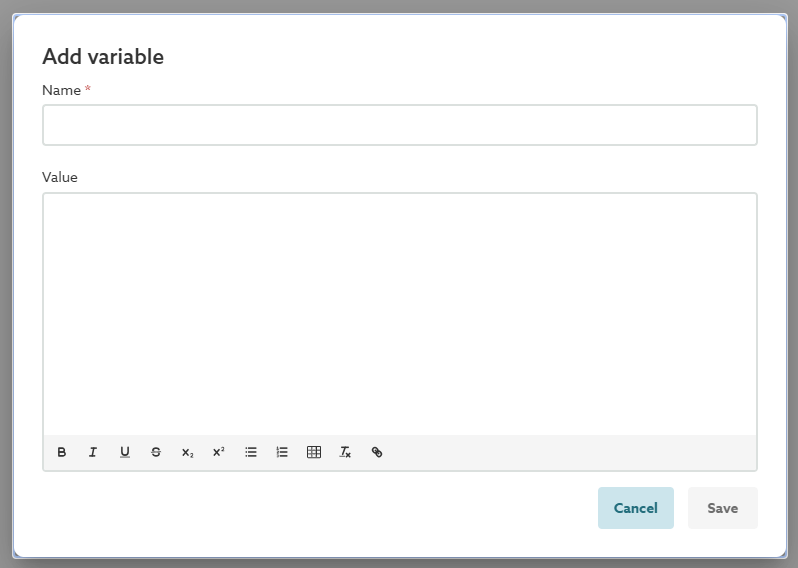
Organization variables that have been added do not have any icon displayed in the 'Organization variables' list.
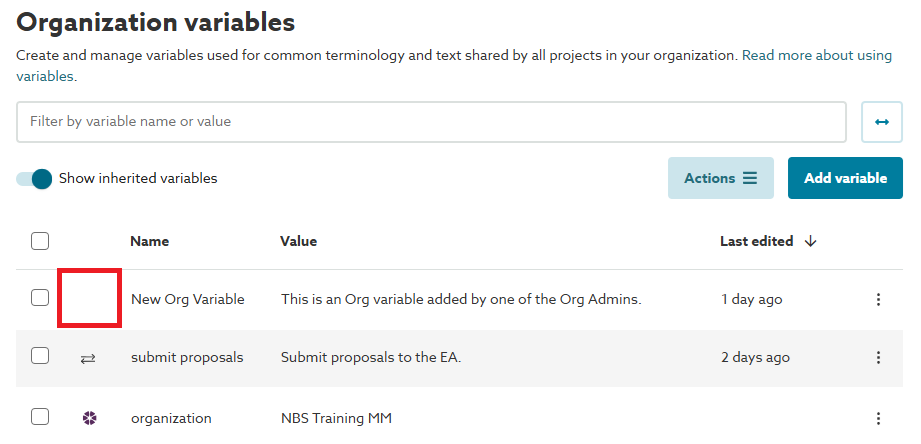
Organization variables are confined to the organization, so variables set up in organization A will not appear for or be copied to organization B.
Top tip: Set up your most used variables at an organization level first. This avoids the need to repeat the set-up on each project (or master) and will promote consistency of use.
Deleting Organization variables
It is not possible to delete any of the three default organization variables, although they can be renamed if required.
Organization variables that have been added can however be deleted.
Please refer to the separate Deleting and renaming Variables support article for additional information.
To delete an organization variable click on the 3-dot menu button at the right-hand side of the variable in the organization variables list, then select the 'Delete variable' option.
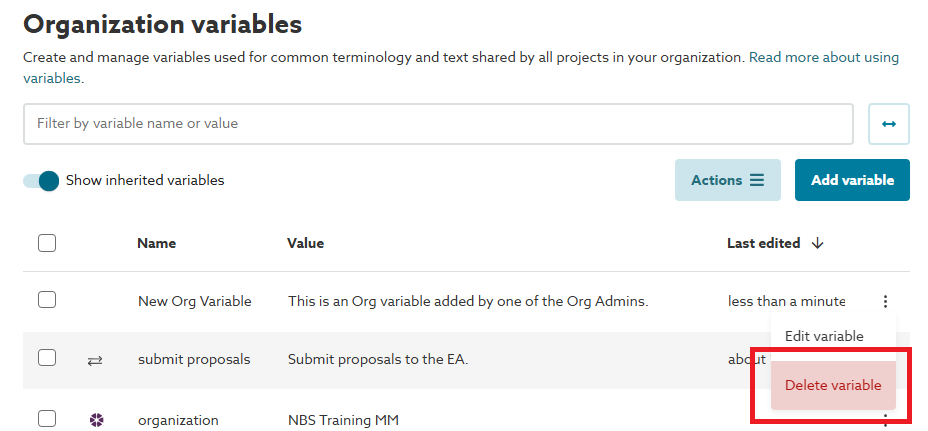
Project (and master folder) variables
Project and master folder administrators can review, add and manage variables in the ‘Project’ (or ‘Master folder’) > ‘Edit variables’ area.
Variables inherited from the organization level
The default organization variables together with any other organization variables that have additionally been set up at the organization level will automatically appear against all existing and new projects (and masters) in that organization.
Inherited organization variables are shown in the 'Project variables' list with either an 'NBS' icon (for the three default organization variables) or an 'arrow down from line' icon (for additional variables added at the organization level). Hovering the mouse cursor over an icon will display where it has been inherited from.
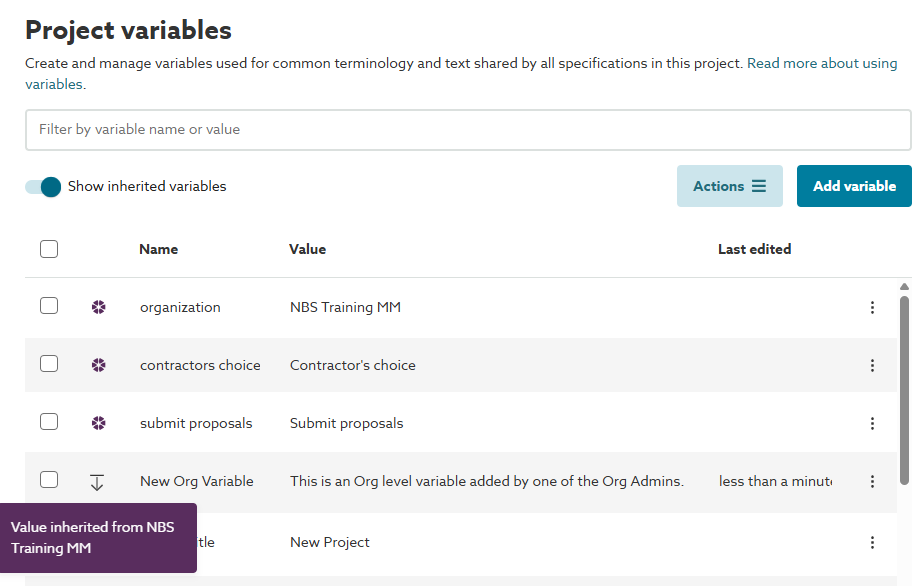
Default project and master folder variables
Lattira Spec and NBS Chorus comes with several additional 'out of the box' variables at the project and master level. The values are inherited from the 'Project (or Master folder) details'.
| Variable name | Variable value |
| project code | Inherited from the 'Project details' or 'Master folder details' |
| project title | |
| project nature | |
| project client | |
| project budget cost | |
| project currency | |
| project main contractor | |
| project work stage | |
| project category | |
| project procurement | |
| project location | |
| project description | |
| target construction start date | We do not provide a variable for this date. If this date is needed as a variable, we recommend creating one and inserting the dates as the value manually. |
The default project (or master folder) organization variables are shown in the 'Project variables' list with an 'arrow down from line' icon. Hovering the mouse cursor over an icon will display where it has been inherited from.
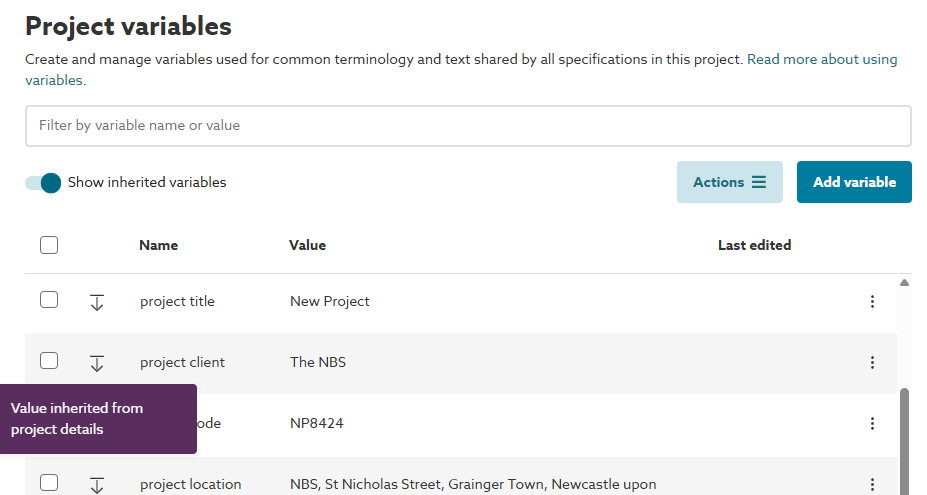
Changing inherited Organization variable, or default Project/ Master folder variable, values
The inherited Organization variable values or the default Project/ Master folder variable values can be changed by clicking on the 3-dot menu button at the right-hand side of the variable in the project variables list, then selecting the 'Edit variable' option.
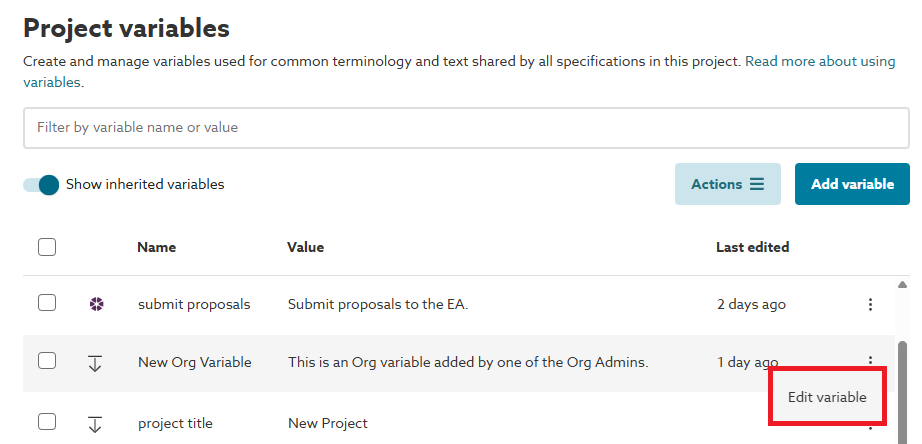
Please refer to the separate Changing variables support article and the 'Inherited variables' section below for additional information. When an inherited organization variable or default project variable value has been changed it is then shown with a 'right-left arrow' icon in lieu of the original icon in the organization variables list.
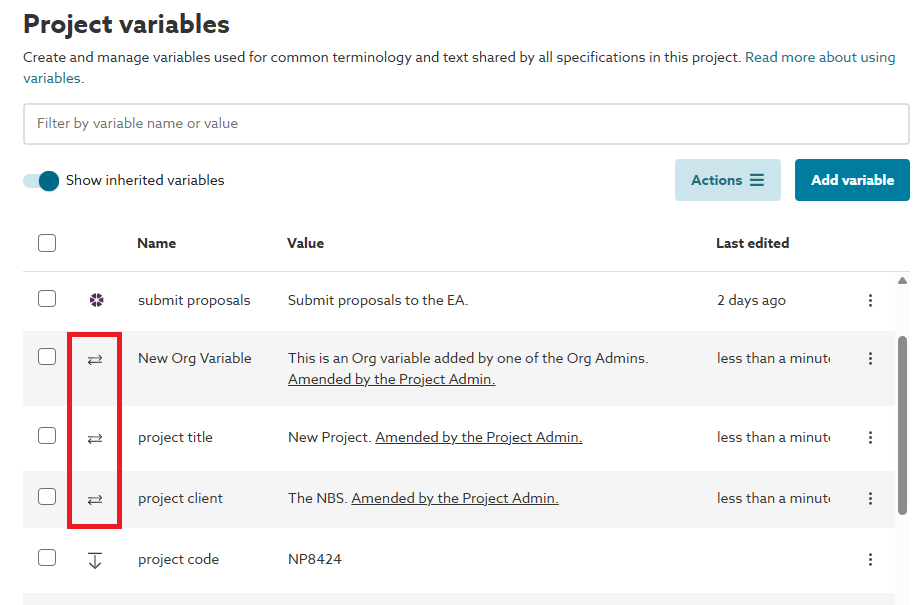
To change it again, or reset it back to the original inherited value, select the 'Edit variable' option again from the 3-dot menu button.
Adding Project variables
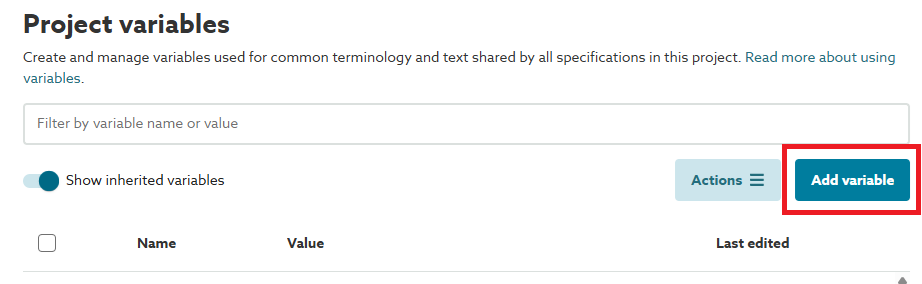
Project variables can be added by clicking on the 'Add variable' button at the top right-hand side of the project variables list.
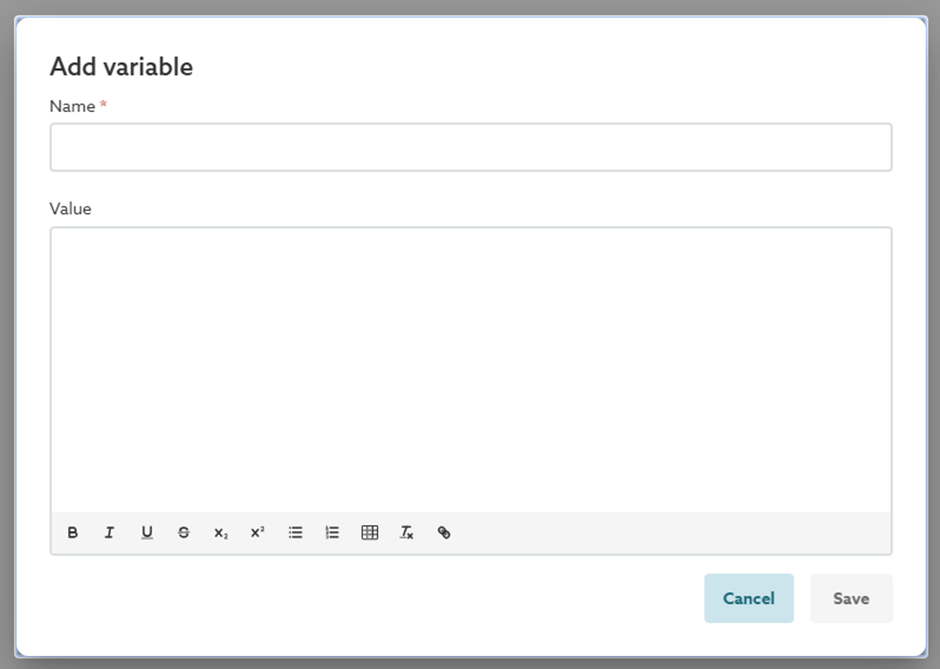
You can then enter the desired 'Name' for the variable and optionally the required 'Value'. The formatting controls at the bottom of the value field can be used to apply formatting styles, create lists, add tables and add hyperlinks. Once the required details have been entered click the 'Save' button.
Project variables that have been added do not have any icon displayed in the 'Project variables' list.
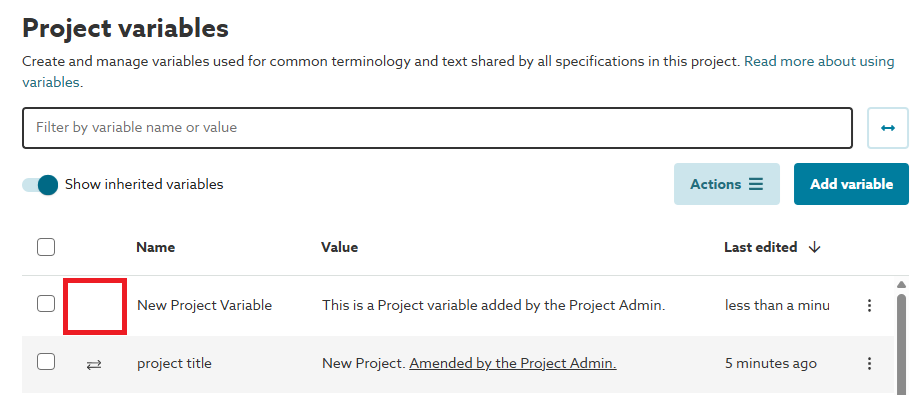
Project variables are confined to the project, so variables set up in project A will not appear for or be copied to project B.
Deleting Project variables
It is not possible to delete any of the inherited organization variables or the default project/ master folder variables, although they can be renamed if required.
Project variables that have been added can however be deleted.
Please refer to the separate Deleting and renaming Variables support article for additional information.
To delete a project variable click on the 3-dot menu button at the right-hand side of the variable in the project variables list, then select the 'Delete variable' option.
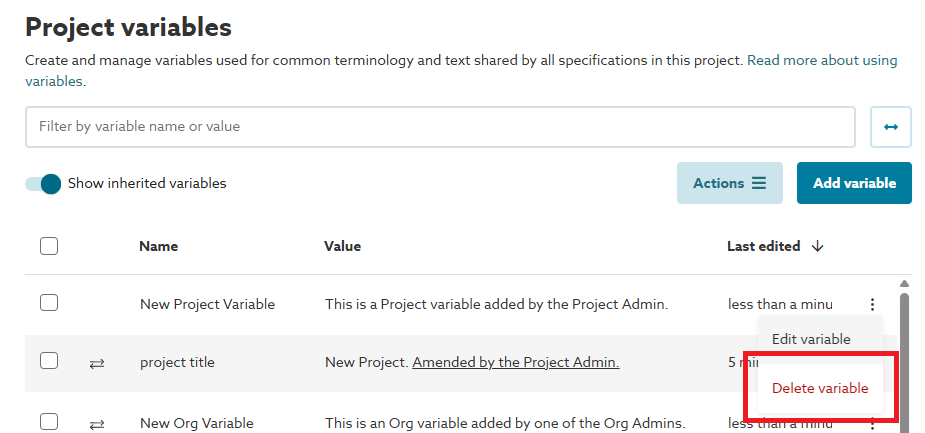
Inherited variables
Variable inheritance is an important concept to understand.
- Variables set up at an organization level are automatically set up for every project and master folder.
- Organization level variable values are automatically inherited at a project and master folder level. This means, if you set the value of a variable at the organization level, that value will apply in the context of every project and master folder. More importantly, if you change an organization variable value, this will affect all projects and master folders that use it, unless it has been overridden (see '‘Inherited value has been overridden at this level’ section below).
- Projects can override the inheritance of organization variables. This means that you can change the variable value in the context of a project, and this will change the value for all instances of that variable in the project’s specifications. Changes to the variable at the org level are no longer inherited.
Important: variables can become missing. We recommend reviewing the separate 'Changing variables' and 'Missing variables' support articles.
Value is inherited
- 'Value inherited from <....>' means that the variable value is inherited from the level above. This can happen at an organization and project/ master folder level. When a variable is being inherited, it will show an 'arrow down from line' icon.
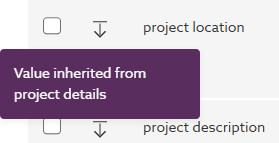 A screenshot of the 'Value is inherited' icon and tooltip.
Inherited value has been overridden at this level
- ‘Overridden <....> value’ means that the variable is inherited from the level above.
- However, the value has been overridden at this lower level.
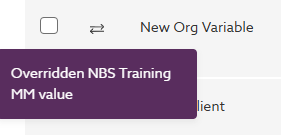 A screenshot of the 'Inherited value has been overridden at this level' icon and tooltip.
- When a variable is overridden, there is a 'Reset' option.
- Clicking 'Reset' will reapply the value of the parent variable. You can hover over the reset button to reveal what the value will be reset to. In the screenshot below, the value would be reset back to 'Working drawings'.
- Clicking 'Reset' will reapply the value of the parent variable. You can hover over the reset button to reveal what the value will be reset to. In the screenshot below, the value would be reset back to 'Working drawings'.
A screenshot of the 'Reset' button and tooltip.
Example of inherited variables
The screenshot below shows three variables in a project. In this example:
- 'Project_variable' has been set up in the context of this project. It is not inherited.
- 'nbs-architect' inherited value has been overridden at this level. This means the value that was set at the organization level has been changed in this project. The value has been changed to 'Employer's Agent'.
- 'nbs-contractor' is inherited. This means if the value is changed at the org-level the change will apply to this project.
Screenshot of a project showing variables in three different states of inheritance.