
If the specification contains product data no longer available on NBS Source, the ‘Archived product data detected’ message appears when you click the ‘Publish specification’ button. This happens when the Source product data listing changes after you add the product to the specification.
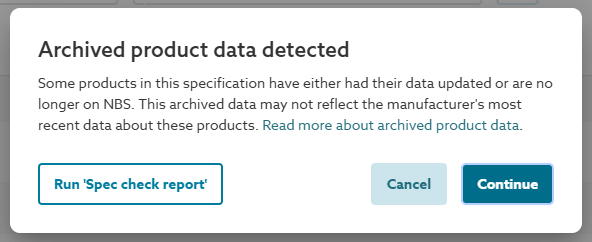
A screenshot of the 'Archived product data detected' message is shown after clicking 'Publish specification'
if the Source product data has changed since it was added to the specification.
In short, if you see the message ‘Archived product data detected’, we recommend:
- Click the ‘Run Spec check report’ button.
- The ‘Spec check report’ will download. Open the report and review the ‘Product data’ column.
- Look for entries that say: ‘Warning: The product data used is no longer current’.
- Open the clause in the specification editor and click on the ‘Manufacturer’, ‘Supplier’, ‘Supplied by’ or ‘Product reference’ rows.
- The ‘Products’ panel will display whether ‘This product data has changed’ or ‘This product is no longer available on Lattira or NBS’.
- Click the ‘+ Update product’ to add the current product data to your specification. Click ‘Choose another product’ when the product is no longer on Lattira or NBS.
Important: please consider this messaging in respect to the status of your project. If you want to publish the specification but have no need to change the specification, clicking 'Continue' will open the 'Publish specification' wizard.
Background to manufacturer product data changes
The product data on Source can change or be removed. Lattira Spec or NBS Chorus will alert you if this happens after the product has been added to a specification.
There are two scenarios:
1. 'This product data has changed’:
- This means that the product data has been changed on Source. A change may have been made to any part of the product listing, such as the product’s ‘Application’, ‘Description’, ‘General information’, ‘Specification data’ or ‘Sustainability data’.
- The ‘Products’ panel shows the ‘+ Update product’ option when the product data changes.
- Clicking ‘+ Update product’ will add the latest version of the product to your specification.
- The latest version is added as a new clause for sectional content sets. You should park the previous version so that it is not published.
- For ‘Uniclass – Work section’-based specifications, the previous product data will be parked, and the latest version will be added to the clause.
A screen capture showing the ‘+ Update product’ option in the 'Products' panel when the product data changes.
2. 'This product is no longer available on Lattira or NBS’:
- This means that the product data has been removed from NBS Source. This means the product data is no longer being verified on Source (see Manufacturer data verification).
- When the product is no longer available on Lattira or NBS, the ‘Products’ panel shows the ‘Choose another product’ option.
A screen capture showing the ‘Choose another product’ option when the product is no longer available on NBS.
Spec check report shows ‘Product data’ status.
The ‘Product data’ column in the ‘Spec check report’ identifies where product data added to the specification is no longer available on Source.
The ‘Product data’ columns will show either:
- ‘Synchronised with Source’ which means that the product data in the specification is the same as Source.
- ‘Warning: The product data used is no longer current’, which means that the Source product listing has either changed or been removed. You should open the clause in the specification editor. The ‘Products’ panel will show you whether to ‘+ Update product’ or ‘Choose another product’.
A screenshot of the 'Product data' column in the 'Spec check report'.
'This product data has changed'
If the version of the product has changed and a newer version is available, the platform will show the message ‘This product data has changed’ when you attempt to copy/ paste a Source product into your specification.
The platform will not allow you to paste older versions of Source product data into your specification.
The ‘View latest’ button will open the latest version of the product in Source. You can add this to your specification.
A screenshot of the message 'This product data has changed'. This is shown when you
attempt to paste the link to an Source product when a newer version is available.
'This product data is no longer available'
If the product listing has been removed from Source, the platform will show the message ‘This product is no longer available on Lattira or NBS’ when you attempt to copy/ paste a Source product into your specification.
The platform will not allow you to paste older versions of Source product data into your specification.
The ‘Contact manufacturer’ button will open the manufacturer contact form on Source. You may wish to confirm with the manufacturer whether this product is still in production or if an alternative product meets your needs.
A screenshot of the message 'This product data is no longer available on Lattira or NBS'. This is shown when
you attempt to paste the link to an Source product when it is no longer listed on Source.