
Tables can be inserted into specifications. To support tables, the 'Default stylesheet templates' have dedicated table styles. You can download the 'Default stylesheet templates' from 01 Download the 'Default stylesheets templates'.
This article explains how to add the new table styles into existing stylesheets manually and should be used when you have already developed a customized stylesheet for your organization. This guide is intended to help you add the new table styles to your existing custom stylesheets and to avoid having to start again with the default stylesheet templates.
Topics
- What happens without stylesheet table styles?
- What you will need to copy the stylesheet table styles
- How to copy stylesheet table styles
What happens without stylesheet table styles?
Tables have been developed so they can be published without the table styles. This means tables are compatible with older stylesheets. If your stylesheet does not contain the table styles, it just means you cannot control the presentation of tables in your specification.
What will happen when you publish a specification containing tables and use a custom stylesheet that does not include the table styles?
- The spec will still publish without error and including the tables.
- Tables will be presented in their simple style:
- Table gridlines will be a single black line.
- Cell text will use the 'normal' style as set in the stylesheet.
- Header columns and rows will contain bold text but no grey shading.
Screenshot showing a table with column and row headers in the specification editor
Screenshot showing the same table when it is published to PDF using a custom stylesheet without table styles
What you will need to copy the stylesheet table styles
You only need to follow this process if you want to customize the presentation of tables published from Lattira Spec and NBS Chorus, and you want to add the new table styles into an existing customized stylesheet. If you have not customized a stylesheet, you can avoid this process by using the 'Default stylesheet templates' provided.
You will need
- To download the new 'Default stylesheet templates' from 01 Download the 'Default stylesheets templates'.
- To have a copy of your existing custom stylesheet in MS Word format. If you do not have a saved version, you can download it. Please see How to download a custom stylesheet from Lattira Spec and NBS Chorus.
How to copy stylesheet table styles
In the following instructions, ‘Target’ refers to your previously customized stylesheet.
- Copy the table styles (x5) from the 'Default stylesheet template' into your Target stylesheet and modify them if required. This process is explained in the 'How to copy and modify stylesheet table styles...' section below.
- Upload your updated Target stylesheet to Lattura Spec/ NBS Chorus.
- Test your updated stylesheet. Publish from Lattura Spec/ NBS Chorus to test that tables are published using the desired table styling.
- Activate your updated stylesheet so that your teams can use it when they publish their specs.
- Deactivate and remove the previous version of your stylesheet.
How to copy and modify table styles from the Default stylesheet template into your target stylesheet
- Open the 'Default stylesheet template' containing the table styles.
- Navigate down to the {{content}} section.
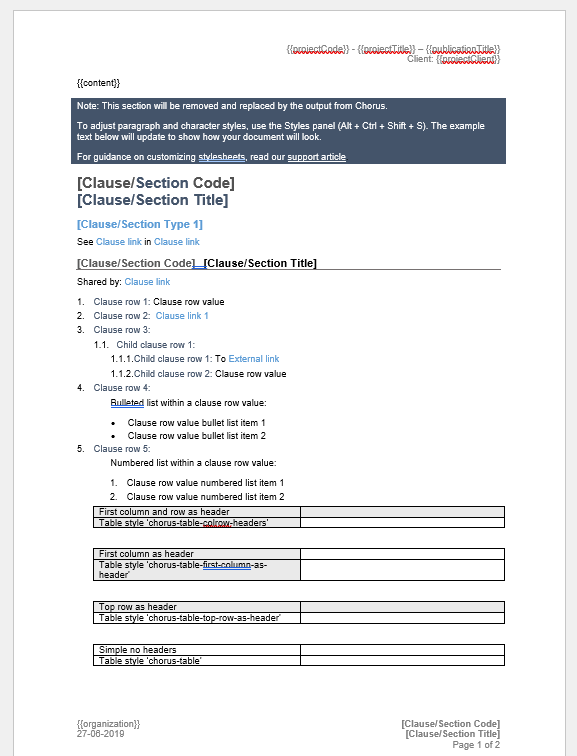
- Highlight, then copy the 4 tables to the system clipboard.
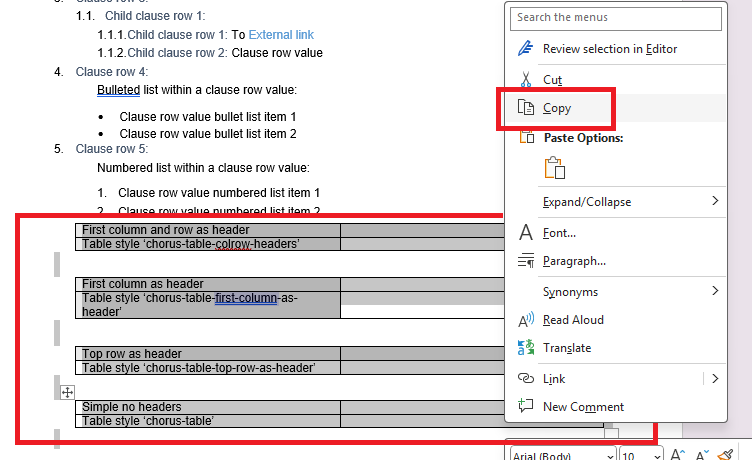
- Close the default stylesheet template.
- Open the Target stylesheet (your existing custom stylesheet).
- Navigate down to the {{content}} section.
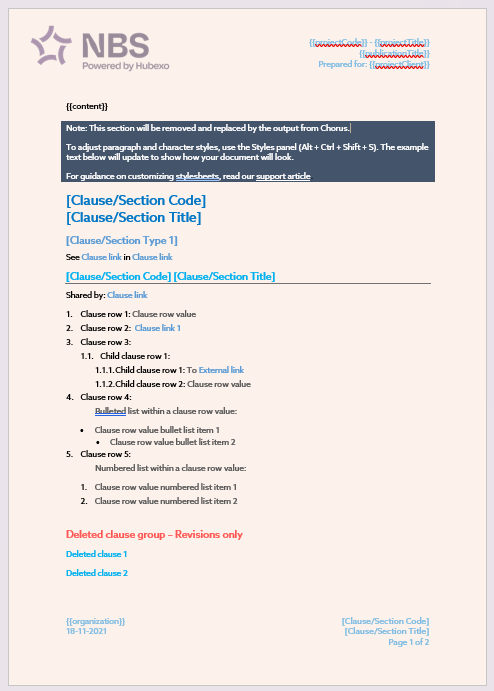
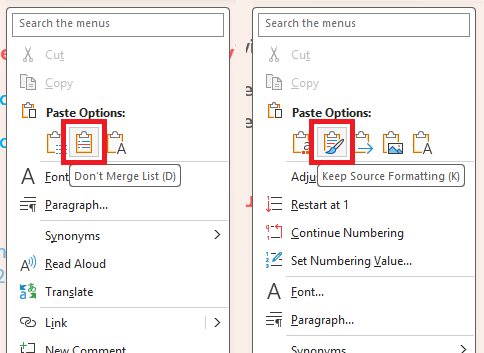
- Right-click over a suitable place in the {{content}} section, as shown below.
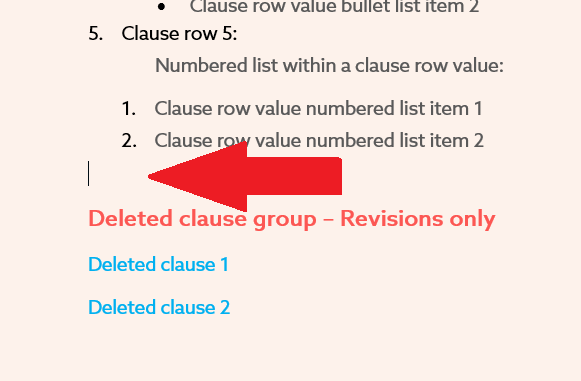
- On the right-click menu, under the 'Paste Options' heading, select either the 'Don't Merge List' or 'Keep Source Formatting' option. The option you see will depend on where you have right clicked in your stylesheet.
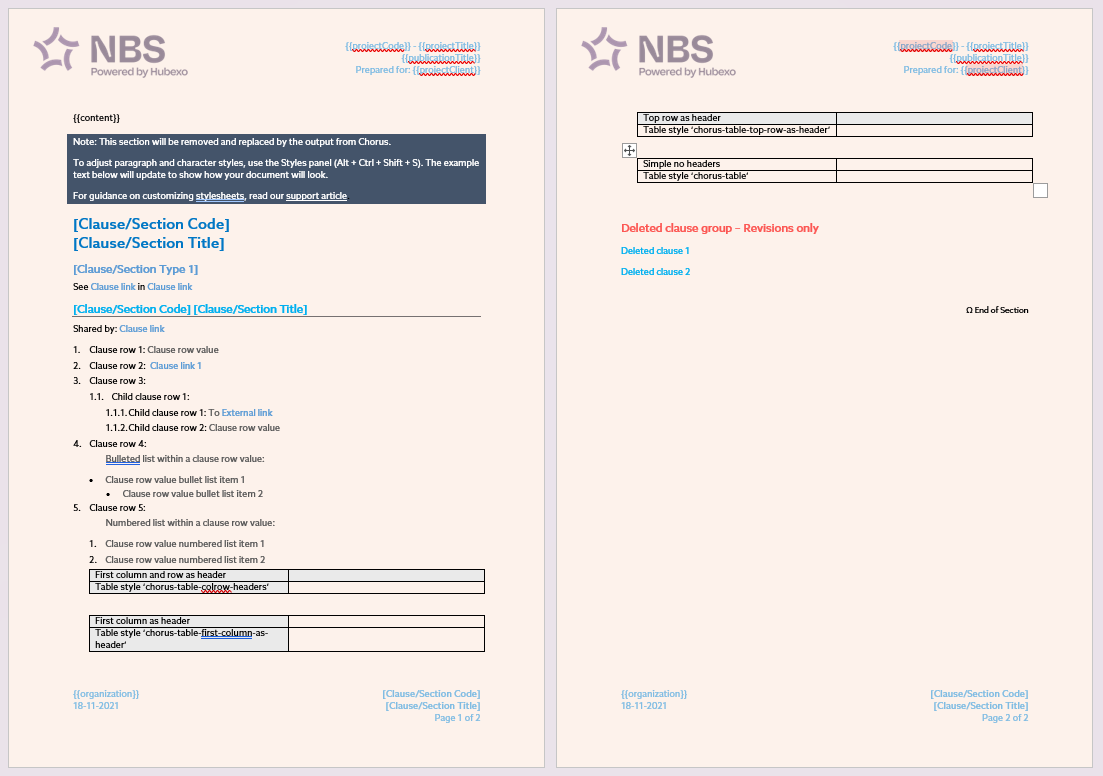
- You should now see the 4 tables in the {{contents}} section of your stylesheet.
- Optional: Modify the style of the tables as required.
- Click on the required table to select it.
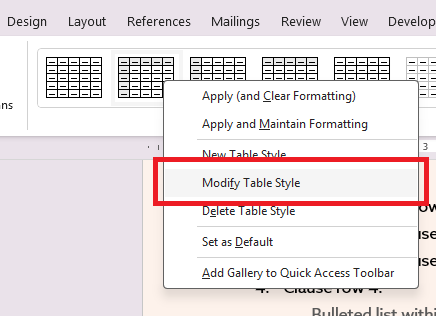
- Select the Table Design menu, the 'style' for that table will be highlighted in the 'Table Styles' section of the ribbon.

- Right click over the highlighted table style, select the Modify Table Style option.
- The 'Modify Style' dialog will be displayed, amend the Formatting as required.
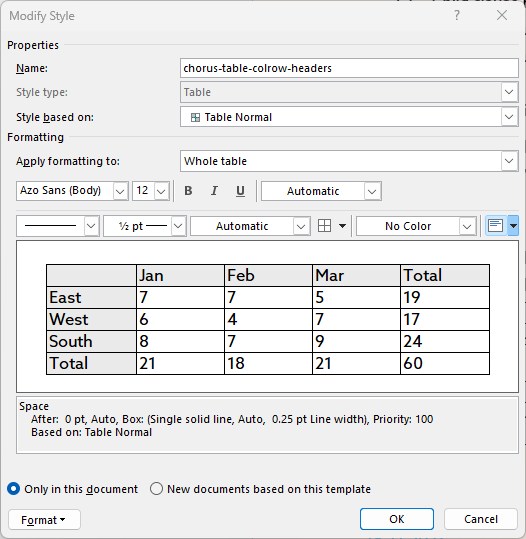
- Repeat as required for the other tables.
- Click OK to close the dialog.
- Save the changes made to the Target stylesheet (your existing custom stylesheet). We would recommend using the 'save as' option and providing a suitable new name for the updated stylesheet.