
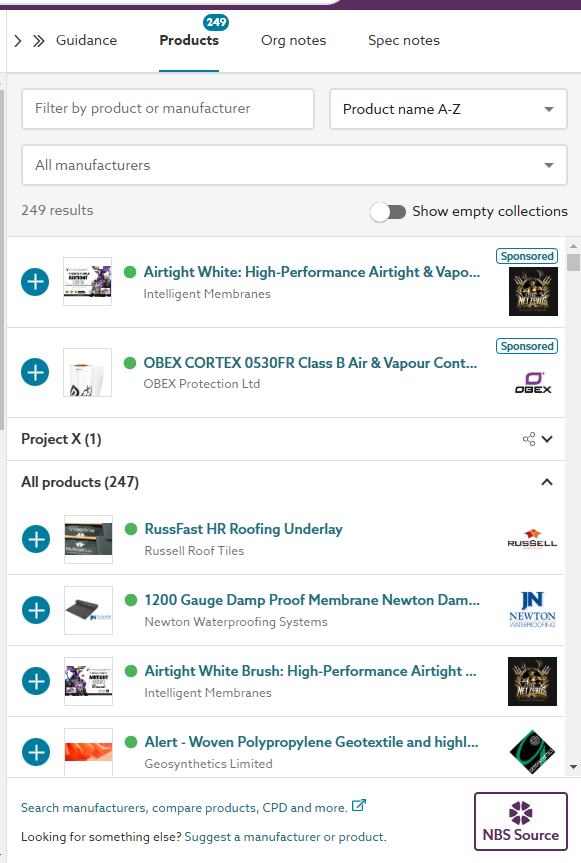
The 'Products' panel shows relevant information about Building product manufacturers. The information comes from Source and includes specifications, third-party certification evidence, application guidance, sustainability and fire safety information.
Topics
What information is displayed in the Products panel
Badge displayed on 'Products' tab
When manufacturer product data is available for the clause/ section being viewed, or for CAWS specifications, the currently checked out (selected) clause, a badge is displayed on the Products tab.
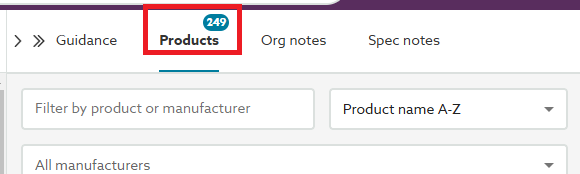
The badge indicates how many products are suitable for use with the clause/ section. This is determined by the product's classification in Source. Please refer to the separate Primary & Secondary classifications topic for further details about product classifications.
To add a product from the Product panel to a clause/ section being viewed, you will need to first click into the required article or clause to check it out (select it).
If no badge appears, it means there are no manufacturer products in Source classified under the current article, clause or section. Showing the Product panel will display a ‘Search on Lattira Source or NBS Source’ button, allowing you to search directly in Source. For more details, please see the ‘No products are listed in the Products panel, can I still specify a product?’ section below.
Filters and Sort
The Products panel shows a list of all of the products which are suitable for use with the current clause/ section. This area of the panel is described in the section 'All products list' below.
However this list of products can be filtered and sorted using the controls at the top of the panel.
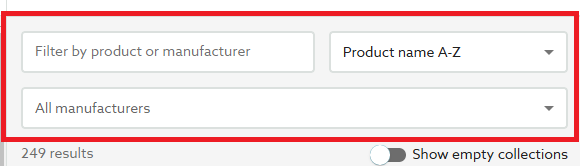
The 'Filter by product or manufacturer' field is a text entry field, as a word or phrase is typed into this field, the list of all products will be dynamically filtered.
The drop-down field beneath the 'Filter by product or manufacturer' field is the manufacturer filter. Clicking into this field will display an alphabetical list of all the manufacturers represented in the products list. Selecting a specific manufacturer will filter the all products list to only display products from that manufacturer.
The drop-down list at the top right is the sortation option. Clicking into this field will allow the all products list to be sorted either by Product name A-Z or Z-A, Manufacturer name A-Z or Z-A, Most recently published or Most recently verified.
Sponsored Products
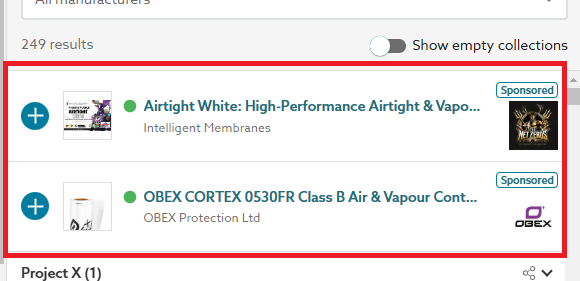
Up to 2 sponsored products may be displayed towards the top of the Products panel. Please refer to the separate Sponsored products topic for further information about these results. However, these products can be reviewed and added to the specification in the same way as described in the 'All products list' section below.
Collections
Collections in Source allow you to create one or more custom lists of selected information contained within NBS Source. For example, products that may be of interest or favourite manufacturers. These lists (collections) may be personal to you or shared with the project team.
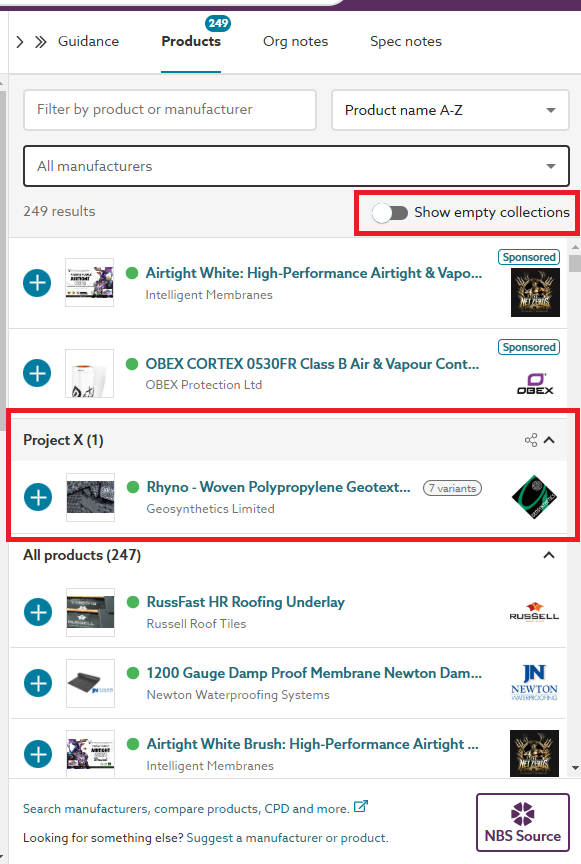
If a collection has one or more relevant products (i.e. products classified for the clause/ section being viewed). The title of that collection will be shown directly above the list of 'All products'; it can be expanded and collapsed by clicking the arrow icon at the right-hand side. If more than one collection has relevant products, each such collection will be displayed.
The 'Show empty collections' slider switch can be used to additionally show or hide other collections that do not contain relevant products.
Related article: Source 'Collections' in your specification.
All products list
Initially when the Products panel is displayed it will show a list of all of the products which are suitable for use with the clause/ section, these will be displayed under the heading 'All products'.
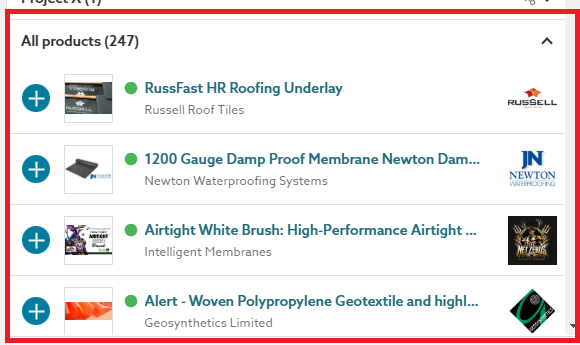
Each product in the list will have a blue plus button and a thumbnail image of the product (where available) to the left, the verification status indicator (green circle, orange diamond or red square) next to the image, the product reference/ name and the manufacturer name in the centre and the manufacturers logo to the right.
A variants label may also be visible to the right-hand side of some product references/ names. Please refer to the separate Product variants topic for further information about products with variants.

Clicking on a blue plus button will add the product data template (product details) for the associated product into the currently checked out clause (Uniclass specifications), a duplicate copy of the currently checked out clause (CAWS, SpecPack, SpeedSpec or SureSpec specifications) or as a new section in the specification (CMS Specifications).
Please refer to the separate Adding manufacturer product details directly from the Products panel topic for further information about adding, reviewing and completing the product data template.
Clicking anywhere else over a product shown in the list will display the product details panel and further information for the associated product. Please refer to the ‘Manufacturer product details’ section below for further information.
Link to Source
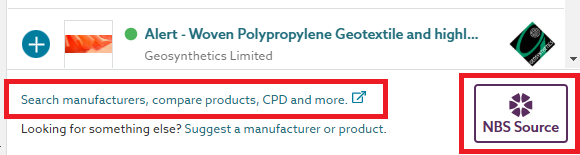
At the bottom of the product list are two clickable links to Source, facilitating a search in Source.
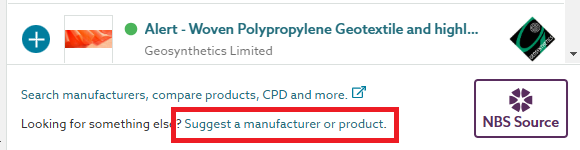
Suggest a manufacturer or product
If the manufacturer or product you wish specify is not listed, the 'Suggest a manufacturer or product' link provides a convenient way to quickly add the rows and corresponding data into your specification. Please refer to the separate Suggesting manufacturers and products topic for further information about this feature.
Manufacturer product details
As noted above, clicking over a product shown in the products list will display the product details panel and further information for the associated product.
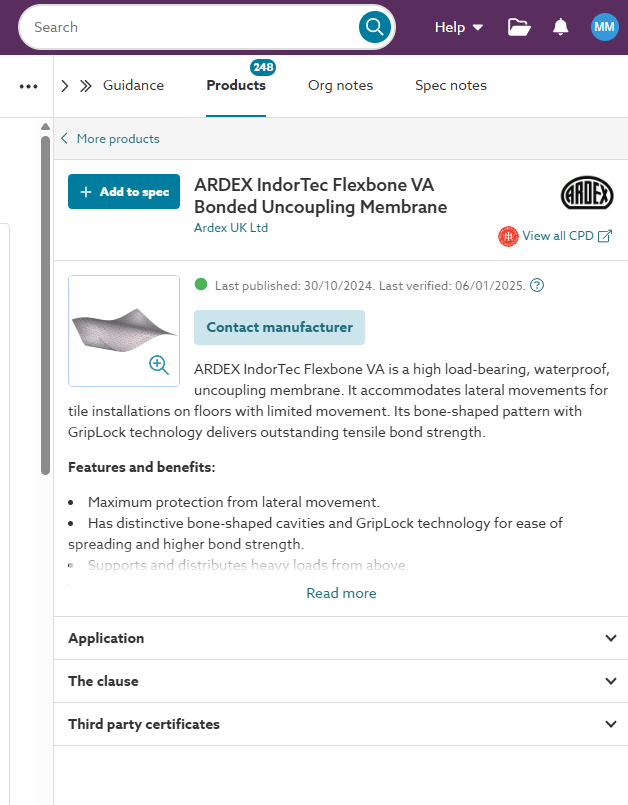
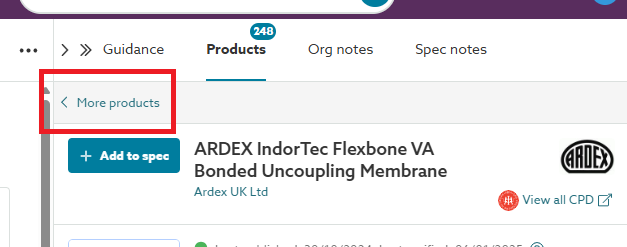
Located at the top of the product detail panel is the More products link to return to the full list of products.
Beneath this is the blue + Add to spec button, the product reference/ name, the manufacturer name and the manufacturer’s logo, you may also see the RIBA CPD Providers Network logo.
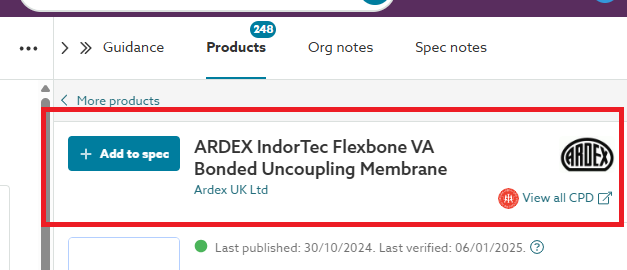
Clicking on a blue plus button will add the product data template (product details) for the associated product into the currently checked out clause (Uniclass specifications), a duplicate copy of the currently checked out clause (CAWS, SpecPack, SpeedSpec or SureSpec specifications) or as a new section in the specification (CMS Specifications).
Related article: Adding manufacturer product details directly from the Products panel
The manufacturer name is a link that opens the manufacturer’s page within Source. From there, you can find contact details & information about the company, review details for all of the products they have listed within NBS Source, download digital objects, third-party certificates and product literature (where available), read any case studies they have made available via Source and review and book CPD opportunities if offered.
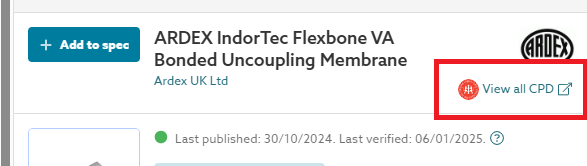
You may additionally see the RIBA CPD Providers Network logo and an accompanying link to the RIBACPD.com website. This is presented for manufacturers who offer CPD opportunities via the RIBACPD.com website. Clicking on this link will enable you to view the CPD materials offered by the manufacturer, book seminars with the manufacturer and add CPD material to your Favourites list.
A thumbnail image and the manufacturer's description of the product are shown below the manufacturer name. Often, the product description is longer than initially visible, and clicking ‘Read more’ expands the section to display the full description.
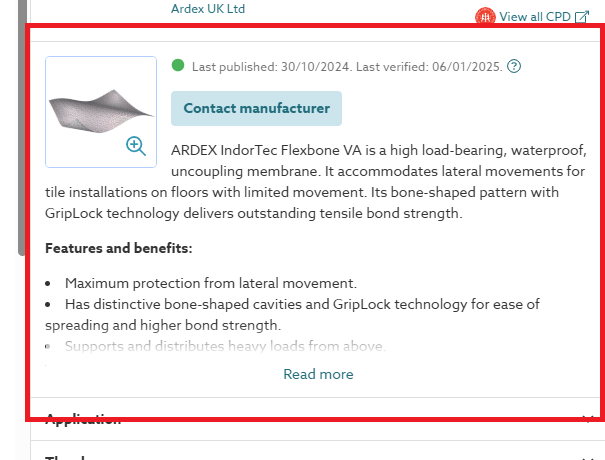
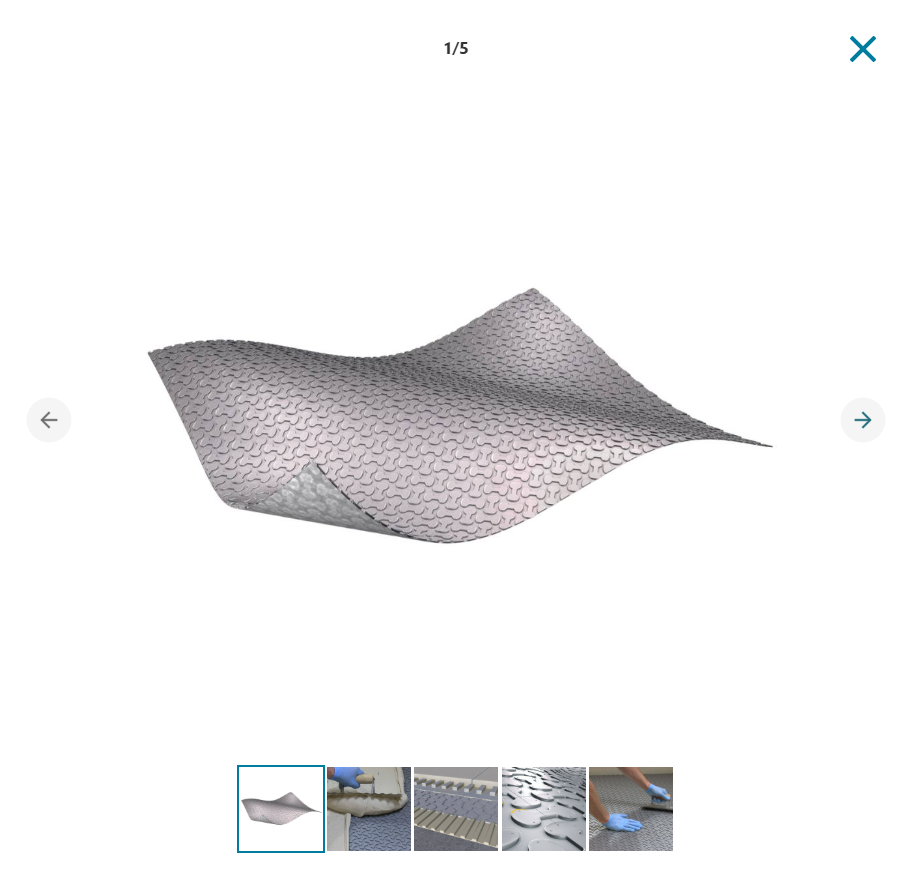
Clicking on the product thumbnail enlarges the image for better viewing. If multiple images are available, you can navigate through them using the forward and back arrows on each side of the screen or select an image from the options at the bottom. To close the image viewer, click the cross icon in the top right corner.
Below the product description, there are usually one or more expandable sections with additional details about the product. Depending on the manufacturer and product, these sections may include Application, The clause, Features, Product options, and Third-party certificates. When available, these sections offer further relevant information related to their titles.
‘The clause’ section specifies the details included in the manufacturer data template.
Located at the bottom of the product list are two clickable links to Source; clicking on either of these will open Source and open the product details page for the product.

Are the listed products and details in the Products panel the same as those in Source?
Listed products
Products in Source from UK manufacturers are classified against the UK Uniclass and/ or UK CAWS classification codes. Products from Australian manufacturers are classified against one or more of the Australian Uniclass, SpecPack, SpeedSpec & SureSpec classification codes. Products from Canadian and USA manufacturers are classified against MasterFormat sections.
Those classifications for the products in Source determine which clauses/ sections the products will be listed against in the 'Products' panel.
Consequently, and as a rule, products in Source where one of the classifications matches the article, clause or section code in the specification will be displayed in the 'Products' panel. There are, however, a couple of exceptions to this rule.
- If a product in Source does not have 'Specification Data', it will not be displayed in the 'Products' panel. This may be because the product page in Source is present only to facilitate the downloading of digital objects, for example.
To check this in Source, firstly open the required product page. Check if there is a blue ‘Add to spec’ button displayed beneath the ‘Jump to:’ field. If this is present, the product does have specification data and will be displayed in the specification. If this is not present, the product has no specification data and will NOT be displayed in the 'Products' panel. - Products in Source will only be displayed against the relevant article, clause or section in the specific content set against which they are classified, so, for example, Australian Uniclass classified products will not be displayed against UK Uniclass clauses.
Product details
The product details displayed in the Product panel match the corresponding details in Source. However, Source may have additional information. This may include:
- Third-party certificates and the ability to download them.
- Digital objects, literature, and case studies (where available).
- Additional details relating to warranty information or sustainability data such as country of origin, recyclability, or embodied carbon, for example.
No products are listed in the Products panel, can I still specify a product?
This happens when there are no manufacturer products in Source classified against the current clause/ section.
In this situation, you can manually enter the required specification details for the product you wish to specify within the existing article or clause structure, and amend it as required by adding or parking rows.
Alternatively, there may be products of a similar nature within Source, albeit classified with a different code, the Product panel will display a ‘Search on NBS Source’ button facilitating a search in NBS Source.
Related article: Adding manufacturer product details from Source