It is possible to use the section/ clause codes and titles as annotations on drawings. The Export to Keynote can be used to produce a text (.txt) file to help with this task. This article explains the Keynote export.
The Keynote export is an alternative to the add-ins/ plug-ins that are used to coordinate specification data with the model. The add-ins/ plug-ins allow annotations to be made that are relevant to the specification. Furthermore annotations can be verified prior to issuing packages of drawings, schedules and specifications to check for any coordination issues.

For more information about the plug-ins available for Autodesk Revit, Bentley OpenBuilding Designer, Graphisoft Archicad and Vectorworks please see theNBS.com
Overview of 'Export to Keynote'
- The keynote export is available for all content sets and subscription plans.
- It is intended for projects that do not use modelling software and the BIM plug-ins provided. For example, projects using Autodesk Revit LT.
- The keynote produces a .txt file with section/ clause codes and titles from the spec.
- The Keynote files are tab-separated ASCII text files. They can be opened in Microsoft Excel and converted to other formats to work with a user’s CAD platform of choice.
- The report includes systems/ sections from your selection.
- User sections, articles and clauses are included.
- Parked and deleted articles/ clauses are omitted from the report.
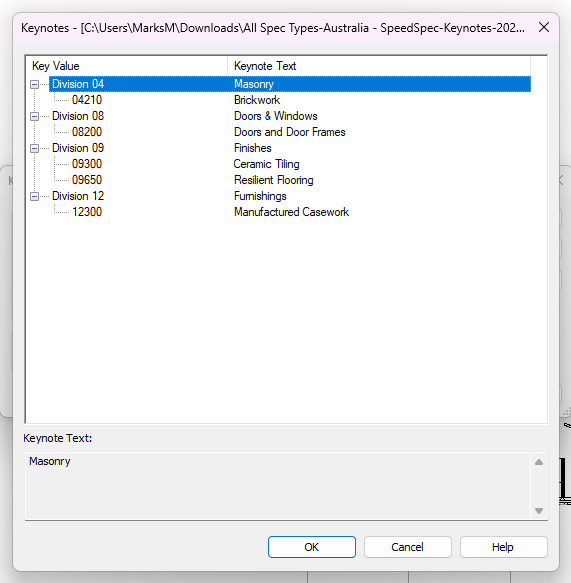
Screenshot of an Australia - SpeedSpec-based keynote displayed in Autodesk Revit
Making changes to the spec after exporting the keynote
Coordinating the model and spec using the BIM plug-ins makes a live link between the two platforms. The keynote export is a snapshot of the specification data at the time the report is run. So, if you change the specification after running the keynote export, you should re-run it and update your drawing annotations, so they reflect the latest specification information.
Steps to 'Export to Keynote'
There are two ways of running the report. Before you begin, it is assumed you have already authored the specification sections.
To export the keynote for the whole specification
- Open the project.
- Click on the 3-dot (kebab) menu to the right-hand side of the specification title.
- Click 'Export to Keynote'.
To export the keynote for a selection of sections from the specification
- Open the project.
- Open the spec.
- Select the systems/ section(s) you want to include in the keynote export.
- Click the Actions button and select 'Export to Keynote'.
Specification information exported for each content set
For all content sets the keynote export will include the section codes and titles from the specification.
For some content sets the report will also include the article/ clause code, prefixes, titles and suffixes.
The table below sets out which information is included in the keynote for each content set.
| Content set | Section codes & titles (including user sections) | Article/ clause codes, prefix, title and suffix (including user-created) |
| Australia – Import from MS Word | Exported | Not Exported |
| Australia – SpecPack | Exported | Not exported |
| Australia – SpeedSpec | Exported | Not exported |
| Australia – SureSpec | Exported | Not exported |
| Australia – Uniclass Preliminaries & Work Sections | Exported | Exported |
| Canada – NMS and CMS | Exported | Not exported |
| Canada – NMS (French) | Exported | Not exported |
| Canada – NMS Uniformat | Exported | Not exported |
| Canada – NMS Uniformat (French) | Exported | Not exported |
| UK – CAWS Preliminaries & Work Sections | Exported | Exported |
| UK – Uniclass Preliminaries & Work Sections | Exported | Exported |
| USA – USMS | Exported | Not exported |
User created content in keynotes
User sections, articles and clauses will be included in the keynote (articles/ clauses are dependent on the content set, see table above).
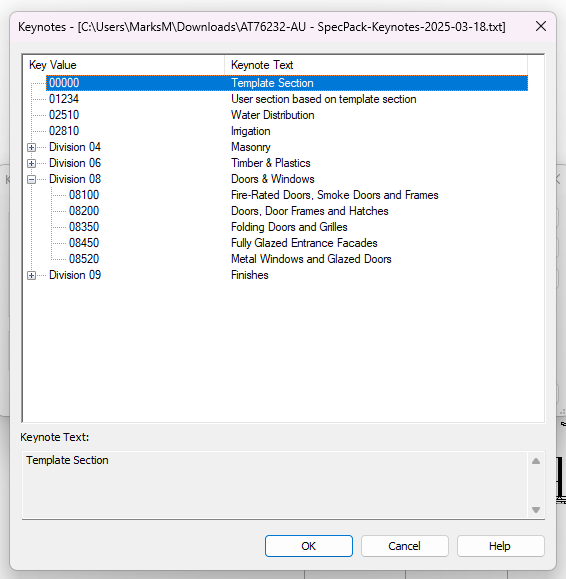
User created sections will not be grouped under a heading in the keynote report.
Template sections added to the spec from libraries the organization does not subscribe to are treated in the same way.
For more about libraries and subscriptions, please see This content is not part of your current subscription.
Uniclass Work section shared clauses
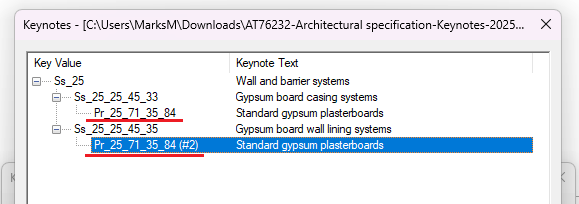
In Uniclass Work sections a clause can be linked to from multiple locations in the spec. Consider a series of gypsum board systems that share a product. These are known as shared clauses.
In the keynote, shared clauses are repeated under each of their parent clauses. To indicate a shared clause the keynote includes a # (see screenshot). The keynote schema requires every entry to have a unique code. When selecting a shared clause for annotation we recommend selecting the first one i.e. not one that contains # in the key value.