
Applies to: Australia and UK Uniclass work sections content sets
Related articles:
How ‘Consolidate’ finds identical clauses
How to consolidate your specification
'Consolidate' is a feature which identifies identical clauses in a Uniclass Work Sections specification and allows you to automatically consolidate them, i.e. delete all but one of the duplicate clauses and replace all the previous clause links with a link to the now single remaining clause.
This support article uses the terms 'Linked clause' and 'Shared clause' to make a distinction between clauses that are only linked into a single system clause (referred to herein as a Linked clause), or clauses that are linked into or 'Shared by' two or more system clauses (referred to herein as a Shared clause).
This article also refers to unlinking clauses from a system clause, the same principles apply when unlinking clauses from other clause types, e.g. unlinking a system clause from an element/ function clause, or unlinking an execution clause from a product clause.
There may be a number of scenarios where you wish to unlink a linked clause or a shared clause from a system within which it is currently linked.
The process to do this is the same for either. When you save the changes to a system clause from which you have just unlinked something, for linked clauses you will be prompted to choose whether or not to delete the unlinked clause from the specification. This is also referred to as removing the last link to a clause. Whereas with shared clauses you will not be prompted to keep or delete the clause, it will be kept automatically as it is still required in the specification because it is also linked or shared elsewhere in the specification.
It is of course possible to unlink any number of clauses prior to saving the changes to the parent system clause. This may include a mixture of linked and shared clauses. In this case, when the prompt is displayed offering a choice to keep or delete clauses, the prompt will only relate to the linked clauses and not the shared clauses.
If you have some linked clauses that you wish to keep, and others that you wish to delete. We would recommend unlinking them separately, as it is not possible to otherwise choose which to keep and which to delete.
How to unlink a clause from a system clause
Quick steps
- Navigate into the system clause containing the linked or shared clause and click to the immediate left or right of the blue clause link bubble (chip) to position the flashing insertion marker.
- Use either the delete or backspace key on the keyboard to remove the blue clause link bubble (chip).
- Save the clause.
- If prompted to 'Delete linked items too?'. Choose whether or not you want to delete the previously linked clause from the specification, or keep it in the specification as an unlinked clause.
Detailed instructions
- Navigate into the system clause containing the linked or shared clause that you wish to unlink and click into it to bring it into edit mode.
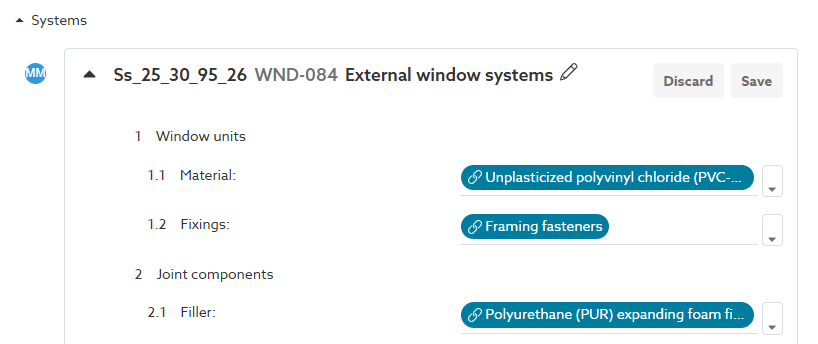
- In the row containing the clause you wish to unlink, click to the immediate left or right of the blue clause link bubble (chip) to position the flashing insertion marker.

- Use either the delete or backspace key on the keyboard (as appropriate) to remove the blue clause link bubble (chip).

- Save the system clause.
- If prompted to 'Delete linked items too?'. The green text will display how many clauses the prompt relates to, to view a list of these clauses, click the green 'x can be deleted' text.
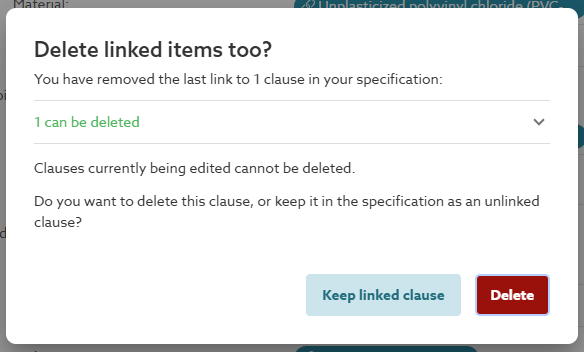
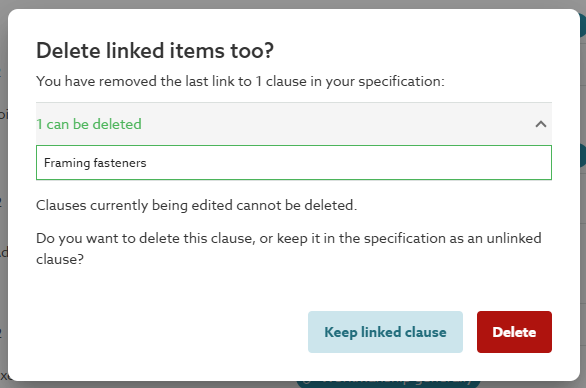
- Choose whether you want to delete the listed clause/ clauses from the specification, or keep it/ them in the specification as an unlinked clause(s), by clicking the appropriate button. The separate support article Removing last links to a clause provides additional information about this, including details on how you can subsequently remove a 'kept' clause at a later time.