
Since this support article was originally written, NBS has introduced two new features into the platform to help with 'packaging' parts of specifications together.
Separate documents: When publishing a specification, there is now an option to automatically publish each specification section or system as 'Separate documents'. Having separate files more readily allows you to 'package' and issue selected parts of the specification to different groups of recipients. Separate documents is available with 'Pro' and above subscriptions. For further information on this feature, please review the Publishing to 'Separate documents' articles.
Tagging: 'Tagging' allows you to add any number of user-definable tags to any section, system, article or clause. From the contents panel, you can filter by any one or combination of those tags and publish the required selection of content. Tagging is available with 'Premium' subscriptions. For further information on this feature, please review the Tagging articles.
For sectional-based content, the section will be included in full in the published output. However when publishing the specification it is possible to choose whether to include tags (and if so which to include), these will appear directly below the applicable section or article/ clause heading.
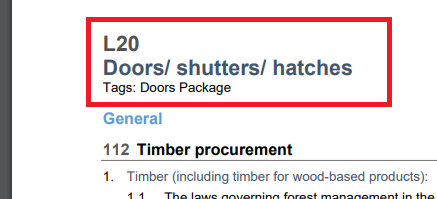
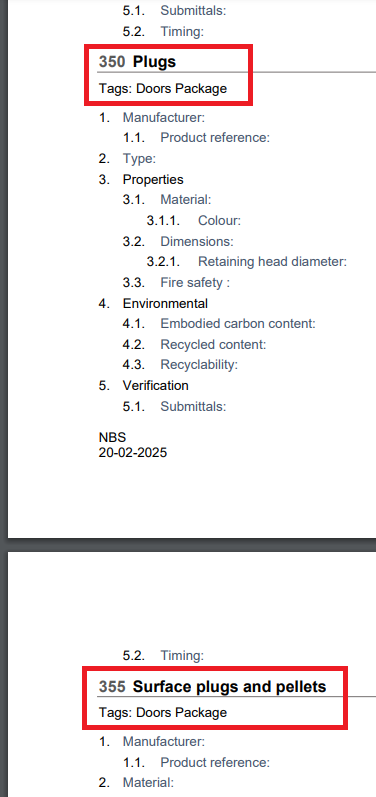
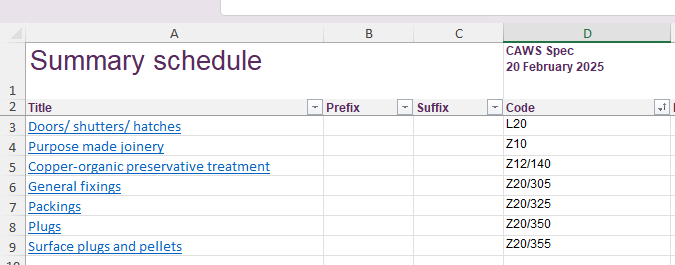
Additionally, it is also possible to use the Summary Schedule feature to create an Excel file as the basis for a list of relevant sections and articles/ clauses.
The original 'Work packages - An example work-around article' is included below for ongoing reference purposes.
You canadd both a prefix and a suffix to systems and products within a specification. This function can be used to sort specification content into groups. I'll show you how this works with the example of a numbered prefix:
While editing a system, you should see a pencil icon next to the system name:
Clicking on this icon allows you to edit the name of the system, and to add additional information such as prefixes and suffixes. I have added a prefix of [1] to the "Doorset system" below:
Customers have expressed interest in using work packages to organise projects by trade, for instance, grouping the elements that involve carpentry or masonry. Alternatively, you may have a contractor picked out to provide the work for a number of systems, which can now be grouped together.
You can see the prefixes in the appropriate column on the specification contents page:
Let's imagine a scenario where we have selected a contractor to provide the doorsets, external windows, and wall leaf systems. A reference, in this case [1], has been assigned to all systems being provided by that contractor. Now we want to export a document that only shows the content relevant to that contractor.
The search box can be used to filter the content by typing in [1]:
The list of contents now only shows the content that displays exactly "[1]" in either the prefix, title, or suffix. (This is the reason for the square brackets around the number 1, as we may use the number 1 in the title for example, but we reserve the use of square brackets for the prefix only)
To the left of the screen there a tick-boxes, you can either tick them individually, or click the tick-box at the top of the column to tick every box in the column. Once you have selected the content you would like to publish, you can select the "Actions" button to the right of the screen and publish as normal:
This produces a specification output document containing only the content we added a [1] prefix to.
There may also be systems or products that sit within multiple work packages. In the example below, doorset systems has been assigned a prefix of "[1] [2]", which means it will appear in the search results, when searching for either "[1]" or "[2]"
I have put together a short video which goes through the steps above (no audio):
Our customers at AHMM have taken this concept a step further for BIM Level 2-compliant projects; they use prefixes to create packages based on the first 6 alpha-numeric digits of the Uniclass code. For example:
- Ss_25_10 Curtain walling
- Ss_25_30 Door systems
- Ss_30_20 Floor and decking systems
These systems and any associated subsystems or products are assigned prefixes that group them together. This allows them to be easily searched, as in the example above.
For non-BIM Level 2 compliant projects, AHMM package by Construction Index/ Samarbetskommitten for Byggnadsfragor (CI/SfB). For example:
- (21) External walls
- (32) Door systems
- (33) Raised access floors
The way you package these systems and products depends entirely on your workflow, as different solutions suit different businesses. We hope this workaround has been helpful while the feature is still in development.
You can follow the development of work packages on our forums here.