
'Active users' lets 'Org users' see who is signed into the platform. 'Org Admins' can 'End the sessions' of other users.
The active users functionality differs depending on your role in the organization.
- Organization Administrators
- Can 'End sessions' for anyone in the 'Active users' grid.
- Can see the names of all users, both organization users and guests.
- Organization users
- Can end their own session. For example, if they have forgotten to sign out of a device they do not have with them.
- Will not see the names of external collaborators. External collaborators will be shown as 'Guest'.
- Guests
- Cannot access 'Active users'.
- Guests are users who have been invited to collaborate on projects, but are not org users. They are displayed as guests to everyone except to 'Organization administrators' will see their full name.
- Cannot access 'Active users'.
You can end your own session. This option is provided in case you leave yourself logged into a device that you cannot access.
Related: ‘What happens to a user when their session is ended?’
Click on Active users to see who is signed into the organization.
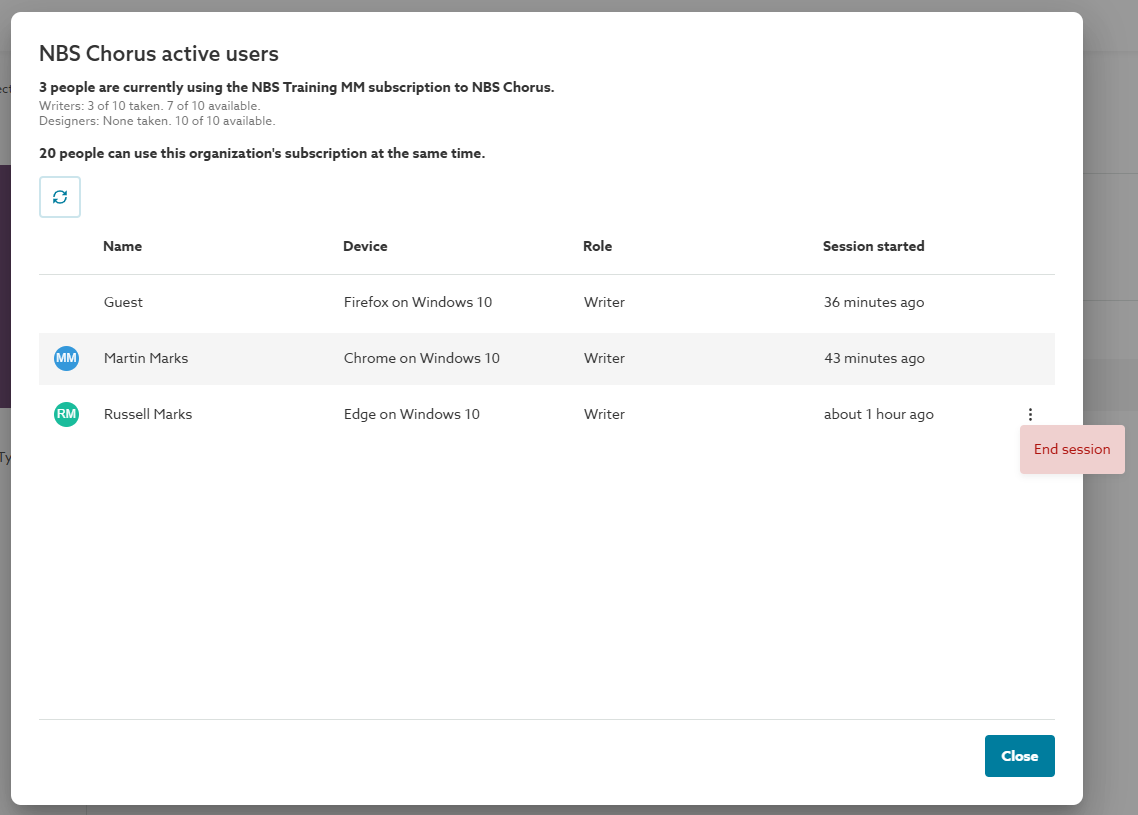
Screenshot of the 'Active' users grid showing the button to 'End session'.
How to end the session?
Organization Administrators can 'End sessions' for anyone in the 'Active users' grid. Org admins can do this even when all sessions are in use.
To end a session, simply open the ‘Active users’ area, click on the right-hand menu and select End session. The ‘Active users’ area can be accessed from five places:
- Click on your avatar or initials in the right-hand corner.
Select Active users from the menu.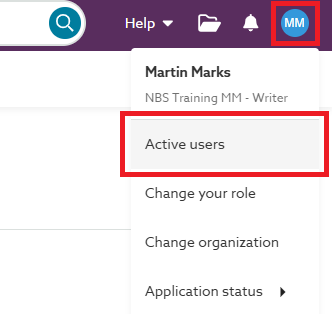 Screenshot showing the 'Active users' option on the profile menu.
 - Organization Administrators can click on Organization settings > User management > View active users.
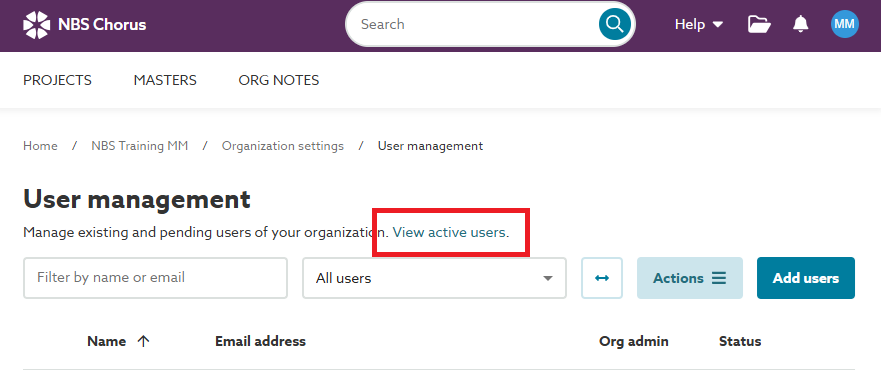 Screenshot showing the 'User management' area in Organization settings.
 - When someone has ended your session, click on View active users.
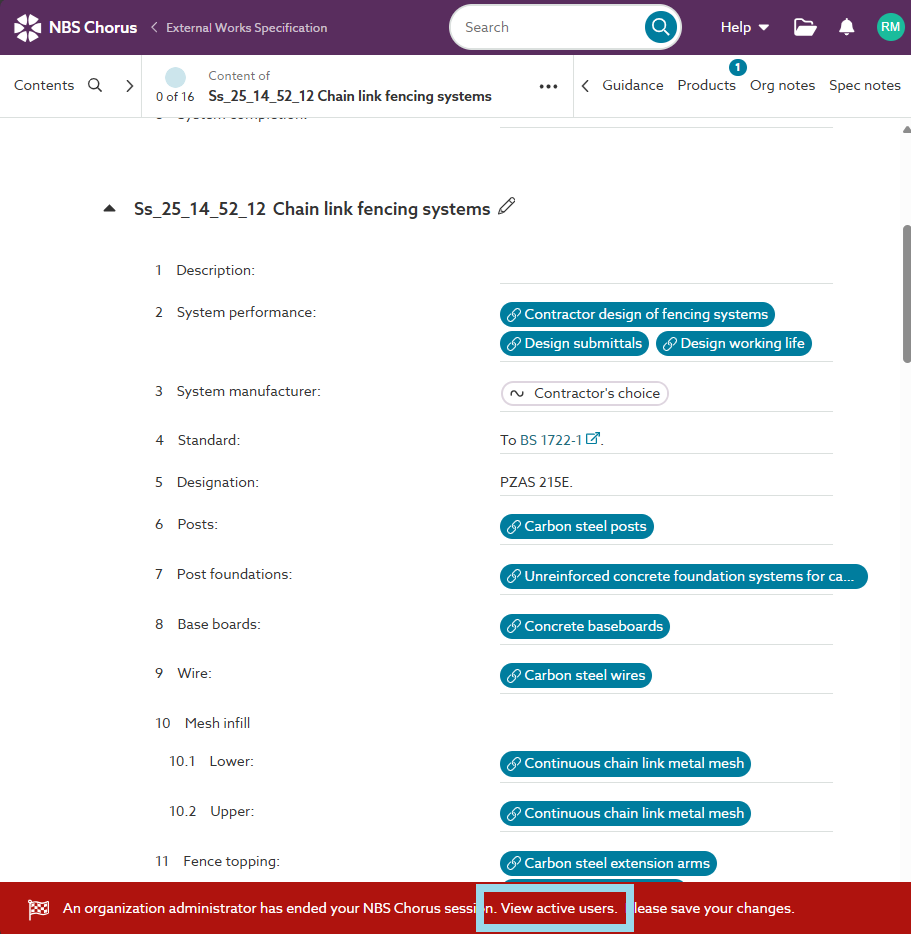 Screenshot showing the 'View active users' option when your session has been ended.
 - When you sign into the platform and all sessions as full, click on View active users.
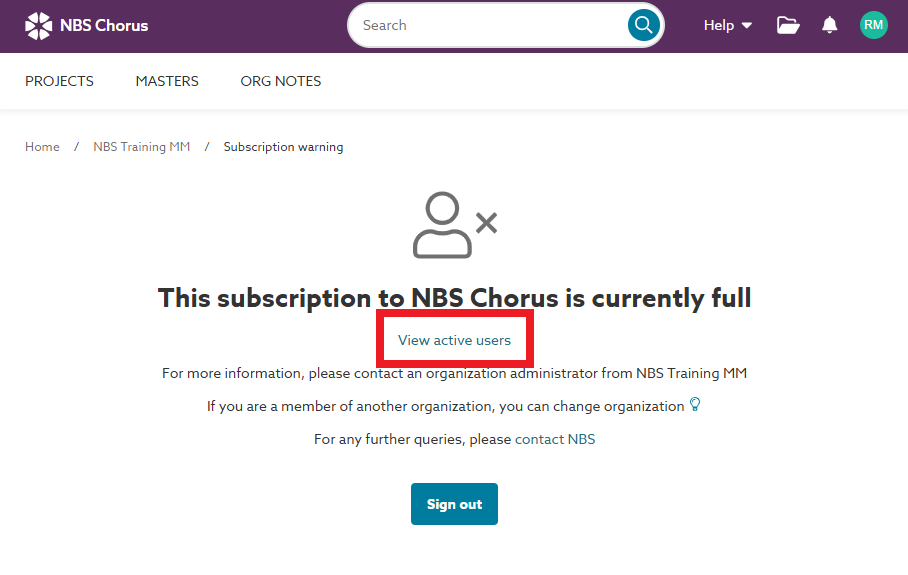 Screenshot showing the 'View active users' option when the subscription is full.
 - When you sign into an organization that subscribed to multiple roles, click on 'view active users'.
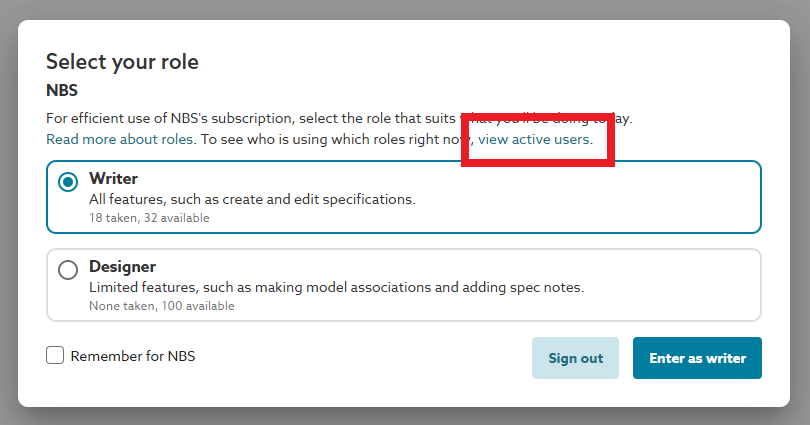 Screenshot showing the 'view active users' option when signing into an organization with multiple roles.