
The NBS Plug-in for Autodesk Revit includes a set of tag families. Tag families can be loaded into your Revit project to display annotations.
The annotation will show the prefix, code, title and suffix of the specification that the object is associated with.
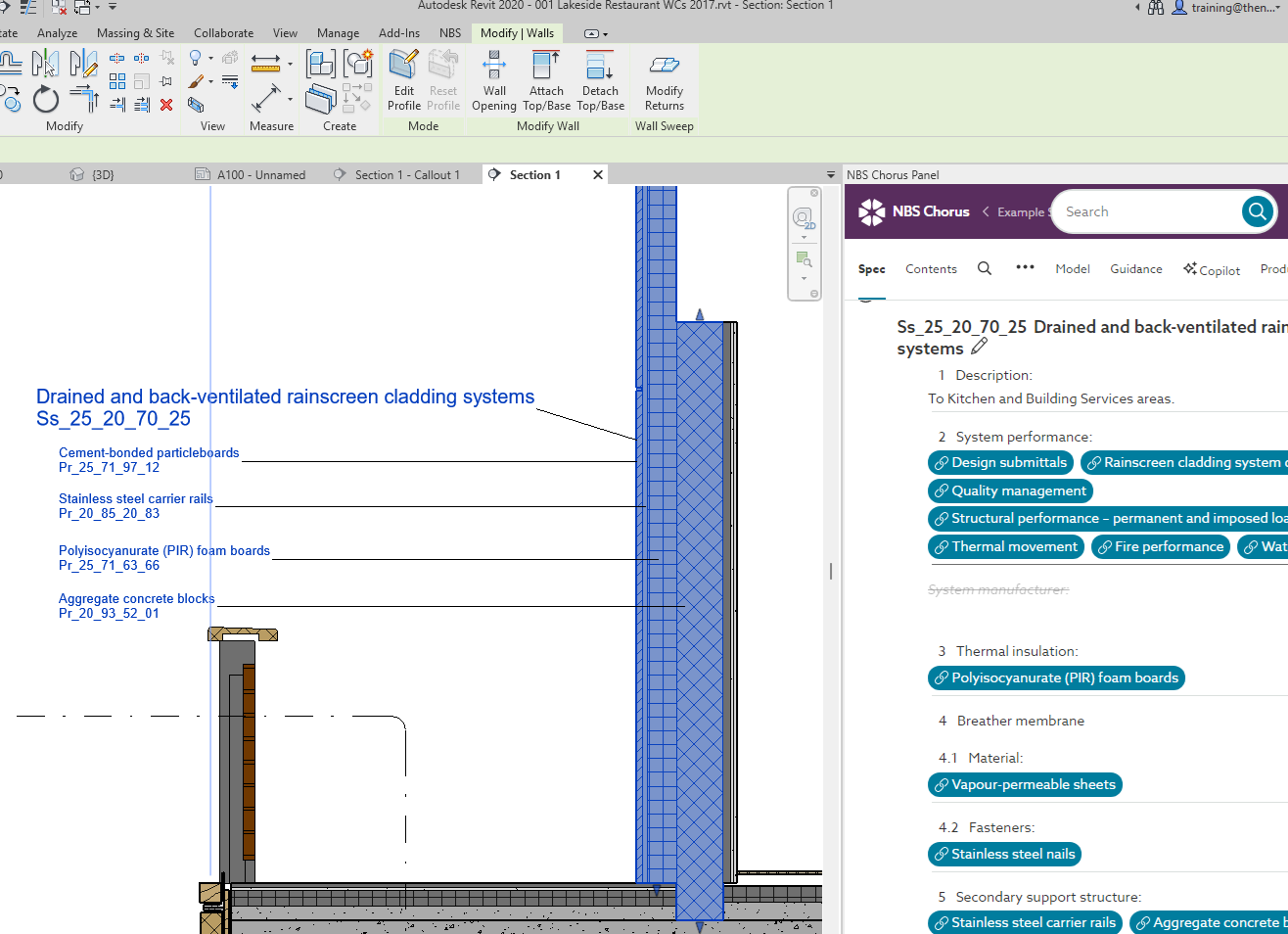
There are tags for annotating components e.g. a Door, and materials e.g. part of an overall wall make-up.
There are separate tags for the different specification content sets.
- Use the CAWS tags for specifications based on the 'UK - CAWS' content sets.
- Use the OmniClass tags for specifications based on the Canadian and USA content sets (CMS, NMS and USA - USMS).
- Use the Uniclass tags for specifications based on the Australian and UK - Uniclass content sets.
- Use the MS Word Import tags for 'Australia - SureSpec' and 'Australia SpeedSpec' content sets.
The tag files are found in the following locations:
Revit 2023 - 2027
C:\Users\--UserName--\AppData\Roaming\Autodesk\ApplicationPlugins\NBS.bundle\Contents\Revit2023\Redistributables\tags\NBS Chorus
Revit 2020-2022
C:\Users\--UserName--\AppData\Roaming\Autodesk\ApplicationPlugins\NBS.bundle\Contents\Revit2020-2022\Redistributables\tags\NBS Chorus
You can also find the tag locations by selecting the NBS tab in Revit and clicking the BIM Tools icon and selecting NBS Tags:
Drag-n-drop the appropriate pair of tags into your model, or load these tag families into your model as follows:
- Click on the Insert tab in the ribbon.
- Select Load Family.
- Browse to the NBS Plug-in for Autodesk Revit install location (default location is shown above) and select Open.
- The family type is now available to place in your model. It displays in the appropriate component category under Families in the Project Browser.