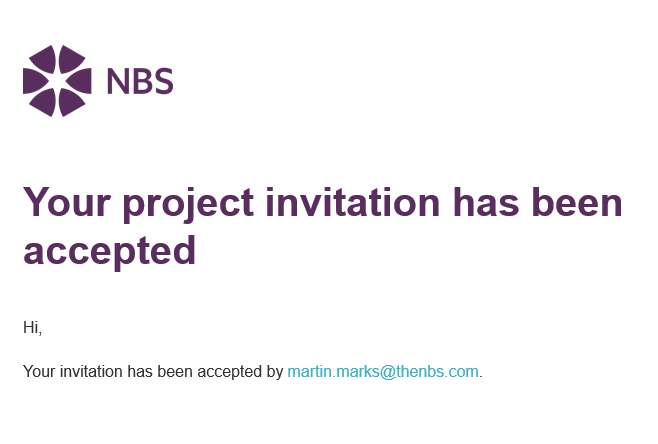
When you invite someone to a project, they will be notified by email and get a notification directly in the platform. Once the invitation has been accepted, you will be notified.
1. 'Invite users'
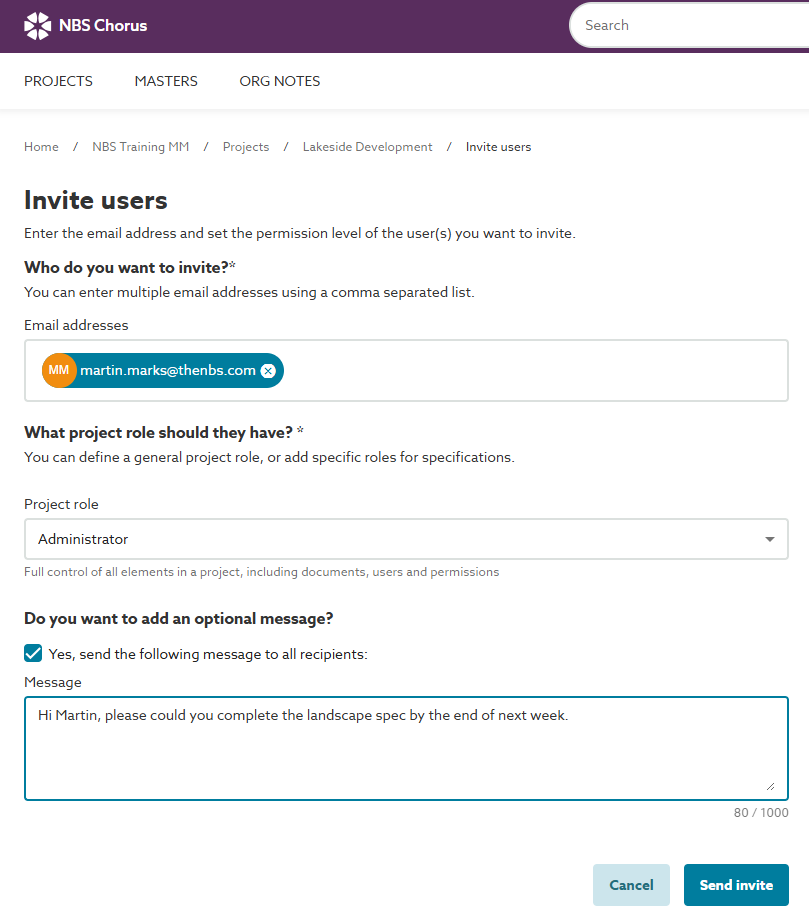
2. Invited user receives an email
The first paragraph of the email will display the name of the person sending the invitation, the title of the project to which the invitation relates and the name of the Organization the project is located within.
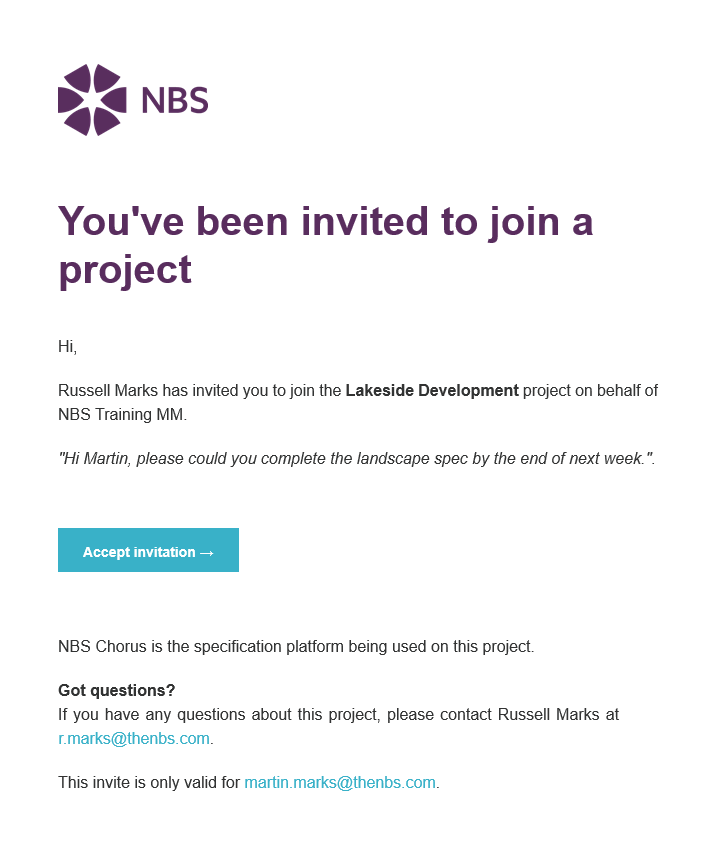
Accepting the invitation
Sign up: New users to the platform will be prompted to 'Sign up' by registering the email address they were invited by.
Sign in: Existing users can sign in.
Ignoring the invitation
If the invitation is ignored it will expire after 30 days.
3. Invited user also gets a notification in the inside the platform
This will be displayed as a blue badge on the bell icon.
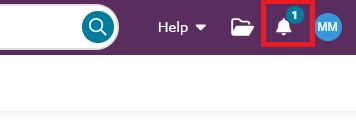
Clicking on the bell icon will display the title of the project the user is invited to and the name of the NBS Chorus Organization the project is located within. At the right-hand side are buttons to either accept or reject the invite:
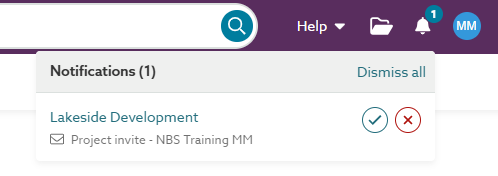
Accepting the invitation
Clicking the blue Tick icon will accept the invitation. The user will then see a View button in place of the tick and X buttons.
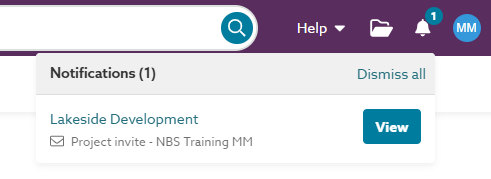
Clicking the view button redirects the user to the project's specification list.
Rejecting the invitation
Clicking the red X icon will dismiss the notification. It will be removed from the notification panel. If there are no other active notifications to display, the notification panel will also close. It will no longer be possible to accept the invitation from the email notification.
Ignoring the invitation
If the invitation is ignored, it will expire after 30 days, it will not be removed from the notification panel until it is dismissed.
4. You will receive an email confirmation when the invitation has been accepted