
'Organization administrators' can restore deleted projects and master folders.
Restoring a deleted project or master
To restore a deleted project or master folder:
- Go to the 'My projects' or 'My masters' dashboard.
- Click on the 'Deleted projects' or 'Deleted master' tab. This tab is displayed just above the 'Create project' or 'Create folder' button.
Please note: You will only see the 'Deleted project' or 'Deleted master' tab if you are the project or master folder administrator. - Find the item you want to restore.
- Click on the 3-dot menu to the right of the grid.
- Click 'Restore project' or 'Restore master'.
- You will receive confirmation that your item has been restored.
The word '(restored)' is appended to the 'Project title' or 'Master title' for easy identification.
Related article: Restoring deleted whole specifications and masters
If you would like us to develop functionality to restore individual articles, clauses, sections and systems, please vote on these posts in the 'Features and ideas' area.

Restore deleted 'Articles, Clauses, Sections and Systems'.
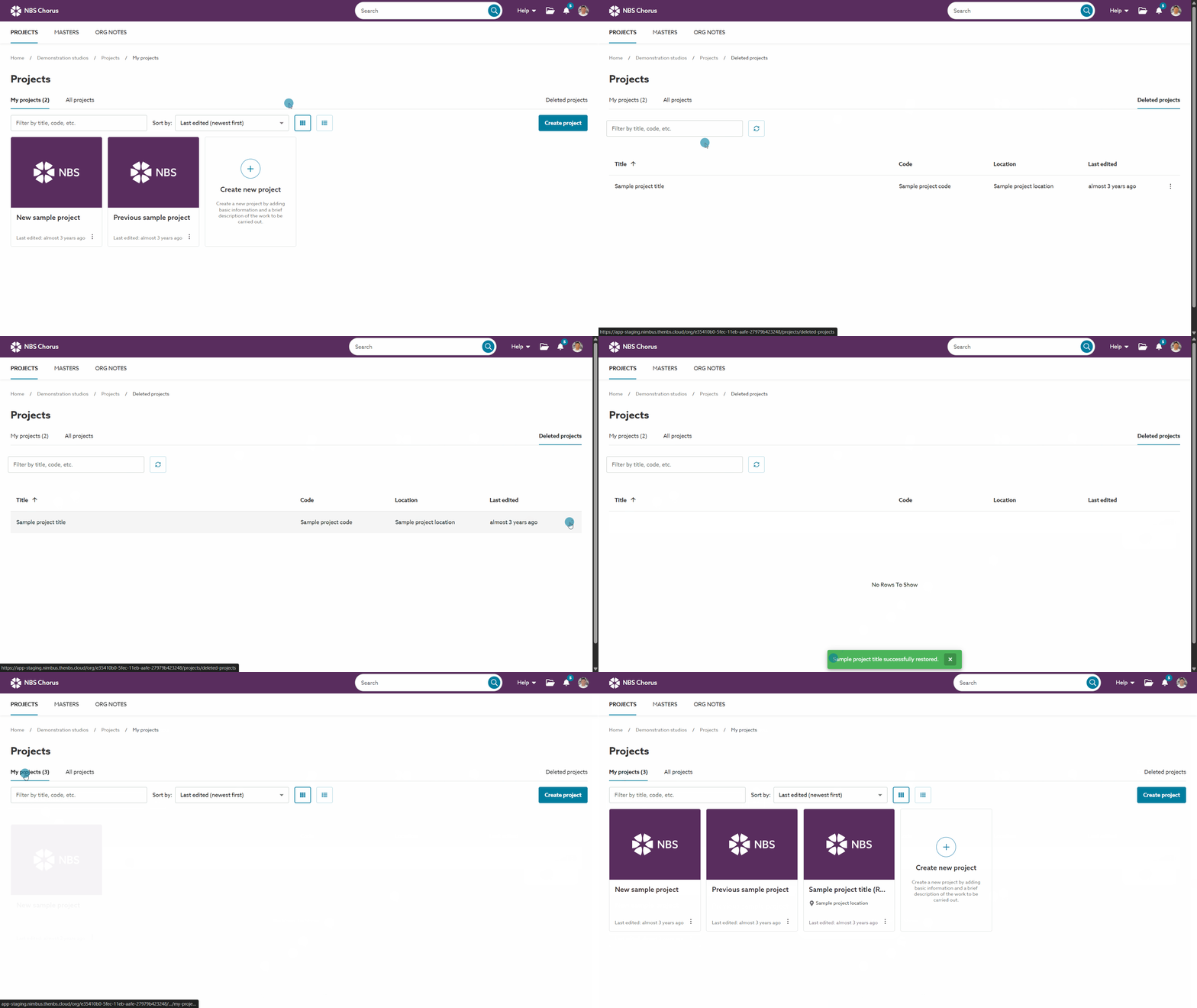
A screen capture showing how to restore a deleted project.
A project or master with the same code already exists
You will see the message below if you attempt to restore a project or master that has the same 'Project code' or master 'Folder code' as an active project or master.
The 'Project code' or master 'Folder code' is a required value, and they must be unique.

The message will indicate whether a 'Project code' or a master's 'Folder' code already exists.
It states, 'A {project or master} with the same code {'Project code' or master 'Folder code' value} already exists. Please change the 'Code' of the {project or master} and try again.'
To resolve this, we suggest editing the value of the active project or master code.
Follow these steps:
- Note the code which already exists.
- Click on the 'All projects' or 'All masters' tab.
- Search for the code from step 1.
- Open the project or master and click 'Edit details.
Please note that if you do not have an existing permission on the project or master, you can either contact the Administrator(s) and request an invitation or make yourself an admin using the 3-dot menu.
'Make me an admin' is explained in the 'Make me an admin' section of the ‘All projects’ for the organization article. - Change the 'Project code' or 'Folder code' value.
- Save your changes.
- Return to the 'Deleted projects or 'Deleted masters' tab and repeat the restoration of your item.