
The ‘My Mentions’ page shows all notes where you have been '@' mentioned. This feature is especially helpful for collaborating on projects with multiple organisations, as it gathers all your mentions in one place.
How to open 'My mentions'
You can access the 'My mentions' page in two ways:
- Click on your profile menu, then select 'My mentions'.
or - Select the 'Notifications' menu and then 'View all' in the 'Mentions' section.
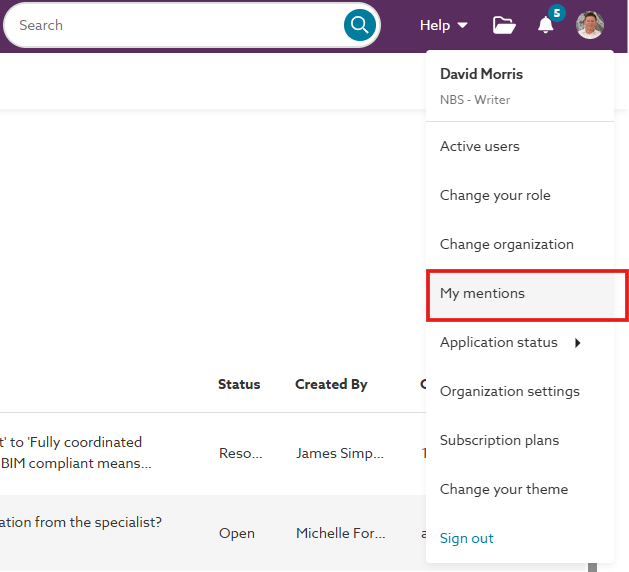 A screenshot of the 'My mentions' option on the profile menu. A screenshot of the 'My mentions' option on the profile menu. | 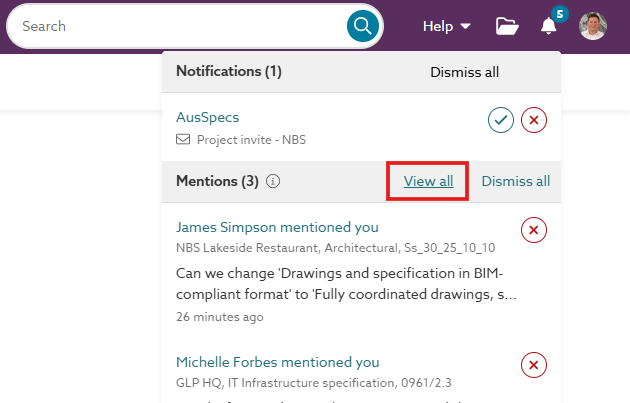 A screenshot of the 'View all' option on the Notifications menu' |
About the 'My mentions' page
Your ‘My mentions’ page will show entries when you've been mentioned ('@') in a ‘Spec note’ or ‘Master note’ from an organization using 'Pro' or a higher version.
- The 'My mentions' page displays all 'Open' and 'Resolved' notes in which you are '@' mentioned.
- It displays notes made in the past 90 days.
- The 'Show resolved' toggle allows you to display or hide resolved notes.
- You can access the specification or master with the note by clicking the link in the 'Title' column.
- Left-clicking will navigate you to the note.
- Right-clicking opens the note in a new browser tab.
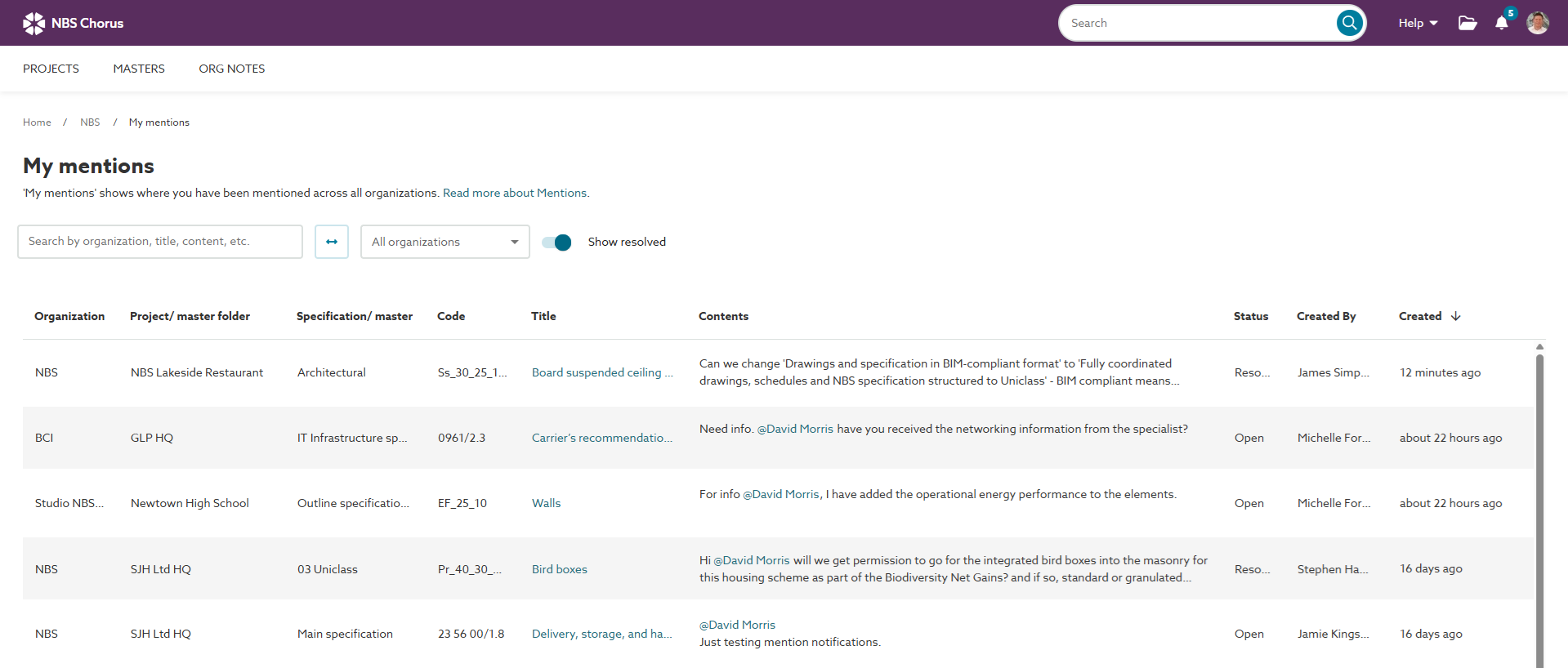
This is a screenshot of the 'My mentions' page, which displays all notes in which you have been '@' mentioned.