
This article will cover how you can bring product details from NBS Source into your NBS Chorus specification by using the 'Add To Spec' button in NBS Source.
Step 1: Finding the product you wish to specify
- The first step you will need to take is to locate the product in NBS Source, this article will guide you through searching for content - How do I search for a particular product or manufacturer? : NBS Support (thenbs.com)
Step 2: Decide where to place the product in your specification.- Uniclass, CAWS, SpecPack, SpeedSpec or SureSpec specifications only
- You may already have a clause in mind where you wish to specify the product, however, if you don't know where to place the product if you scroll down to the 'General' section within the product you should see the classification information for both CAWS and Uniclass
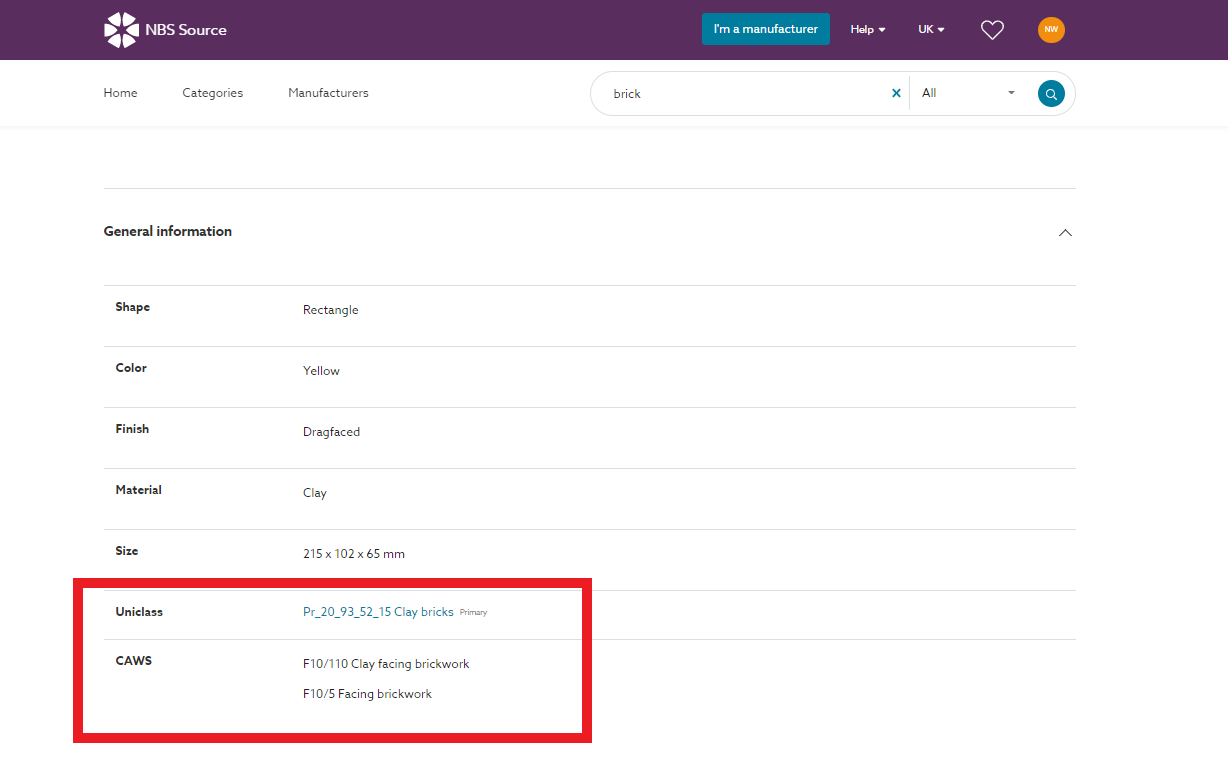
- Once you know which section/system you wish to use you will need to ensure this has been added to your specification.
Step 3: Copying product information into a specification
- In NBS Source select the 'Add To Spec' button
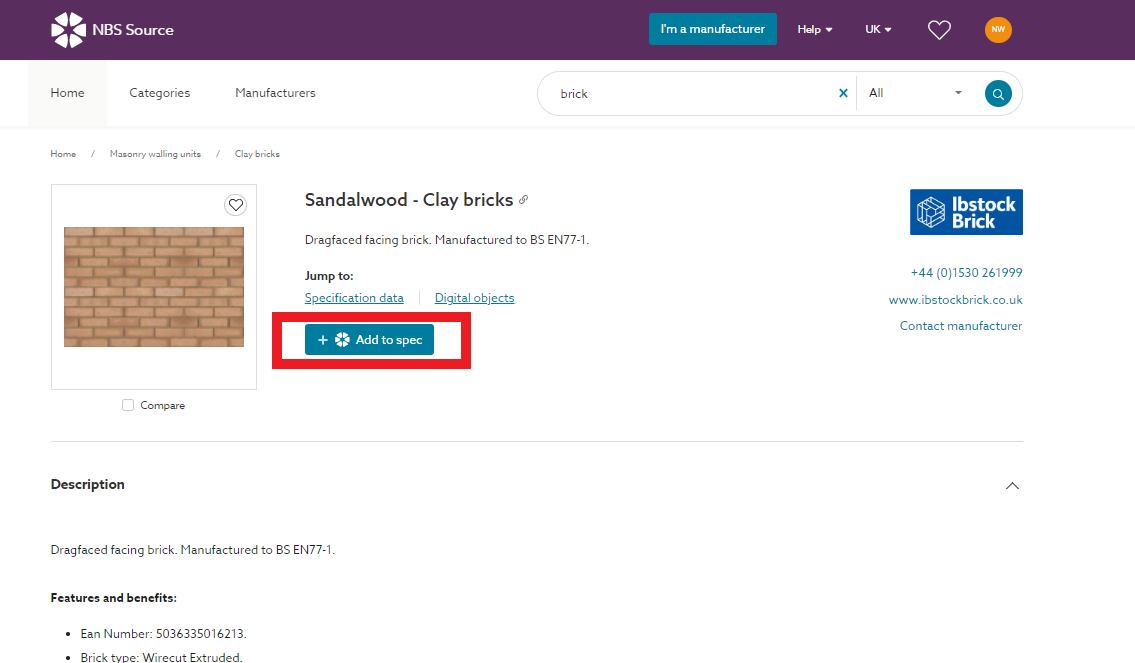
- This will copy the Product information to your clipboard
Uniclass, CAWS, SpecPack, SpeedSpec or SureSpec specifications
- Next, you will navigate to the Section/System you wish to place the product in and place your cursor in one of the rows as if you were going to type
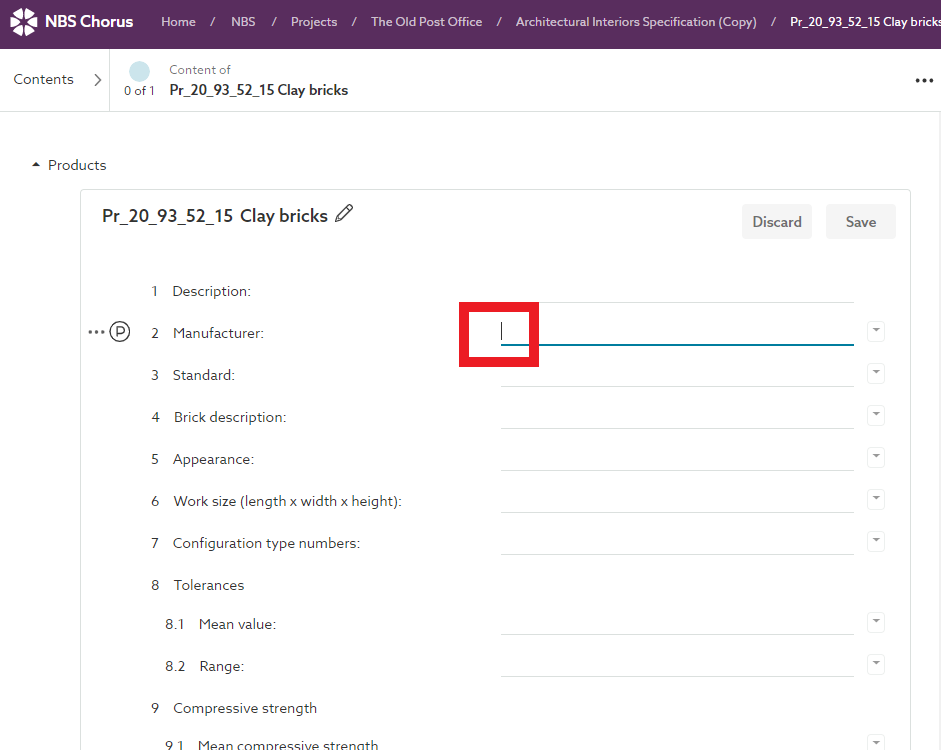
- Finally, press CTRL+V (CMD+V) and this will paste the information into your specification.
CMS specifications
- Next, navigate into the project and specification to display the contents list of the specification you wish to place the product in.
- Finally, press CTRL+V (CMD+V) and this will paste the information into your specification as a new section.